TABLE OF CONTENTS
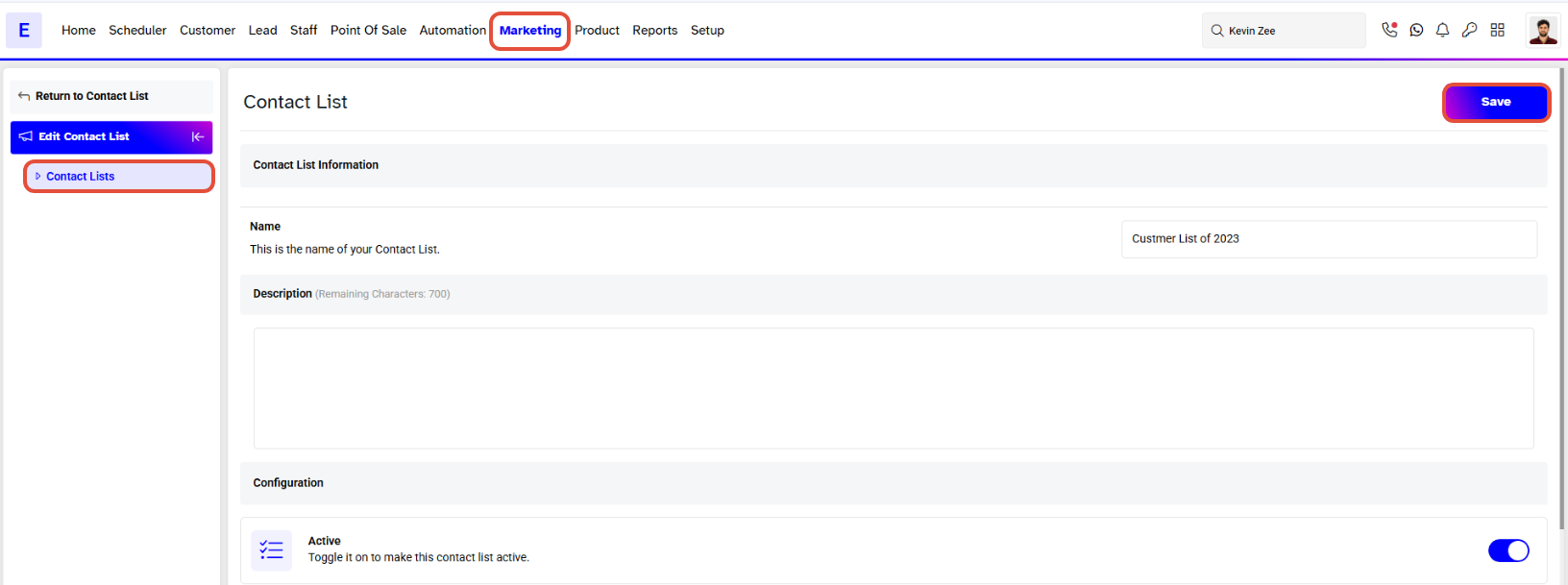
- Step 1: Navigate to Contact Lists
- Step 2: Enter Contact List Details
- Step 3: Configure Rules
- Step 4: Save the Contact List
Overview
This guide explains how to add a Contact List in Core. It covers all essential steps — from navigating to the contact lists and entering details to configuring rules and saving. By following this guide, merchants can create and manage targeted customer lists for their campaigns.Step 1: Navigate to Contact Lists
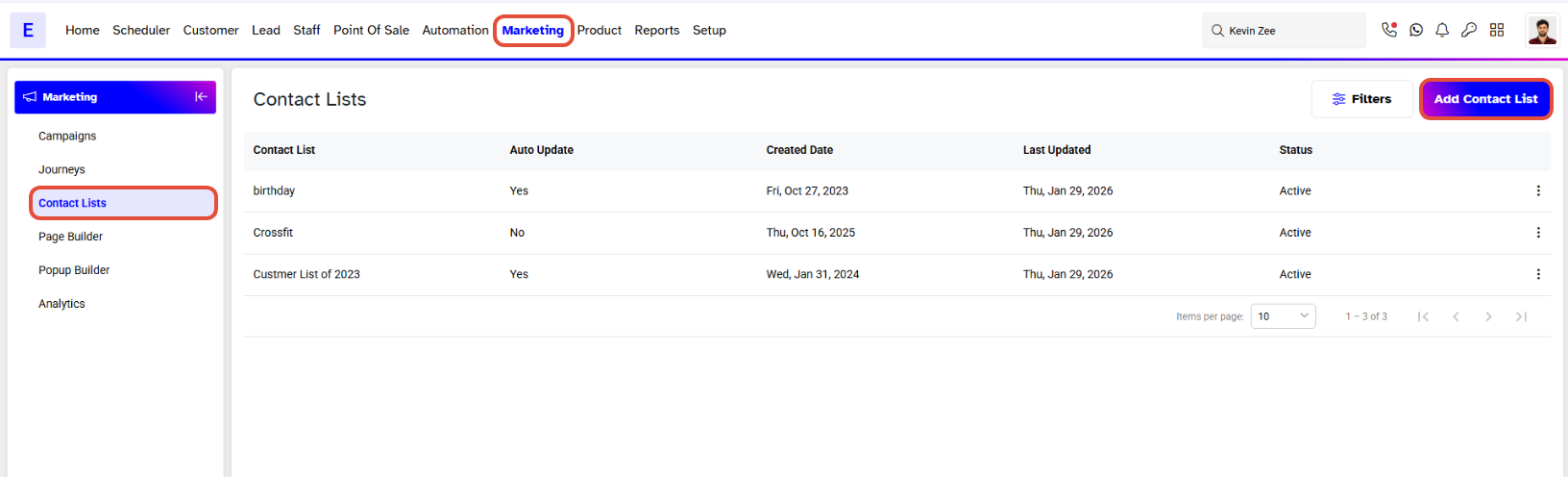
- Go to the Marketing Module in Core.
- Click on the Contact Lists Tab.
- Click on the Add Contact List Button.
Step 2: Enter Contact List Details
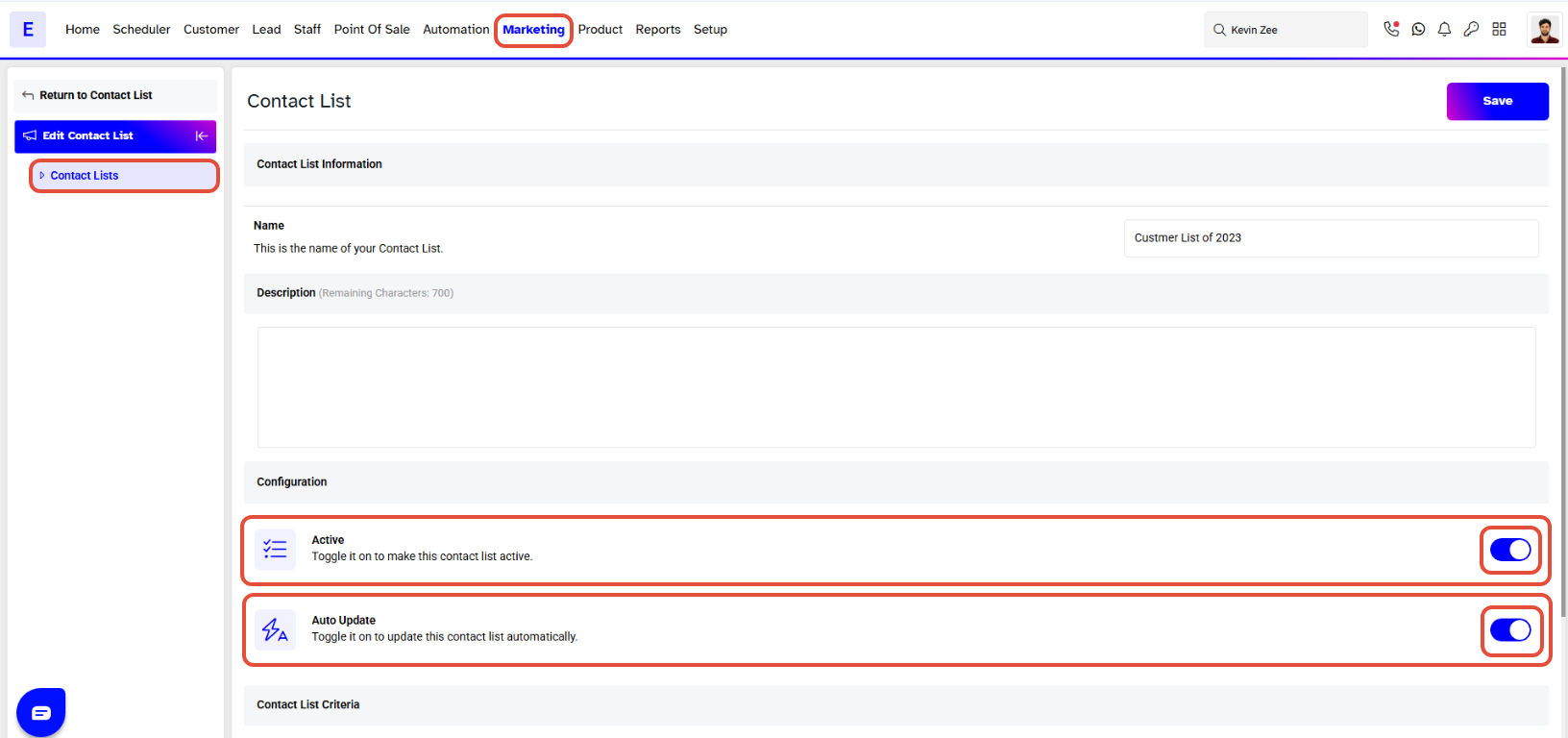
- Toggle on the Active button to activate the Contact List.
- Enable the Auto Update toggle to keep the Contact List updated based on the selected criteria.
- Name: Type the name of the Contact List.
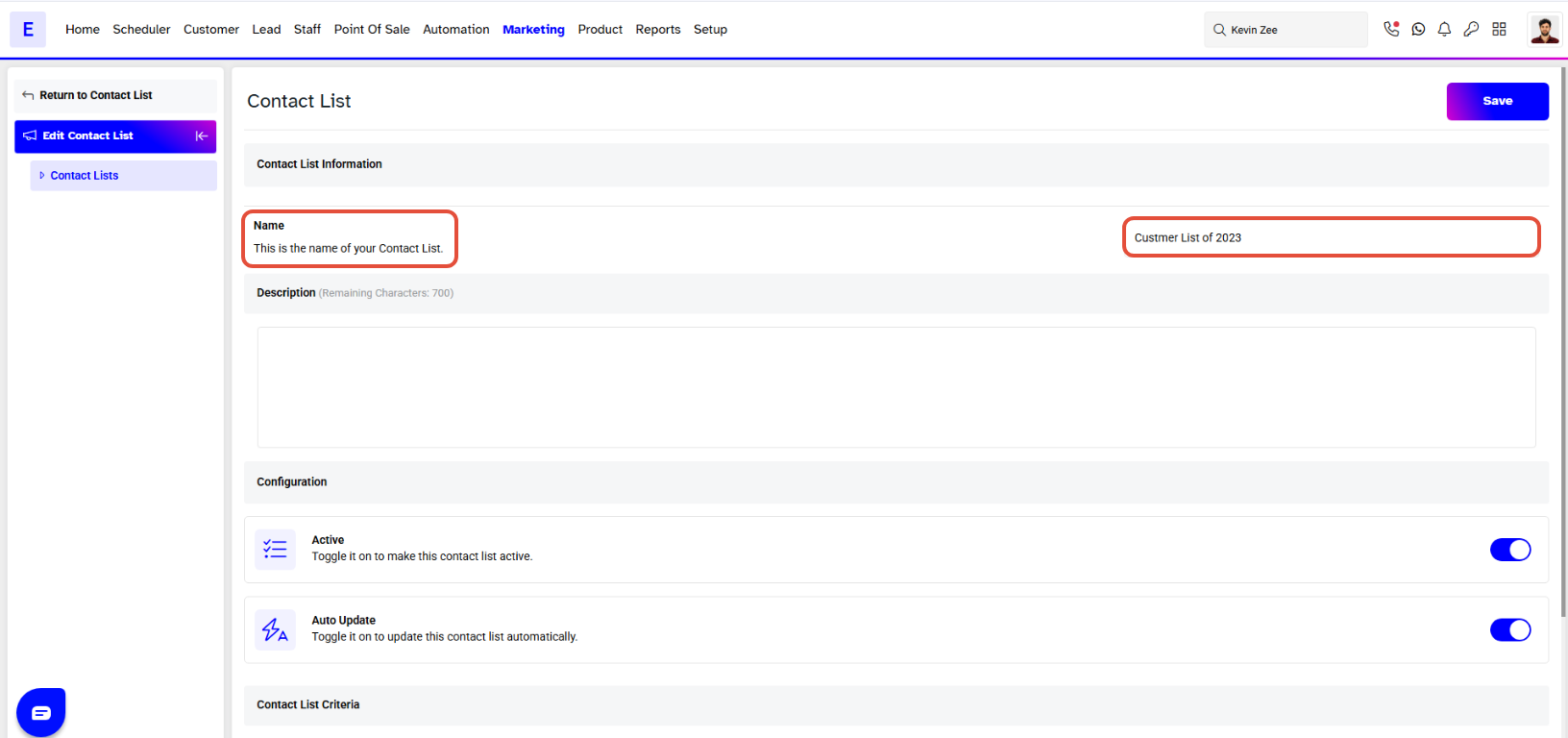
Description: (Optional) Add a description for the Contact List. The limit is up to 700 characters.Step 3: Configure Rules
- Click on the Add New Rule Button to set the Customer Contact List Criteria.
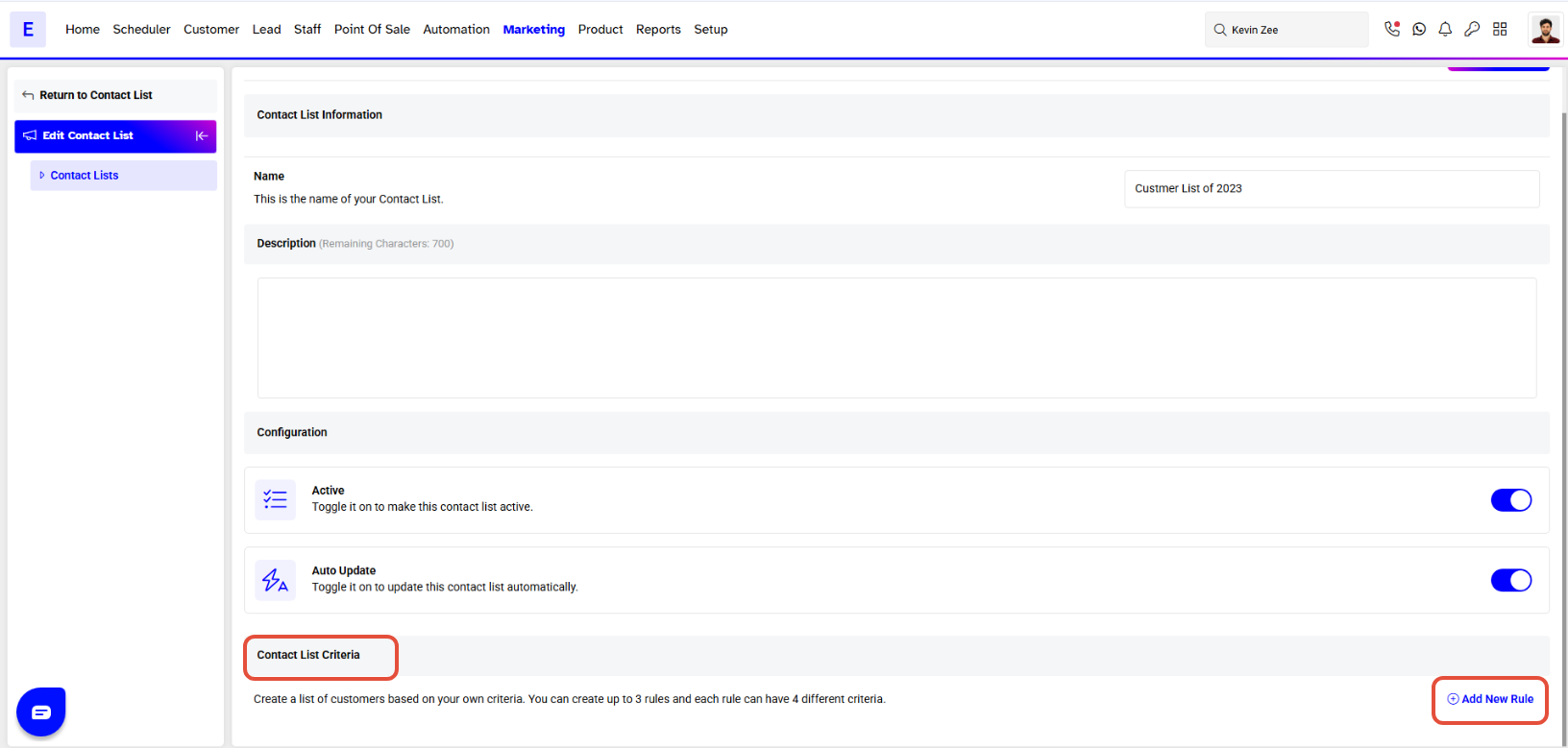
- A Rule Popup will appear on the screen.
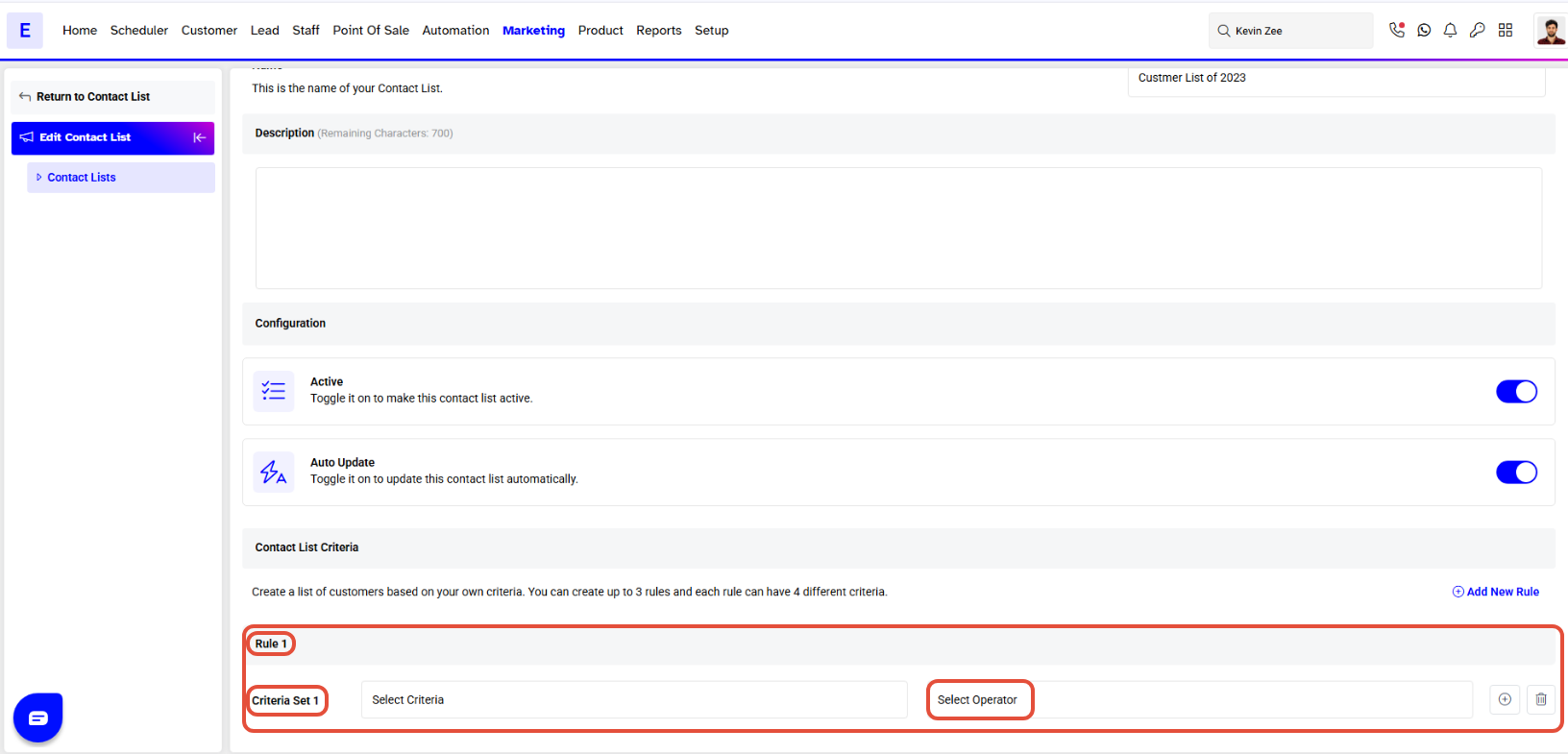
- Set the Criteria and their Operators.
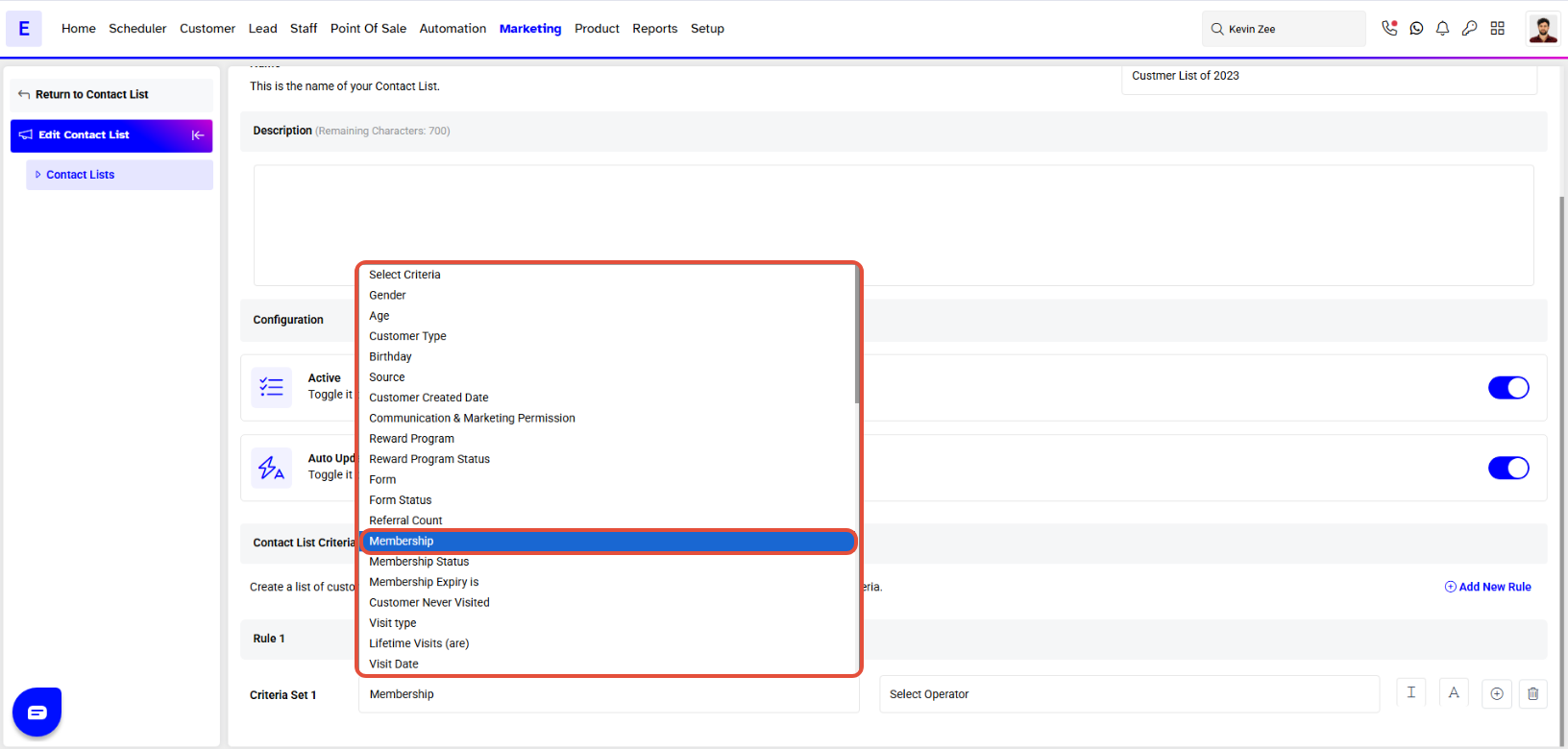
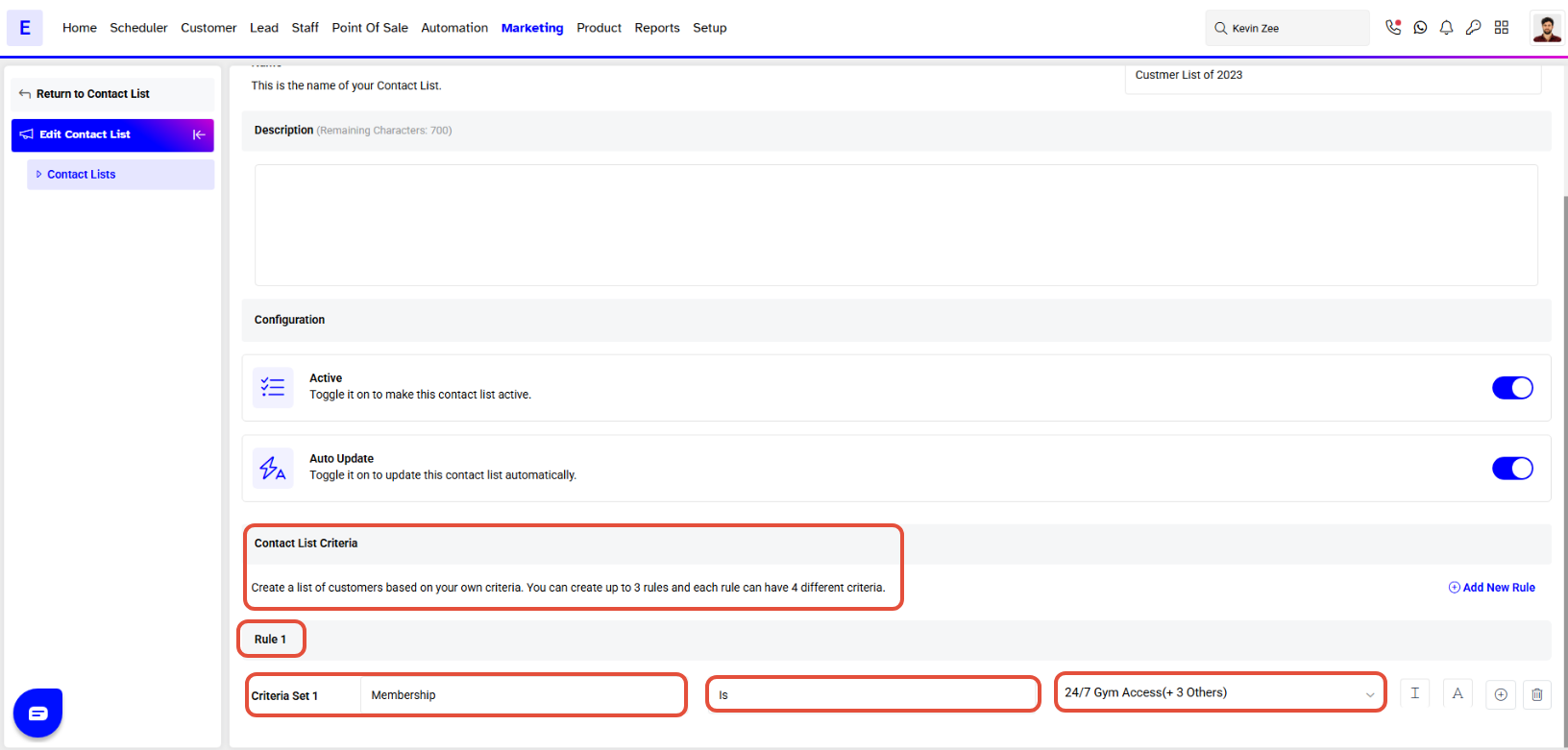
A Contact List Criteria can include up to 3 rules, and each rule can have 4 different criteria.- Specify the And/Or Conditions for more than one Criteria.
- And: All conditions must be fulfilled.
- Or: Selection is made even if one condition is satisfied
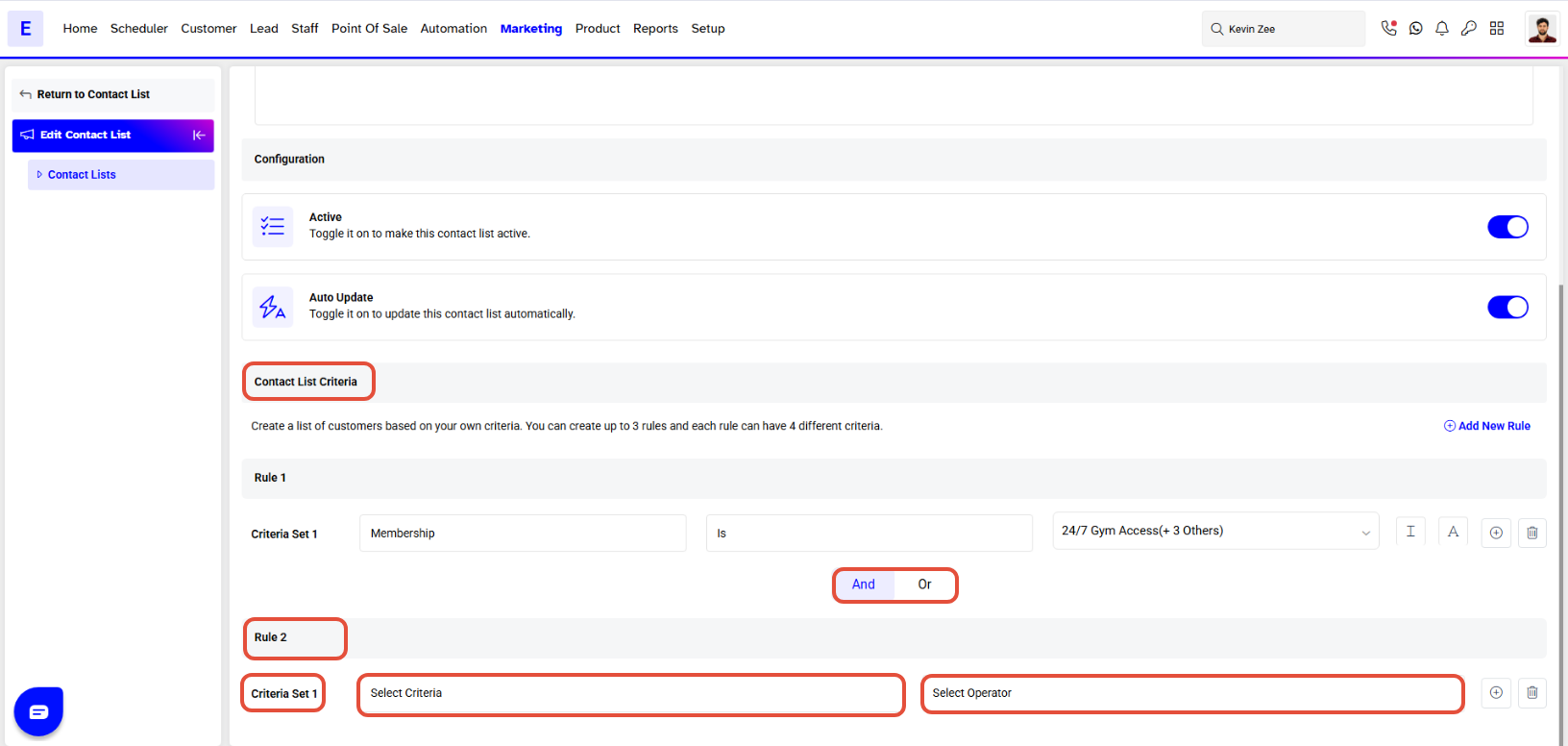
And means all conditions must be fulfilled while Or relates to making selection even if One condition is satisfied.
Step 4: Save the Contact List
- Click on the Save Button.