TABLE OF CONTENTS
- Overview
- Step 1: Navigate to the Reports Module
- Step 2: Access the Expired & Terminated Memberships Report
- Step 3: Choose Custom Column Names
- Step 4: Generate the Report
Overview
This guide explains how to see which Membership of a Member has either Expired or been Terminated within a certain date range.
Step 1: Navigate to the Reports Module
- Go to the Reports Module.

Step 2: Access the Expired & Terminated Memberships Report
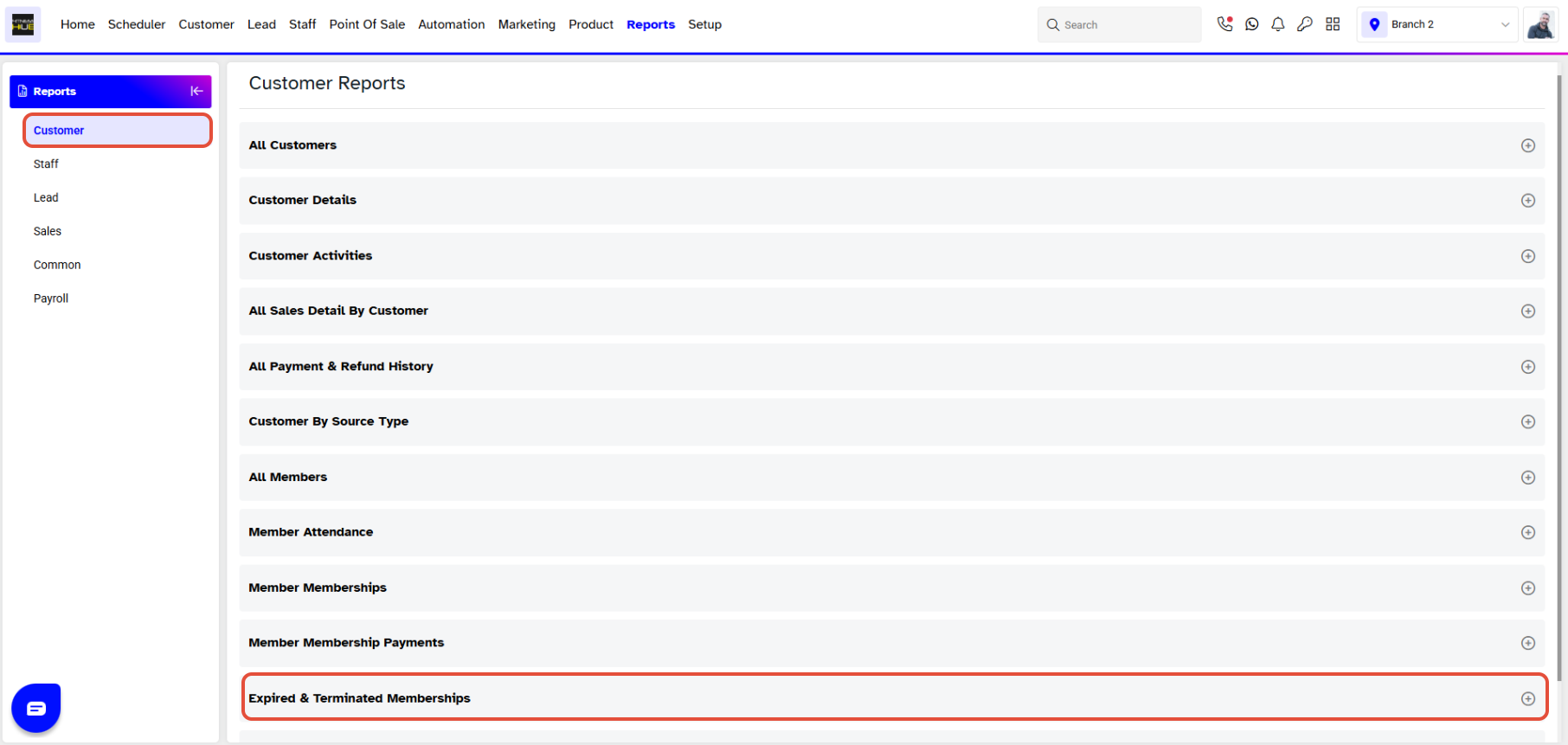
- Navigate to the Customer Tab.
- Click on the Expired & Terminated Memberships Report.
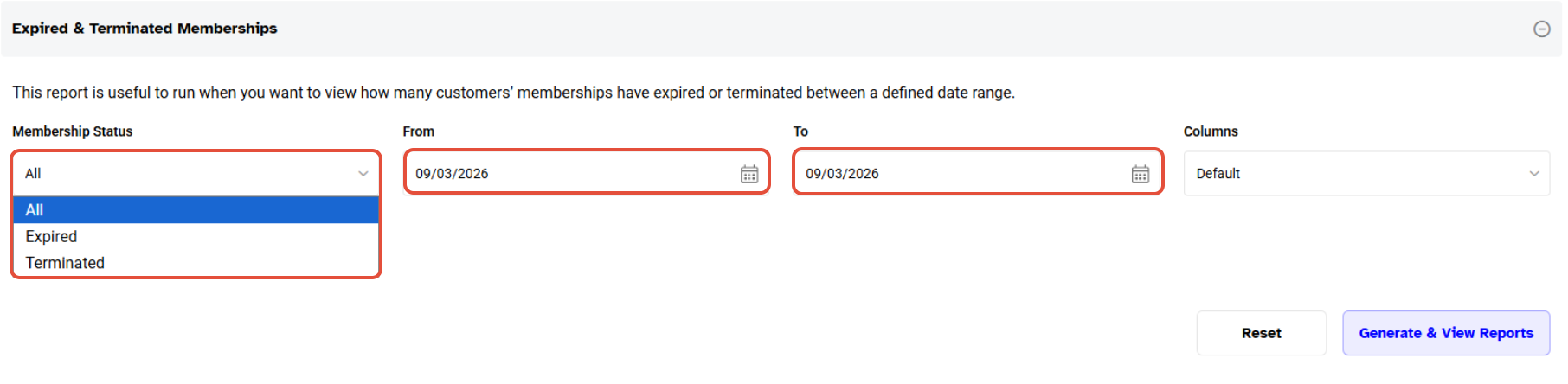
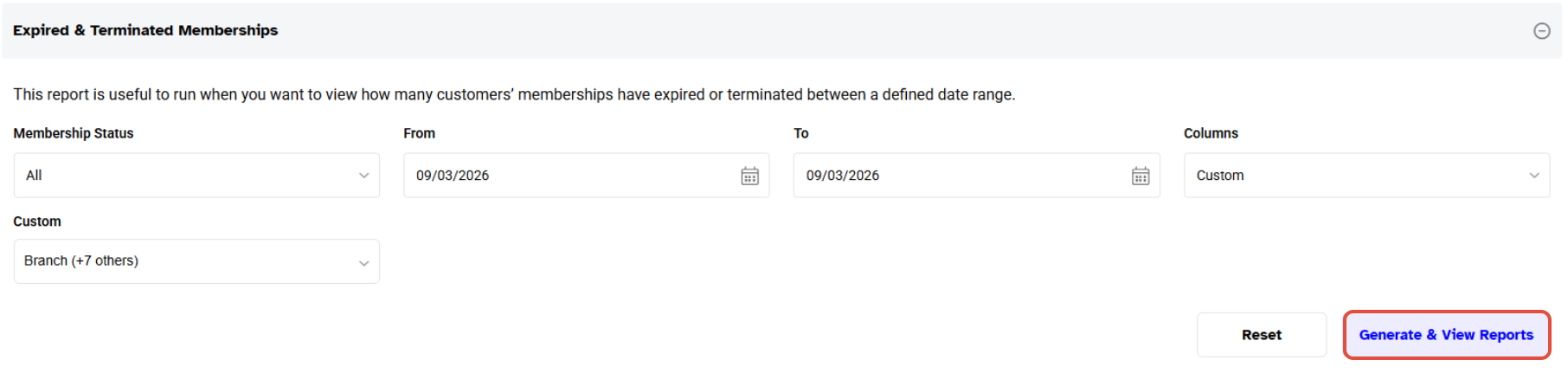
- This report contains the following fields:
Membership Status: Select among Expired, Terminated or All statuses.
From: Select a Start Date for the search.
To: Select an End Date for the search.
Step 3: Choose Custom Column Names
Now. choose the desired Customized Column Names from the drop-down menu next to the Columns field to be included in the Report.
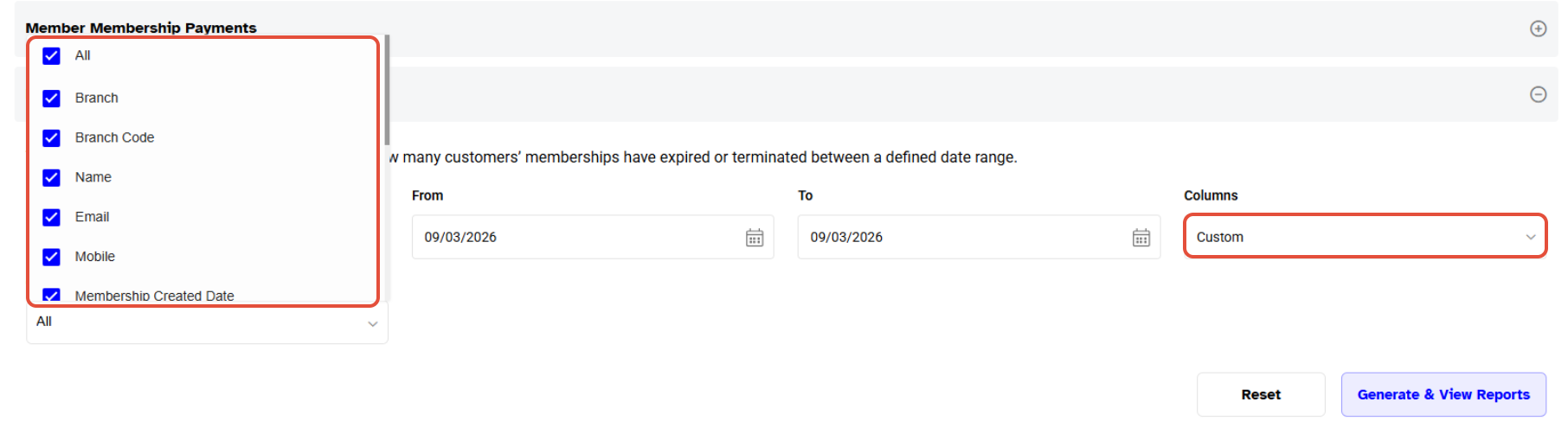
Custom Columned Reports can't be downloaded in PDF.
Step 4: Generate the Report
- Once done, click on the Generate & View Reports Button.
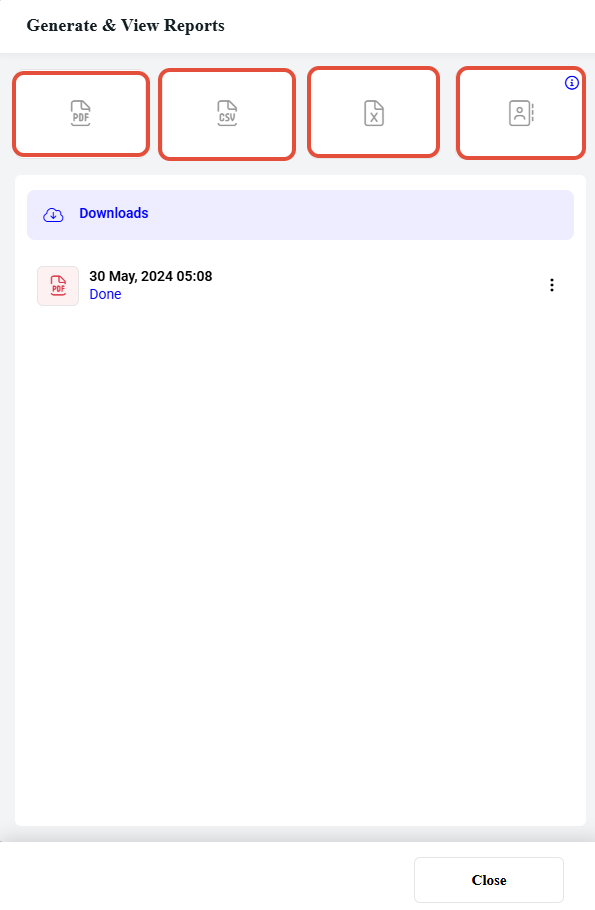
- To generate the Report, select the desired format.
- After generating the Report, you can download it by clicking on the Download Icon.
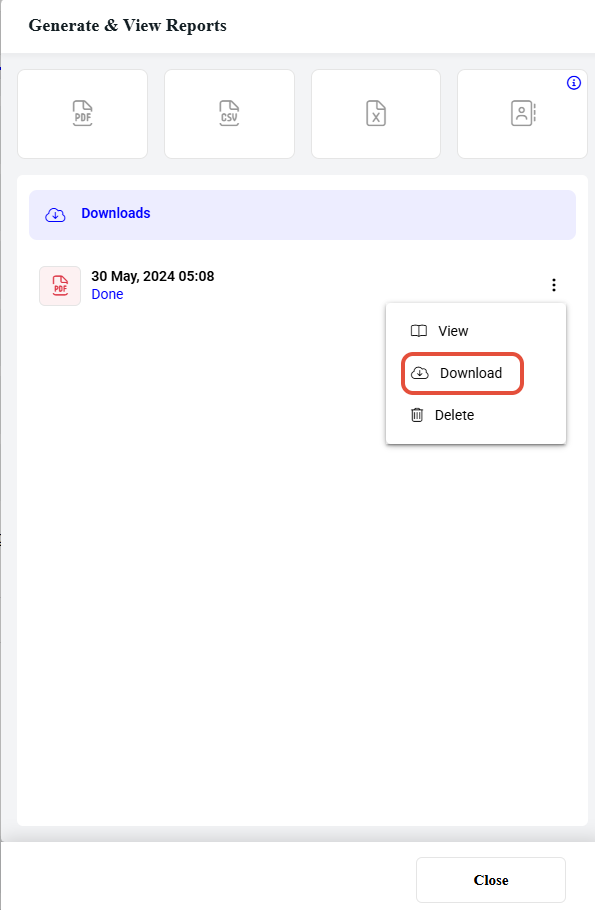
The generated Report can be downloaded multiple times within 30 Days.
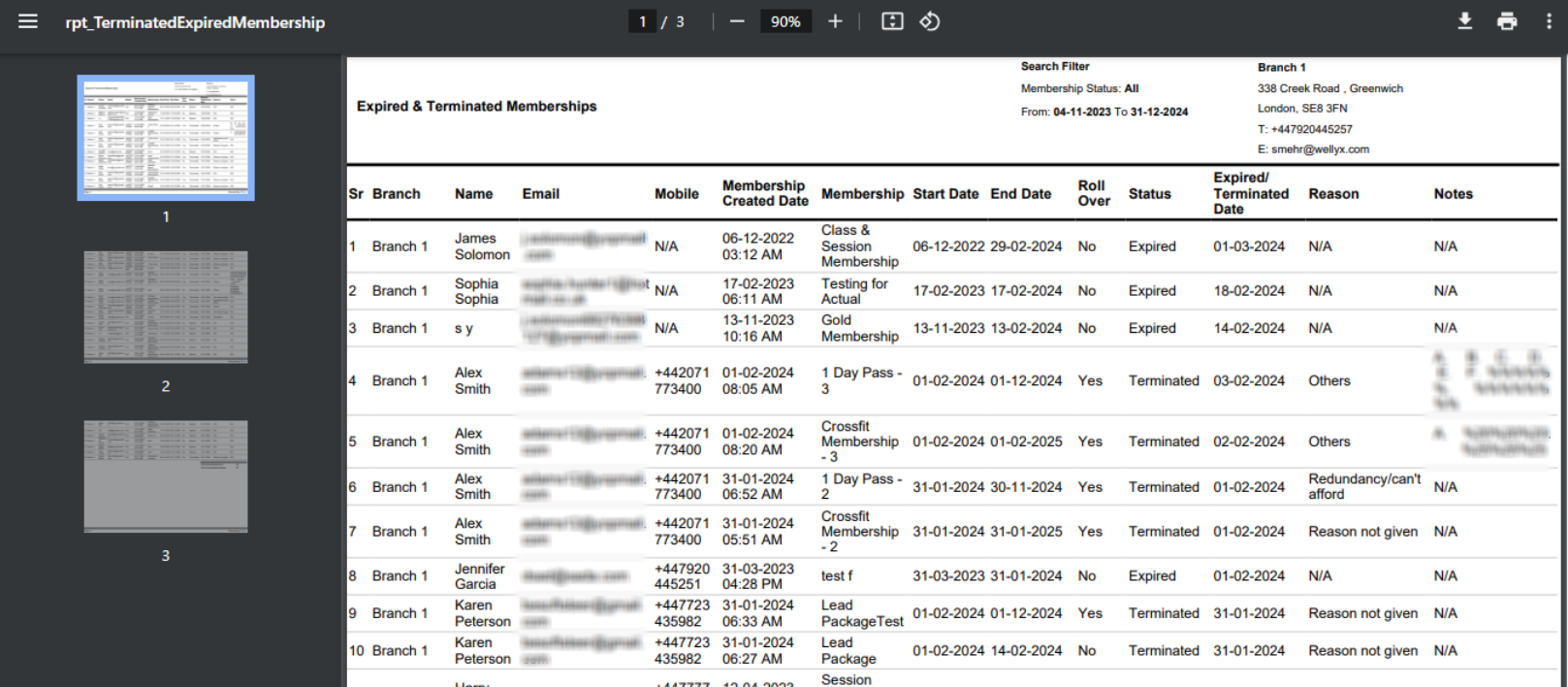
The Expired & Terminated Memberships will display the following:
- Sr #
- Name
- Activity Type
- Title
- Created Date
- Contact Reason
- Outcome
- What's Next
- Follow-Up-Date
- Start Time
- End Time
- Notes