


TABLE OF CONTENTS
- Overview
- Step 1: Navigate to the Reports Module
- Step 2: Select Customer Report Segment
- Step 3: Select Source Type
- Step 4: Select Membership Status
- Step 5: Generate Report
Overview
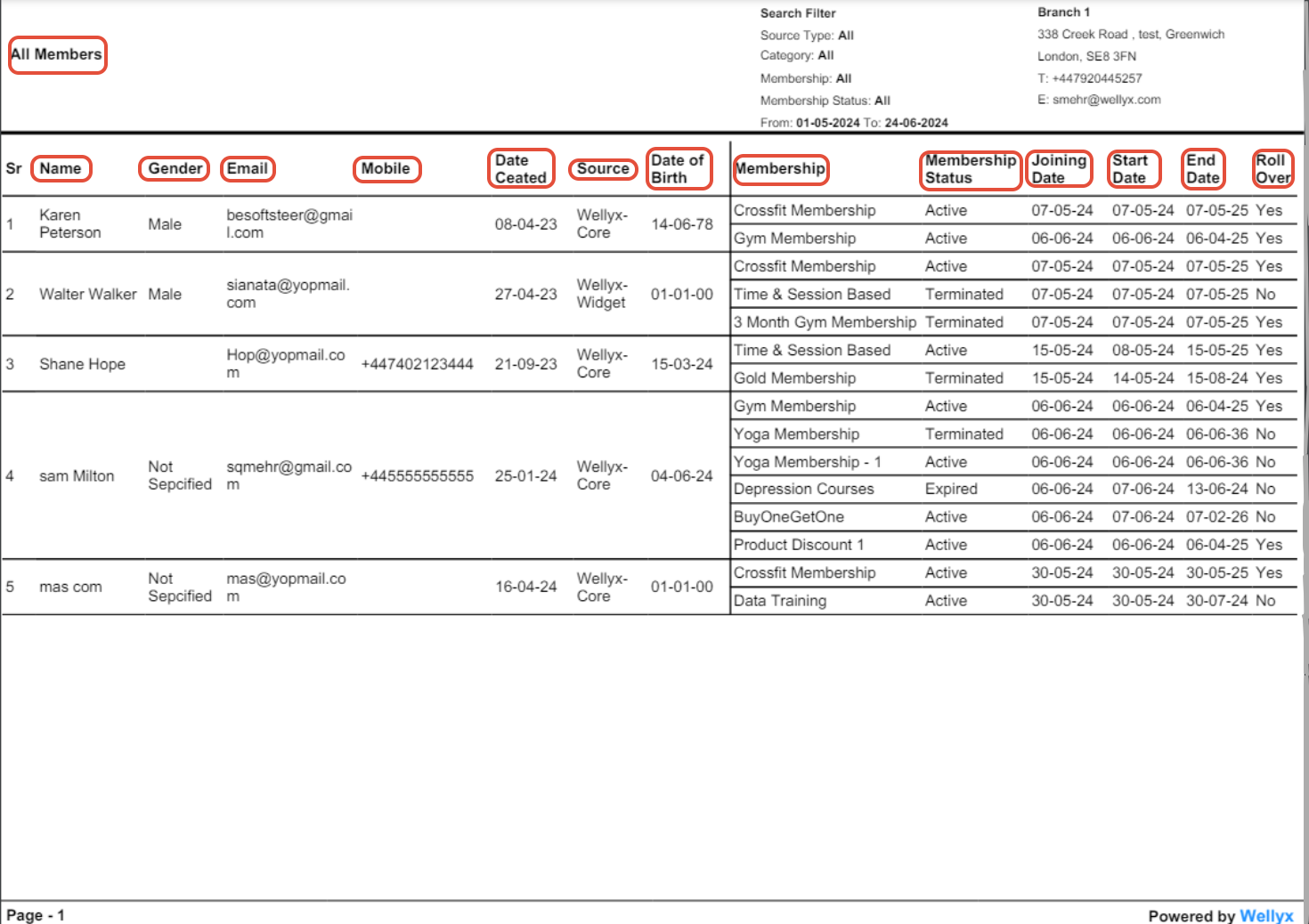
This Report explains how many individual Members are present within the system. Furthermore, it shows Member Details based on Date Range and Status.
Step 1: Navigate to the Reports Module
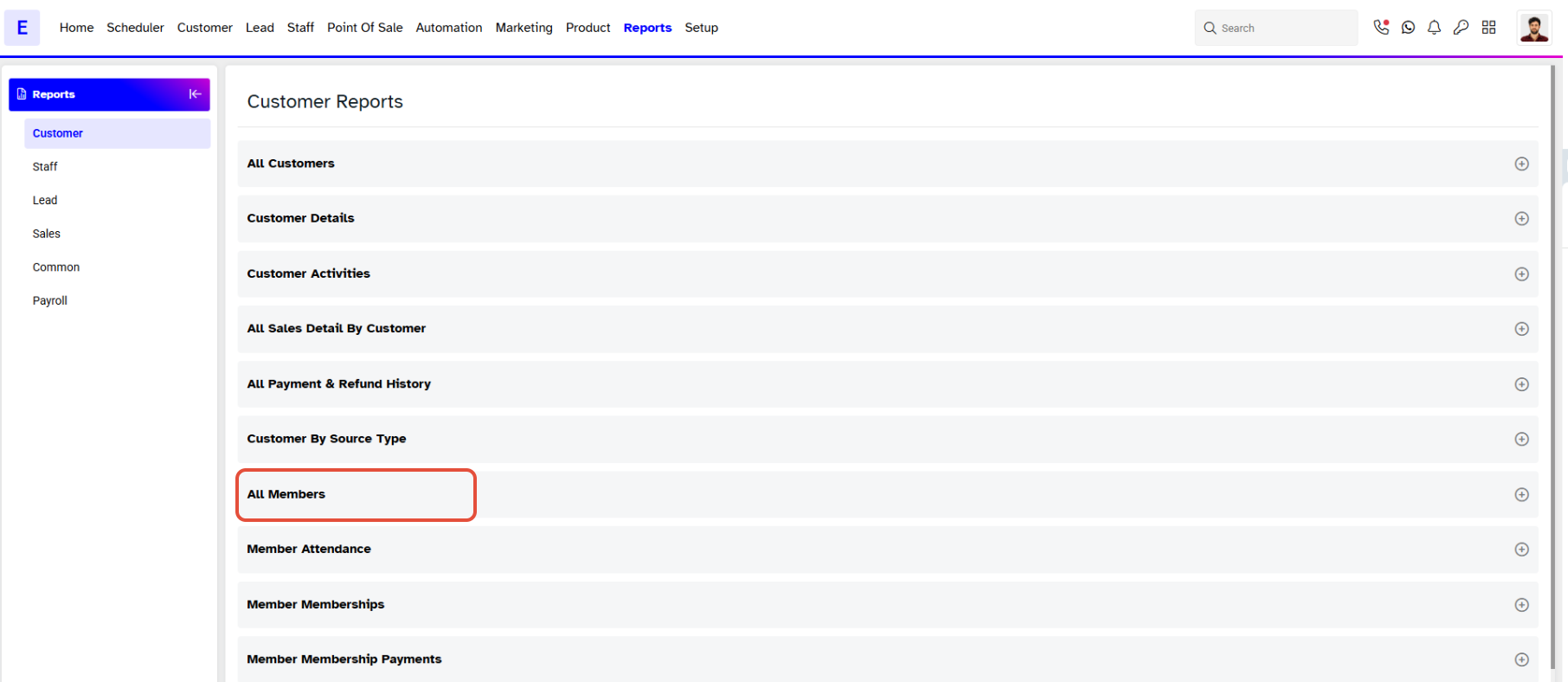
- To view a Report for all Members, go to the Reports Module.

Step 2: Select Customer Report Segment
- Click on the Customer Report Segment.
- Now, scroll down to the All Members Report.
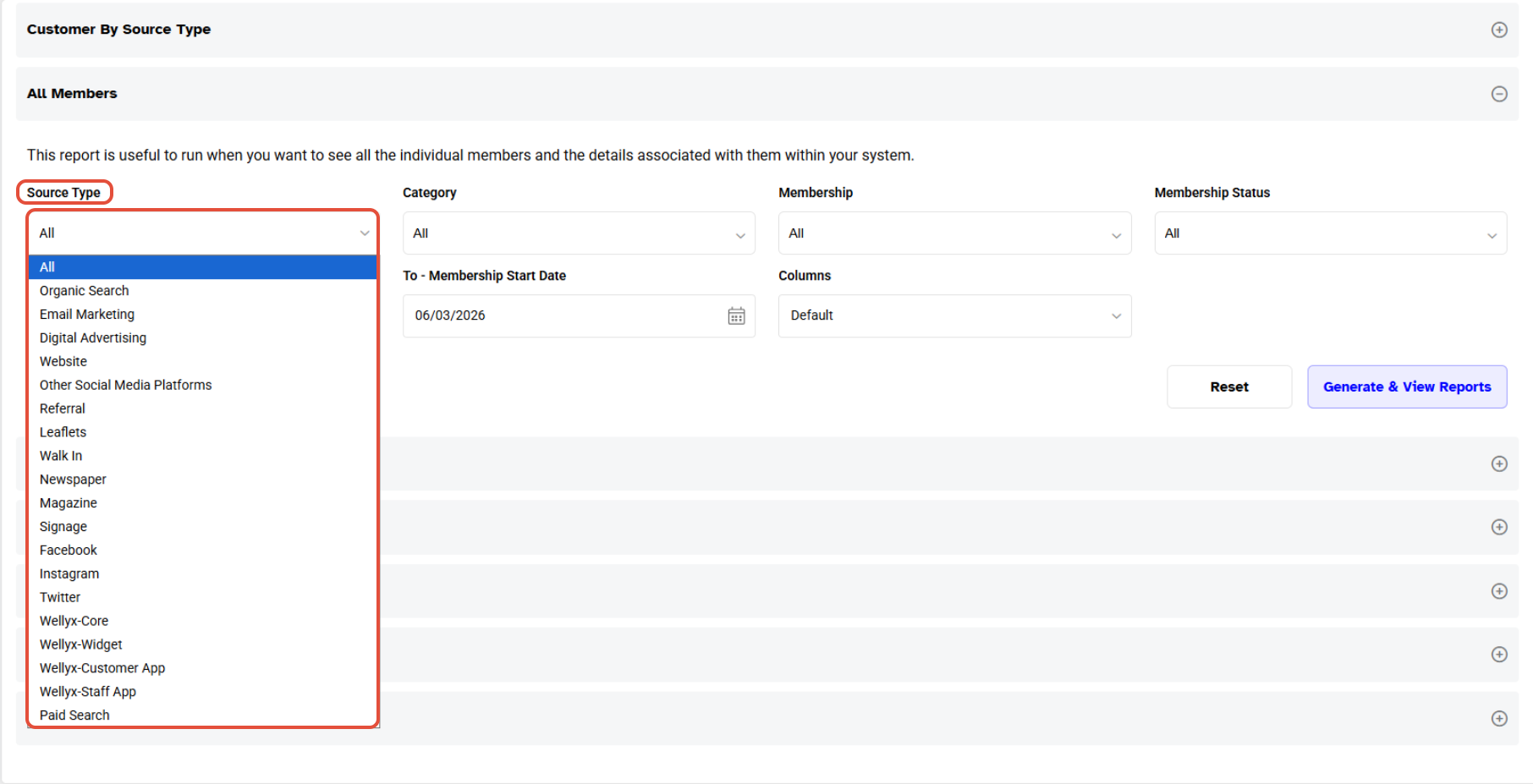
Step 3: Select Source Type
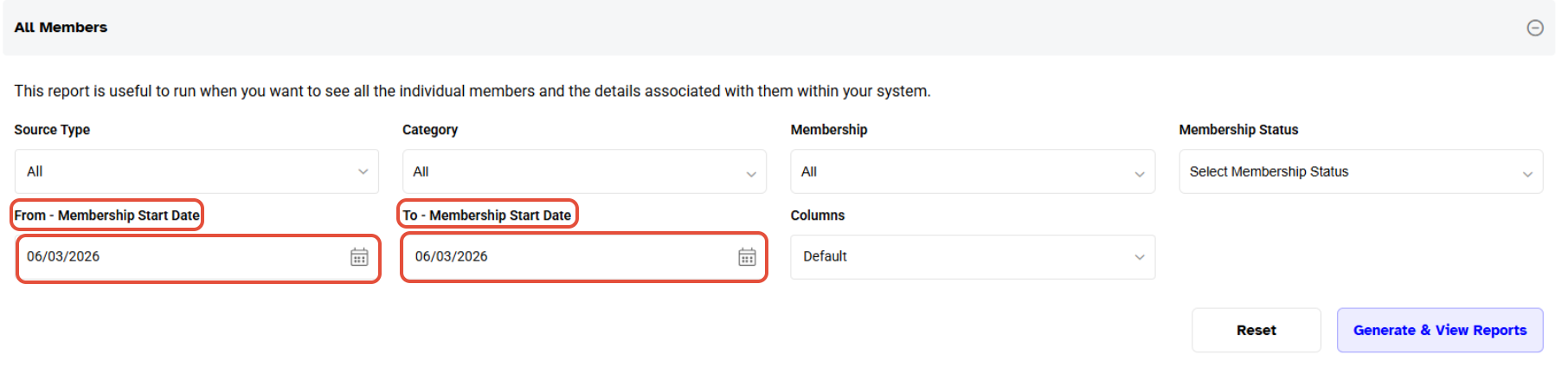
- Select a Source Type from the drop-down menu.
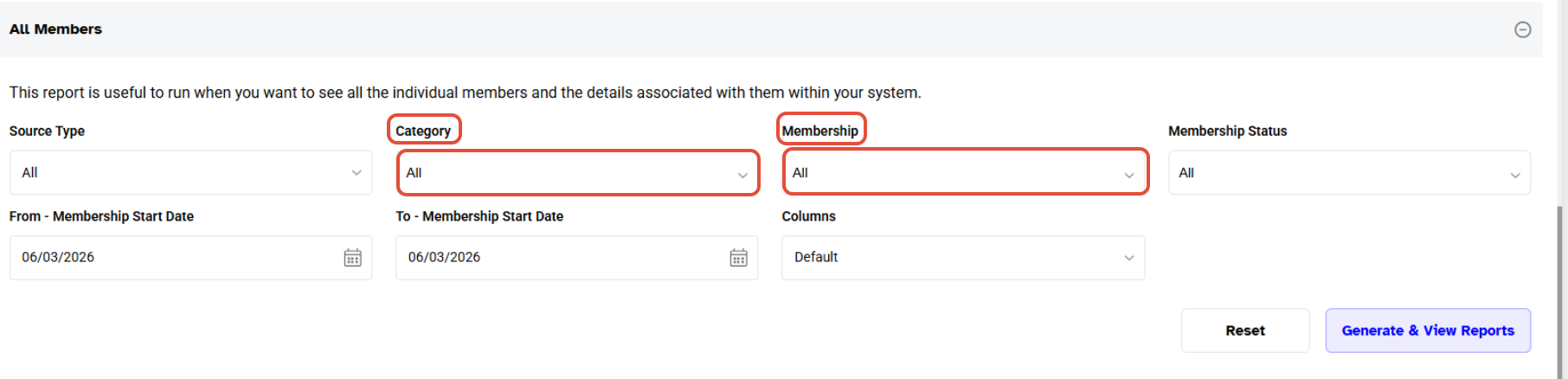
- Choose a Membership Category and Membership from the drop-down menu whose member details you wish to view.
- Choose a Membership Category and Membership from the drop-down menu whose member details you wish to view.
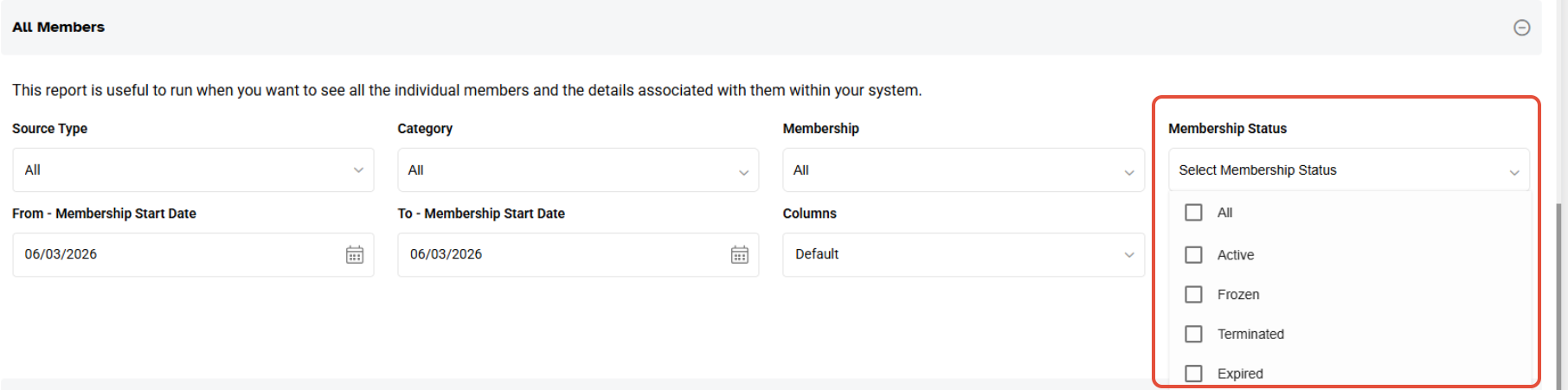
Step 4: Select Membership Status
- Select Membership Status.
- Choose a duration for which you want to view Member details. select a starting date under From and the duration limit under To.
Step 5: Generate Report
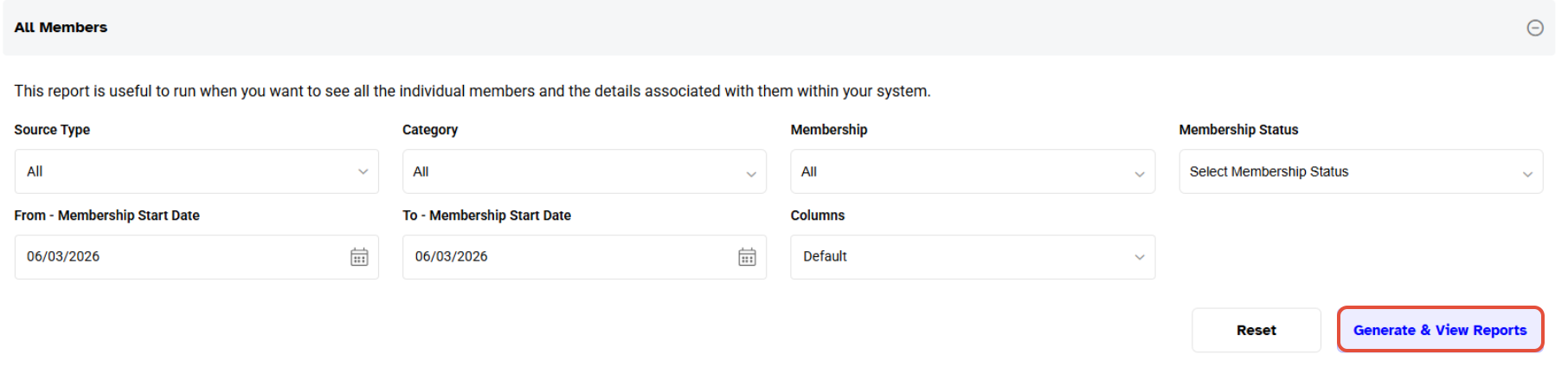
- Once done, click on the Generate & View Reports.
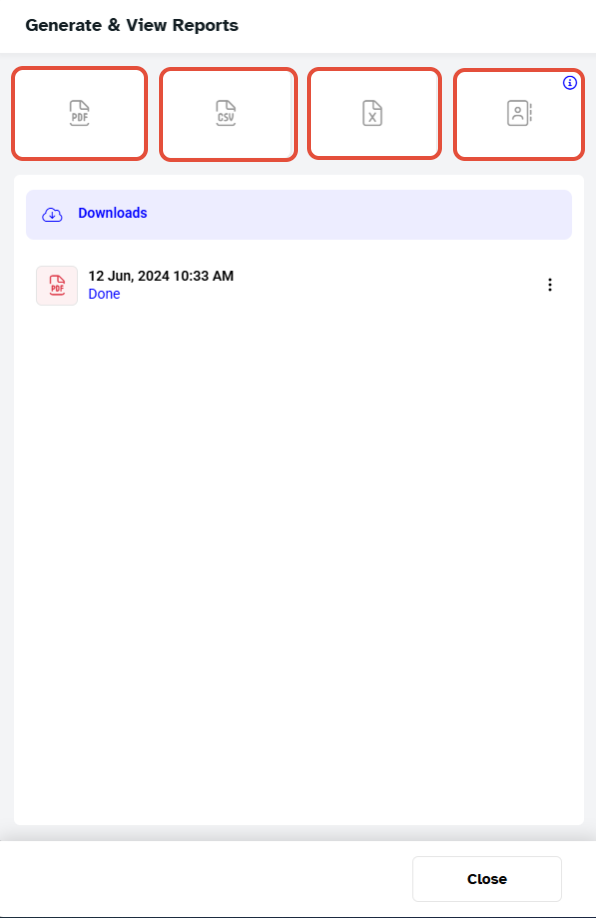
- Select the desired download format for the Report.
- After generating the Report, you can download it by clicking on the Download Icon.
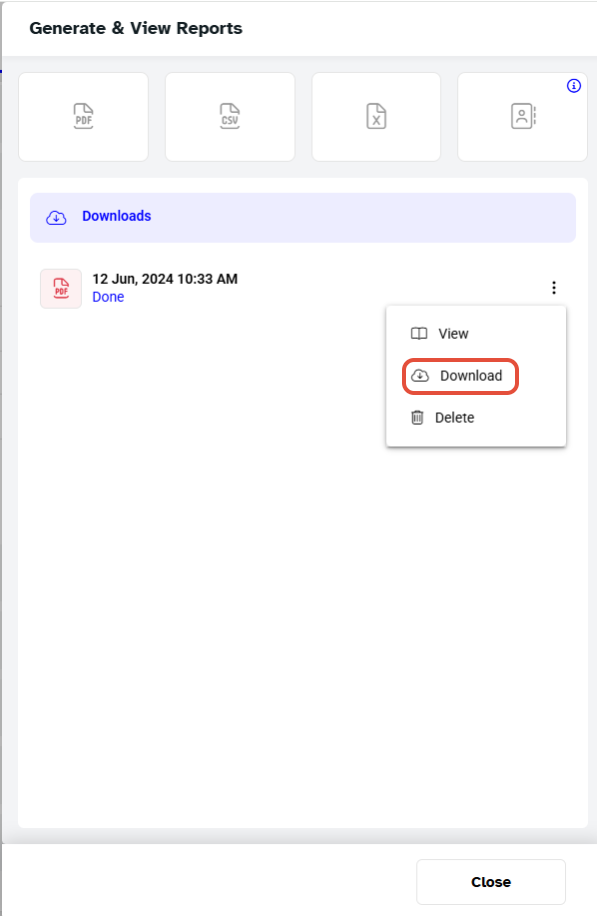
The generated report can be downloaded multiple times within 30 Days.
The Report will display details of all the Members for the selected duration. The Member Detail page will display the following:
- Sr #
- Name
- Gender
- Mobile
- Date Created
- Source
- Date of Birth
- Membership
- Membership Status
- Joining Date
- Start Date
- End Date
- Roll over
For a list of terms used in the Wellyx application & across the support website, please consult our Glossary.




