


This article covers the following topic:
TABLE OF CONTENTS
In this basic scenario, we have some information regarding Restricting Online Resource Availability.
Steps to Restrict Online Resource Availability
To restrict the Online Resource Availability, the Merchant must go to Setup Module and click on Configurations Tab. Once in Configurations, he will go to Widget Tab.
In the Widget Tab, the Merchant can see 4 different sections.
- Online Resources
- Widget URLs
- Banners
- Social Media
Restrict Online Resources
Whilst in the Widget Tab, the Merchant can see that there are 5 different options in the Online Resources Section.
- Memberships - Toggle on to display the memberships tab on the widget & app. Toggling off will result in customers being unable to purchase memberships
- Memberships for Members - Toggle on to display the memberships tab for members on your widget & app. Toggling off will result in members being unable to purchase additional memberships
- Classes - Toggle on to display classes tab on your widget & app. Toggling off will result in customers being unable to book/purchase classes
- Services - Toggle on to display the services tab on your widget & app. Toggling off will result in customers being unable to book/purchase services
- Products - Toggle on to display products tab on your widget & app. Toggling off will result in customers being unable to purchase products
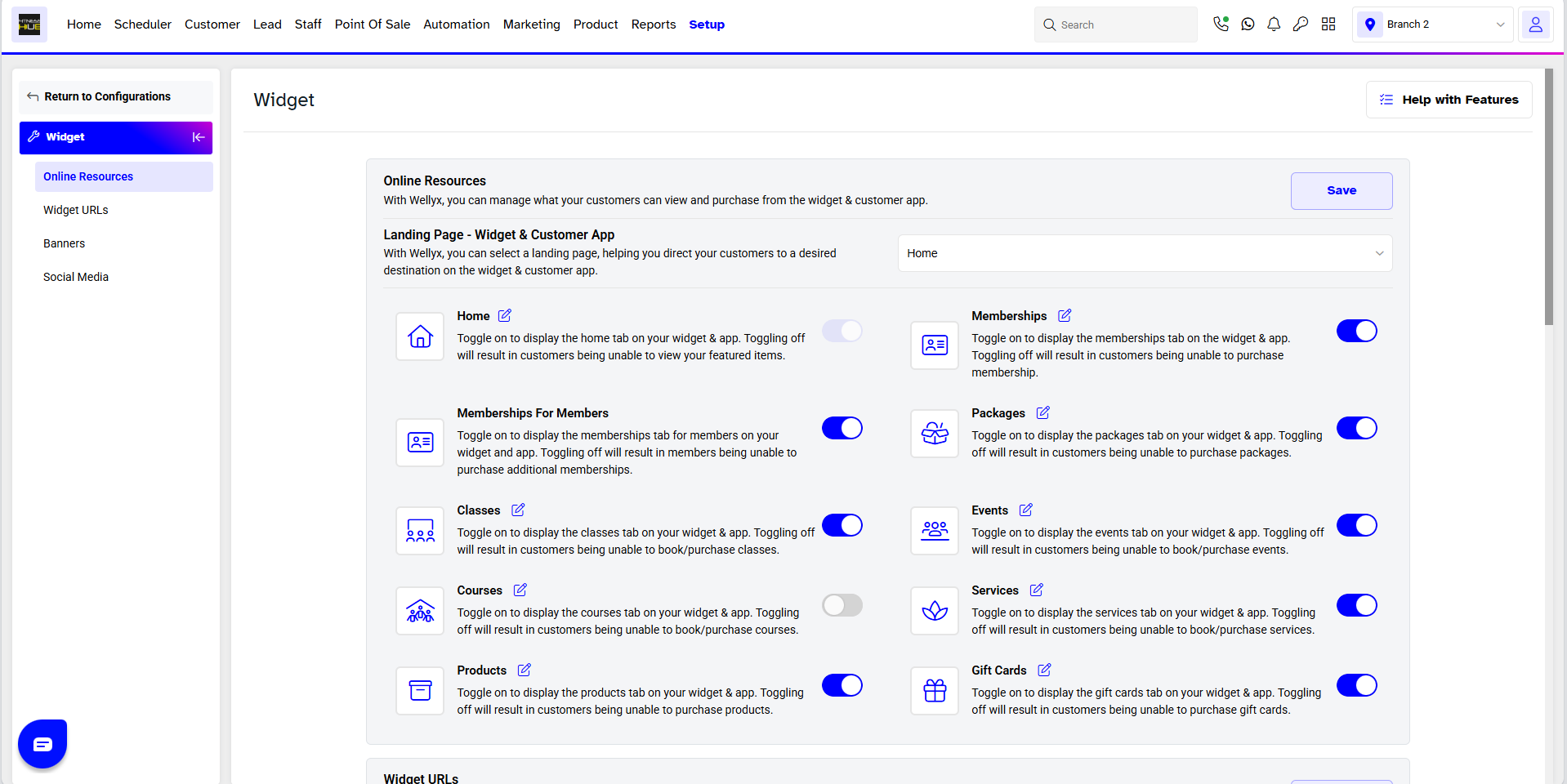
If the Merchant Toggles On all the available options and then clicks Save. All these options would now be visible to the Customers on the Widget.

However, if the Merchant Toggles Off any option, then it would be not available on the Widget to the Customer.
For a list of terms used in the Wellyx application & across the support website, please consult our Glossary.