


TABLE OF CONTENTS
Overview
This guide explains how to add social media links to the Widget in Core. It covers navigating to the configurations, entering specific platform URLs, and saving the updates. By following this guide, merchants can ensure customers can easily access their social media profiles through the widget.Step 1: Navigate to Widget Configurations
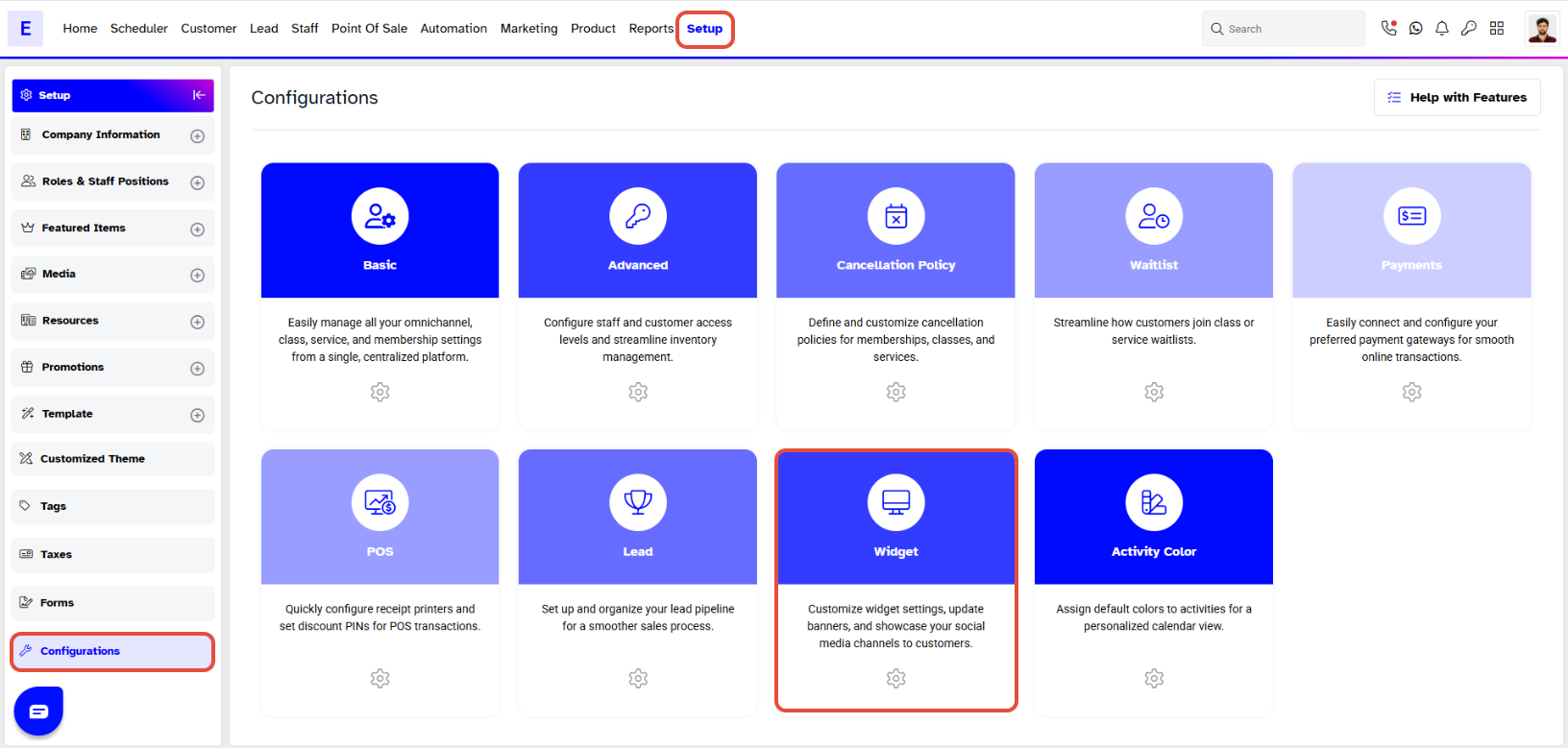
- Go to the Setup module in Core.
- Click on the Configurations tab.
- Once in Configurations, click on the Widget tab.
- Scroll down to the Social Media section at the bottom of the page.
Step 2: Enter Social Media Links
The Social Media section is divided into 5 segments:
- Youtube
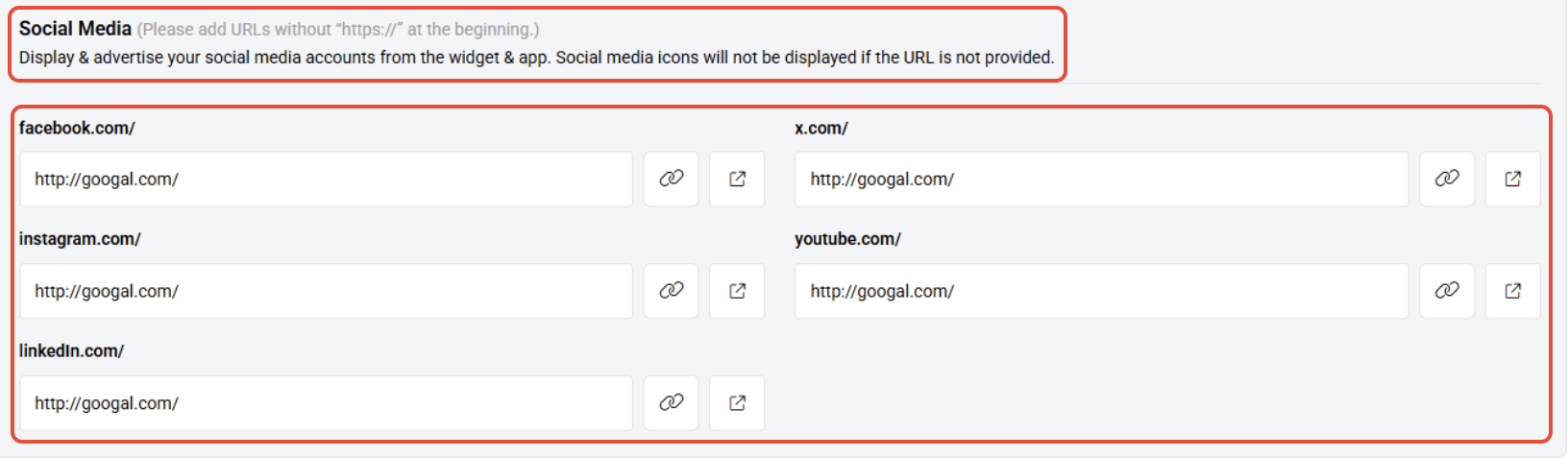
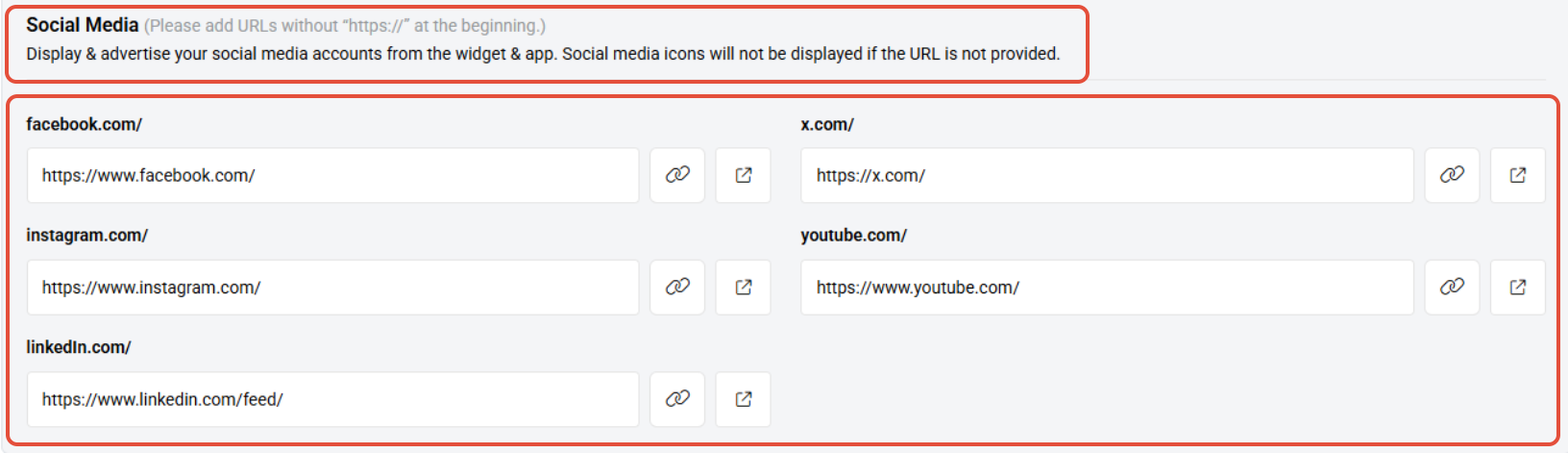
- Type in or paste the link of the URL for each specific social media platform.
Step 3: Save Changes
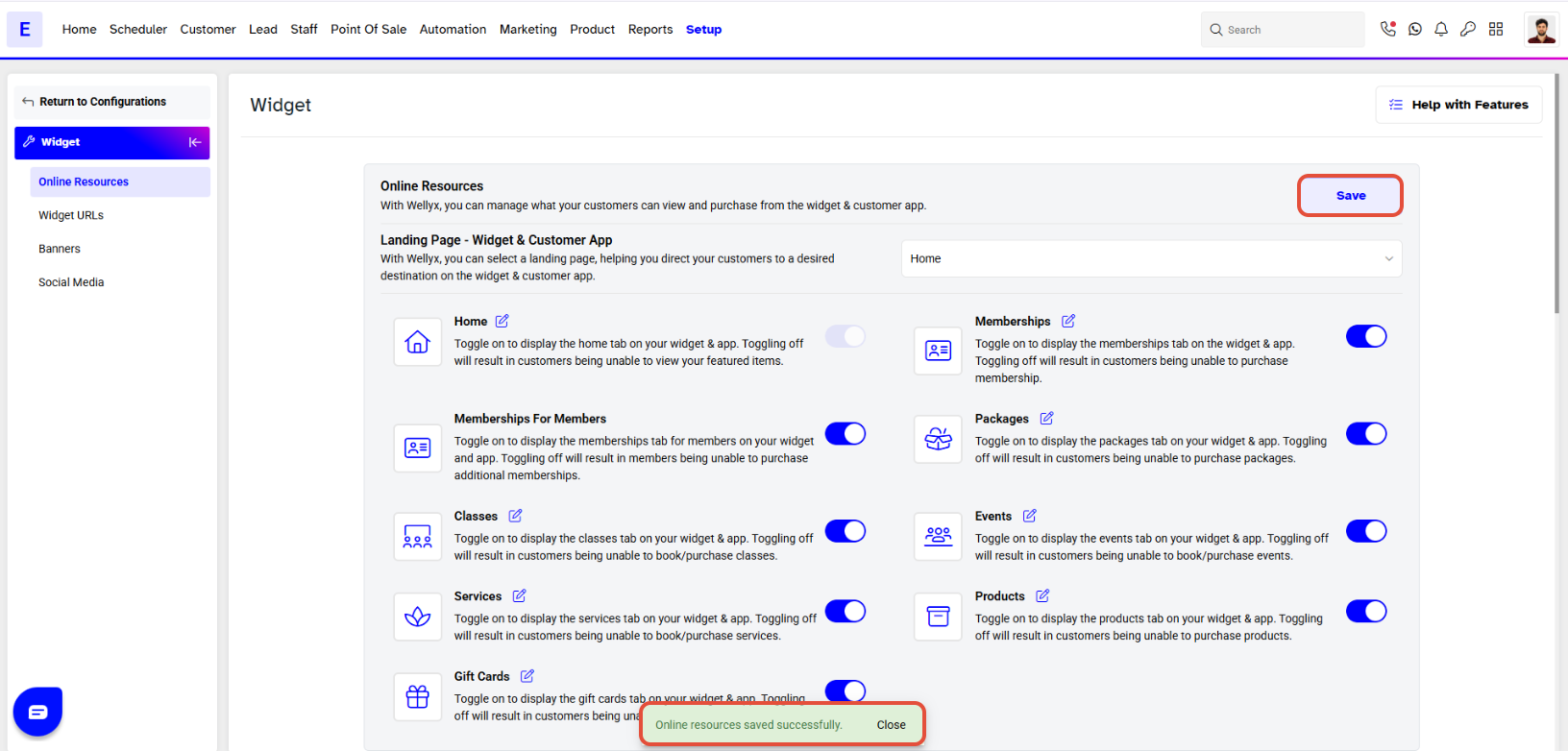
- Once all links are added, click on the Save button.
- The "Social Media Links Saved Successfully" message will be displayed at the bottom right of the screen.
You can click on Open URL to directly access the saved URL window
For a list of terms used in the Wellyx application & across the support website, please consult our Glossary.




