


TABLE OF CONTENTS
- Step 1: Navigate to the Widget Tab
- Step 2: Upload or Update a Banner Image
- Step 3: Save the Banner Image
- Step 4: Manage Banner Images
Overview
This guide explains how to upload, update, view, and delete banner images within the Widget section in Core. By following this guide, merchants can easily customize their widget banners.Step 1: Navigate to the Widget Tab
- Go to the Setup Module.
- Navigate to the Configurations Tab.
- From Configurations, click on the Widget Tab.
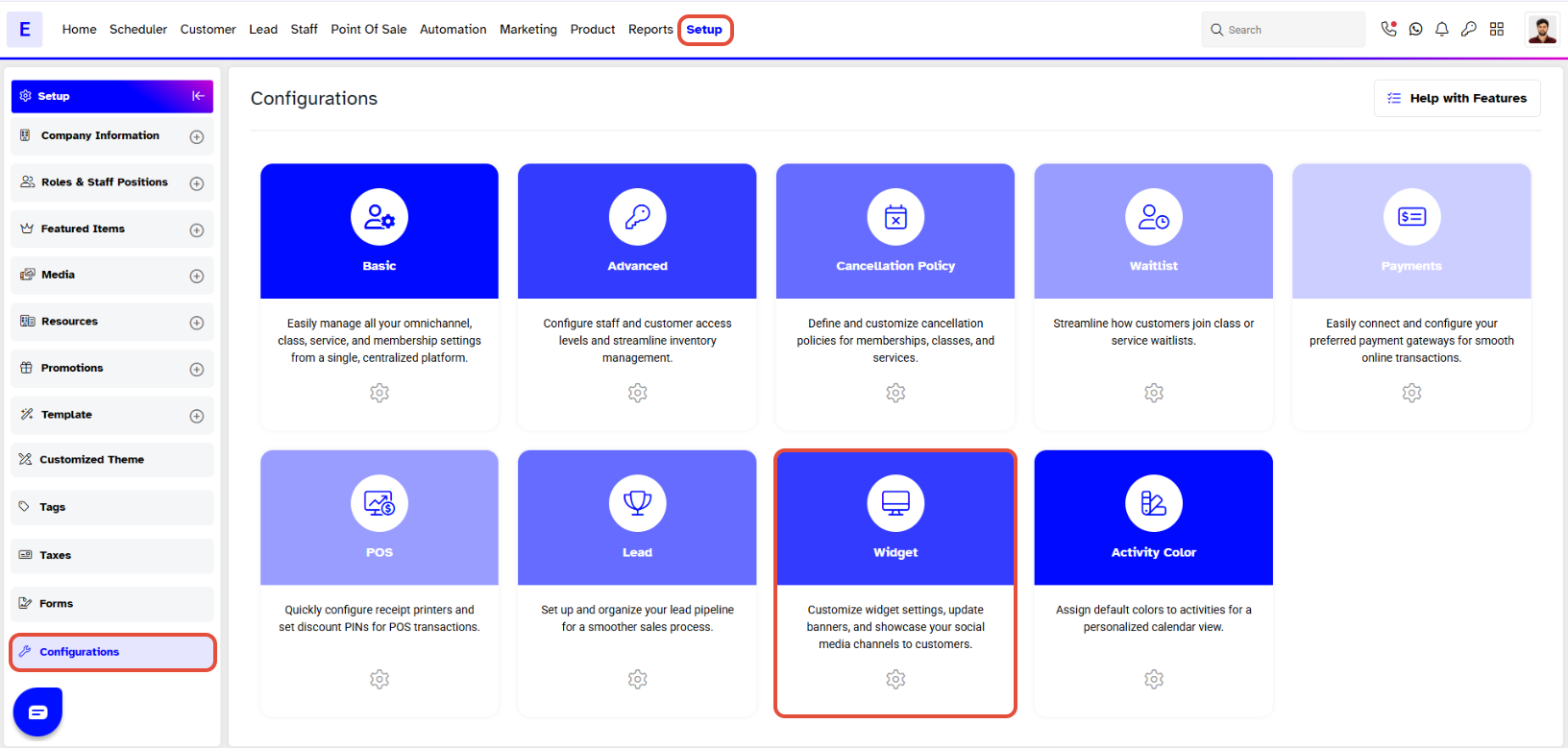
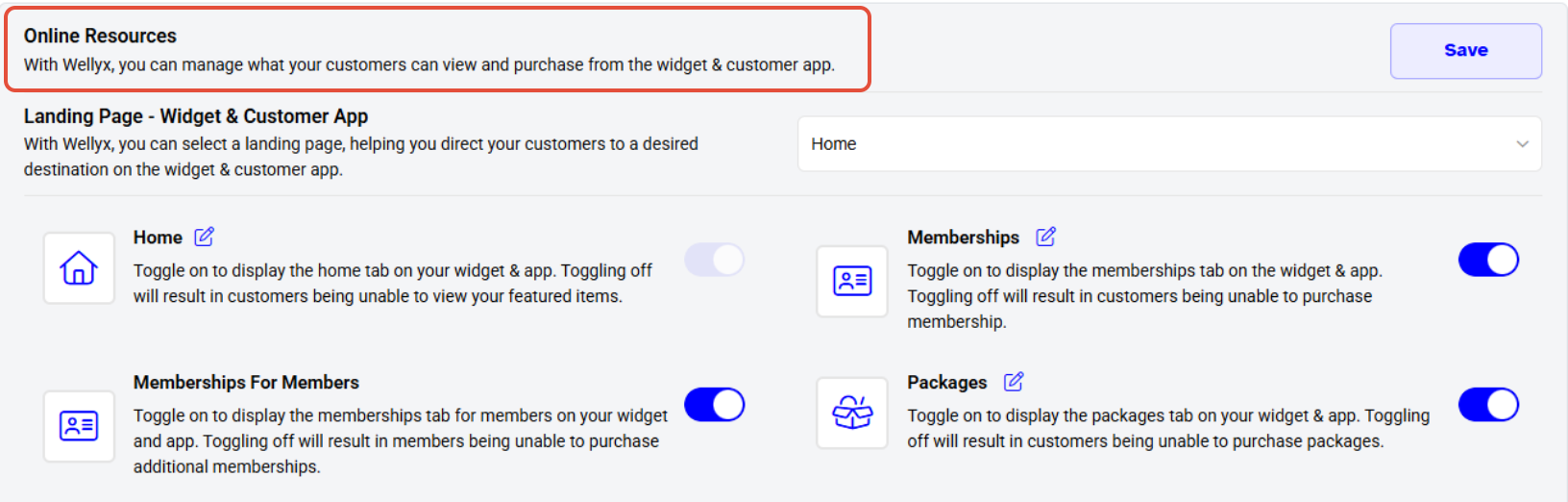
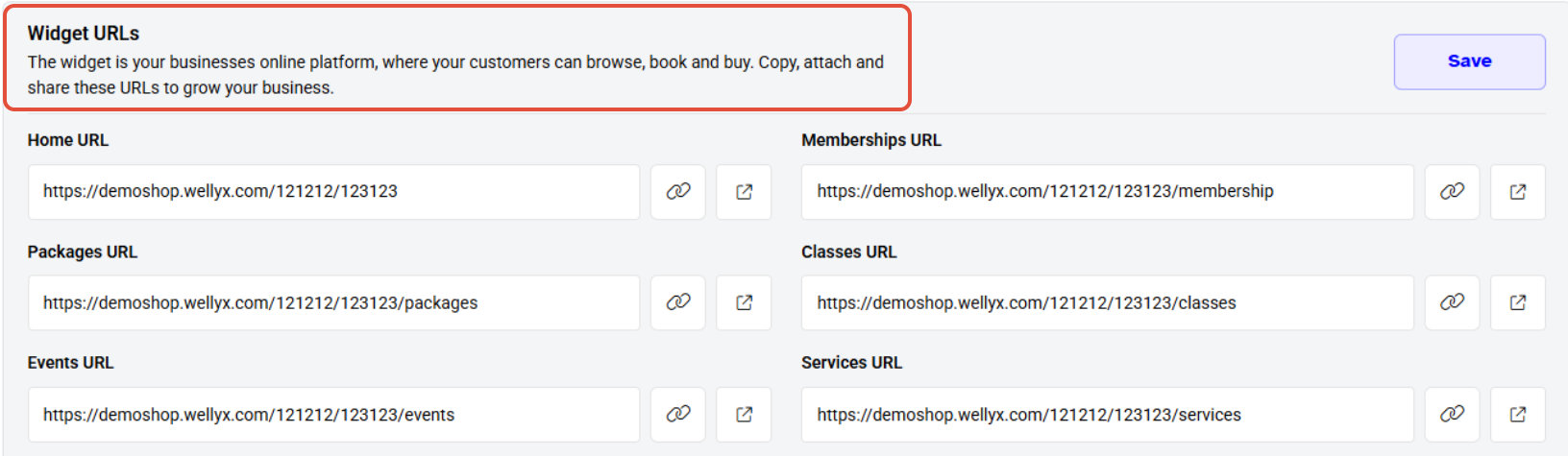
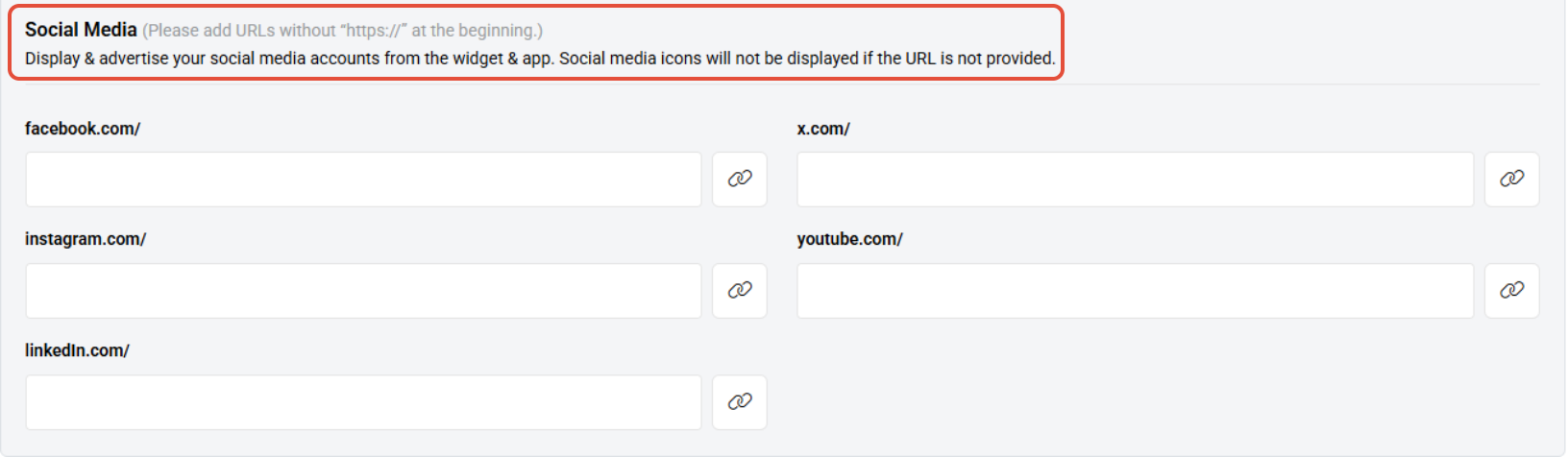
Once in the Widget Tab, the Merchant can see four different sections:
- Online Resources
- Widget URLs
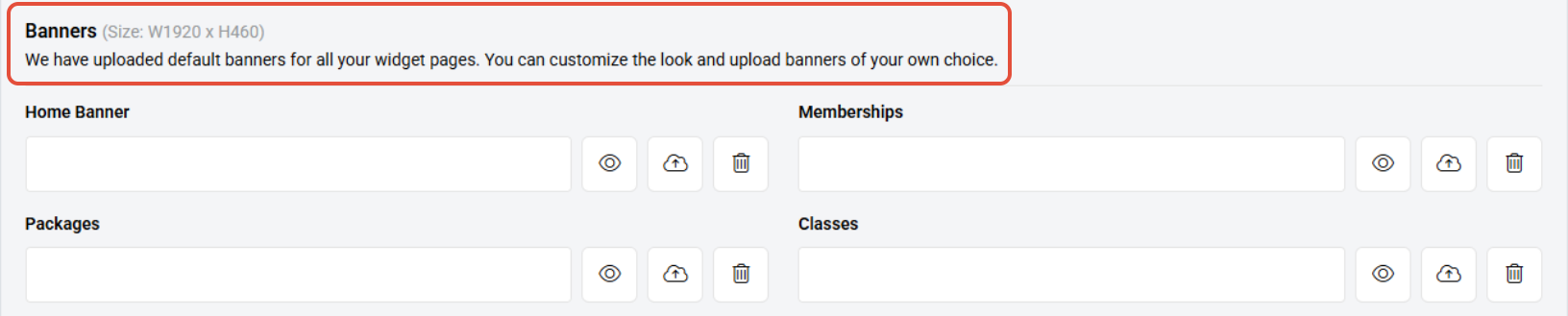
- Banners
- Social Media
Step 2: Upload or Update a Banner Image
- In the Banners section, click on the Cloud Icon to upload or update a banner image.
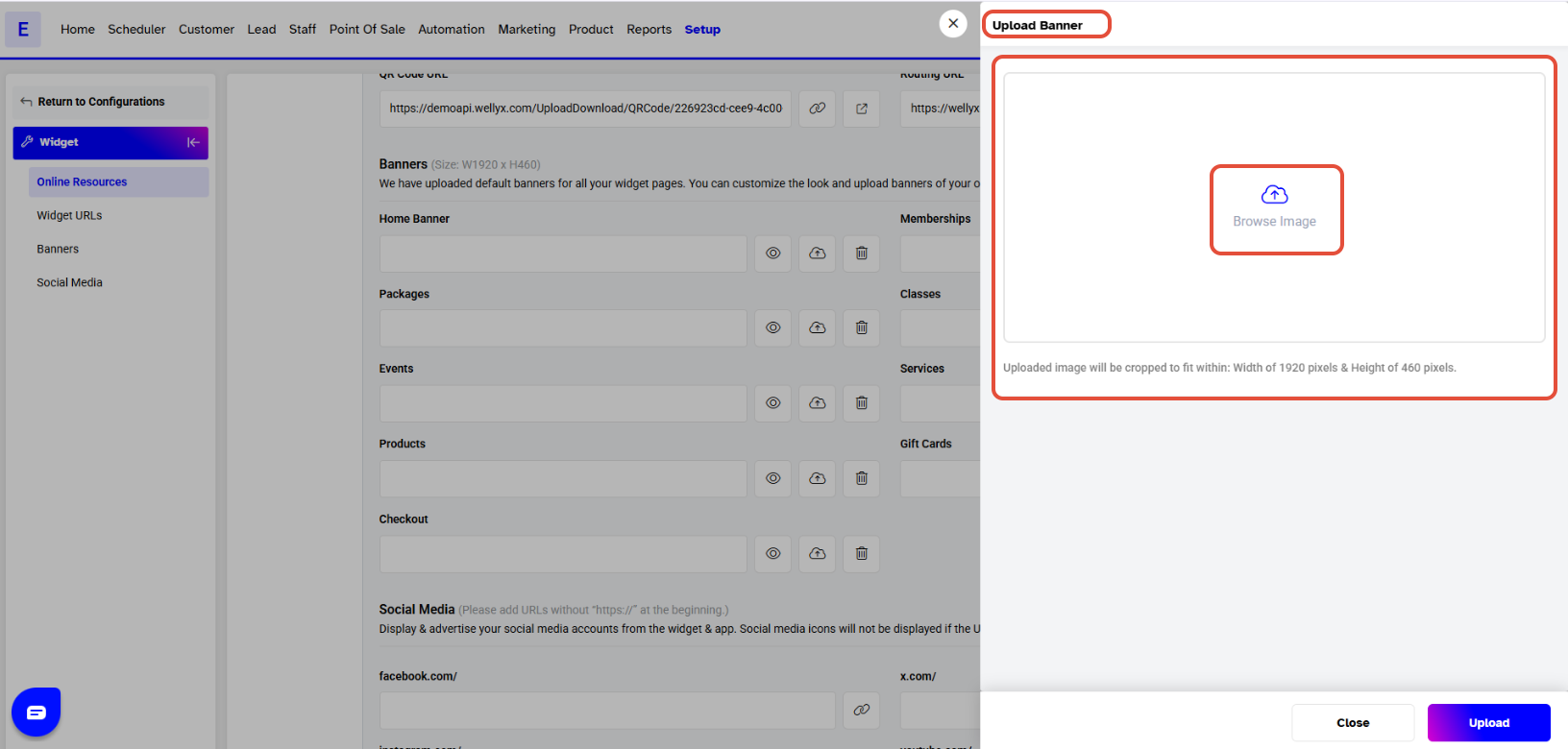
- A pop-up screen titled "Upload Banner" will appear.
- In the Upload Banner pop-up screen, click on Browse Image
- Select an Image from the Gallery and Crop it according to the requirements.

Step 3: Save the Banner Image
- Click on Upload to save the Banner Image.
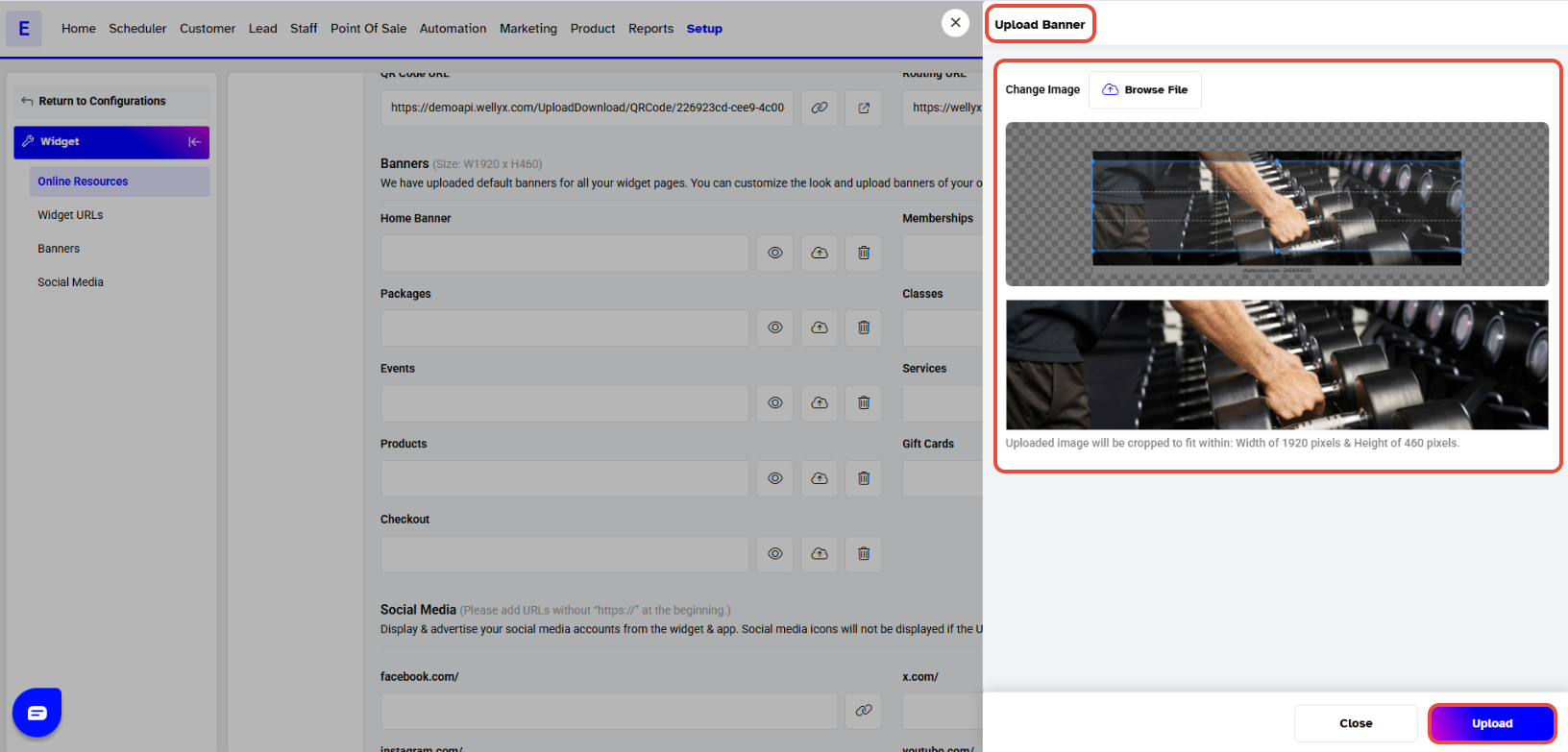
The dimensions of the Banner Images are 1920 x 460 pixels.Step 4: Manage Banner Images
- The Merchant can view the saved Banner Image by going to the Widget.
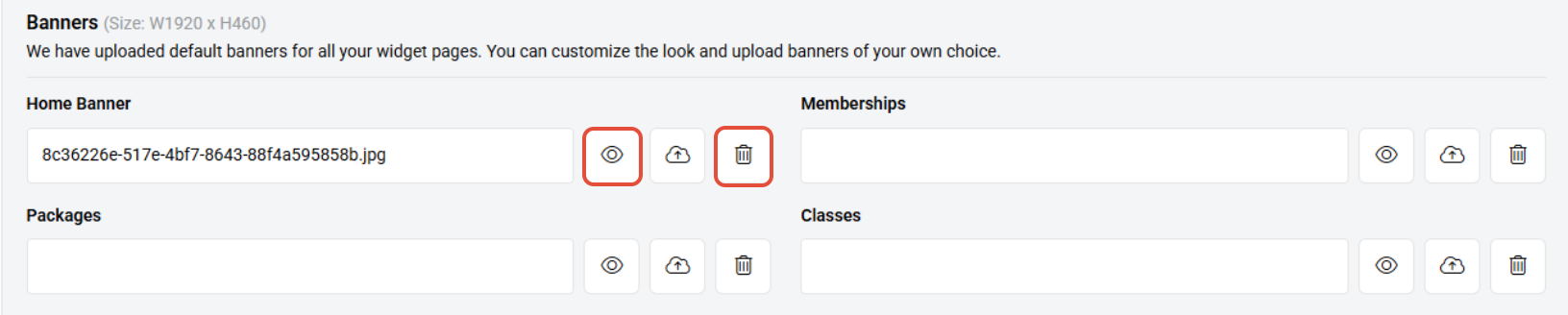
- The Merchant can also View Banner Image by clicking on the Eye icon.
- To Delete a Banner Image, the Merchant can click on the Bin Icon.

For a list of terms used in the Wellyx application & across the support website, please consult our Glossary.




