TABLE OF CONTENTS
A Customer can make a Secondary Account on the Customer App, by following the steps below:
How Can A Customer Make A Secondary Account On The Customer App
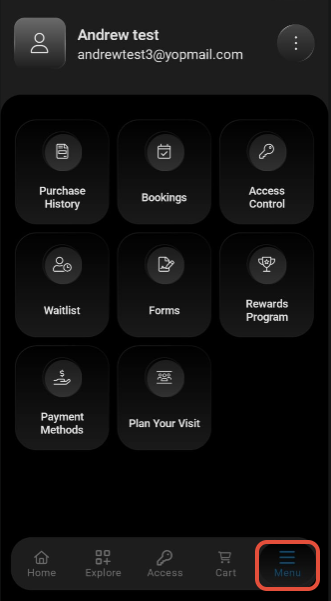
Click on the Three Lines at the Bottom Right.
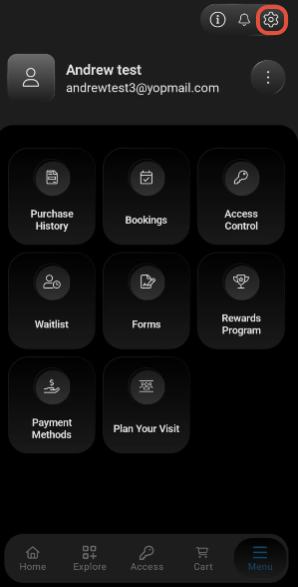
Click on Settings Button:
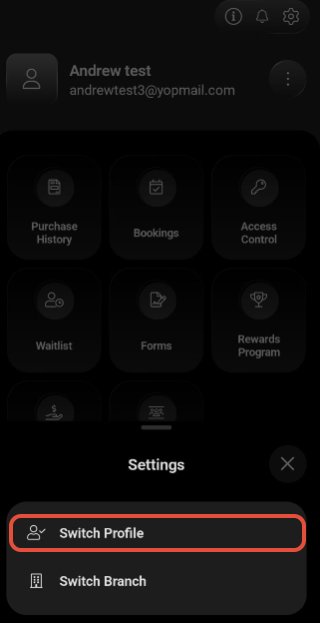
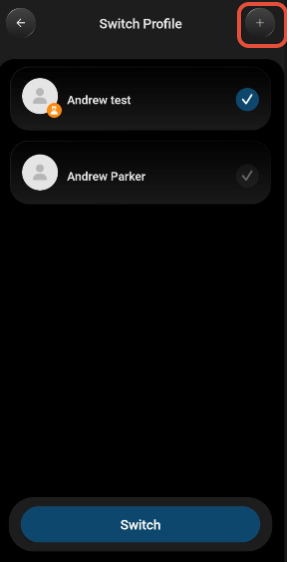
Click on Switch Profile option under Settings.
Click on the + Icon to Add another account.
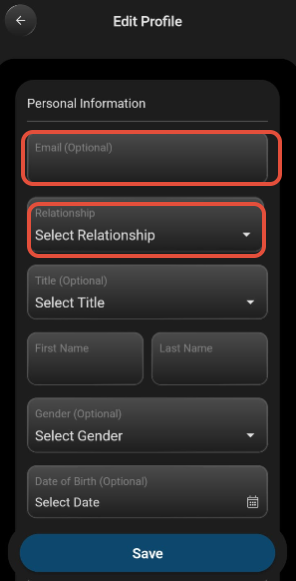
The Email for the Secondary Account is an optional field on the Front End (Widget & Customer App). If not entered, a System-generated Email will be assigned to the Customer.
Choose the Relationship between the Primary and Secondary Account from the dropdown.
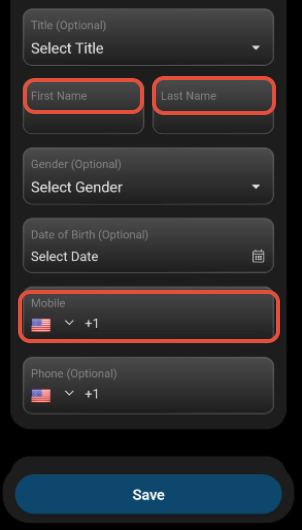
Enter the Customer's First & last Name, and all required details.
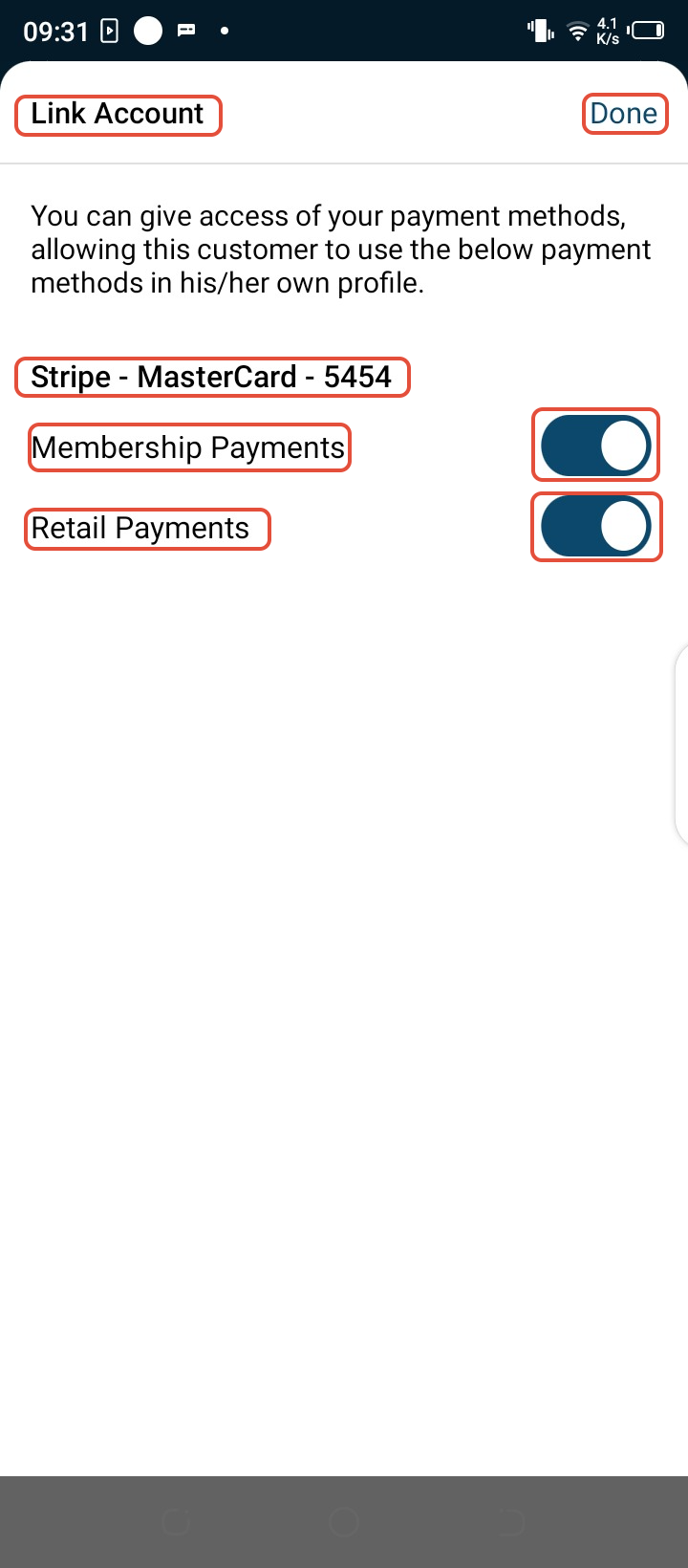
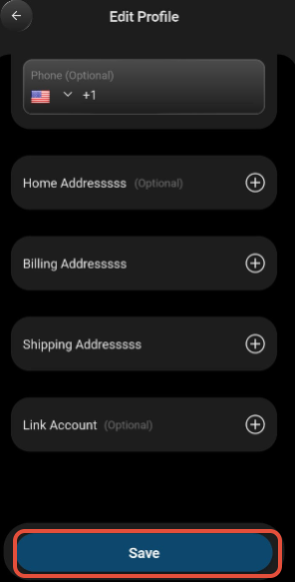
Click on the Plus Button next to the Link Account option if the Primary Customer wants to link the Payment Method with the Secondary Account.
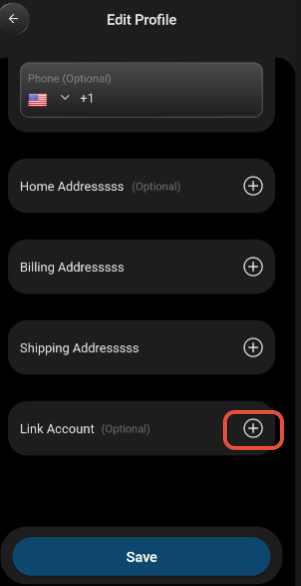
Toggle on the Membership or Retail Payments Box to allow purchases using the Linked Account for Membership or Retail Items.
Once done, click on the Save Button.
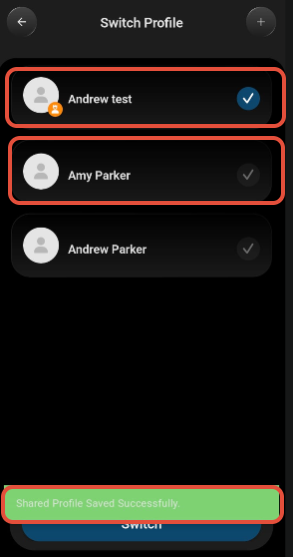
Now, the Secondary Profile will be successfully saved on the Primary Account.