


TABLE OF CONTENTS
To switch between the Primary and Secondary Customer Profiles on the Widget, follow the steps below:
How To Switch Between Primary And Secondary Customer Profiles On The Widget
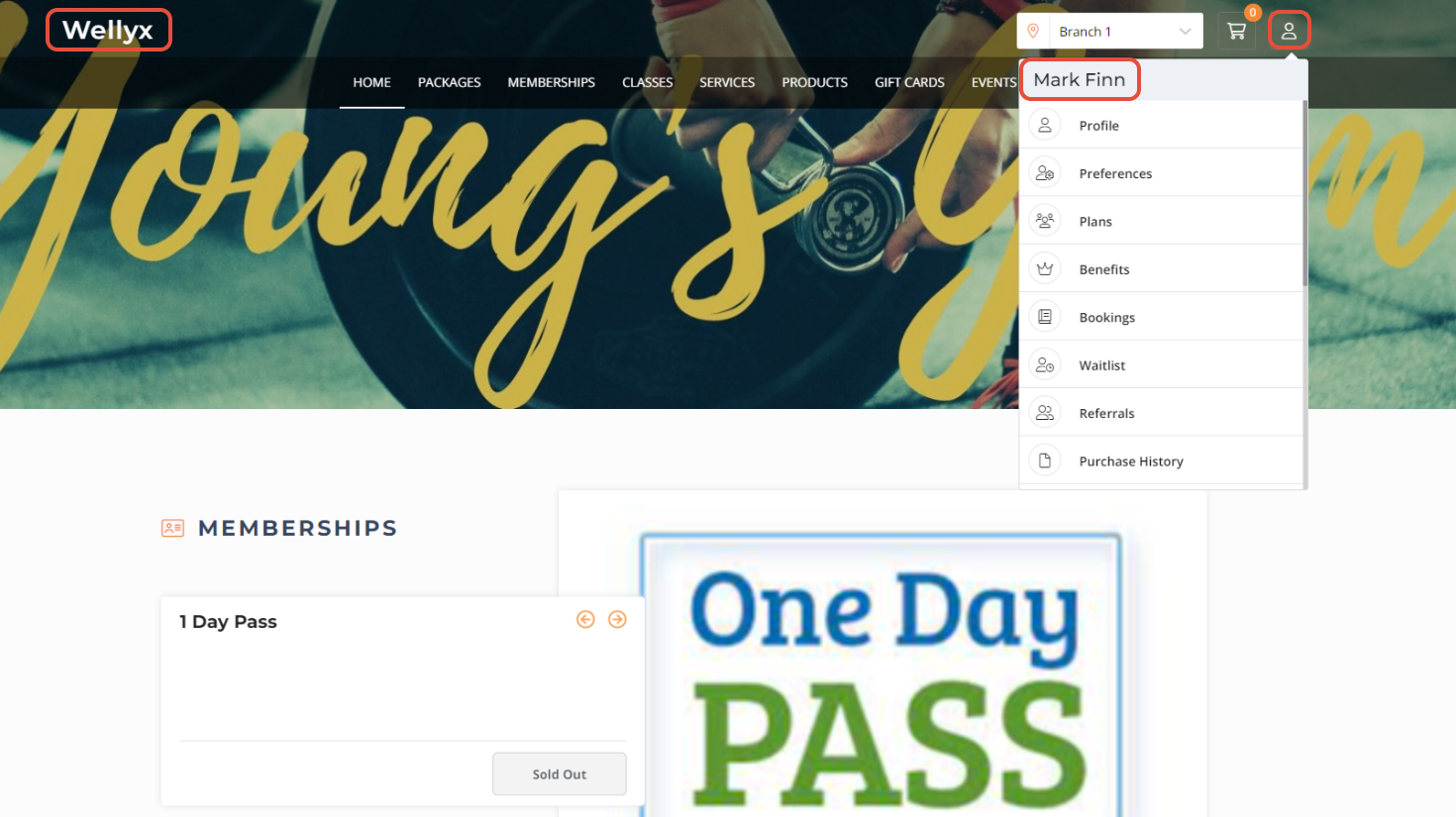
Log into the Widget with the Primary Customer Account and click on the Customer Profile Icon.
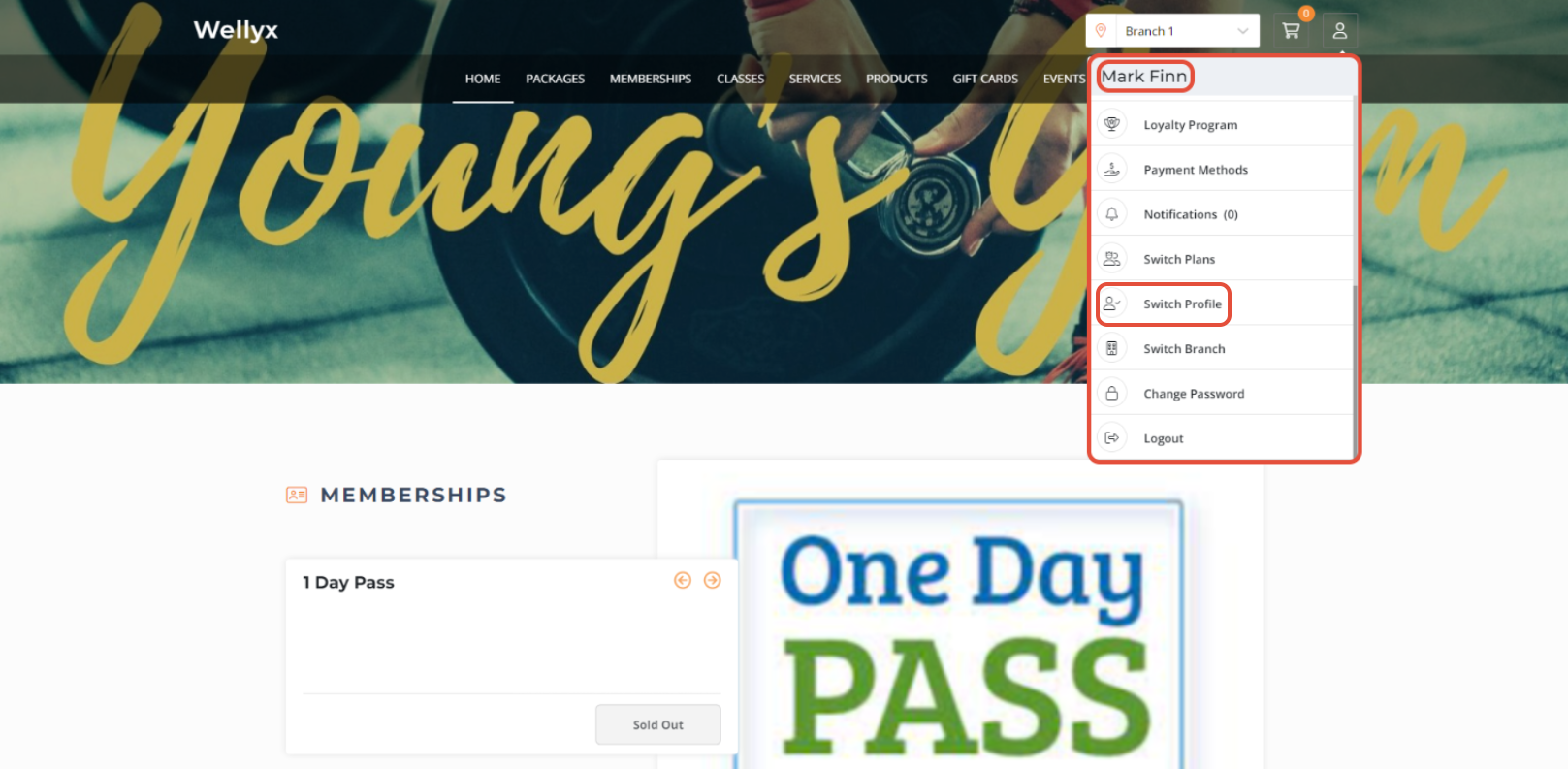
Scroll down and click on Switch Profile.
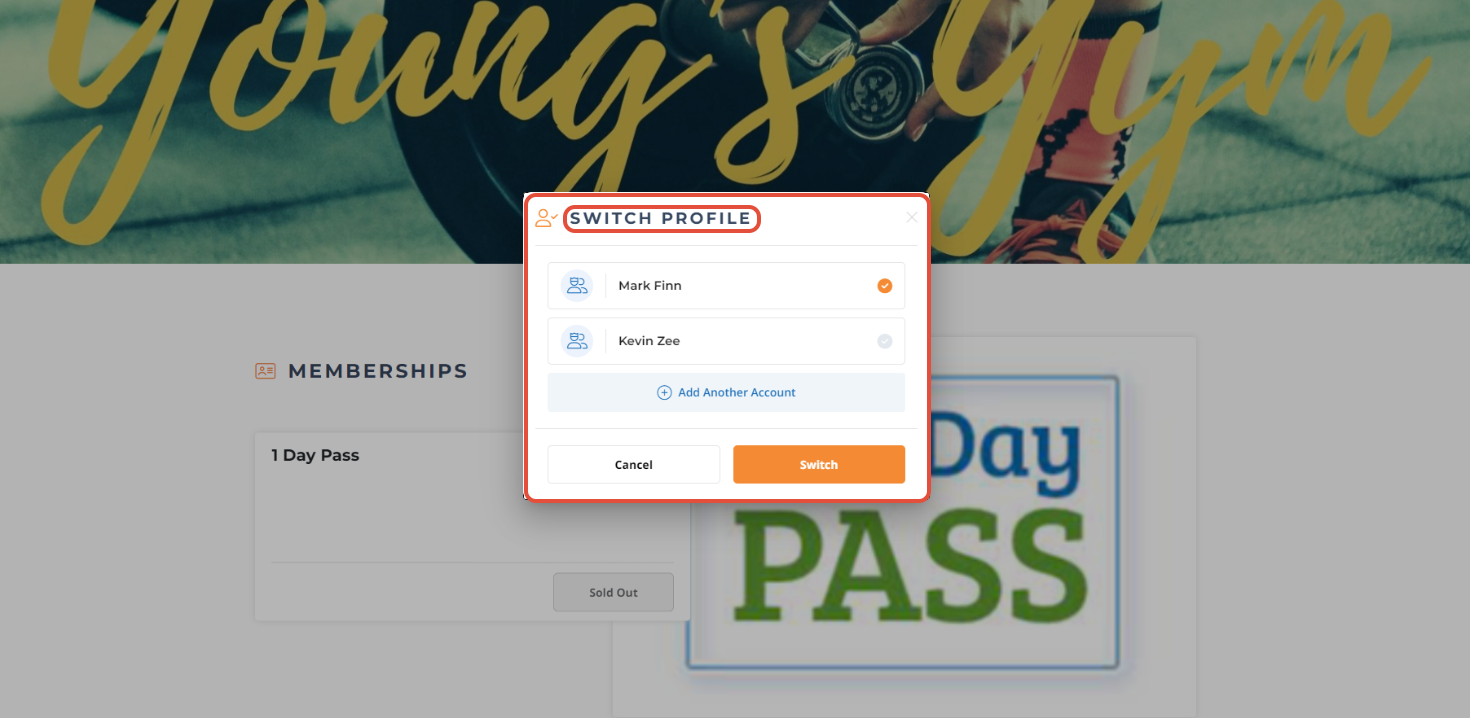
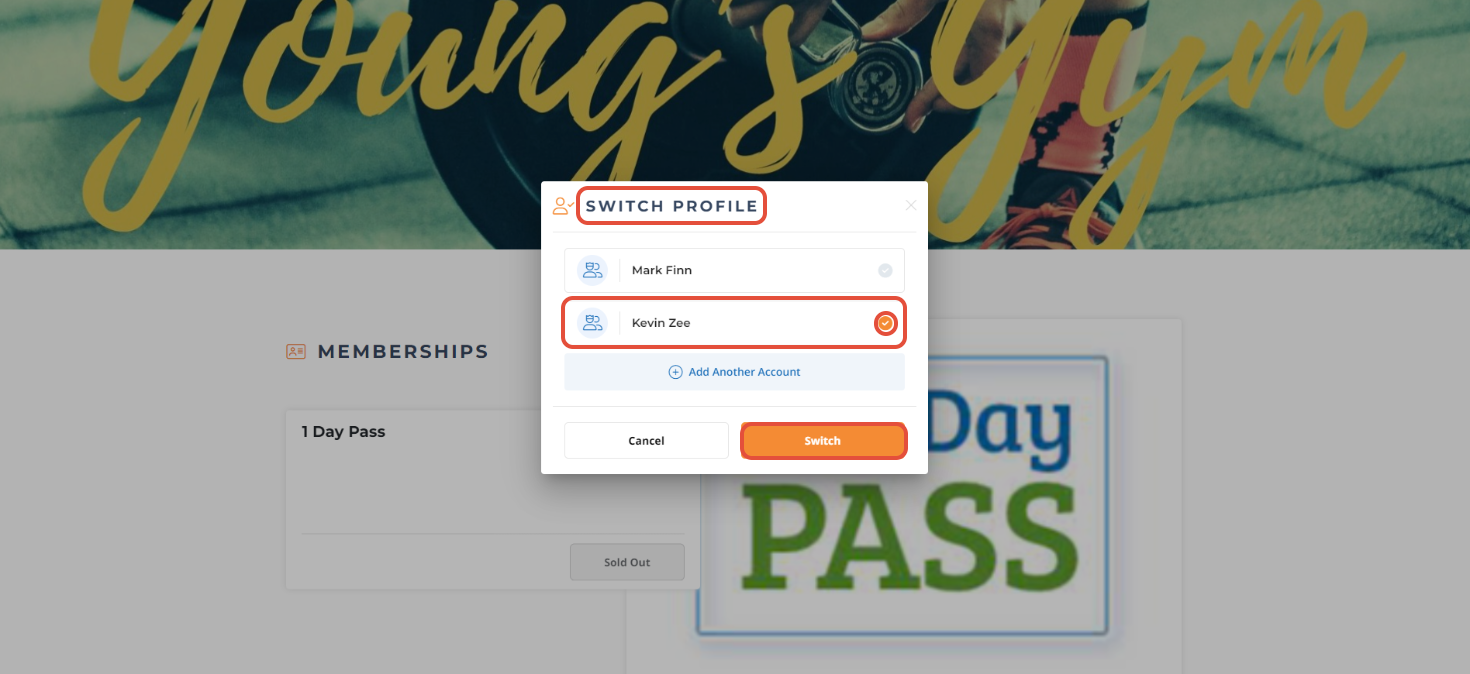
Now, the Switch Profile Popup Box will appear on the screen.
Select the Secondary Customer Profile.
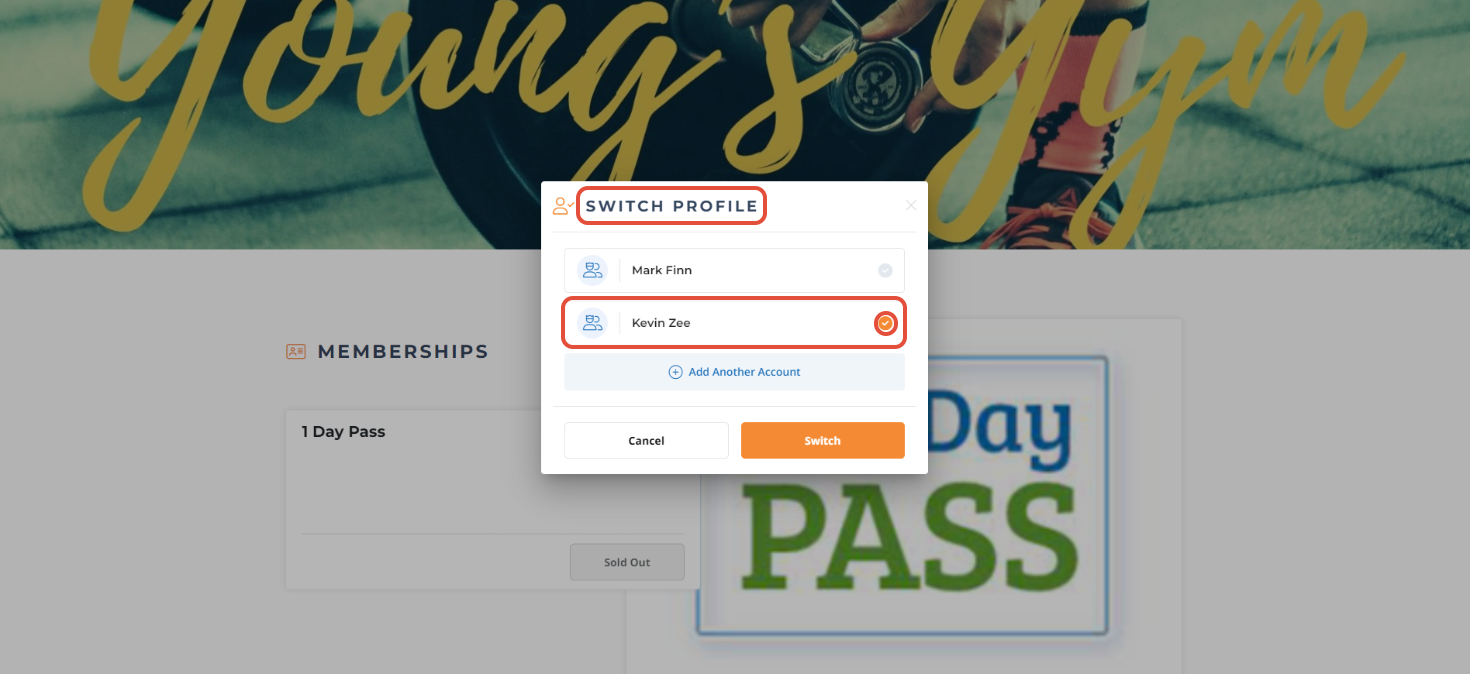
Once done, click on the Switch Button.
The witch between the two Profiles will be successful.
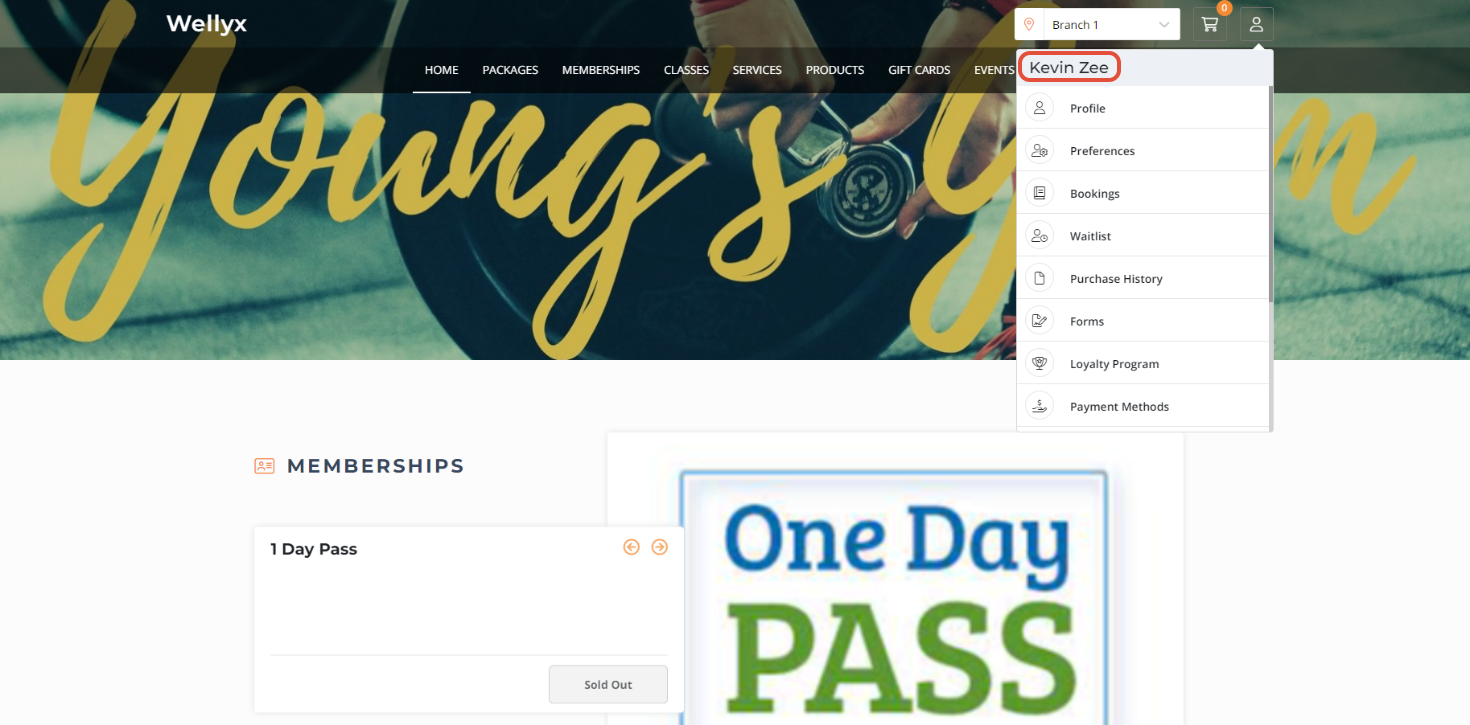
The Customer's Primary Account allows them to purchase all the Items like Classes, Services, and Memberships using their Secondary Account.




