
TABLE OF CONTENTS
To Book a Service from the POS, follow the steps below:
How To Book A Service From The POS
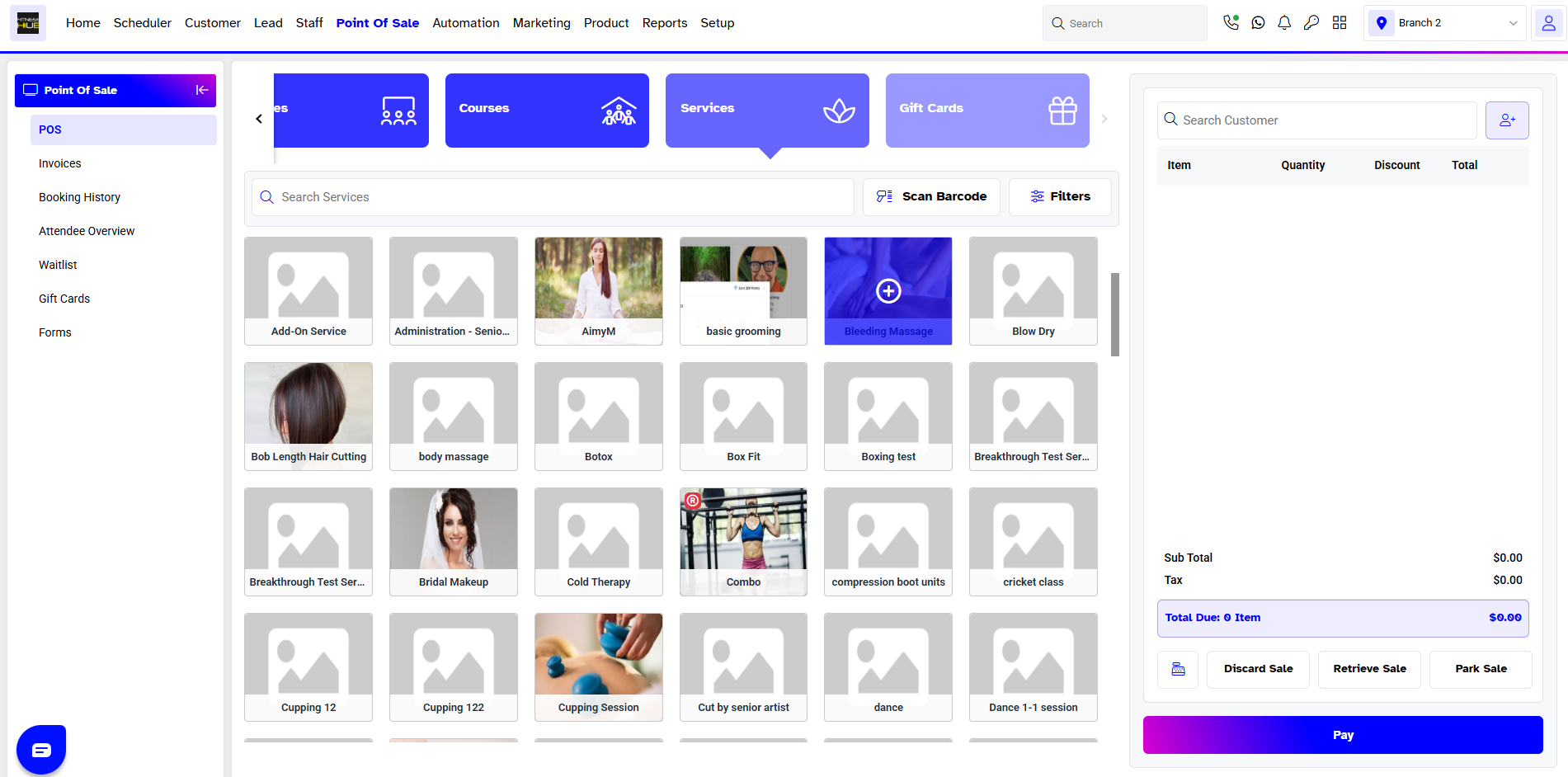
Go to the Point of Sale Module.
By default, the Products section will open.
Click on the Services section.
Select a Service from the Services section.
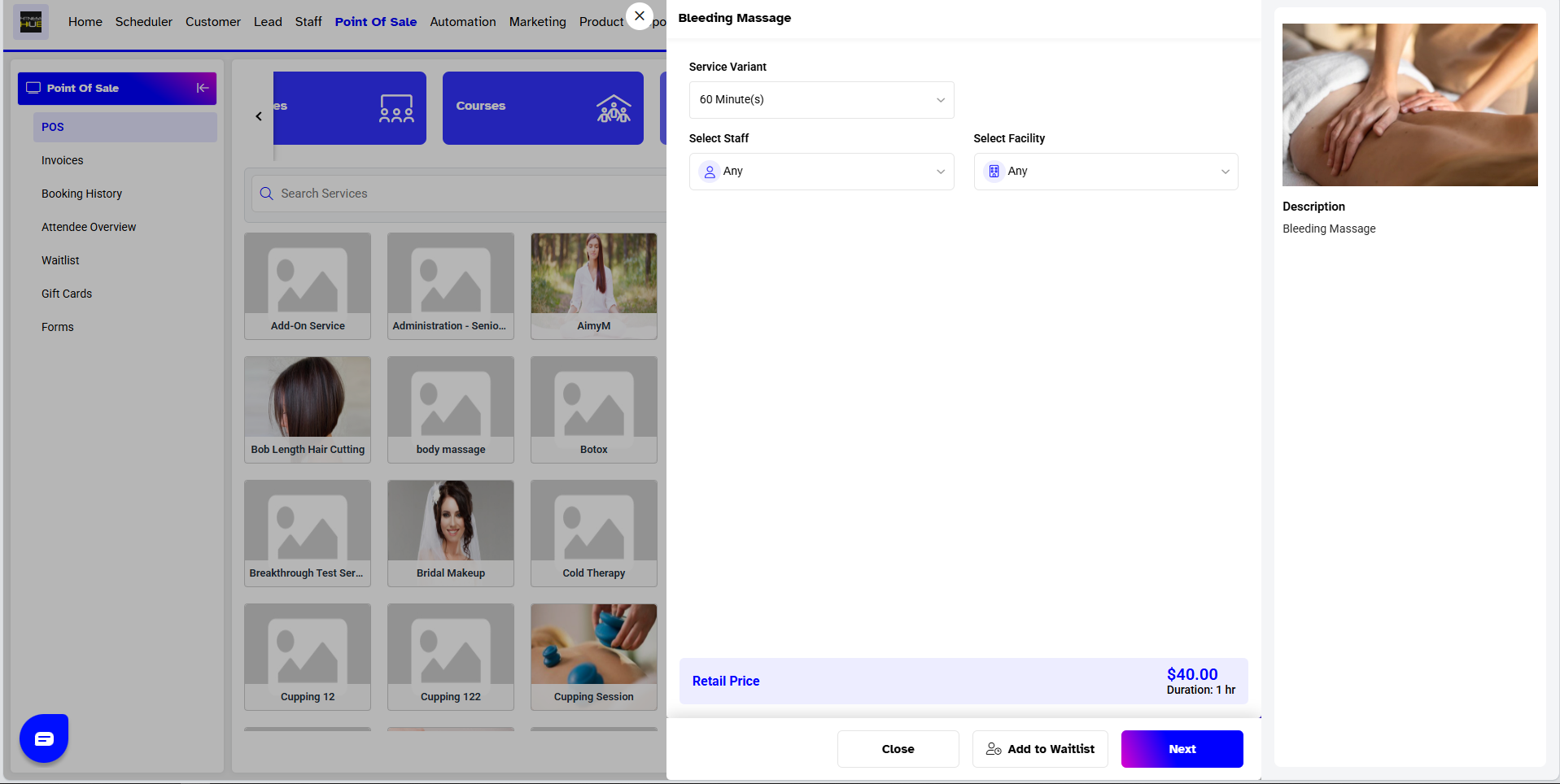
Now, choose the Service Variant from the Dropdown Menu.
Service Add-Ons are optional that can be added if needed.
The next step is to Add Staff Members, Facilities, and Assets from the Dropdown Menu.
The Retail Price and Service Variant Duration will display at the bottom of the page.
Click on the Next Button.
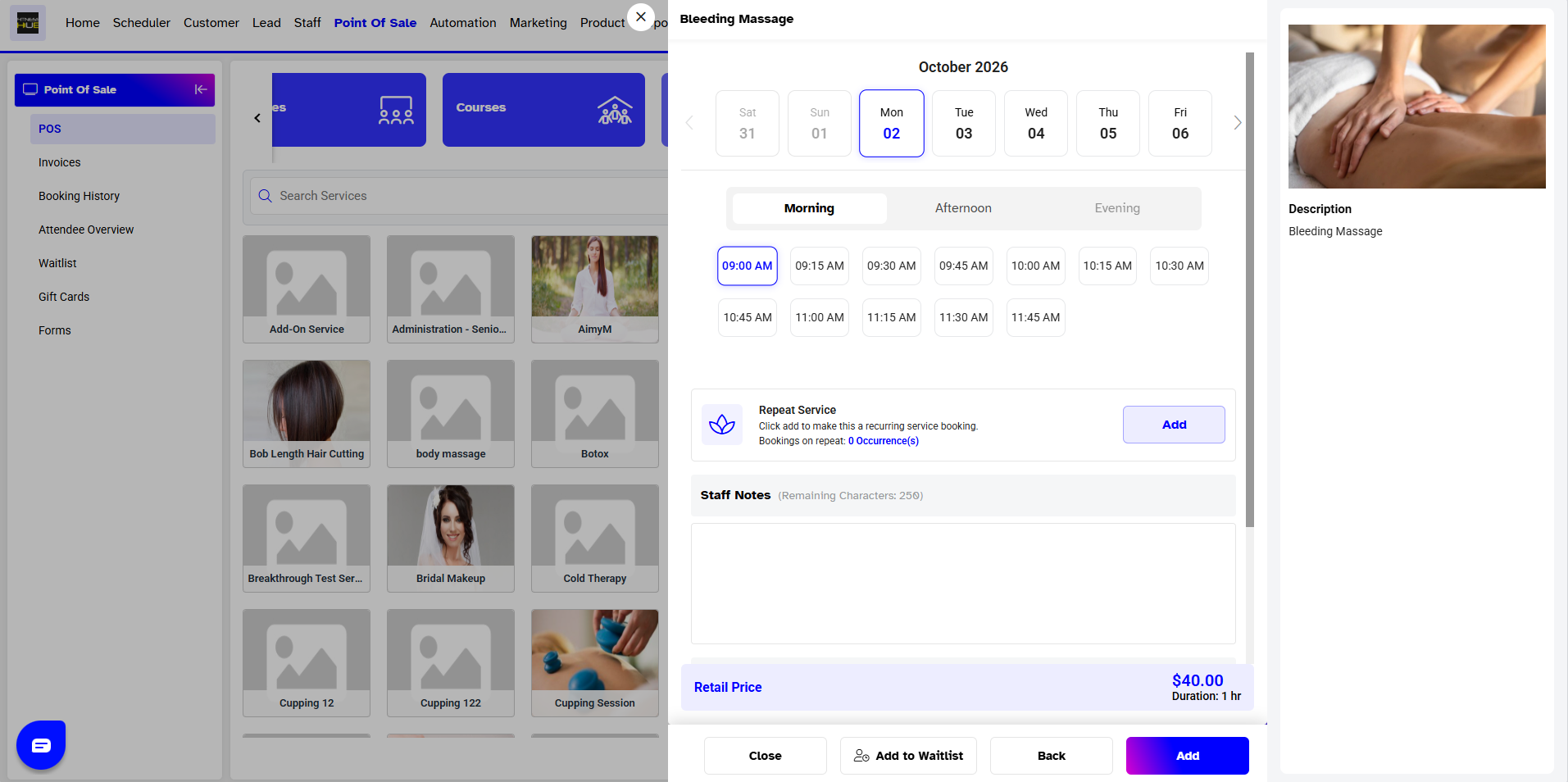
Now, select the Day, Date, and Time Slot for the selected Service.
Click on the Add Button to add Service to the Cart.
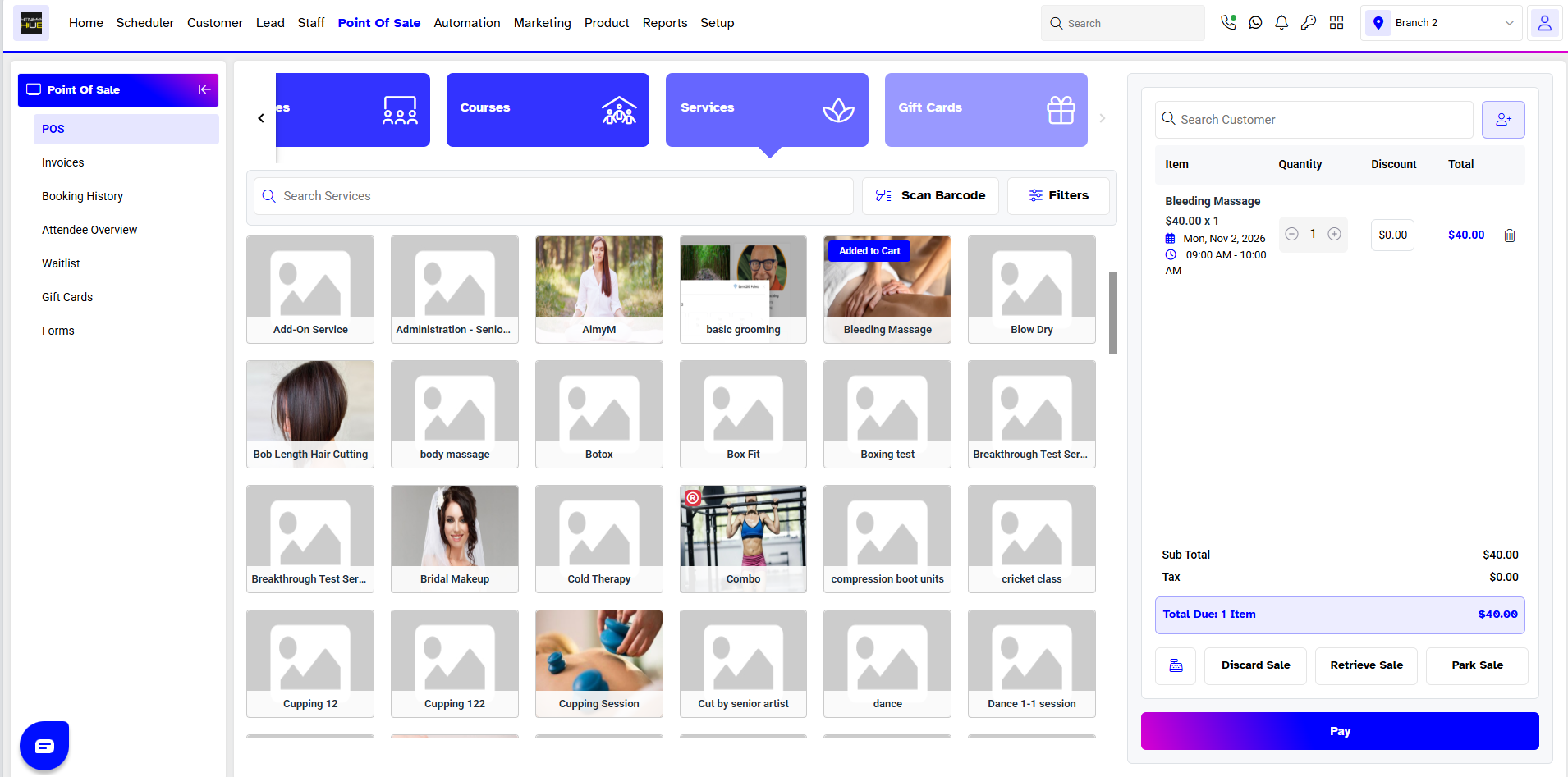
Add in the Customer from the Search Box. Once done, click on the Pay Button.
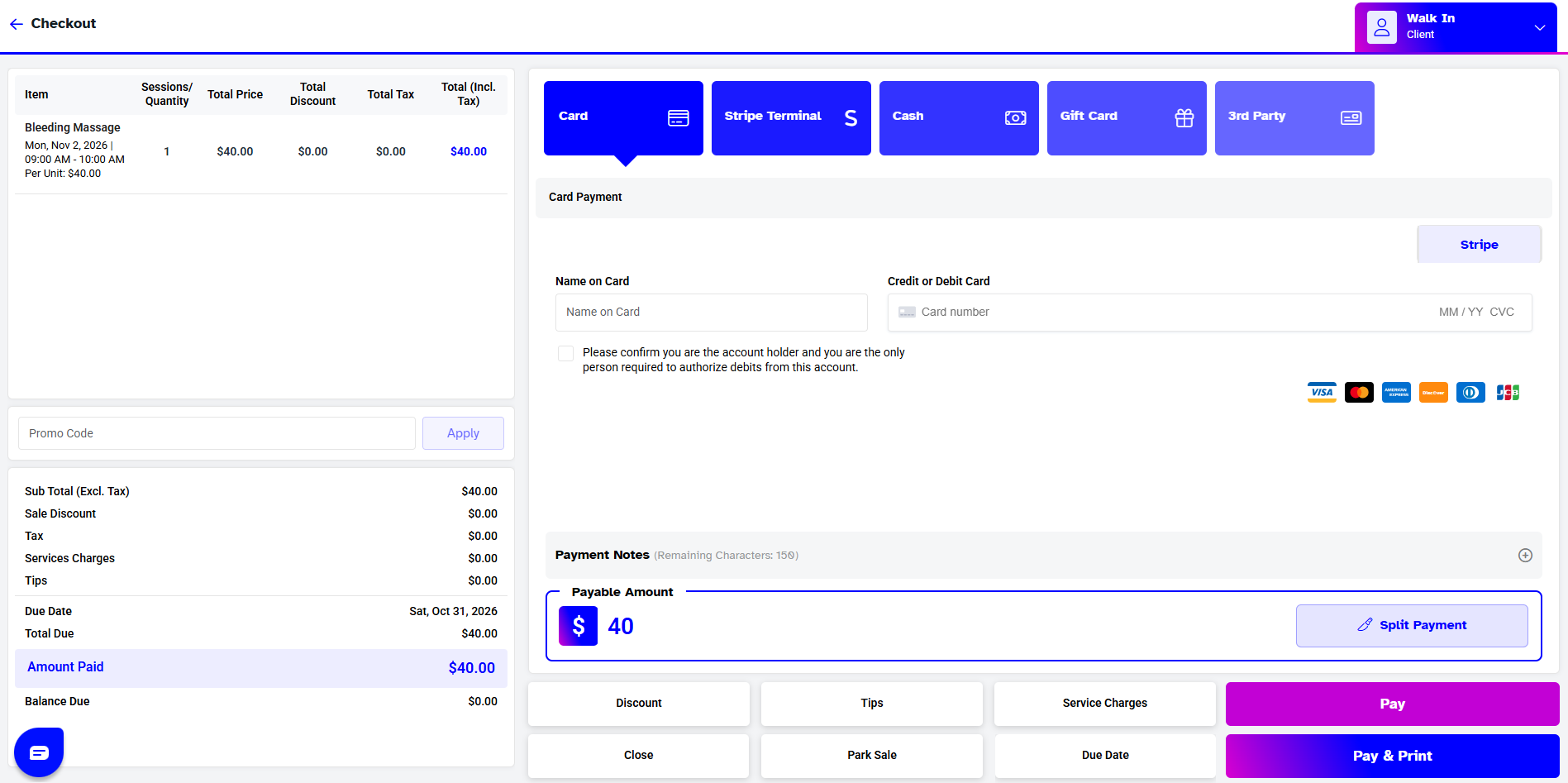
Now, the Checkout Page will open. Add the Amount of Service in the Payment Box.
Now, Select a Payment Method.
Once all the details have been reviewed, click on the Pay Button.
A Service Invoice Saved Successfully message will appear at the bottom of the screen.