


This article covers the following topics:
- TABLE OF CONTENTS
POS :
Steps to
Add Products.
Add Classes.
Add Services.
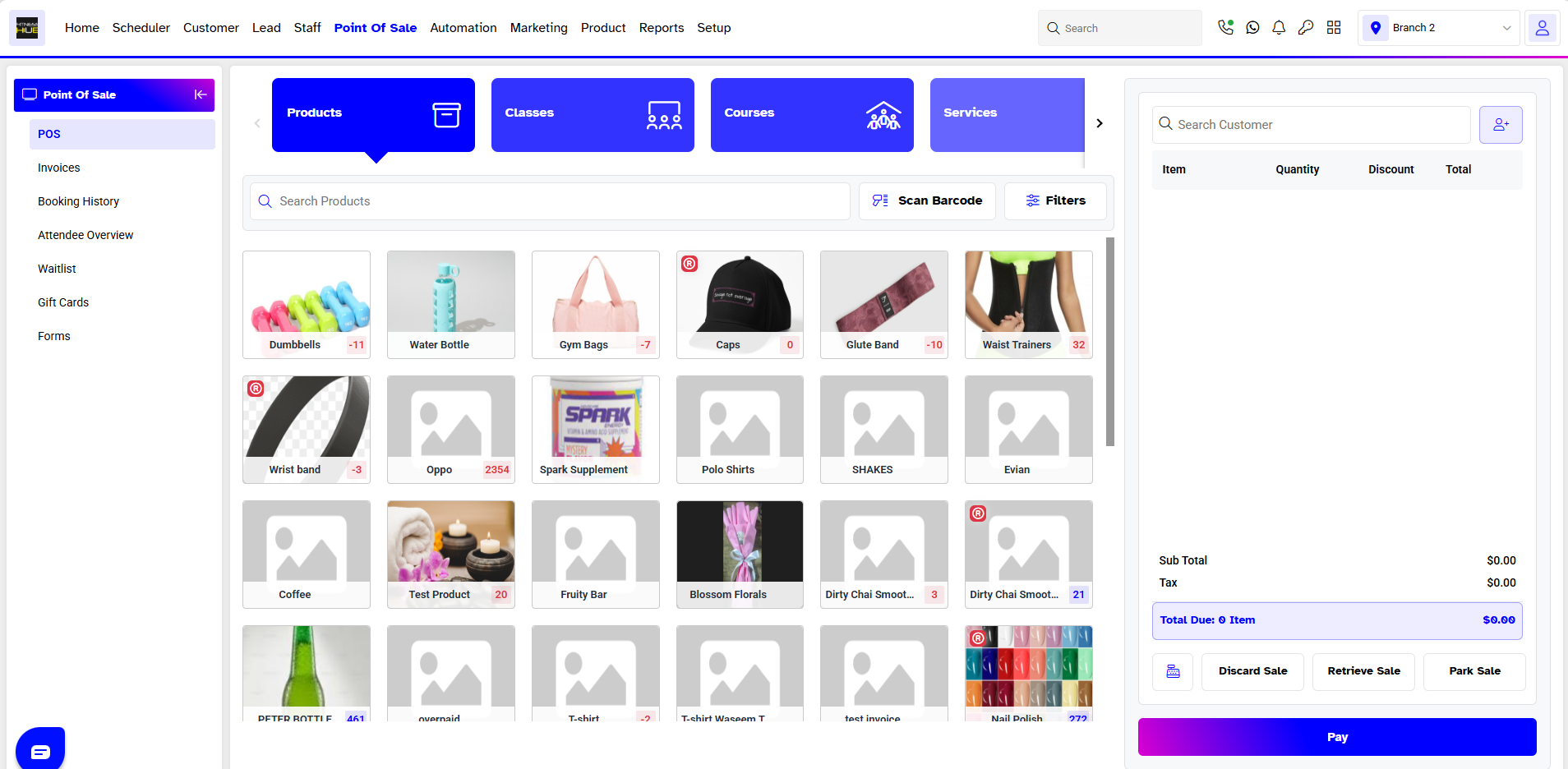
From the Core Menu, click on the Point Of Sale Module. By default, you will land on the POS
Segment page.
Products:
Click on the Products Tab on the left to access the Products and click on the desired item to add it to your Cart.
Classes:
Merchants can access the Classes available by clicking on the Classes Tab.
Click on the Calendar icon next to the date under Classes to see classes scheduled for a different date. Enter the name of a Class in the Search Tab to see when a specific Class is scheduled.
Timed out will appear in front of the Classes that are no longer available and Add to Cart will appear in front of the Classes that are available for Booking.
Merchants may directly add a Customer to the Waitlist from the Point of Sale Module.
The Class will be moved to Cart. Add a Customer to the Invoice by using the Search Customer Bar and click Pay to complete Payment.
To Complete the Invoice click on the Pay Button.
Now, complete the Checkout Process, and the 'Booking Saved Successfully' message will appear at the bottom of the screen.
Services:
Click on the Services Tab and click on the desired Service to add it to your cart.
Now, select the Variant and Resource on the Service.
When you click on a Service, a booking window will pop up with two options:
Select a Date and Time slot for the Service and click "Add" to add it to your cart.
Waitlist
Merchants can use Waitlist feature for already booked Services. Click on Add to Waitlist to send request. A box will pop up. Fill in following fields;
- Select Date: allows you to select a date to schedule the service.
- Pick Desired Attendant: Merchants can select the desired staff for the service from the dropdown menu.
- Select Appointment: this shows the time duration for the service.
- Pick your Desired Time: merchants can pick any time for the service from the dropdown menu.
- Notes: add notes if required.
To add the Customer in the Waitlist, click on the Add Button.
The selected item i.e Product, Service or Class will be added in your Cart and will appear on the right side.
The Cart has 5 sections
- Item: Shows the name of the product, Classes or Service that has been added in the cart.
- Quantity: Indicates the number of units of a particular item added in the cart.
- Per Unit: Displays the Unit price of an item
- Discount: Presents the discount applied. (If applicable)
- Total: Indicates the Total cost of an item after applying discount (If applicable).
Click on the box below Discount. A pop-up window will appear. Enter the password and click Enter. The discount will be applied to the respective item.
- Click on the – or + sign under Quantity to decrease or increase the quantity of the item.
- Click on the Bin icon next to an item to discard that particular item from the cart.
- The Subtotal at the bottom of the cart will display the total cost of the items in the cart exclusive of Tax.
- The Total Due at the bottom of the cart will display the total cost and number of the items in the cart inclusive of Tax.
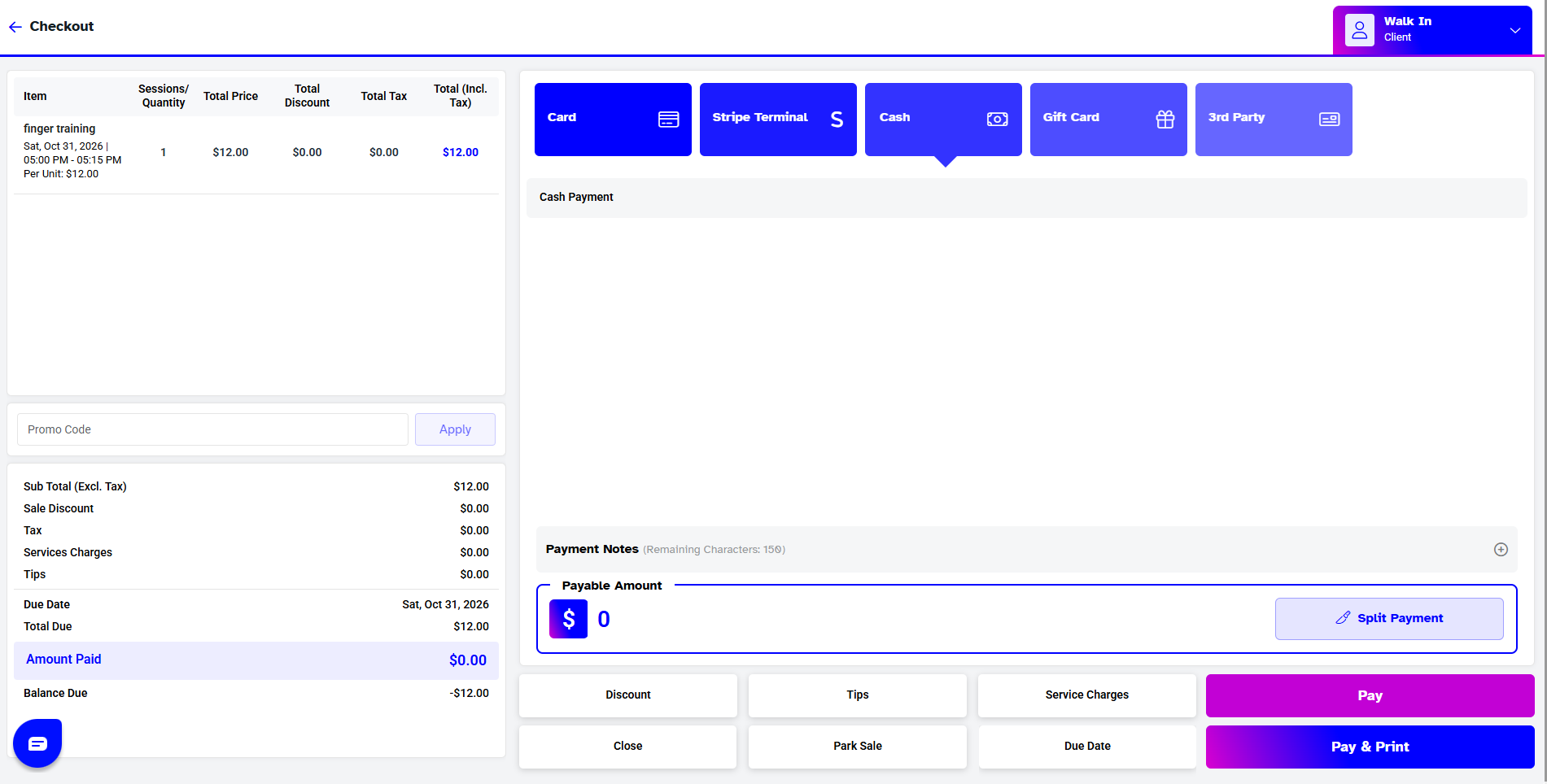
When you click on the Pay Tab at the bottom of the cart., A Payment window will pop up with the following sections
Tips
Service Charges
Discount
- Merchants can allow customers to pay Tips to a Staff member if they have Toggled on Tips for that Staff member in the Staff Module. Optional
- Merchants can determine if they want to charge Service Charges. They can assign a percentage or a figure for the Service Charges to be Charged. Optional
- Merchants can also determine the percentage or amount of discount to be allowed on Products, Services or Classes. Optional
- Subtotal will display the total amount of the items in the cart inclusive of the Tax applicable. Tax will display the tax applicable on the Total amount due.
- Total Due will display the Total amount to be paid by the Customer inclusive of Tips, Service Charges, Discount and Tax.
- The Amount paid by the Customer is entered in the box next to Amount Paid.
- Balance will show remaining amount to be paid if any. It will show 0.00 if there is none.
The bottom right of the window displays the following options:
- Close: Closes the window and takes you back to the POS Segment page.
- Park Sale: Puts the Sale on hold for 24 hours and add it in a queue. Merchants can later click on Retrieve sale to retrieve a sale that has been put on hold.
Pay: Processes the payment for the sale.
- Pay & Print: Processes the payment for the sale and generates a physical invoice for the payment of the sale.
The Right Section of the Pop-up window will show the status of the Customer. I.e Member or Client. Click on Cash if the Payment being made is in Cash. Merchants can add a Payment Note up to 150 Characters in the Payment Note field.
Click on Card if the Payment is being made via Card. The Card has the following fields:
1: Name on Card
2: Credit or Debit Card
- Name on Card: Enter the Name which is present on the card being used to make the payment.
- Credit or Debit Card: Enter the Card Number and the month and year of expiration present on Card. Enter the CVC number printed in the signature area of the back of the card. It is the last 3 digits AFTER the credit card number in the signature area of the card.
- Check the authorization box to confirm identity and authorization of the card holder to process the payment.
- Merchants can add a Payment Note up to 150 Characters in the Payment Note Section.
- Click on Third Party if the payment is being made through any other financial institution.
When you click on Pay or Pay & Print, an Invoice Saved Successfully message will appear at the bottom of the page.
Invoices:
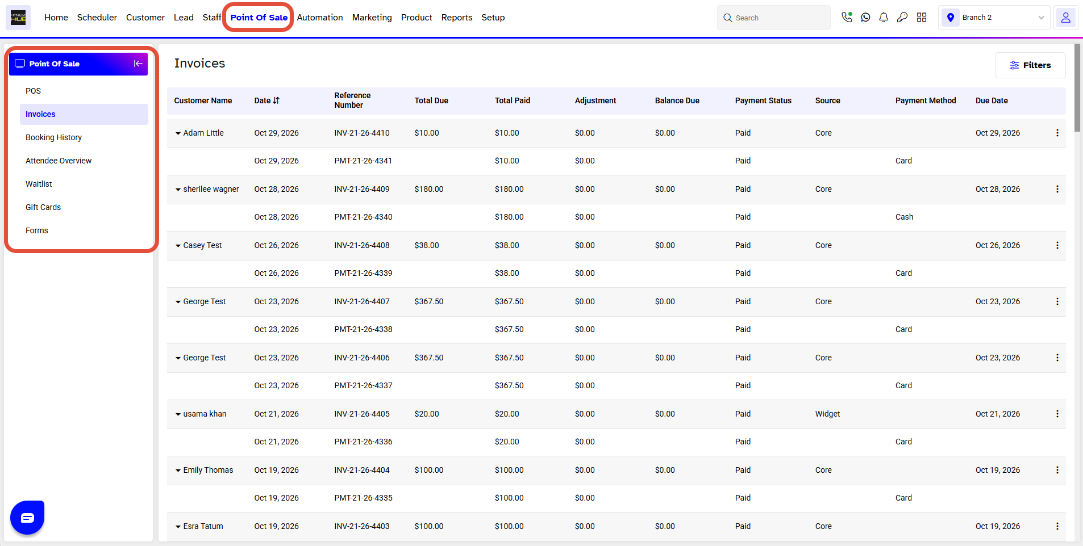
From the Core Menu, click on the Point Of Sale Module. By default, you will land on the POS Segment page. Click on the Invoices , when you will click on Invoices, a history of all the transactions processed will be displayed.
The Invoices Segment page will display the following:
- Date
- Reference Number
- Total Due
- Total Paid
- Adjustment
- Balance Amount
- Payment Status
- Sales Source
- Payment Gateway
- Last Updated By
- Actions
Merchants can view the details of a specific Transaction by clicking on view under Actions.
Bookings:
From the Core Menu, click on the Point Of Sale Module. By default, you will land on the POS Segment page. Click on the Bookings Tab to access the Booking Segment page.
When you click on Booking, a drop-down menu will appear with two options.
1. Booking History
2. Classes & Events
Forms:
From the Core Menu, click on the Point Of Sale Module. By default, you will land on the POS Segment page. Click on the Forms Tab to access the Forms Segment page.
The Form Segment page will display all the forms that are linked with Customers.
Waitlist:
From the Core Menu, click on the Point Of Sale Module. By default, you will land on the POS Segment page. Click on the Waitlist Tab to access the Waitlist Deails of Customers.
Gift Cards:
To access the Gift Card details in your Branch, follow these steps:
1. From the Core Menu, click on the Point of Sale Module.
2. You will be directed to the POS Segment page by default.
3. Click on the Gift Cards tab.
Once you are on the Gift Cards Tab, you can view and edit the Gift Card Balance. Additionally, you can resend the Gift Card via Email.
For a list of terms used in the Wellyx application & across the support website, please consult our Glossary.