


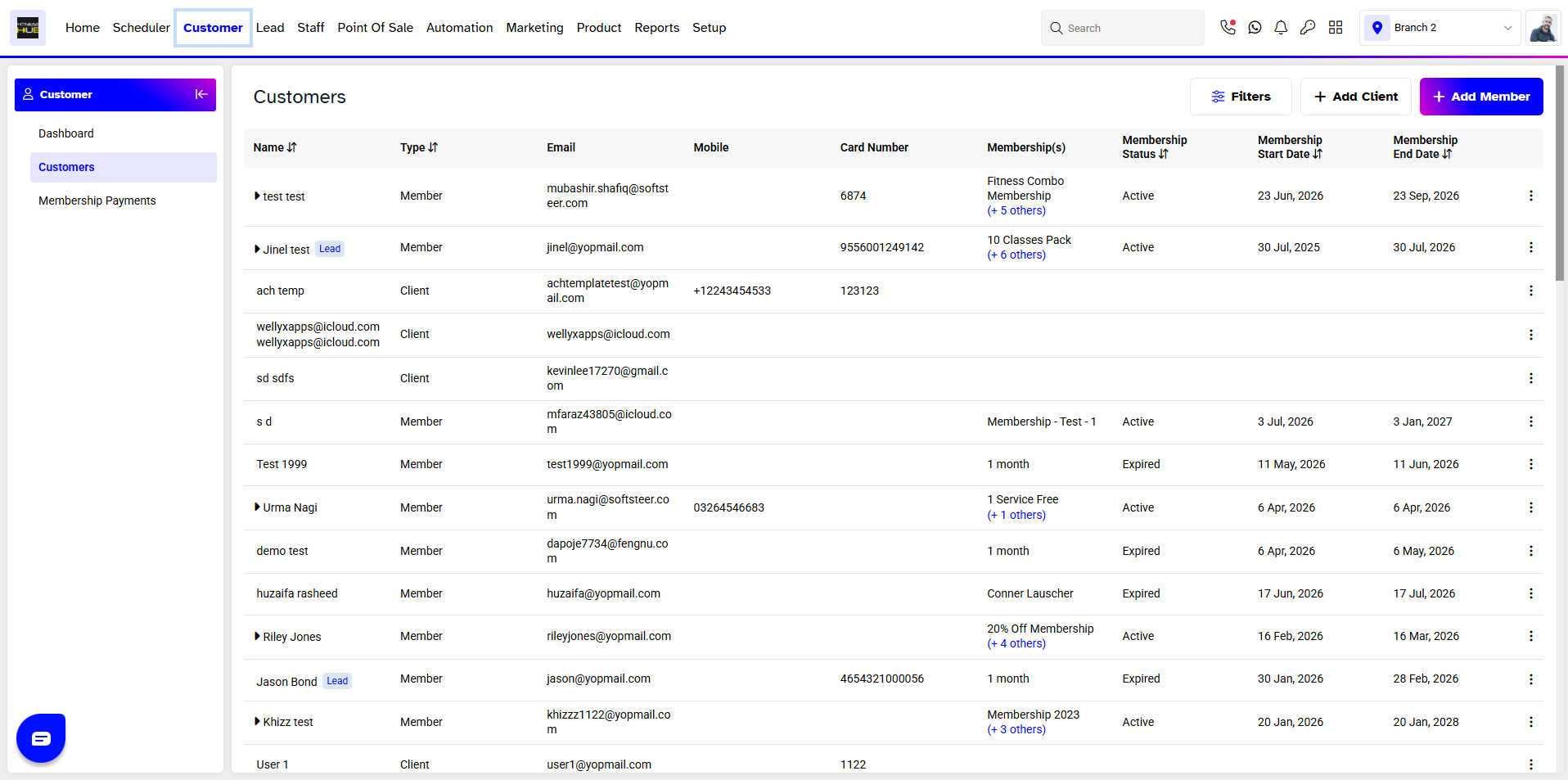
To assign a Customer Call from one staff member to another, merchants have to go to the Customer Module. By default, you will be taken to the Customers Segment. Click on the name of the Customer , whose call you wish to assign to a different staff member.
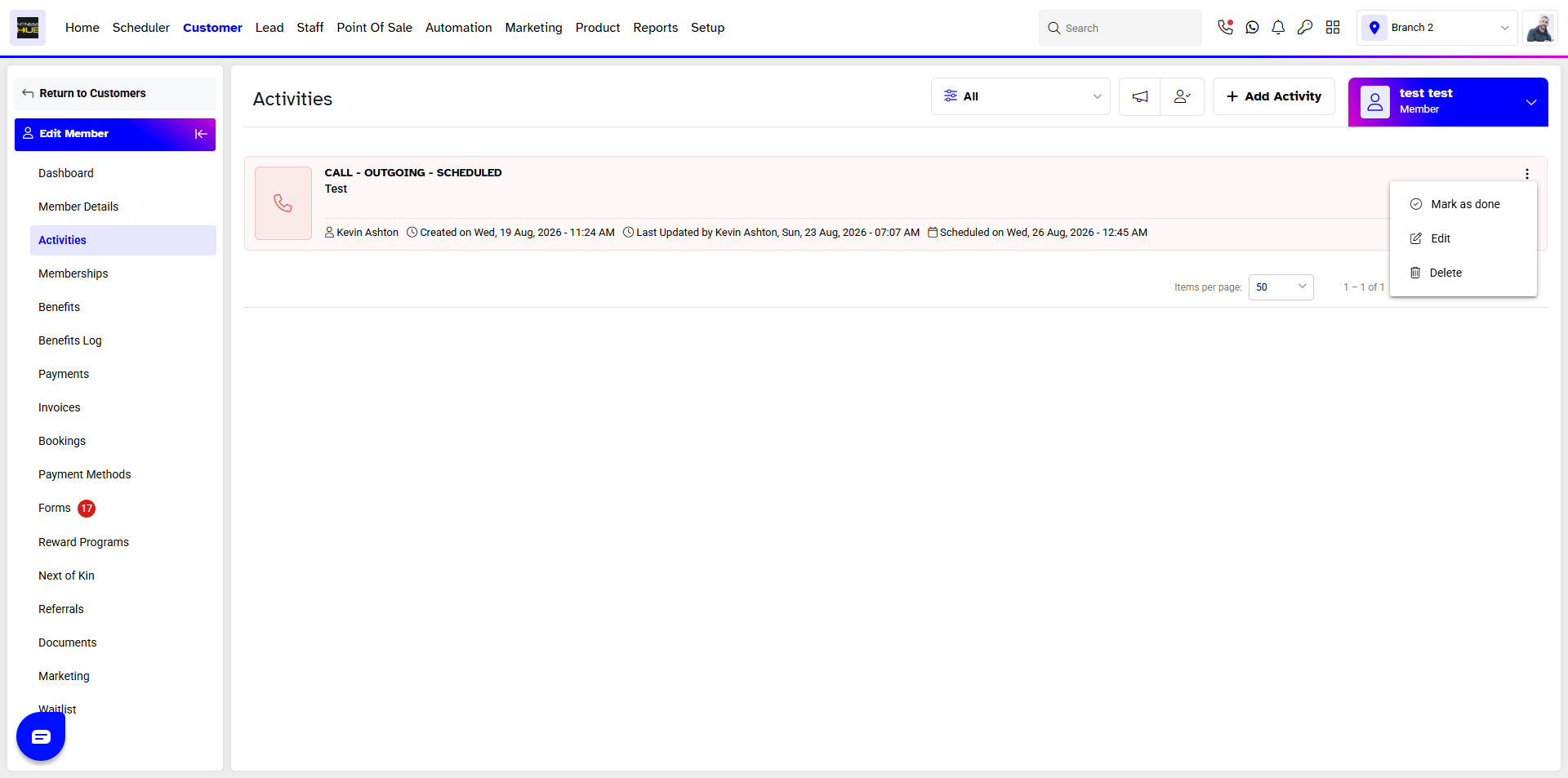
Click on the Activities tab and edit the Call.
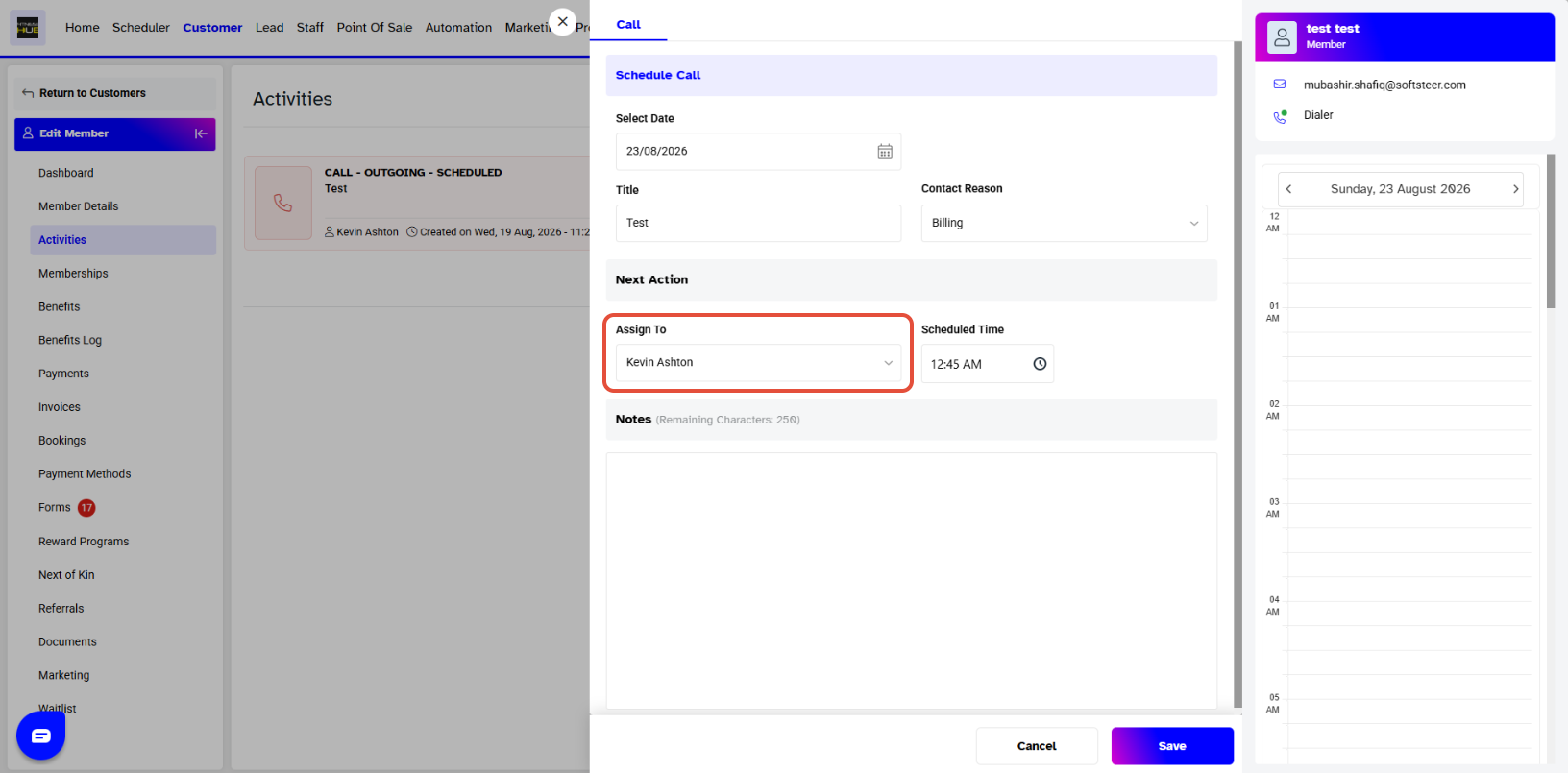
Merchants will be able to see the name of the assigned staff member for the call In front of Assigned to.
Merchants can assign the call to a different staff member by clicking on the Scheduler Module in the Core Menu.
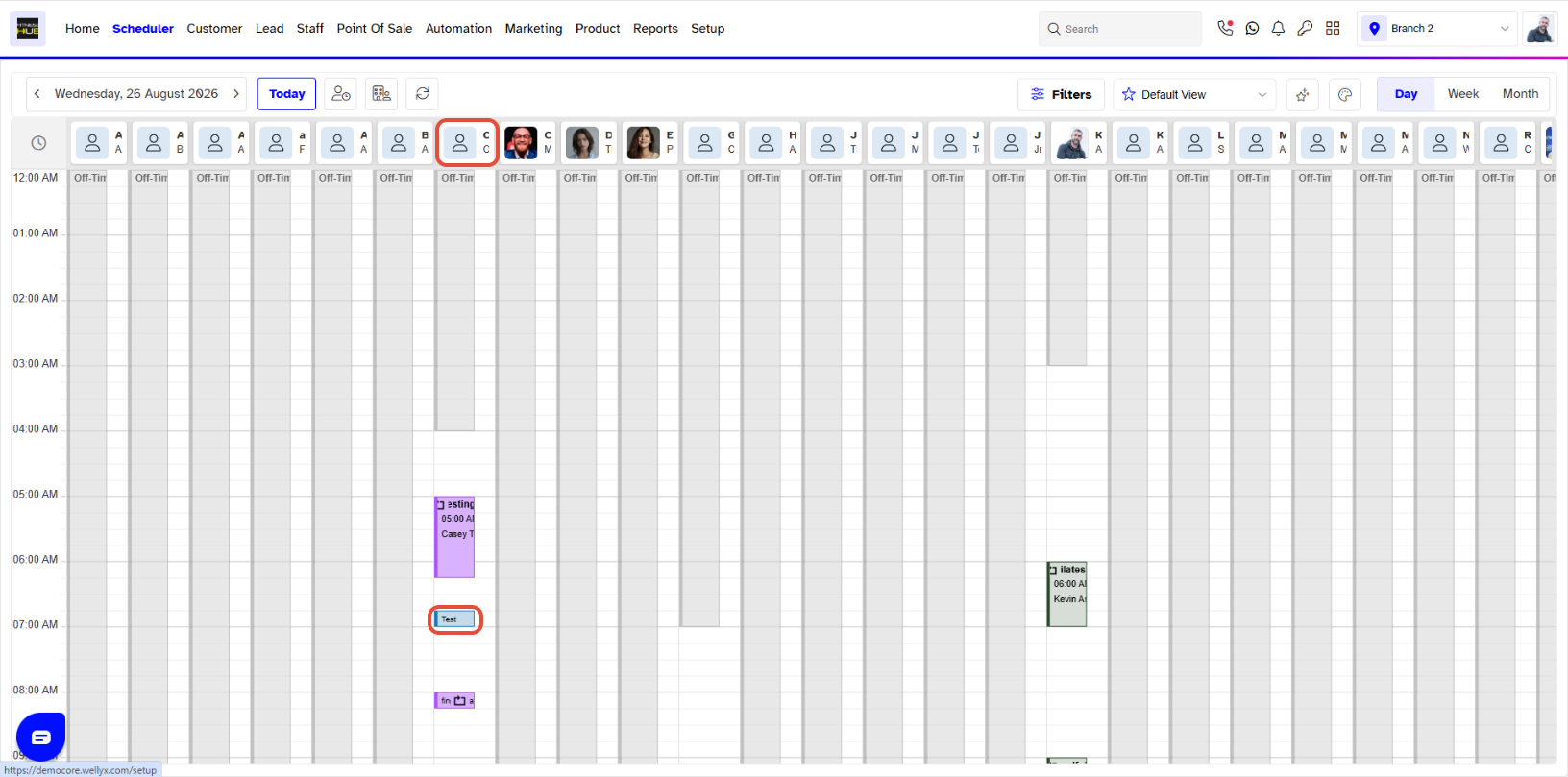
To assign call to a different staff member, go to Scheduler Module and select the desired date by clicking on the date present on the top left of the Scheduler Module page.

When you select the date, the Scheduler Module page will change and display the activities of staff members for the selected date.
You will be able to view the scheduled call in the respective staff member’s Scheduler.
Click on the scheduled call and drag it to the time slot of the staff member , whom you wish to assign the call to and drop it there.
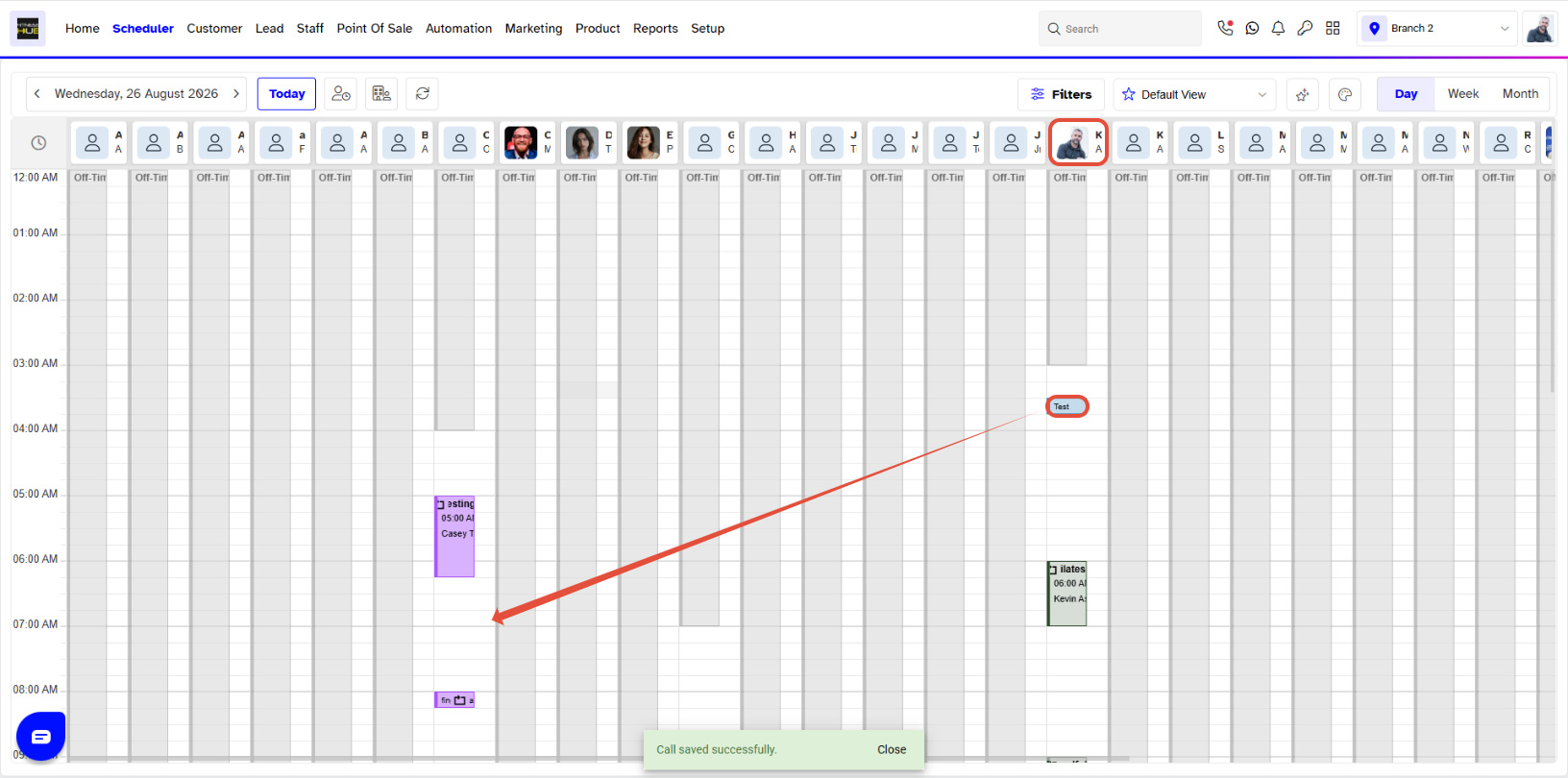
When you drag and drop the scheduled call, a Call Saved Successfully message will appear at the bottom right of the Scheduler Module page.
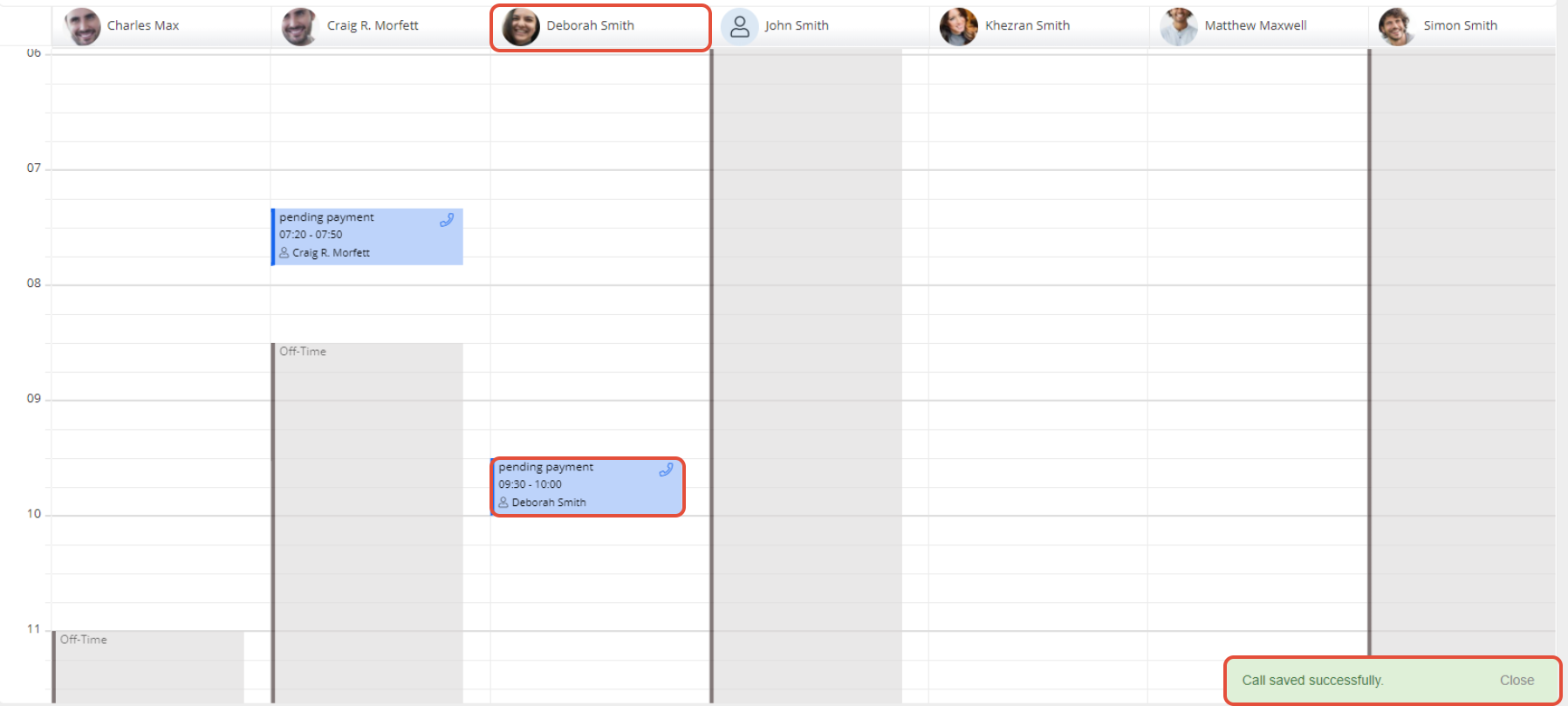
The call will be assigned to another staff member.