

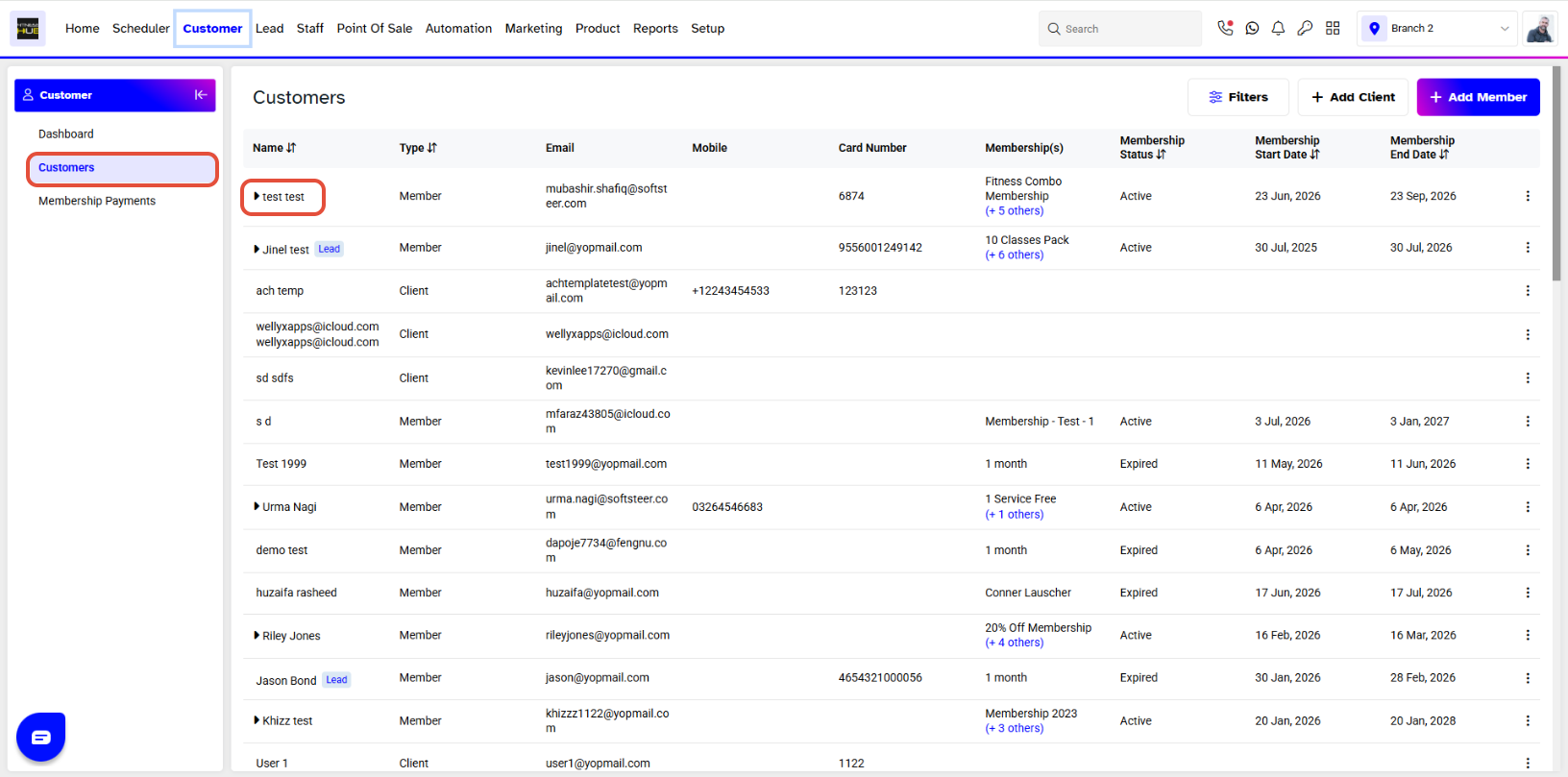
To re-schedule a Customer Call, merchants have to go to the Customer Module. By default, you will be taken to the Customers Segment. Click on the name of the Customer for whom you wish to schedule a Call.
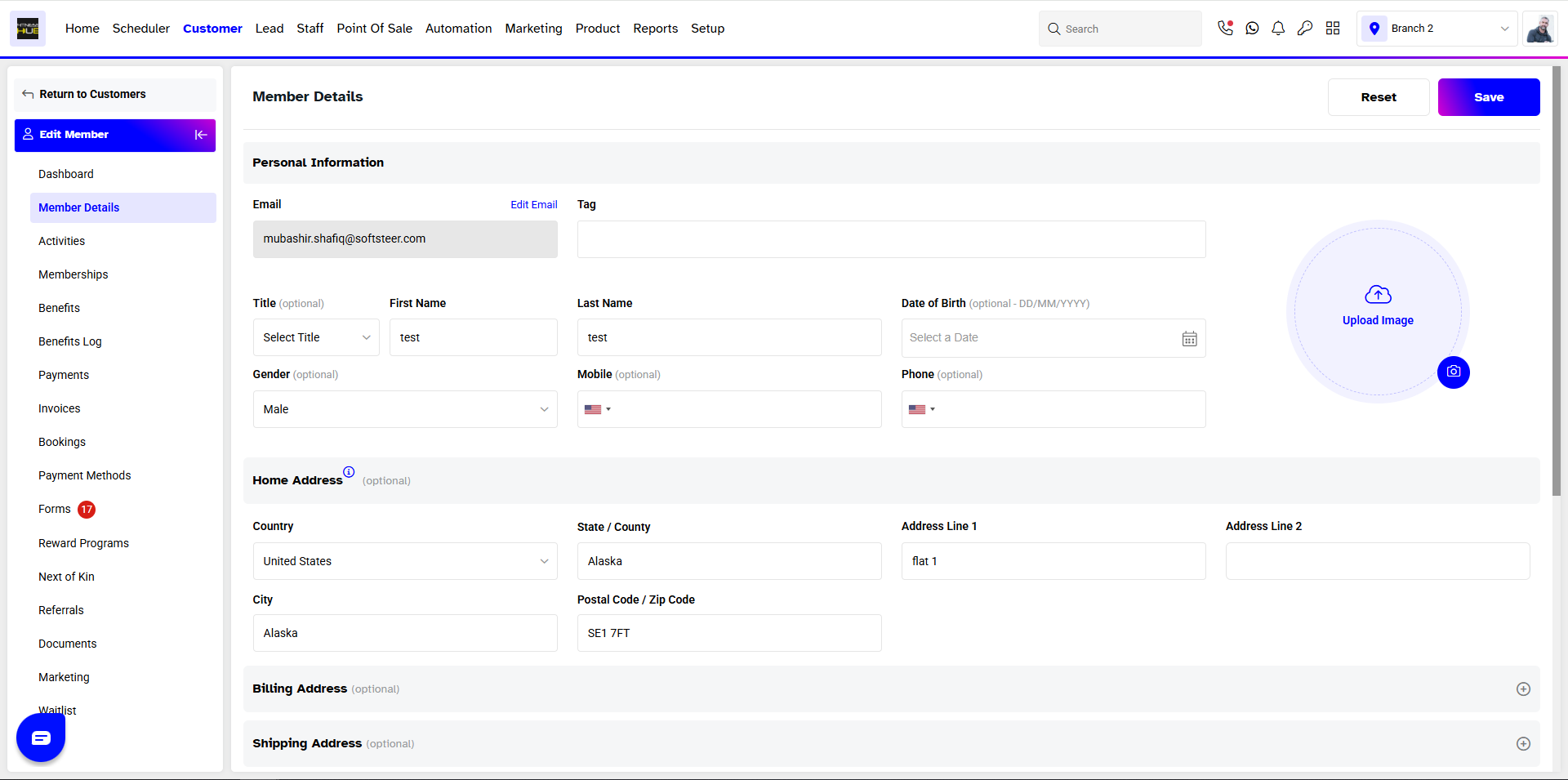
By default you will land on the Client/Member Detail Segment page. (The name of the Segment page depends upon the status of the customer i.e., client or member).
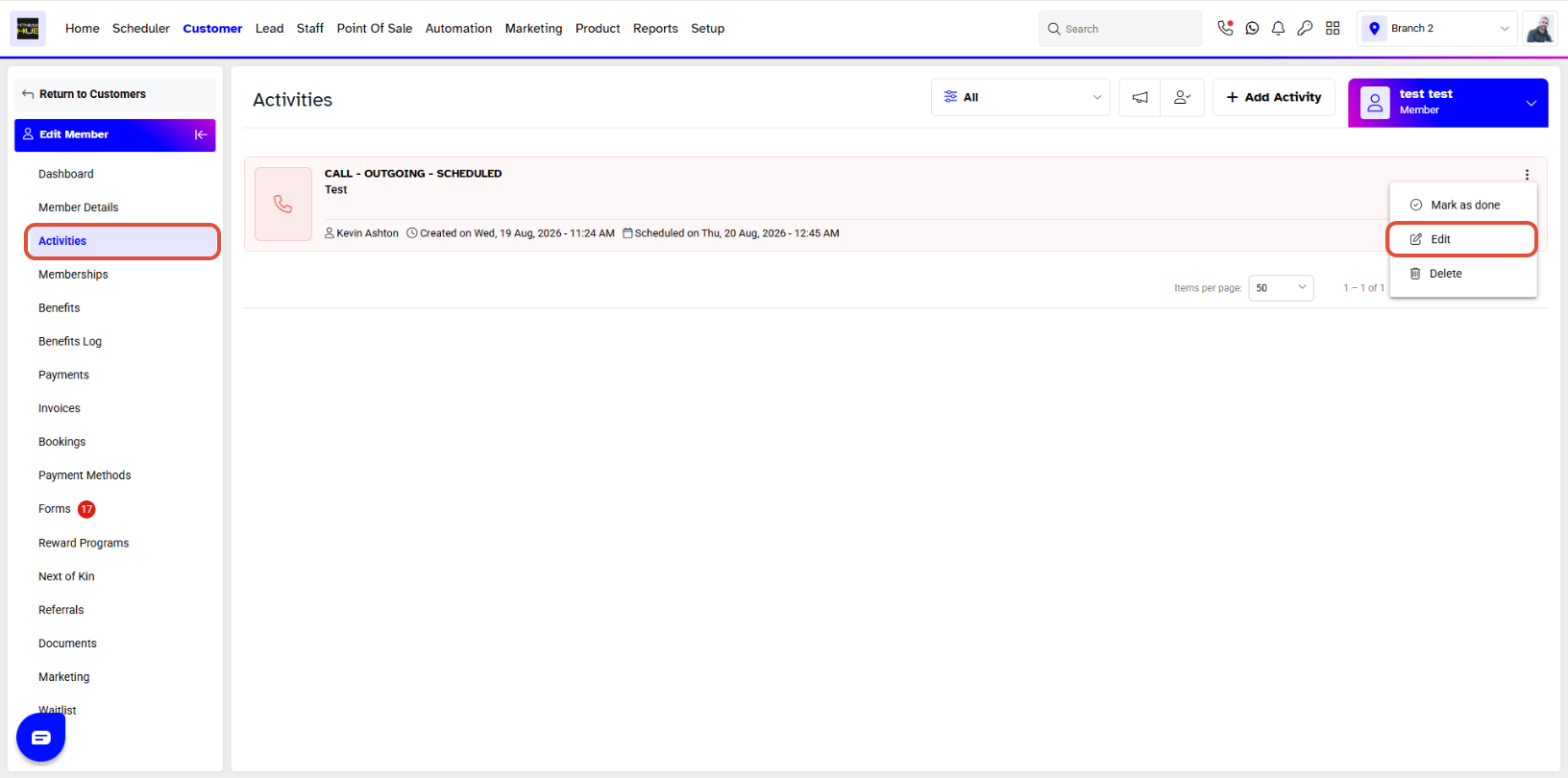
Click on Activities. The Activities Log will display the activities of the respective member or client.
Click on Calls, the page will display all the calls that have been scheduled.
Click on the Edit icon on the bottom right of the call that you want to reschedule,
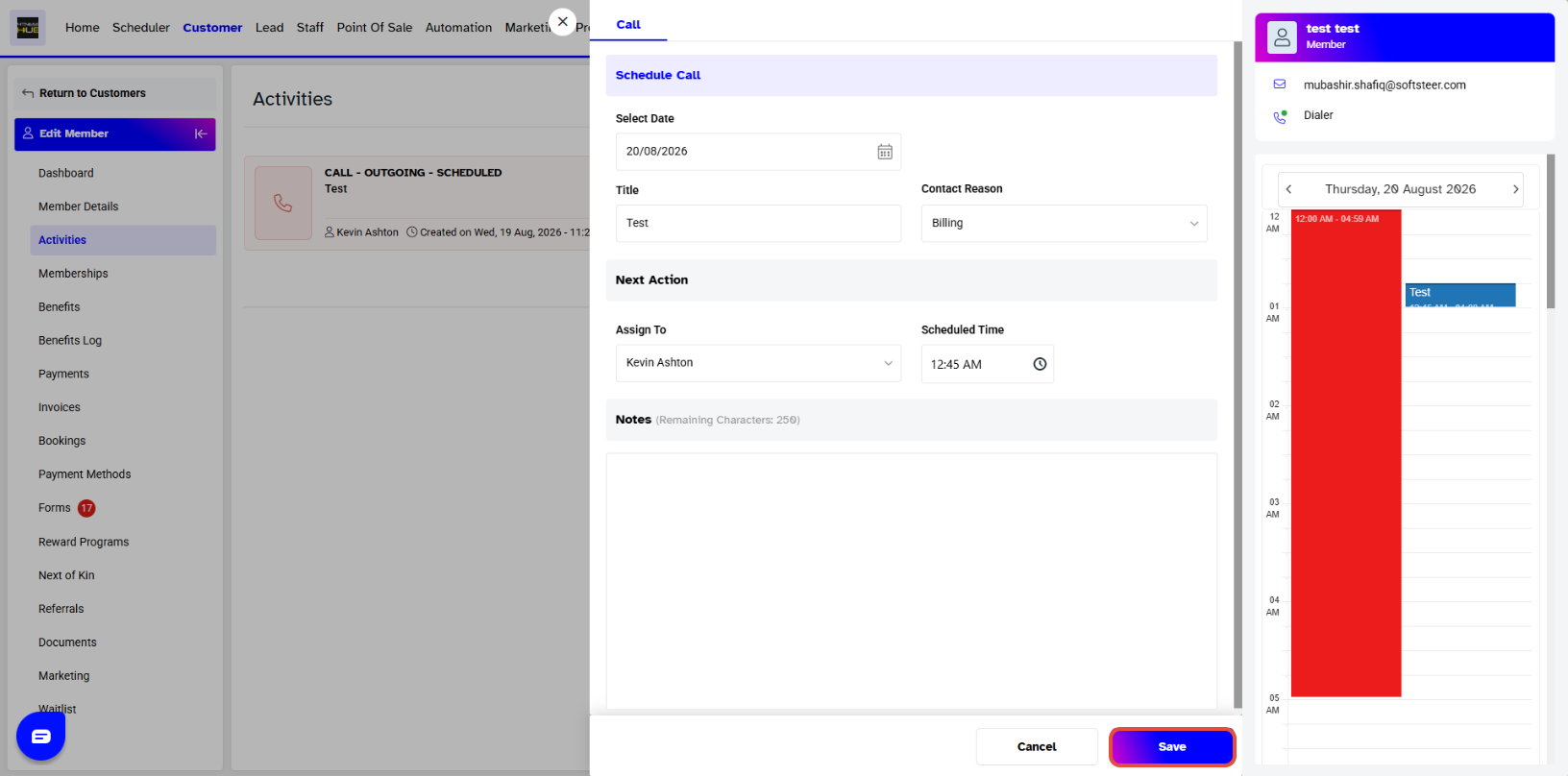
When you will click on Edit, a Call Scheduler window will pop up. Select the Date under Select Date you want to reschedule the call for and change time if necessary or add any other detail necessary.
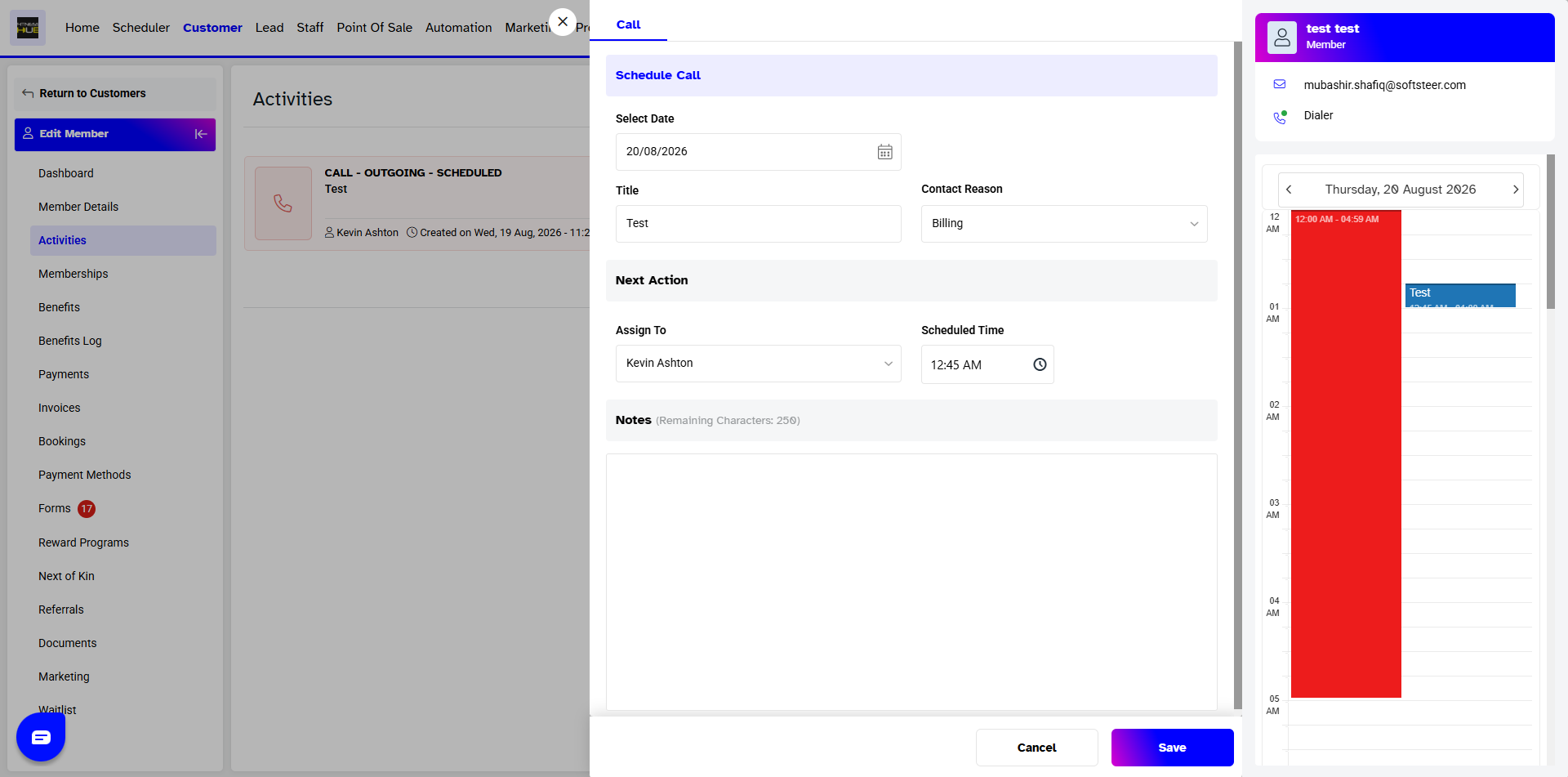
Click on the Save button on the bottom right of the pop-up window, a Call Saved Successfully message will appear on the bottom right of the page confirming the scheduled call.