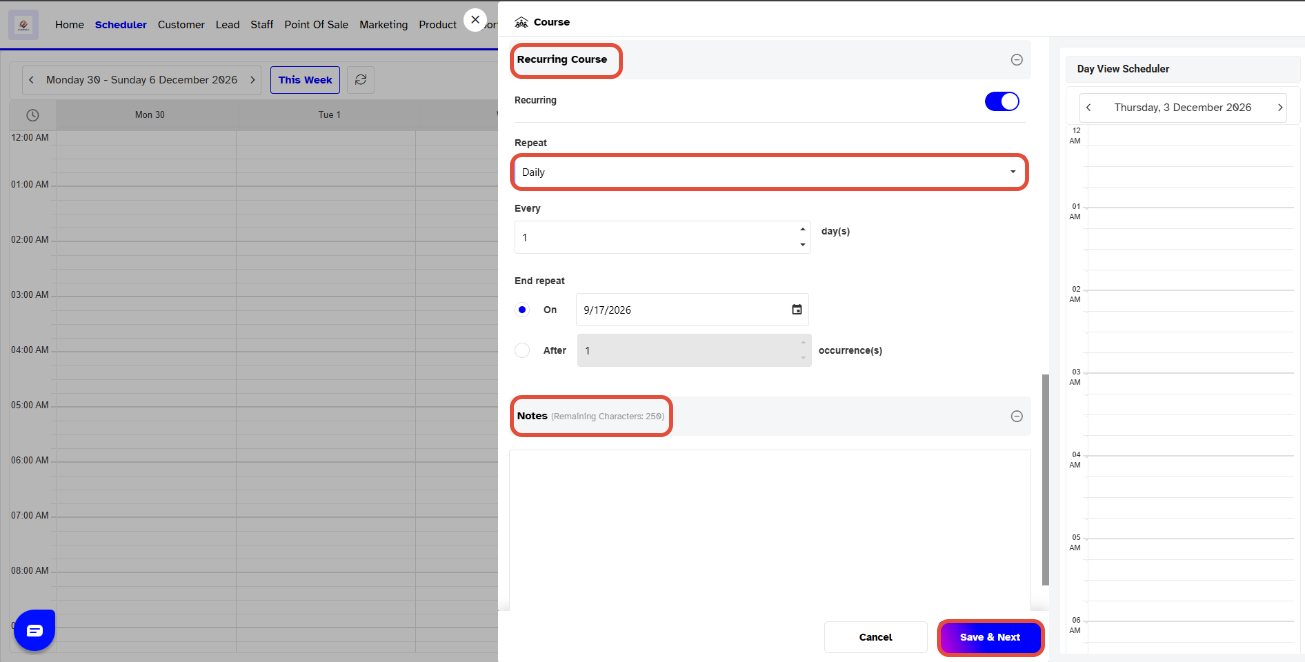


Step 1: Open the Scheduler
Go to Scheduler in Core.
Click on the required time slot. The Add Activities popup will appear.
Select Course from the available options.
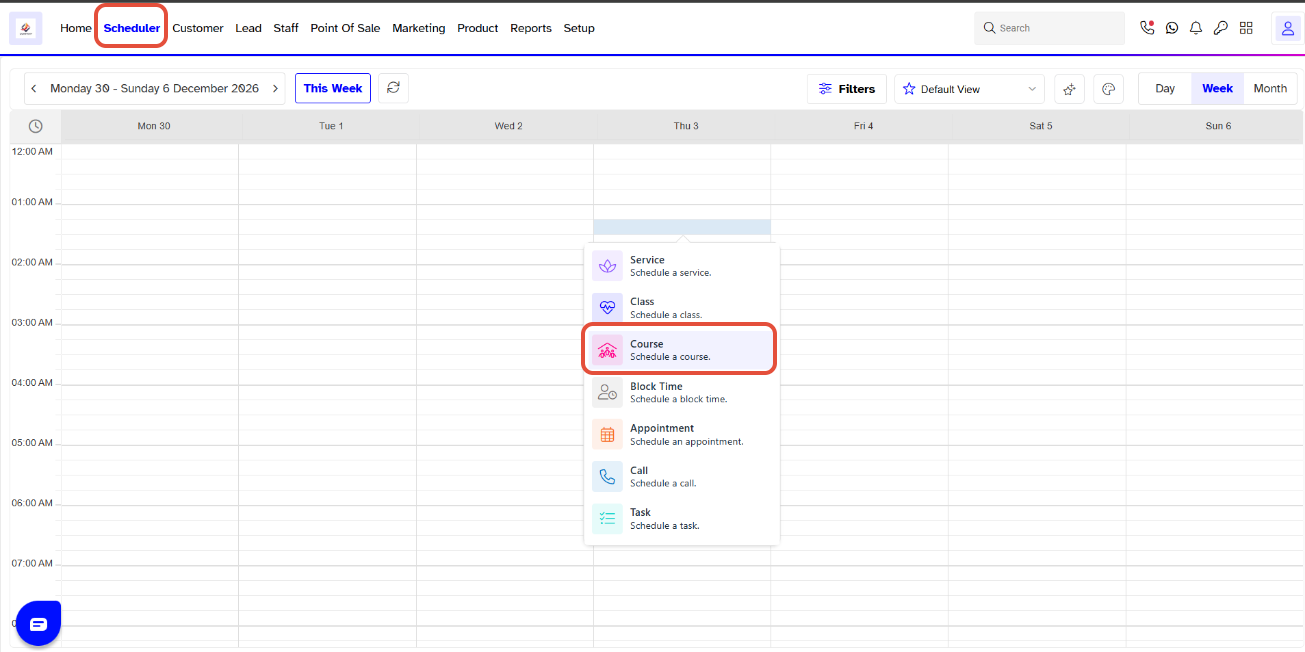
Step 2: Configure the Course Details
The Schedule a Course window will open.
Enter or select the following details:
- Date: Select the date for the course.
- Course: Select the course you want to schedule.
- Subtitle: Enter a subtitle if required.
- Start Time: Select the course start time.
- End Time: Select the course end time.
- Streaming Link: Add a streaming link if the course will be held online.
- Minimum Attendees: Enter the minimum number of attendees required.
- Maximum Attendees: Enter the maximum number of attendees allowed.
- Waitlist Capacity: Enter the maximum number of customers who can join the waitlist.
These fields allow you to configure the main scheduling and attendance settings for the course.
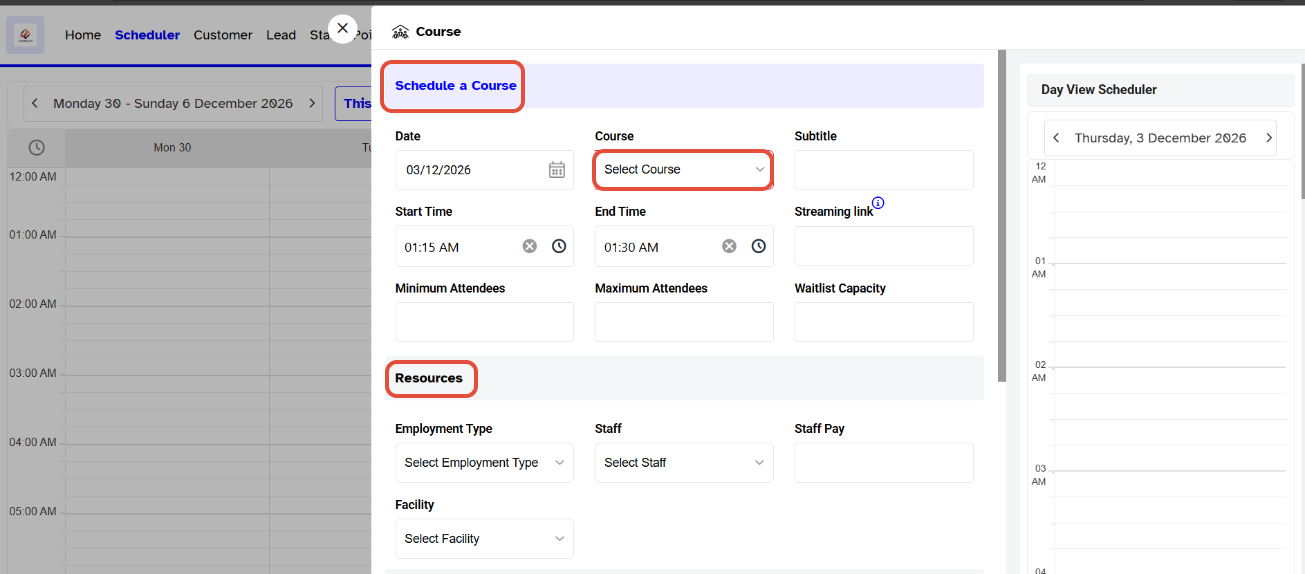
Step 3: Configure Pricing and Course Settings
Under Pricing, enter the following details:
- Cost Price: Enter the cost of the course if applicable.
- Price: Enter the course price, excluding tax.
- Tax: Select the applicable tax.
Under Configuration, use the available options to control how the course is displayed and booked online:
- Show Online: Enable this option to allow customers to view the course online.
- Hide Price Online: Enable this option to hide the course price on the Widget and Customer App.
- Is Featured: Enable this option to feature the course on the home page of the online platforms.
- Waitlist Online: Enable this option to allow customers to add themselves to the course waitlist through the Widget and Customer App.
- Share Privately: Enable this option to allow customers to share the course privately through the Widget and Customer App.
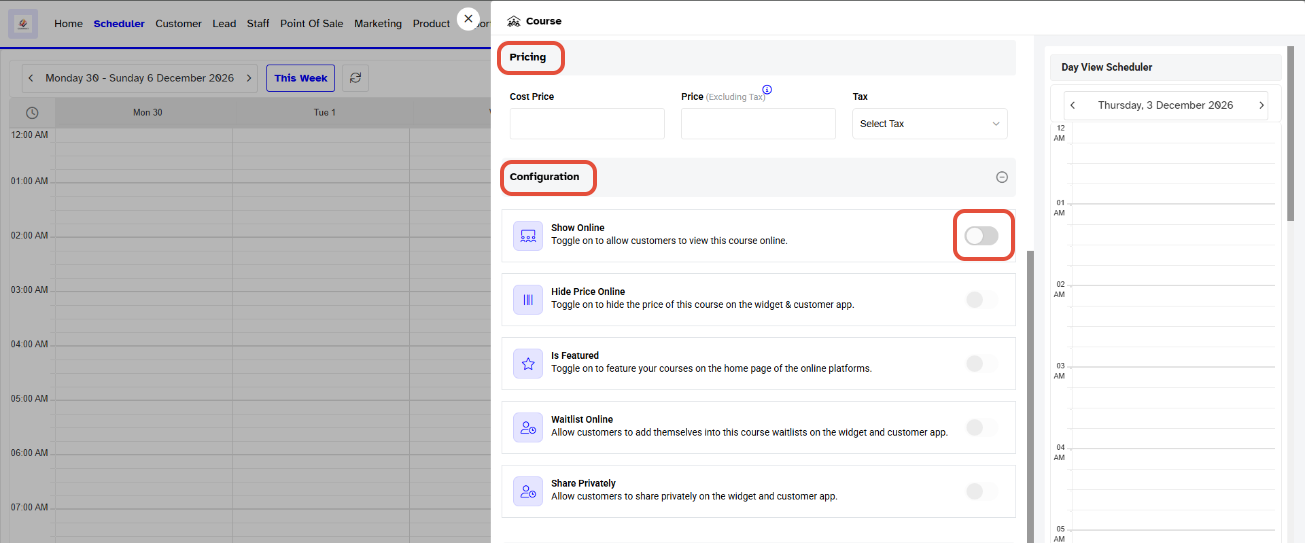
Step 4: Set Recurring Course and Add Notes
Under Recurring Course, enable the Recurring option if you want the course to repeat.
- Repeat:Select how often the course should repeat:
- Daily
- Weekly
- Monthly
- Select the required repeat interval.
- End Repeat:Choose either:
- On: Select a specific date when the recurring course should end.
- After: Enter the number of occurrences after which the course should end.
- Notes: Add any additional information or instructions for the course.
Click Save & Next to save the course.