


TABLE OF CONTENTS
- Step 1: Navigate to the Automation Module
- Step 2: Add Automation Information
- Step 3: Enable the Automation Rule
- Step 4: Configure Schedule Settings
- Step 5: Set Automation Options
- Step 6: Define the Audience
- Step 7: Select the Template
- Step 8: Save the Automation Rule
This guide provides a step-by-step walkthrough for creating an Automation Rule in Core.
It covers everything from setting up a new automation and defining trigger schedules to configuring options, selecting audiences, and linking templates.By following this guide, you can streamline business processes, ensure timely communications, and enhance customer and staff engagement through automated workflows.
Step 1: Navigate to the Automation Module
Go to the Automation Module in Core.
Click on the Add Automation button to begin creating a new automation rule.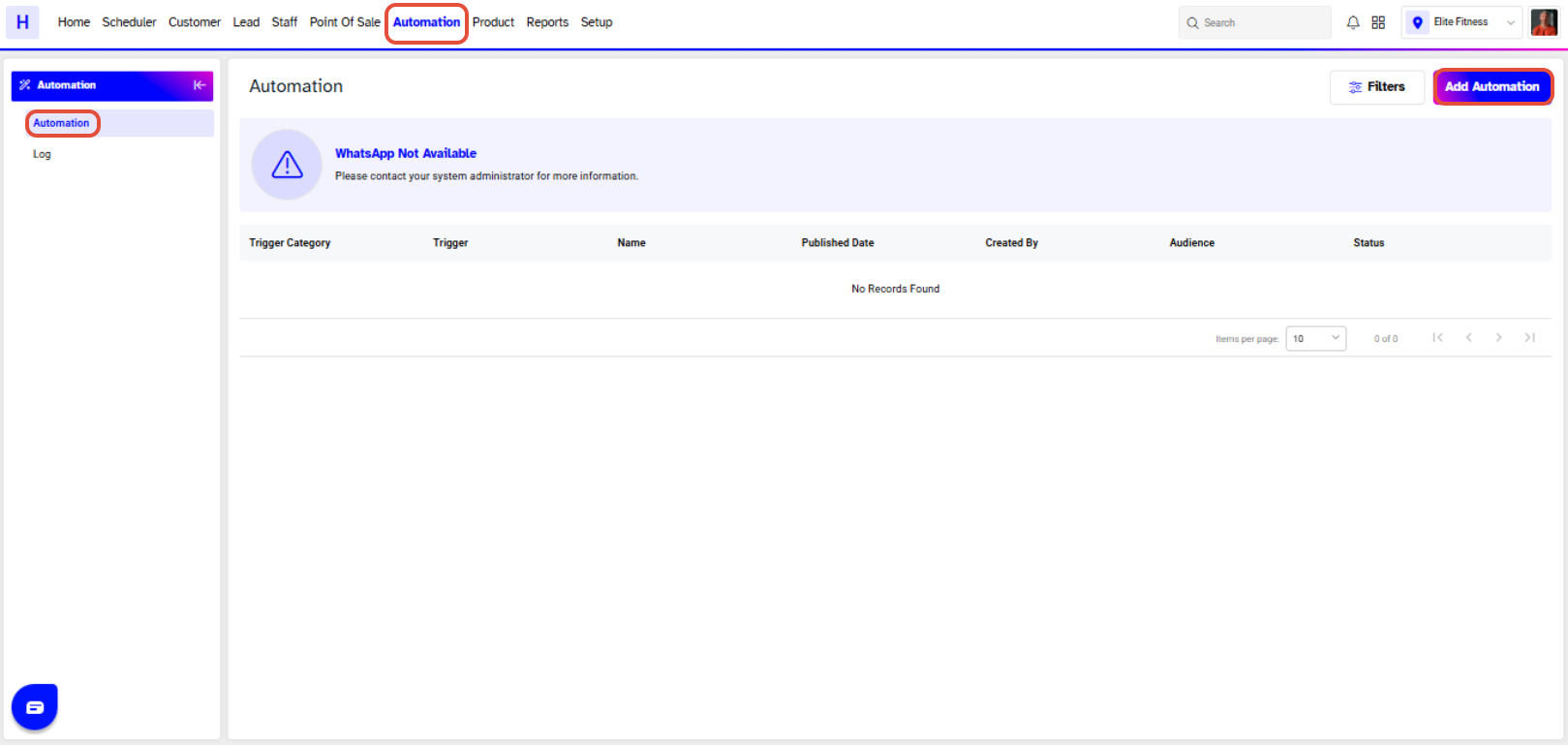
Step 2: Add Automation Information
In the Add Automation section, fill in the following fields:
Automation Name: Enter a name for the automation rule.
From Email Name: Enter the sender name that customers will see when they receive the automation.
Reply Email Address: Enter the email address where customers can send their replies.
Toggle ON/OFF the Active button to activate or deactivate the Automation Rule for the branch.
If the From Email Name field is left empty, the system will use the default company email address.
Step 3: Configure Schedule Settings
In the Schedule section, define when and how the automation will trigger:
Trigger Category: Select from the dropdown menu (e.g., Class, Service, Lead Enquiry, Membership, Shift, or Customer Activities).
Trigger: Select the specific trigger event related to the chosen category.
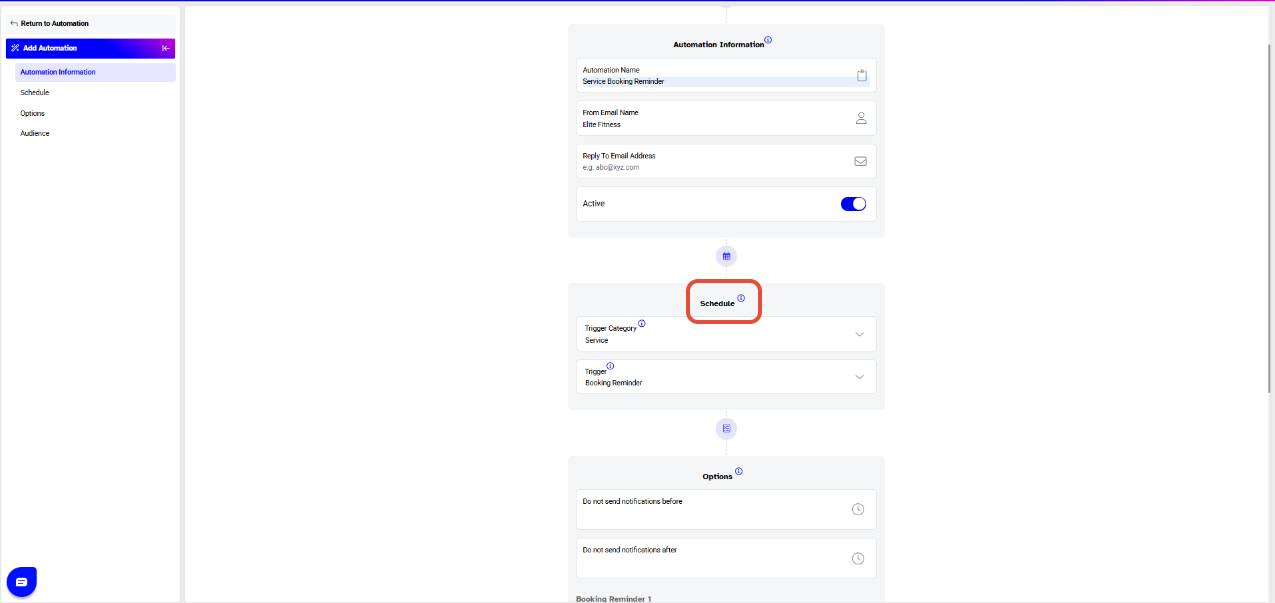
The selected trigger will only function if an Automation Template has already been created for it in the Setup Module.
Step 4: Set Automation Options
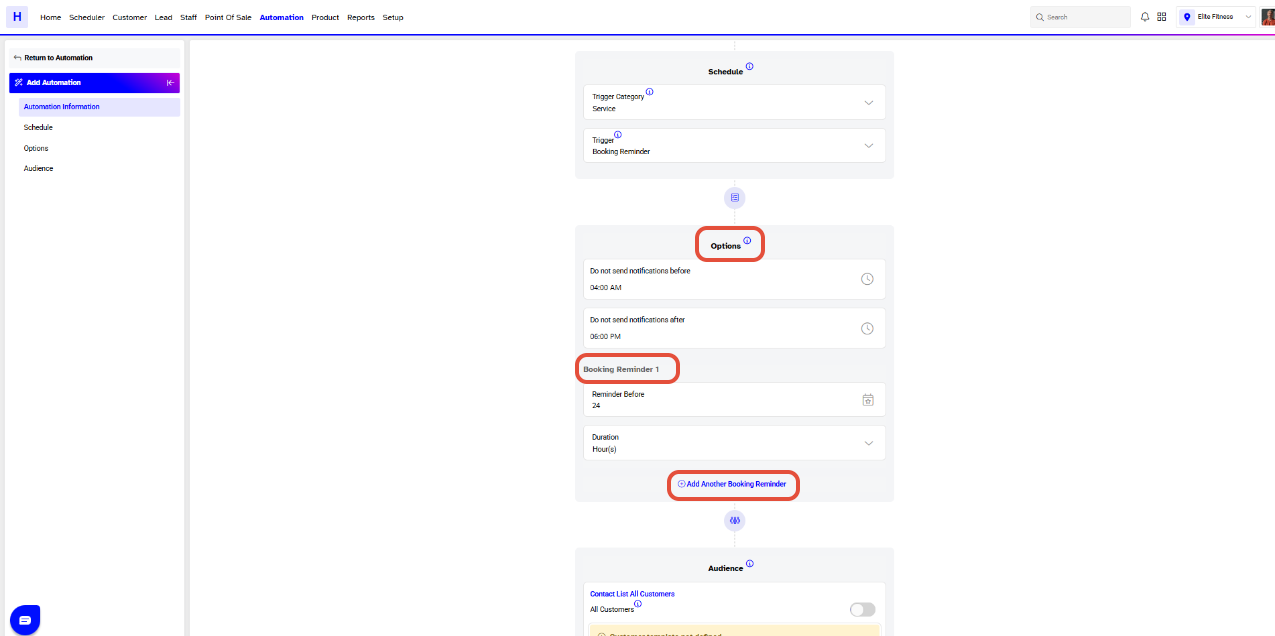
The Options section allows you to control when the automation is sent:
Do Not Send Notifications Before: Specify a time before which the notification should not be sent.
Do Not Send Notifications After: Specify a time after which the notification should not be sent.
If both fields are left blank, notifications can be sent at any time.
Additional scheduling options (depending on trigger type):
Remind Before: Define how long before the event the notification should be sent.
Duration: Select the duration unit — Minutes, Hours, or Days.
Step 5: Define the Audience
Select the Audience for the automation rule.
The available audience options depend on the selected Trigger Category and Trigger.
You may choose to send the automation to:
Customers
Staff
Both
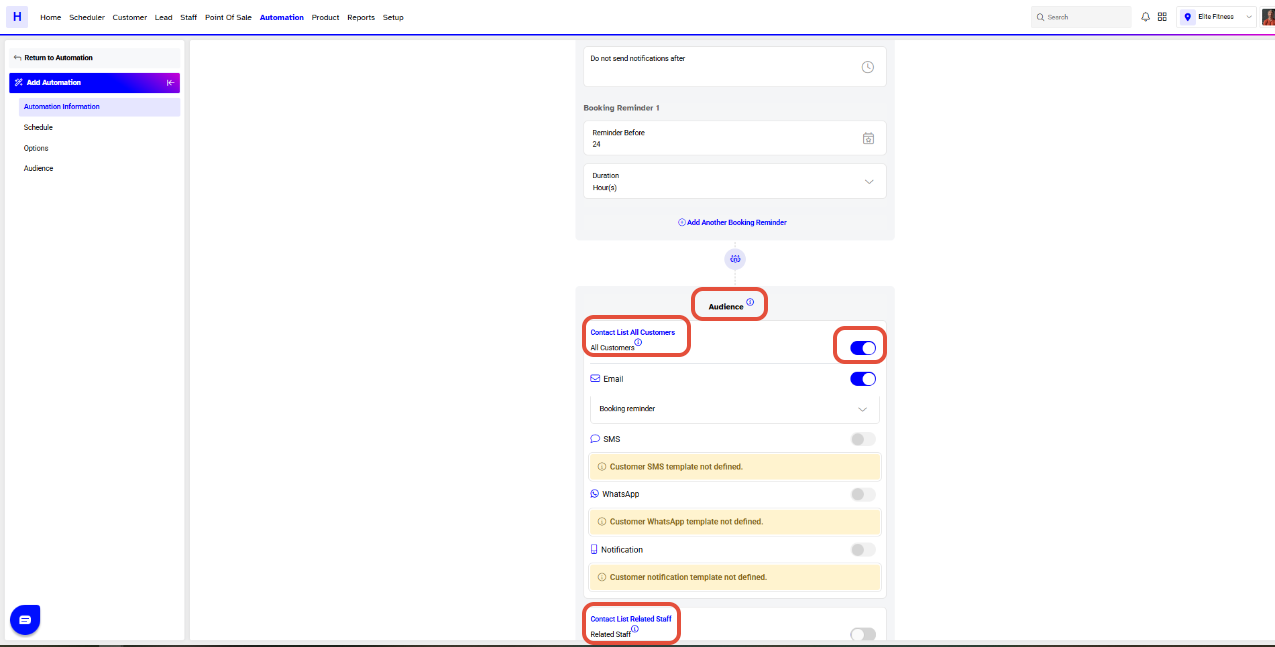
Audience selection becomes available only after a Trigger Category and Trigger have been defined.
Step 6: Select the Template
Choose the template format through which the automation will be delivered:
Email
SMS
Notification
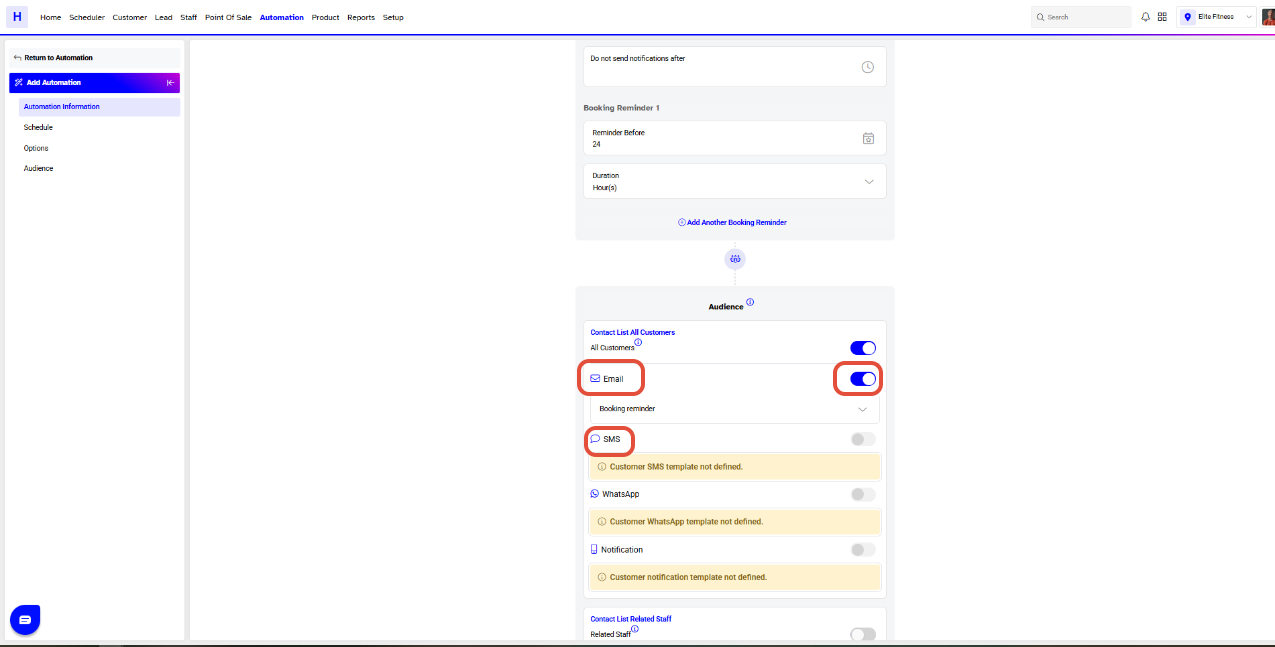
Template options will appear only after selecting a target audience.
Automation Templates must already exist in the Setup Module for them to appear in the dropdown menu.
Step 7: Save the Automation Rule
Once all fields have been filled and configurations completed, click on the Save button.
A confirmation message — “Automation Created Successfully” — will appear at the bottom of the screen.




