


TABLE OF CONTENTS
To set up a Product Sold Automation, follow the steps below:
How To Setup A Product Sold Automation For Core And Staff App
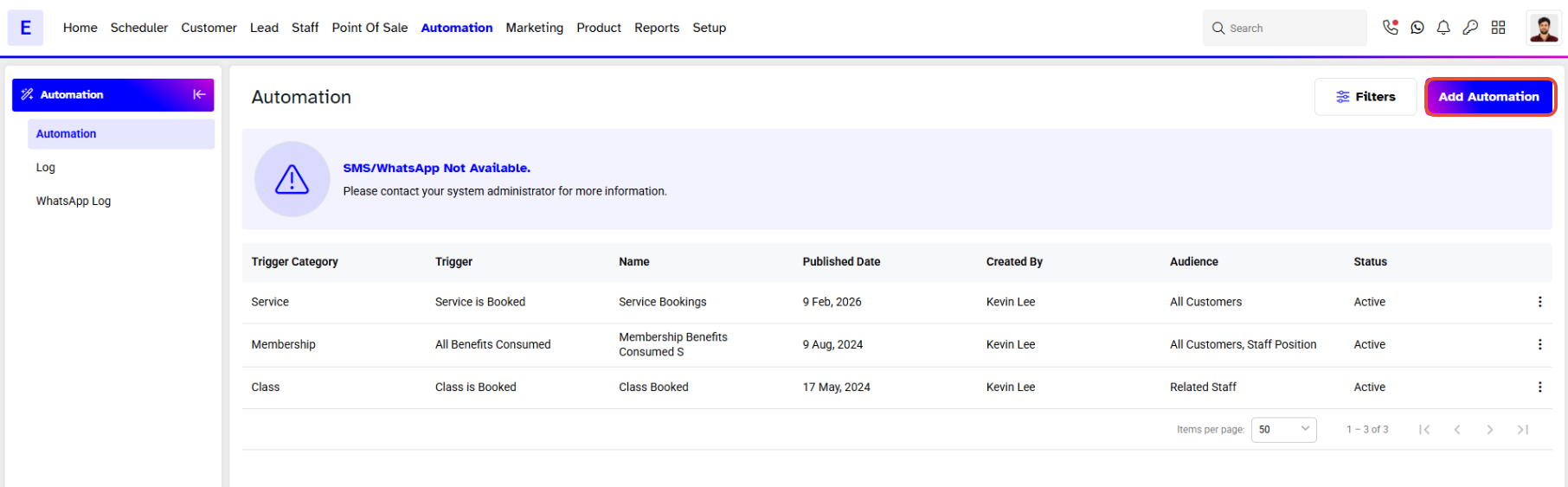
Go to the Automation Module.

Click on the Add Automation Button.
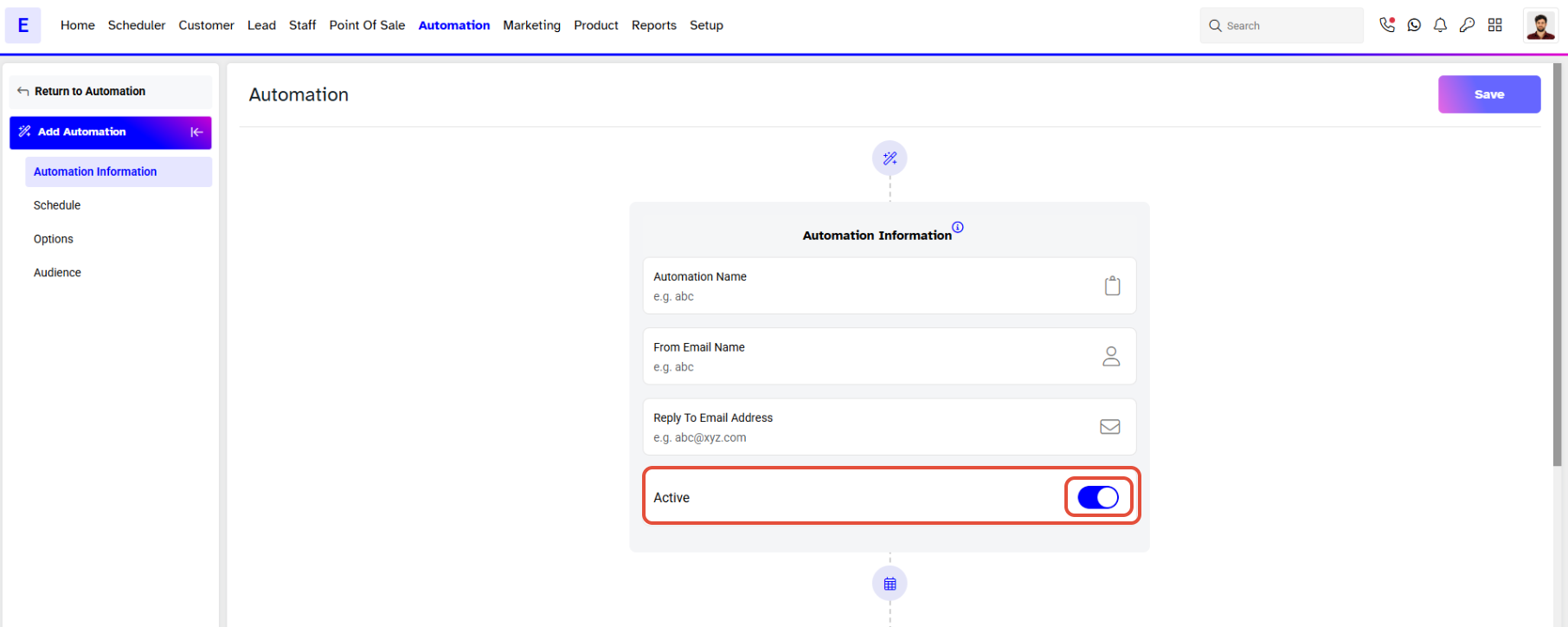
Toggle on the Active Button.
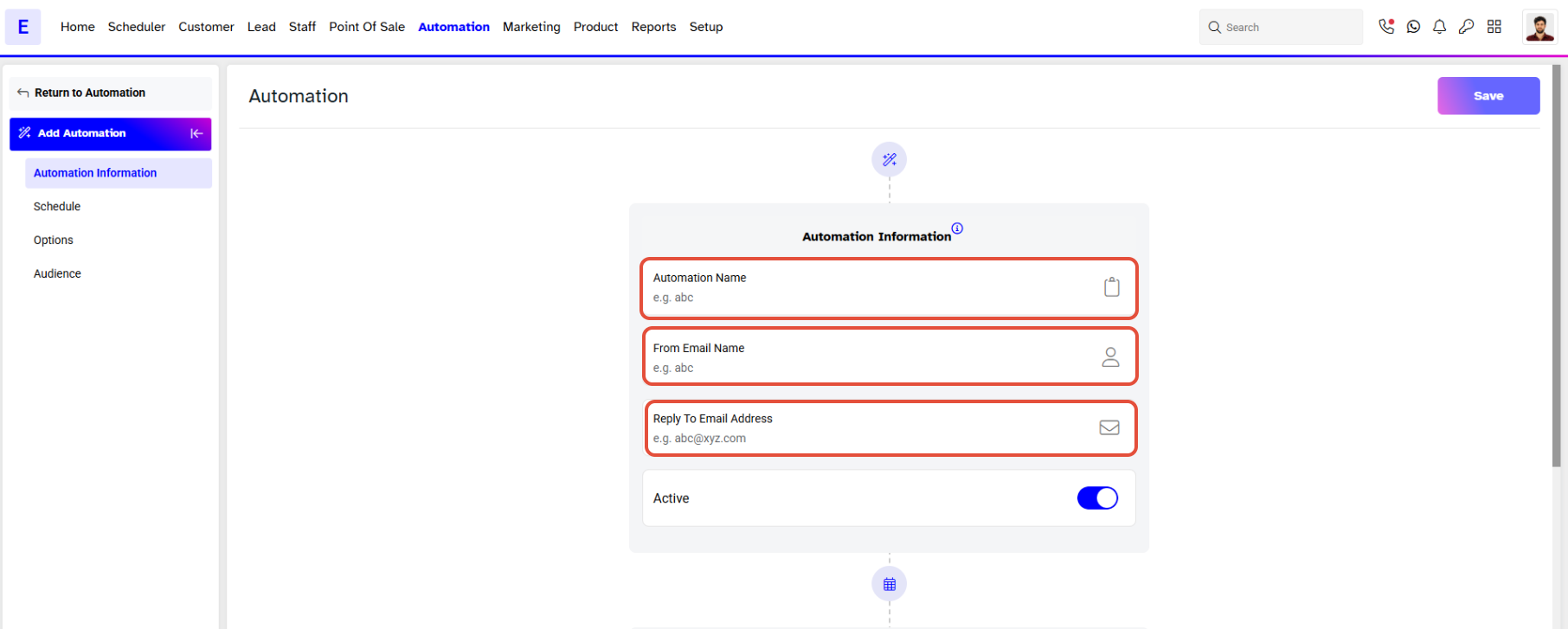
There are Four Sections to set up a Product Sold Automation.
Add Automation
- Automation Name - Add a name for the Automation.
- From Email Name - This will act as the signature on the Email.
- Reply Email Address - Enter the Email Address that recipients can respond to.
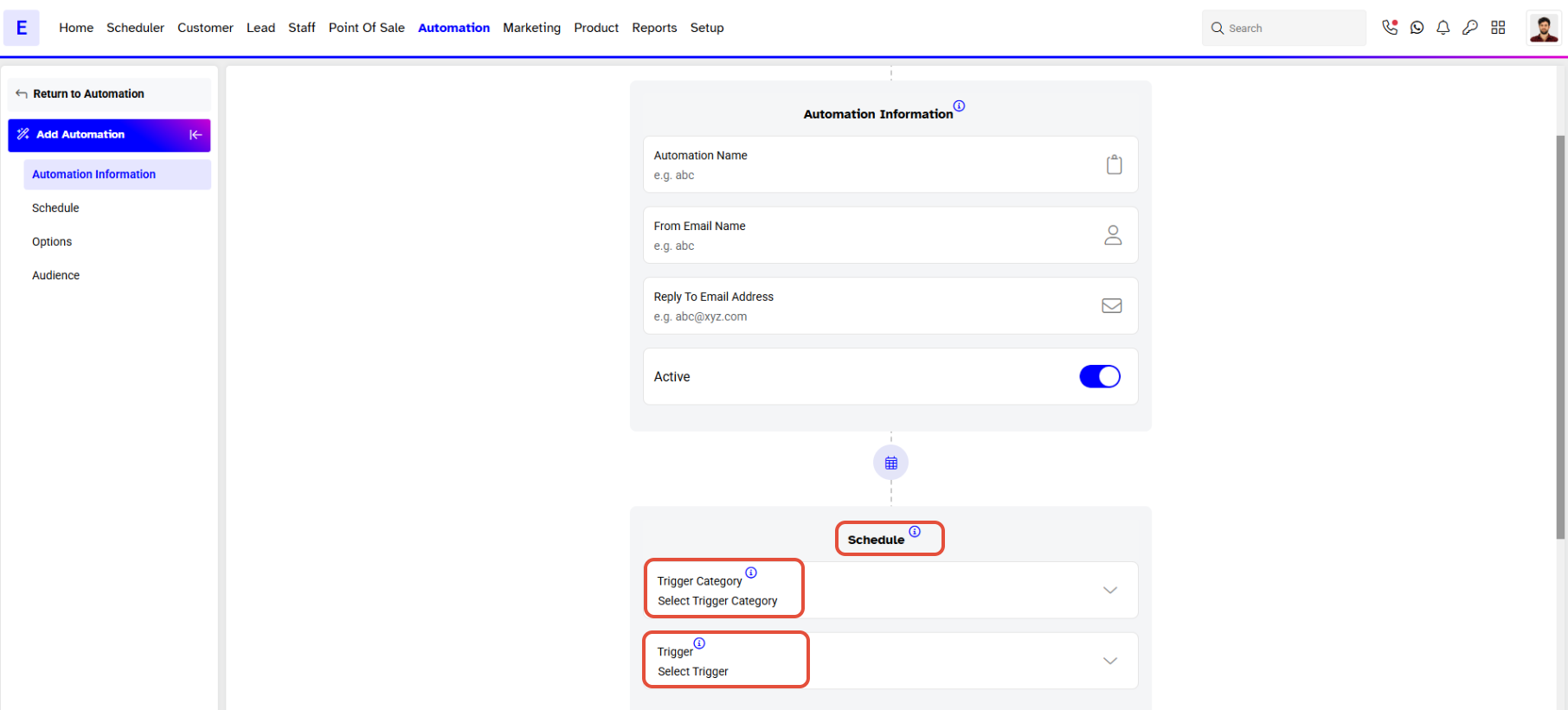
Schedule
- Trigger Category - Select Product from the dropdown menu.
- Trigger - Select Product is Sold on Core & Staff App from the dropdown menu.
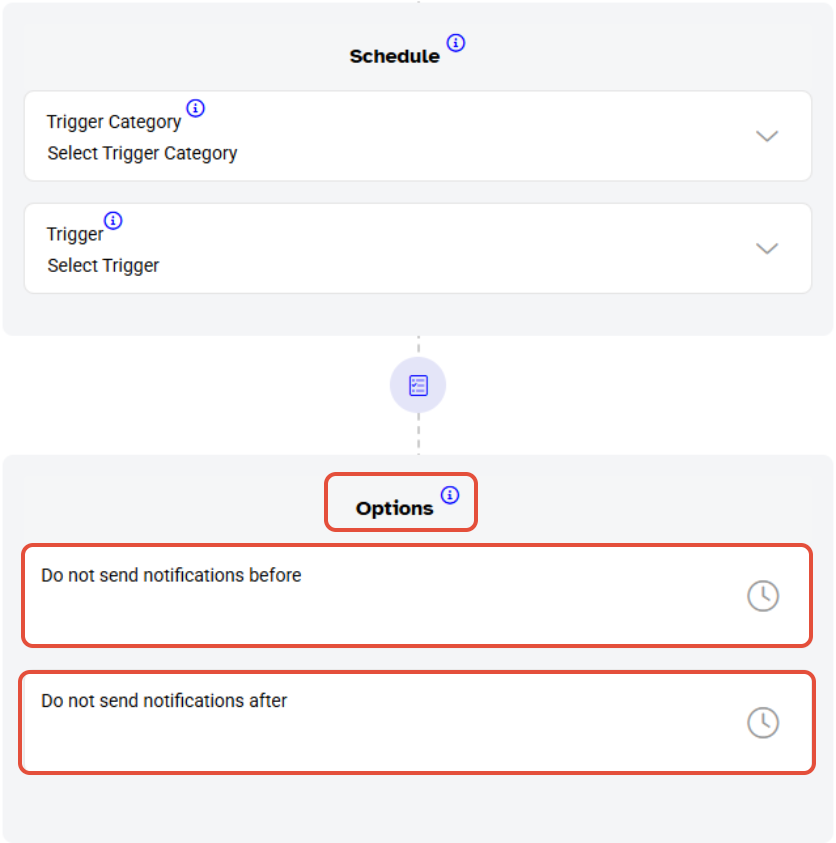
Options
- Do not send notifications before - From the dropdown menu select a time slot before which the notification will not be sent.
- Do not send notifications after - From the dropdown menu select a time slot after which the notification will not be sent.
Audience
- Contact List All Customers - Checkmark against all Customers to send the Automation to all the Customers.
- Contact List Staff Position - Checkmark against Staff Position to send the Automation to all relative Staff Members.
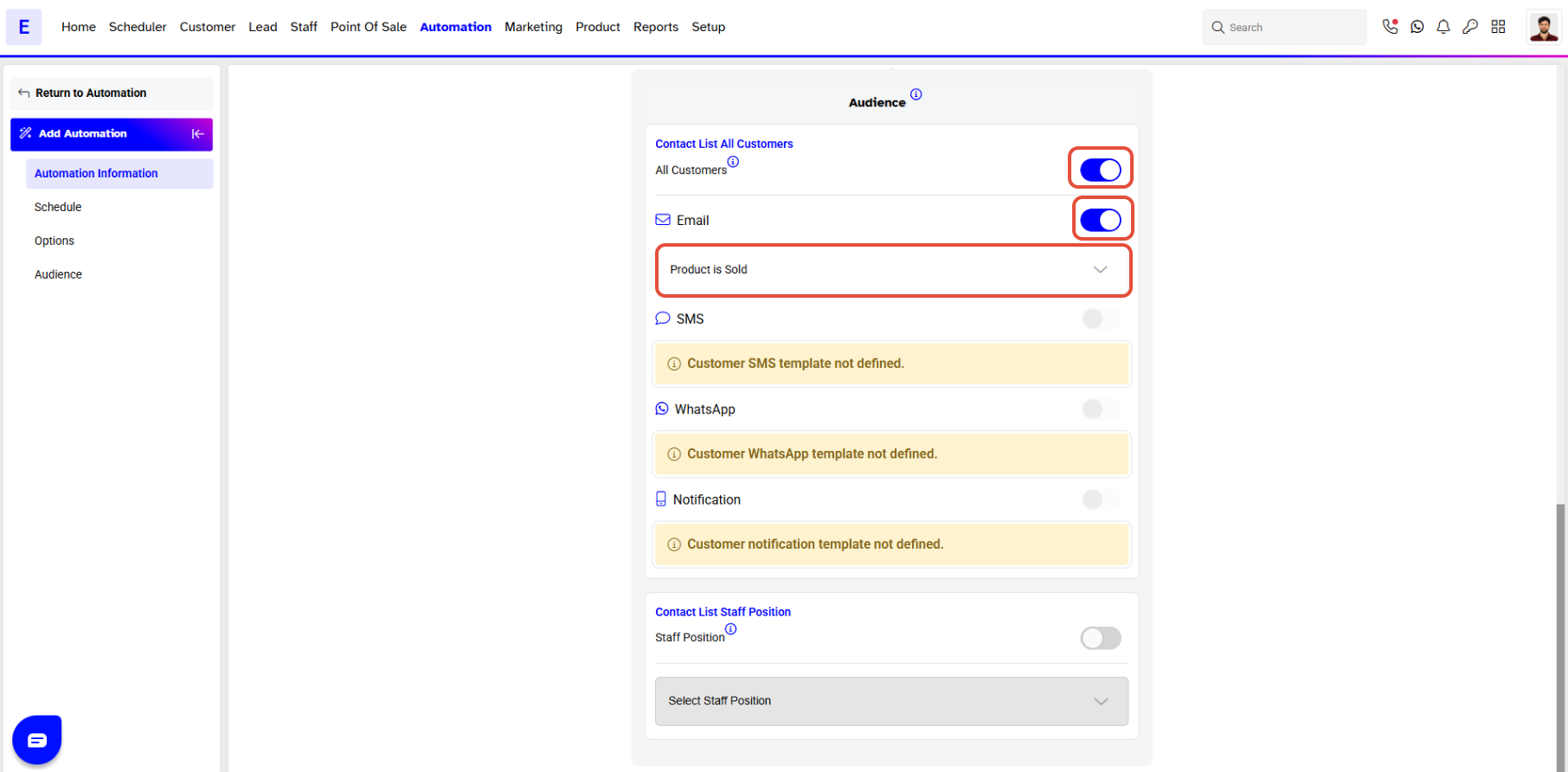
If there are no relative Automation Templates made, then for either Audience a 'Template Not Defined' alert will appear next to the checkbox.
Once done, click on the Save Button.
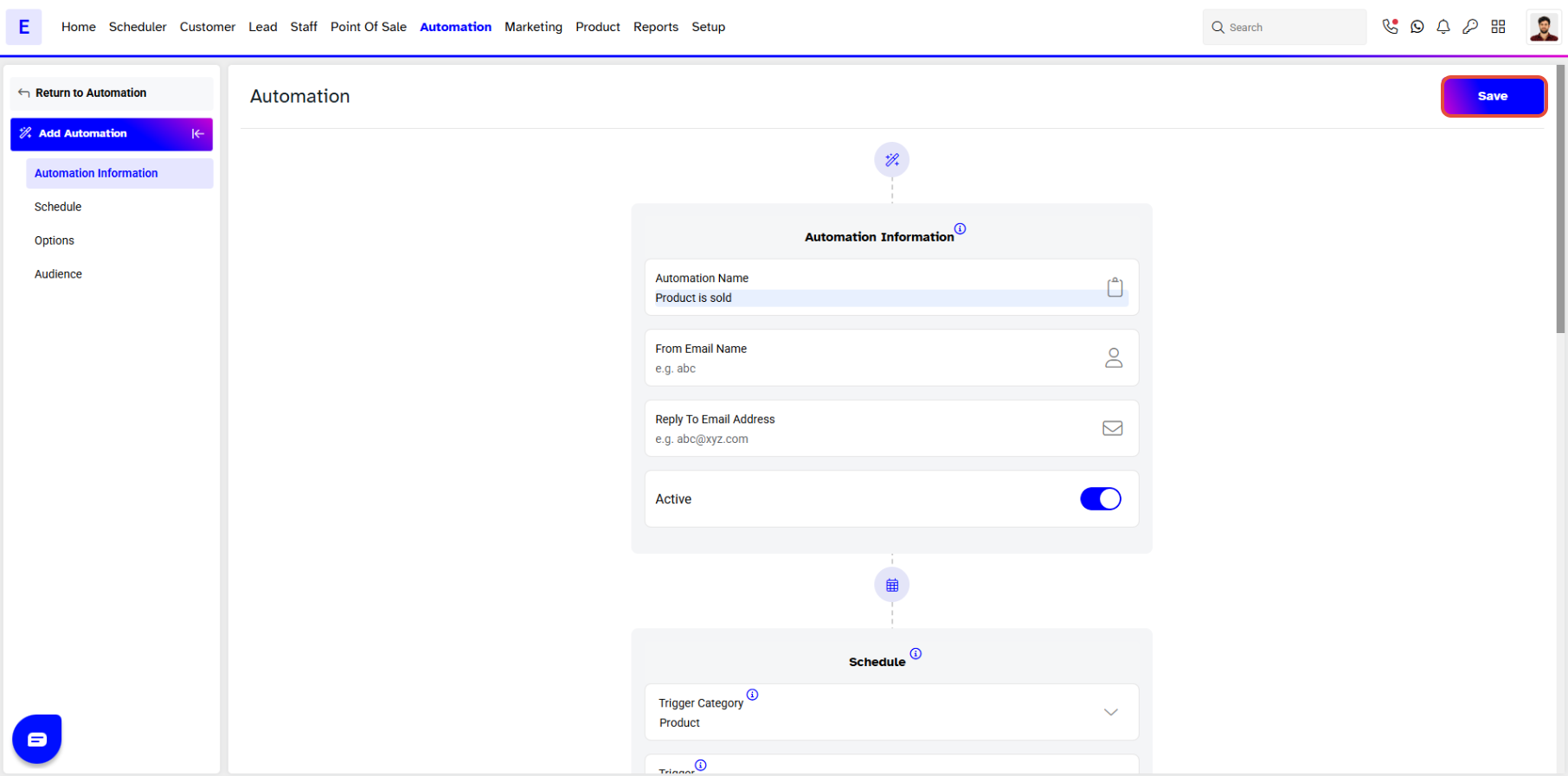
A Product Sold Automation has been saved successfully message will appear on the screen.





