


TABLE OF CONTENTS
- Overview
- Step 1: Navigate to Memberships
- Step 2: Package Information
- Step 3: Package Configuration
- Step 4: Add Media
- Step 5: Payments
- Step 6: Package Benefits
- Step 7: Branches
- Step 8: Save the Package
Overview
This article provides a step-by-step guide on how to create a Package in Core. It explains how to configure package details, define payment structures, assign benefits, and link the package to multiple branches. By following this guide, merchants can easily create customizable packages that can be sold both in-store and online.
Step 1: Navigate to Memberships
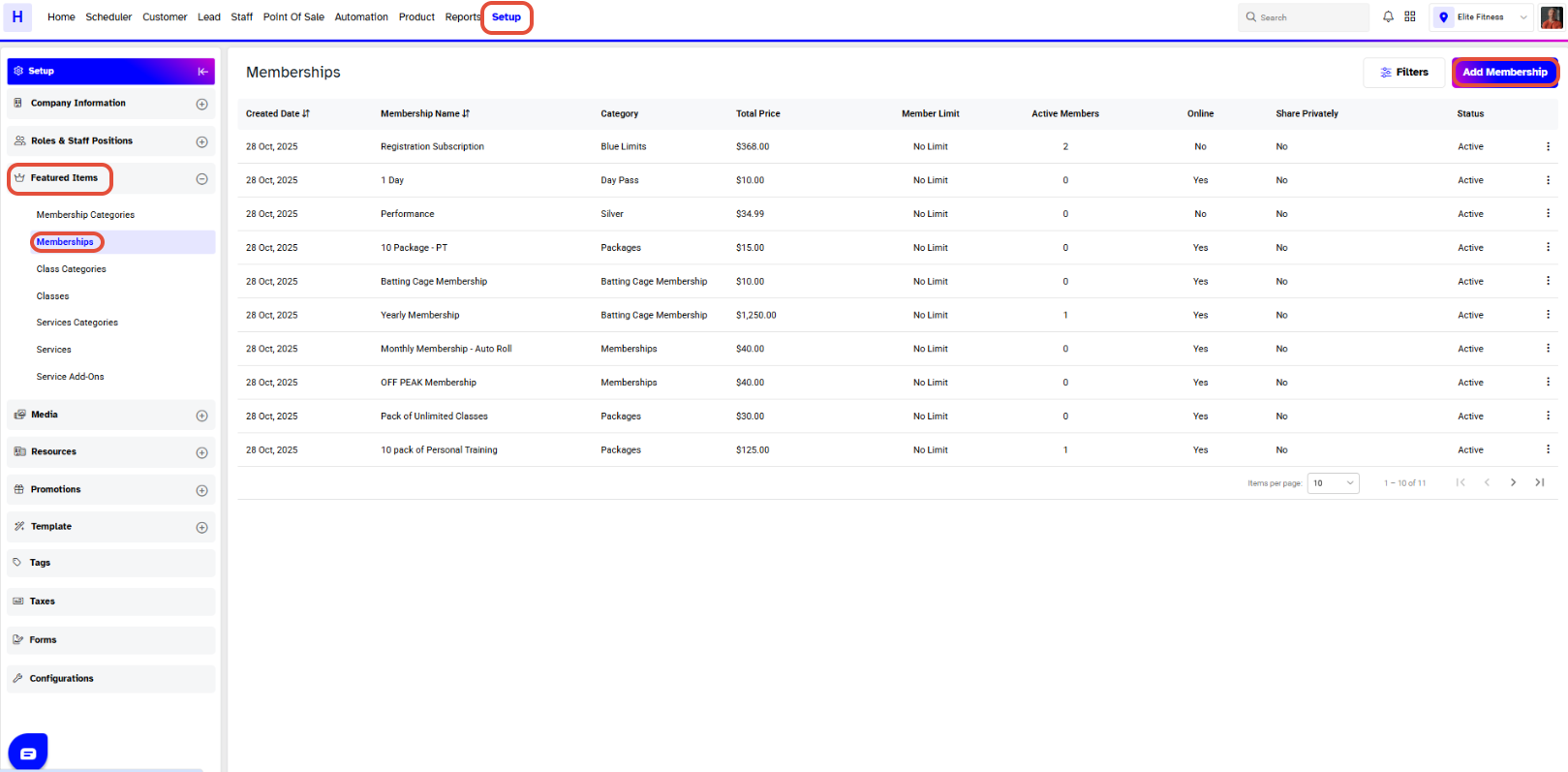
Go to the Setup Module.
Click on the Featured Items tab.
Select Memberships from the list.
Click on the Add Membership button.
Step 2: Package Information
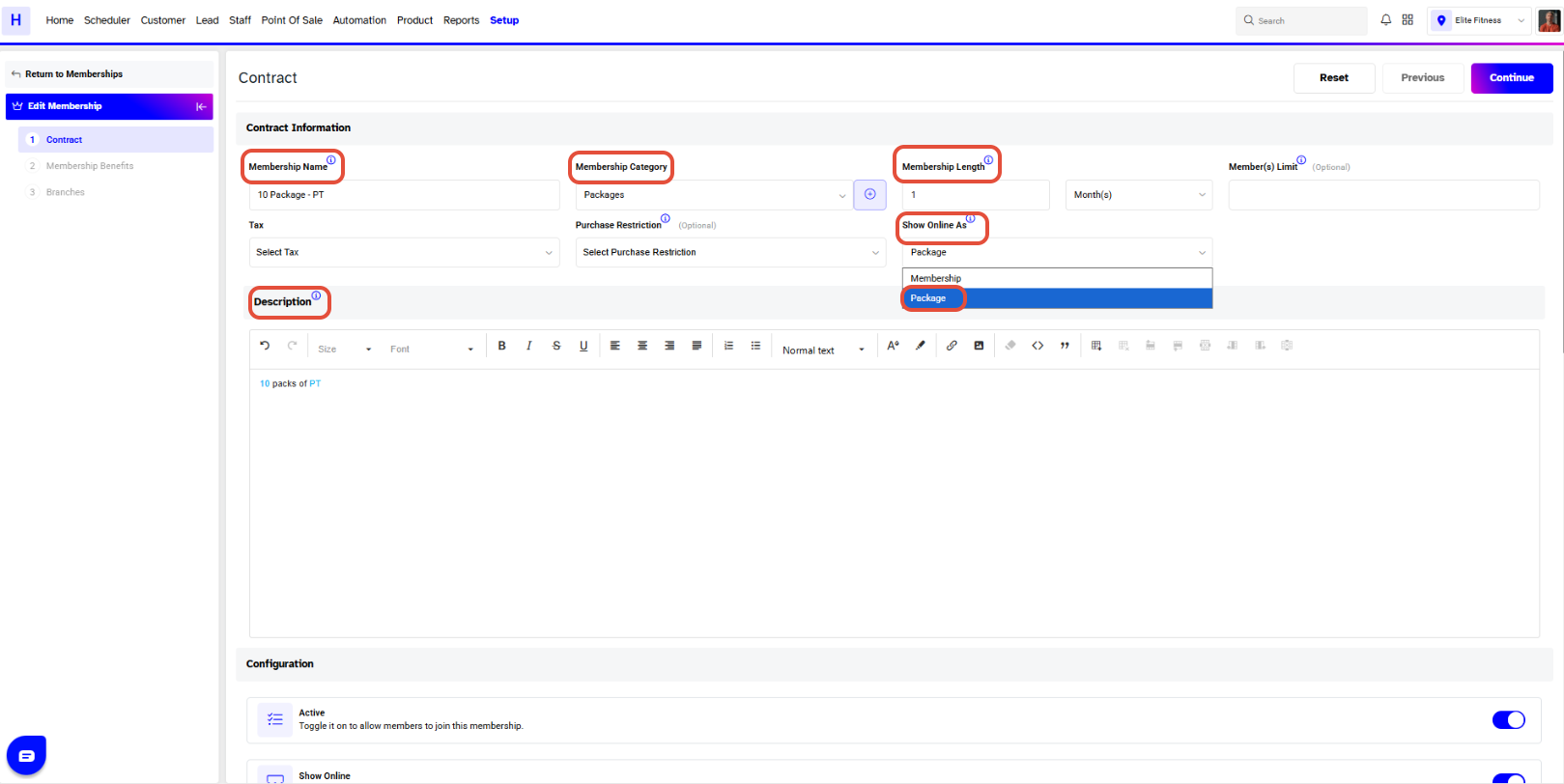
Membership Name: Enter the package name.
Package Category: Choose a pre-existing category.
Show Online As: Set as Package.
Membership Length: Define the duration and period (Days, Weeks, Months, etc.).
Member Limit: Specify the number of members allowed (optional).
Tax and Purchase Restriction: Optional fields.
Description: Add a short description.
Step 3: Package Configuration
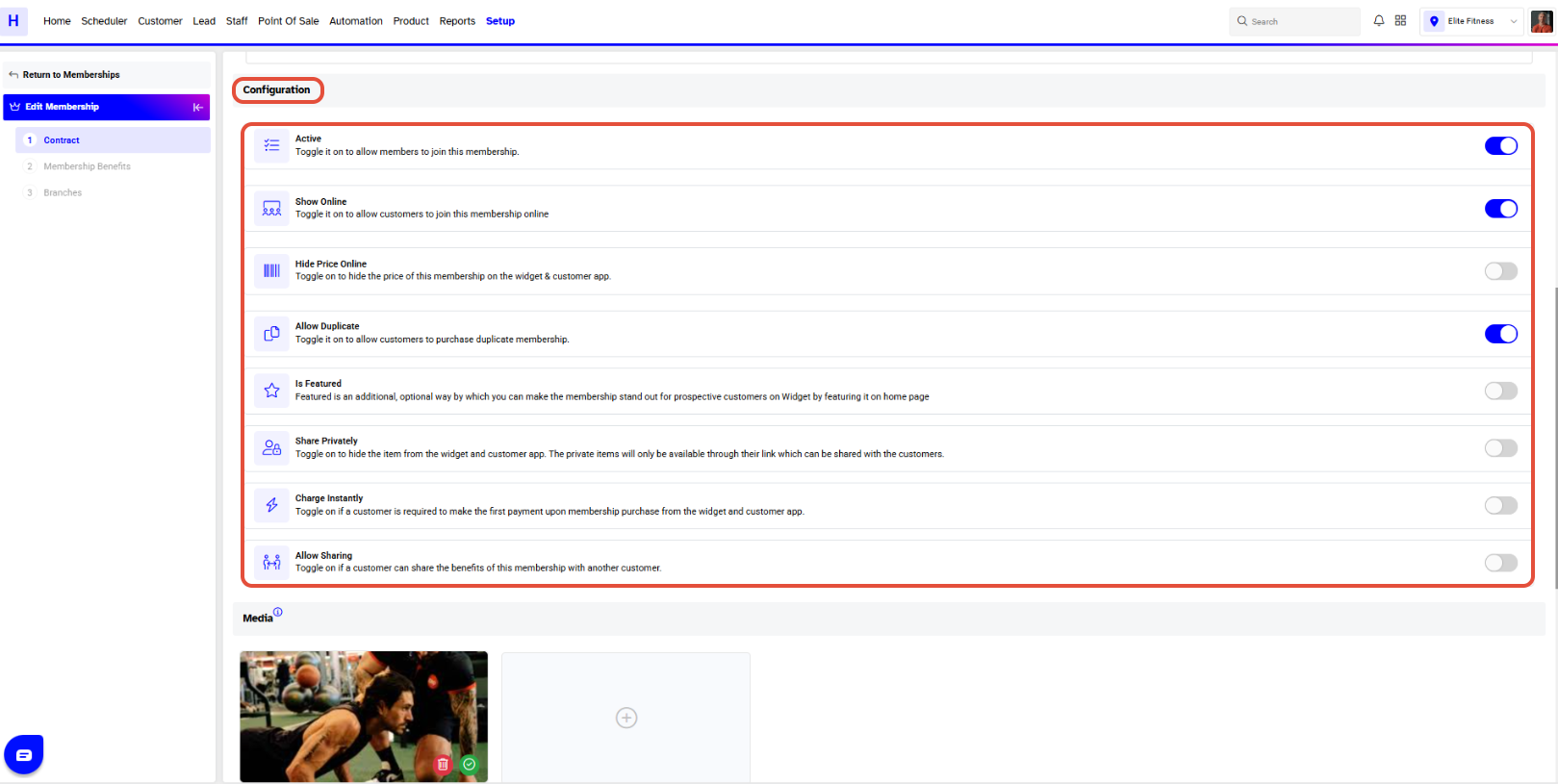
Active Toggle: Activate or deactivate a package.
Show Online Toggle: Allows customers to purchase the package from the Widget or App.
Hide Price Online Toggle: Hides the package price online.
Allow Duplicate Toggle: Enables customers to purchase the same package more than once.
Is Featured Toggle: Highlights the package on the Widget and App home page.
Share Privately: Toggle ON to hide the package from the Widget and Customer App. The private Package will only be available through their shareable link.
Charge Instantly Toggle: Charges the first payment immediately when purchased online.
Allow Sharing: Toggle ON if customers can share the benefits of this package with another customer.
 Step 4: Add Media
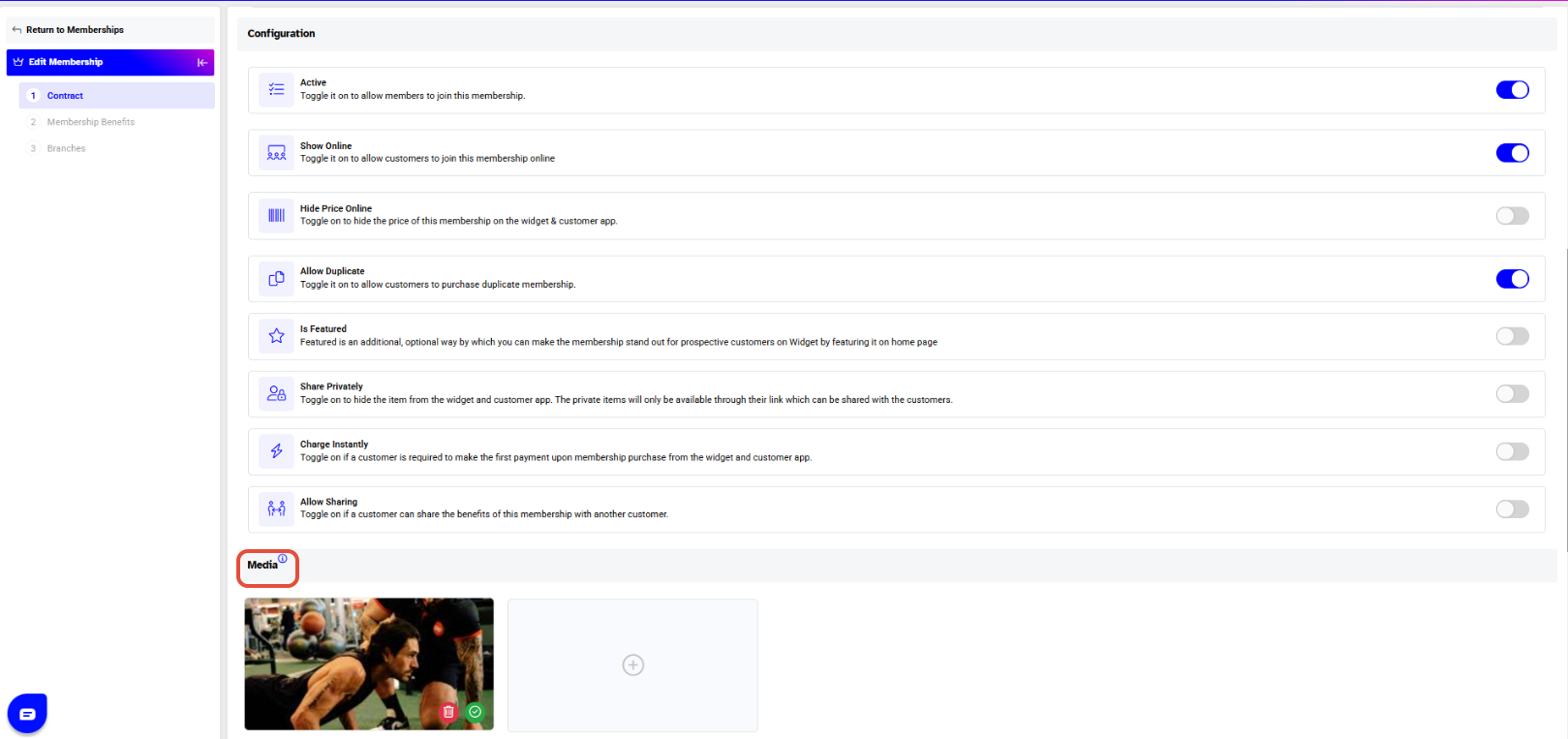
You can upload up to five images for a package.
These images will be displayed on the Widget and Customer App to enhance visibility.
 Step 5: Payments
There are two types of package payments:
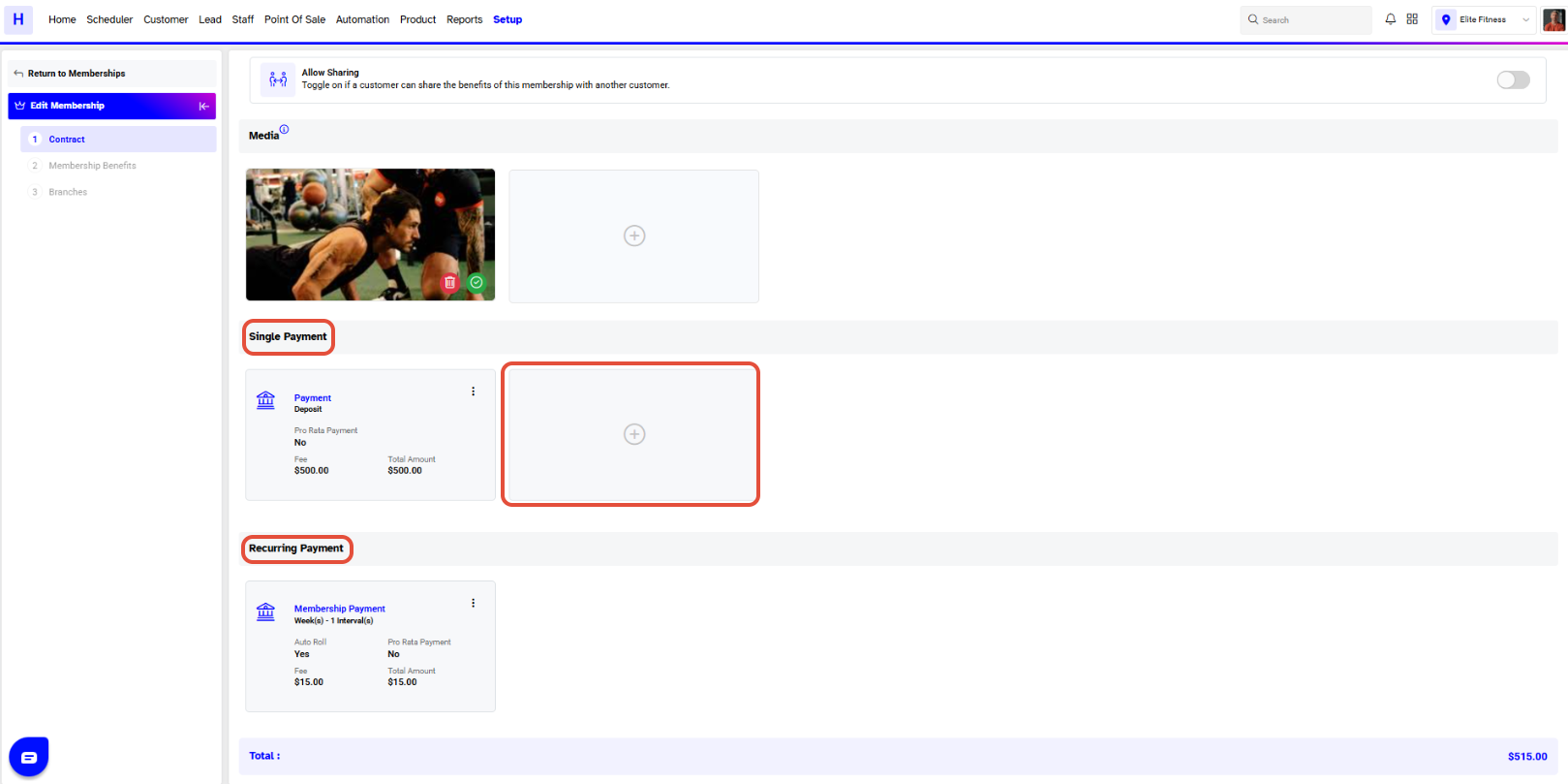
Single Payment
Click Add New Payment.
Select the Payment Type (Deposit or Member Payment).
Enter the Payment Name.
Set the Fee and review the Total Amount (including tax).
(Optional) Enable Pro-Rata for proportional billing.
You can add multiple single payments if required.
Recurring Payment
Enter the Payment Name.
Select the Interval Type (Day, Week, Month, etc.).
Enter the Number of Intervals.
Choose the Date or Day as per the interval type.
Set the Fee and verify the Total Amount (including tax).
(Optional) Check Automatically Roll for auto-renewal.
(Optional) Enable Pro-Rata.
Click Continue to move to package benefits.
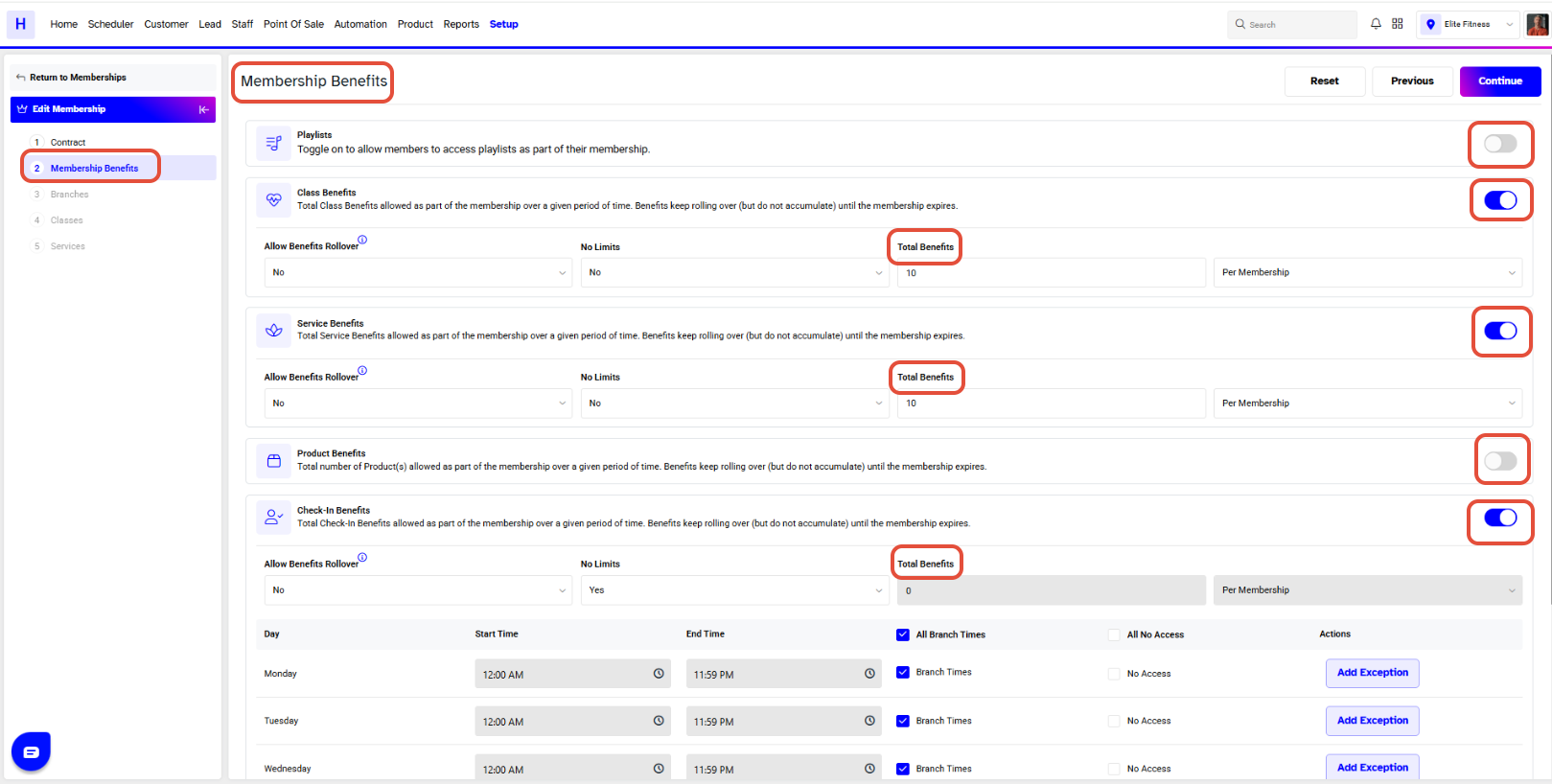
Step 6: Package Benefits
Check-In Benefits
Toggle ON to activate check-in benefits.
Class Benefits
Toggle ON to allow classes to be included in the package.
Service Sessions
Toggle ON to include services as package benefits.
Product Benefits
Toggle ON to offer product-related benefits.
Use No Limits to provide unlimited access.
Uncheck No Limits to manually define limits.
Enable Allow Benefits Rollover to carry over unused benefits.
Set benefit timing (use default or branch-specific timings).
If toggles for Classes, Services, or Products are enabled, their respective sections will appear for configuration.
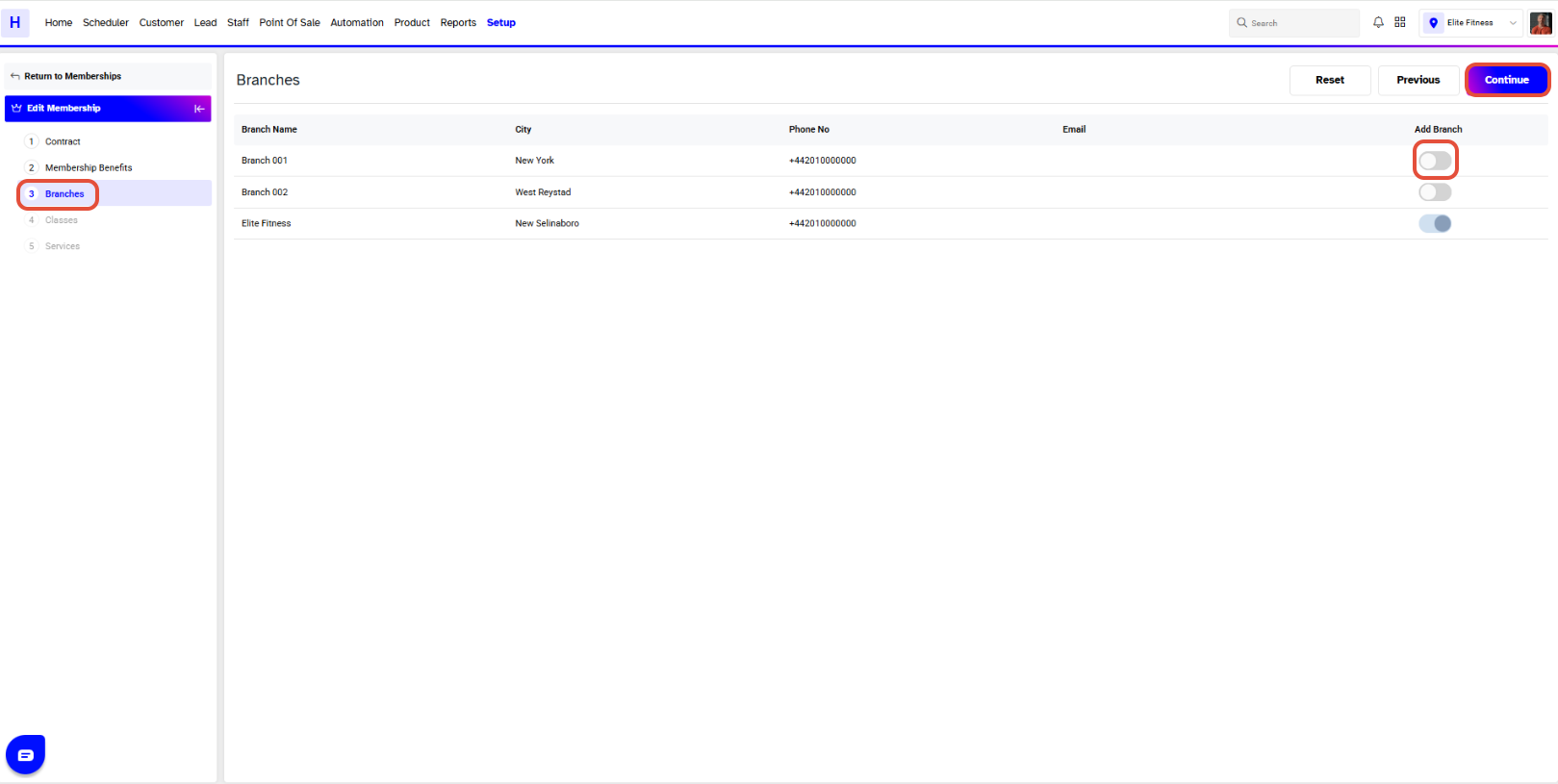
By default, the package is assigned to the branch where it was created.
To assign to multiple branches, toggle ON next to the desired branch names.
Step 8: Save the Package
Once all details are added, click on the Save button to confirm.
Your package will now be visible under the Memberships List.




