For a list of terms used in the Wellyx application & across the support website, please consult our Glossary.
TABLE OF CONTENTS
- Overview
- Step 1: Navigate to the Customer Module
- Step 2: Edit the Member's Profile
- Step 3: Navigate to the Activities Page
- Step 4: Add a "Now" Appointment
- Step 6: Schedule an Appointment from Scheduler
- Step 7: Configure Scheduler Appointment Details
Overview
This guide explains how to schedule an appointment in Wellyx from a member's profile or directly from the Scheduler, detailing the steps for creating "Now" and "Later" appointments.
Step 1: Navigate to the Customer Module
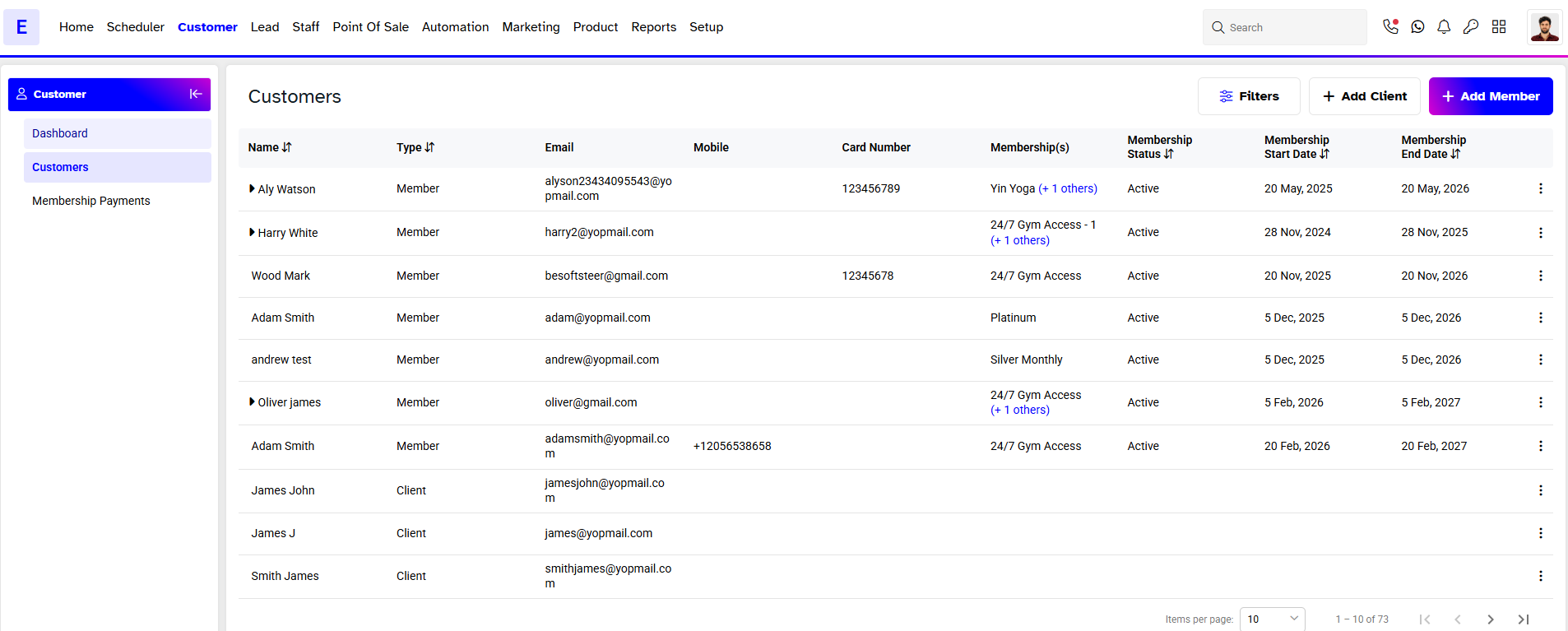
- Go to Customer.
Step 2: Edit the Member's Profile
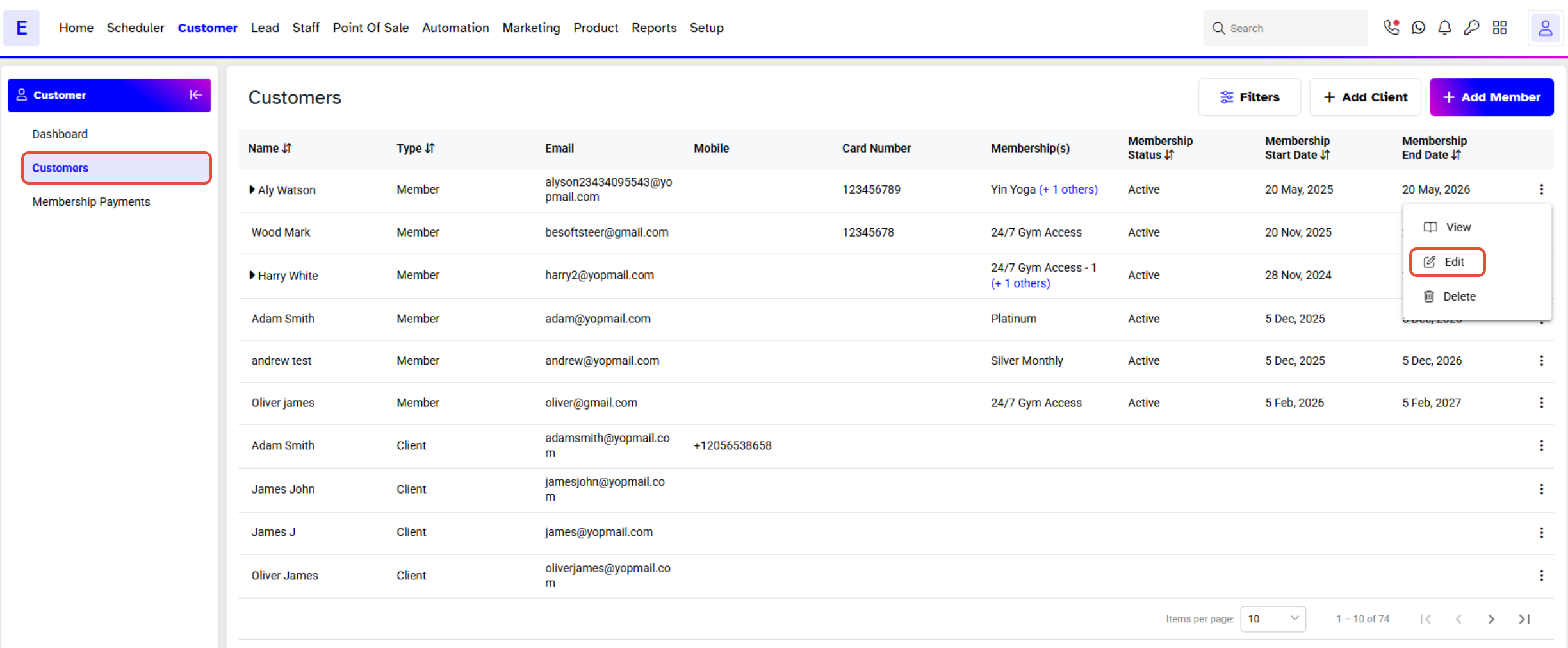
- Click on the Edit bar that appears before the member’s name.
Step 3: Navigate to the Activities Page
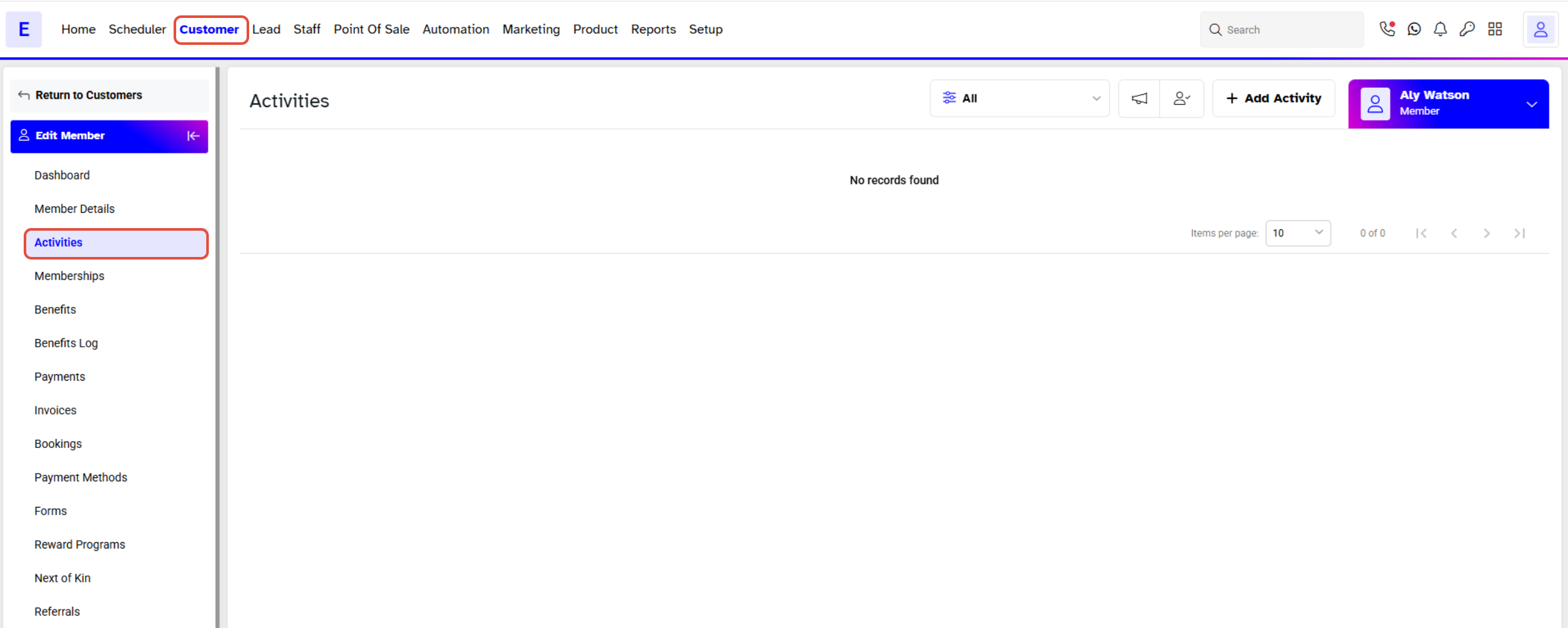
- Click on Activities. It will take you to the activities page. At this page you can view and add appointments for the member.
- Click on Add Activity.
Step 4: Add a "Now" Appointment
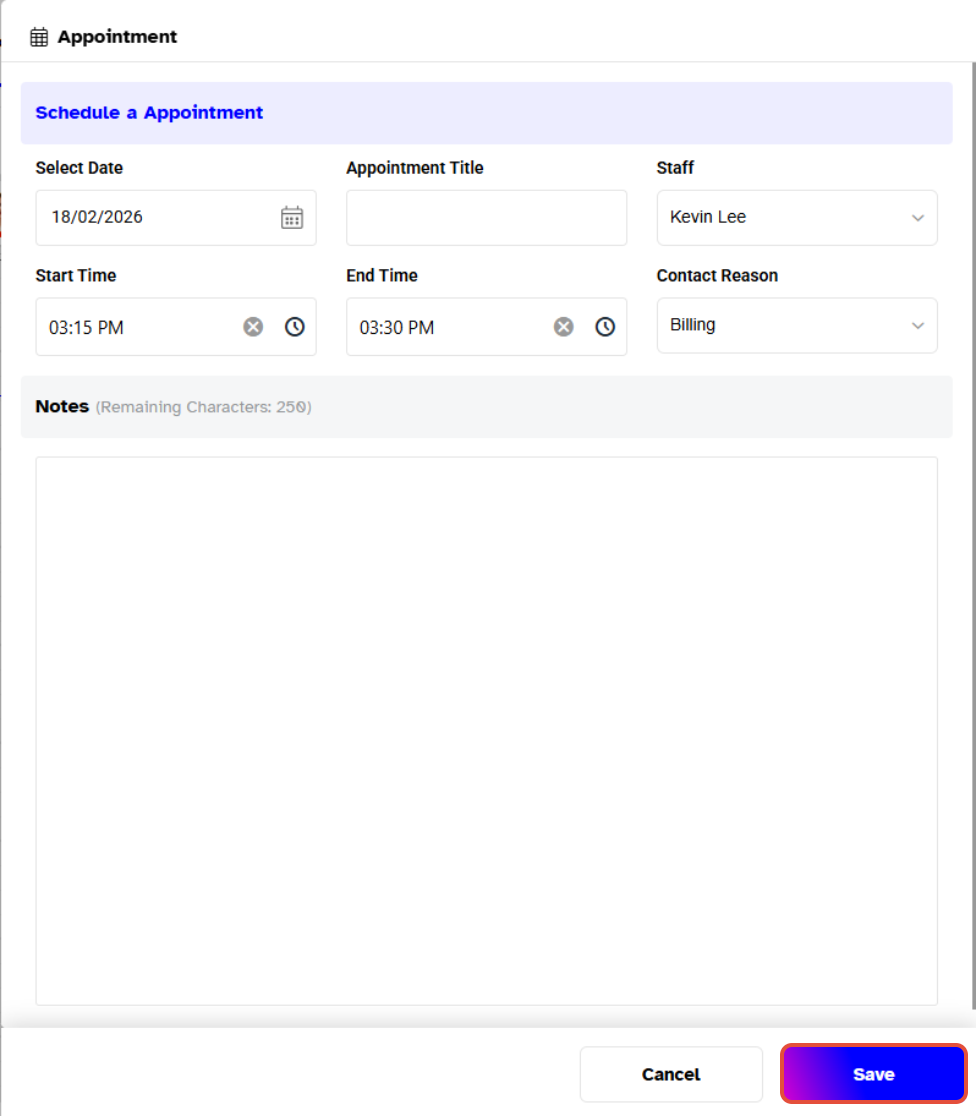
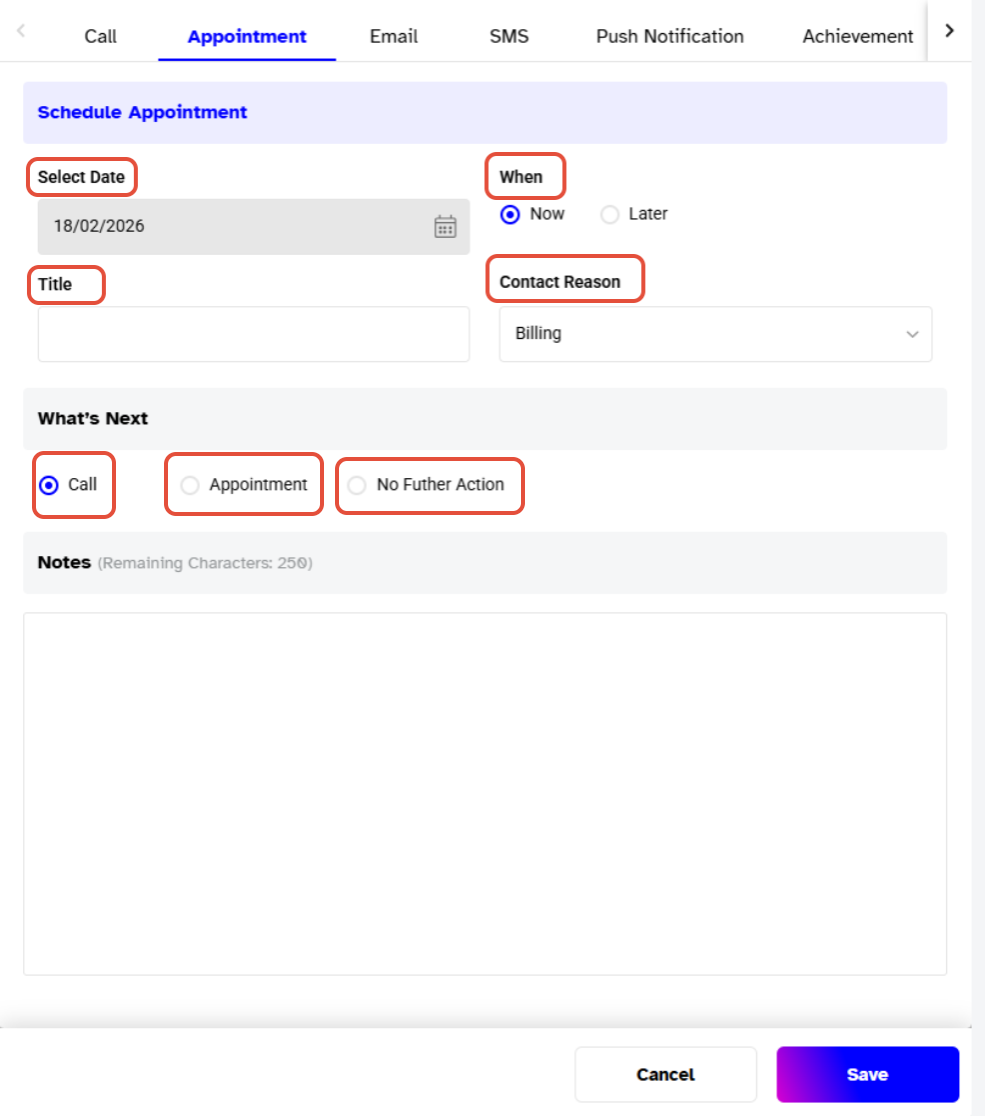
- Choose the Date to schedule appointment.
- Give a Title for the appointment.
- Choose Now.
- Fill in the Contact Reason.
- In the Whats Next section, check one out of Call, Appointment, and No Further Action.
- Add Notes up to 250 characters if needed.
- Save to schedule this appointment.
Step 5: Add a "Later" Appointment
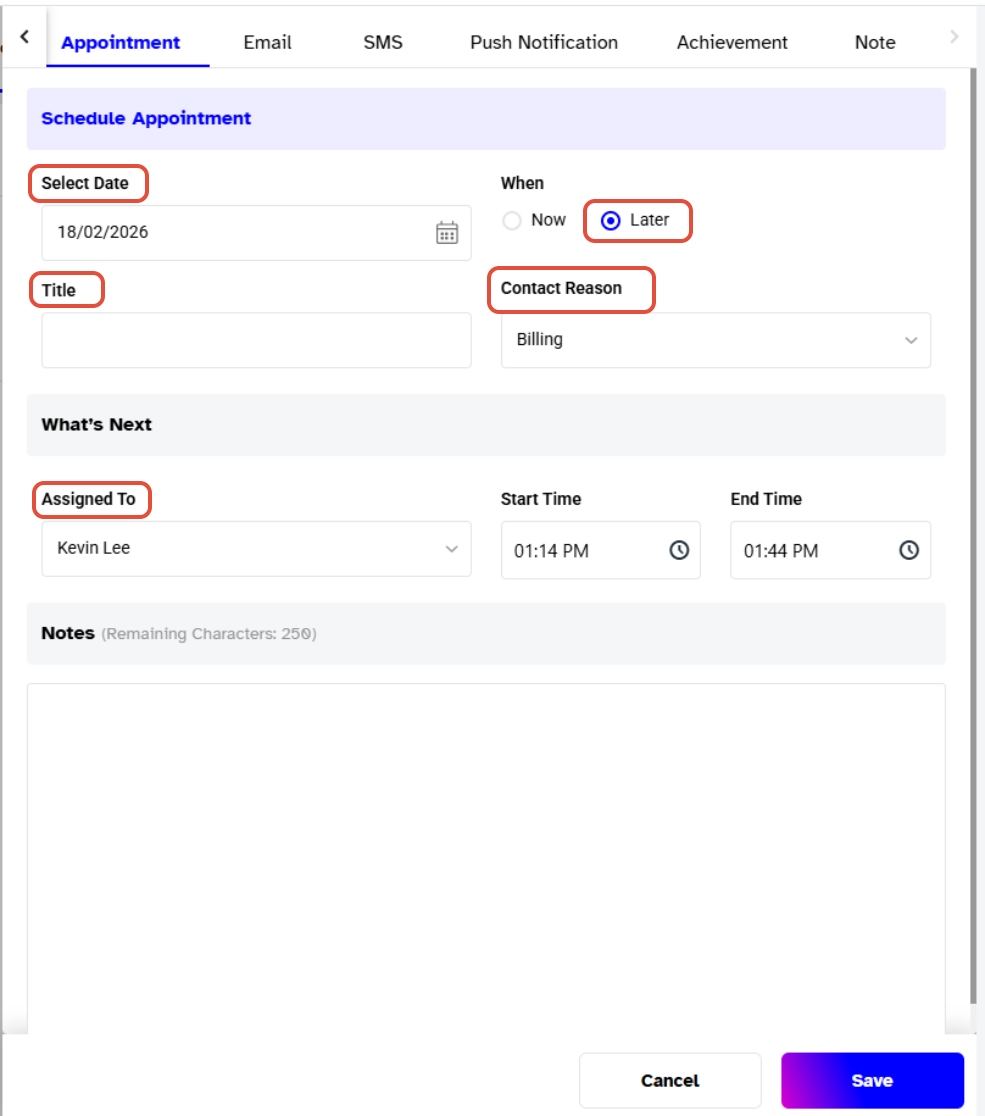
- Check the Later box.
- Set the Date to schedule an appointment.
- Give a Contact Reason.
- Assign a Staff Member from the dropdown menu.
- Set the Start and End Time.
- Add Notes up to 250 characters if needed.
- Save to schedule this appointment.
Step 6: Schedule an Appointment from Scheduler
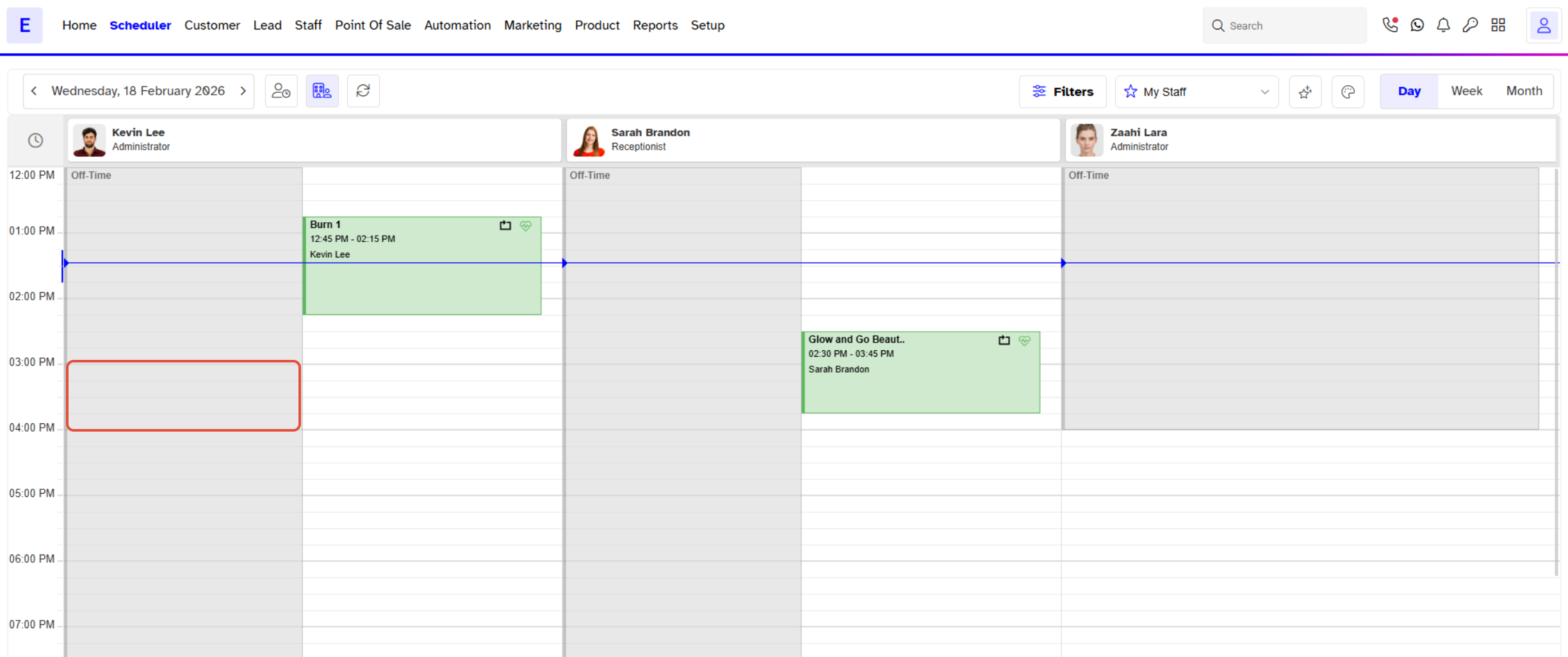
- To schedule an appointment from Scheduler, click under the name of the staff you want to assign for this appointment.
- A window will pop up. Select Appointment.
Step 7: Configure Scheduler Appointment Details
- Select a Customer (you can add name/email for the customer or can use the Search Customer bar).
- Set a Date to schedule appointment.
- Give an Appointment Title for the appointment.
- Set Start and End Time.
- Fill in the Contact Reason.
- Add Notes up to 250 characters if needed.
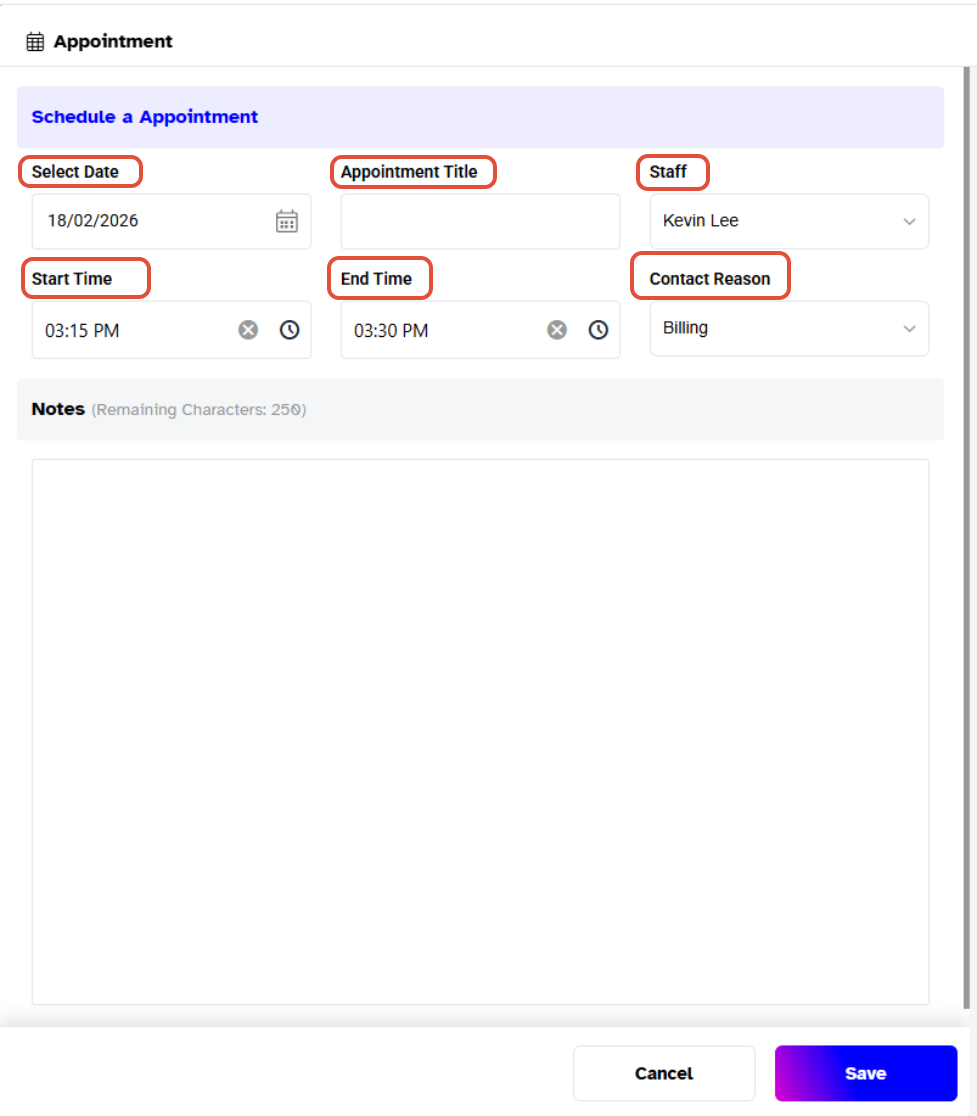
- Save to schedule this appointment.