TABLE OF CONTENTS
To view the Service & Class Cancellation Summary Report in Core, follow the steps below:
How To View The Service & Class Cancellation Summary Report In Core
This Report is useful to run when you want to view how many Classes, Services have been cancelled by anyone and source within a Branch between a defined Date Range.
Go to the Reports Module.

By default, you will be taken to the Sales Segment.
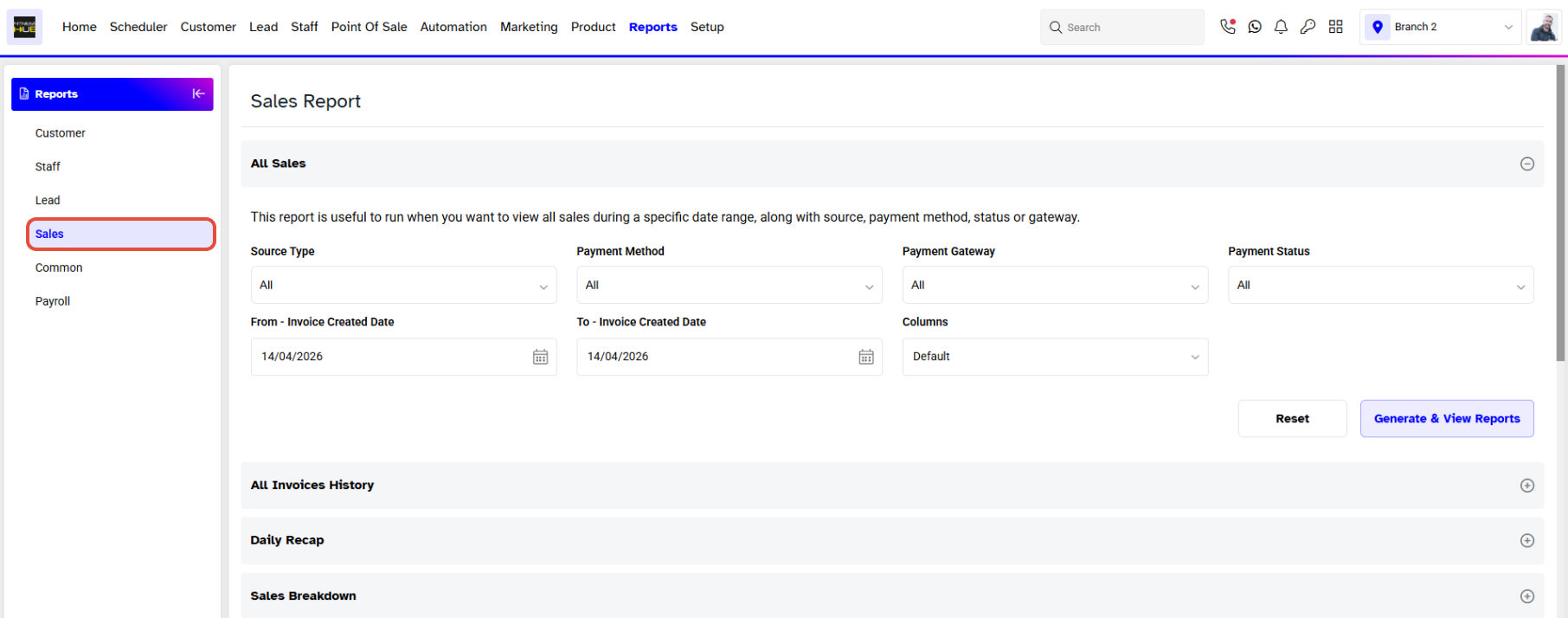
Navigate to the Common Report section.
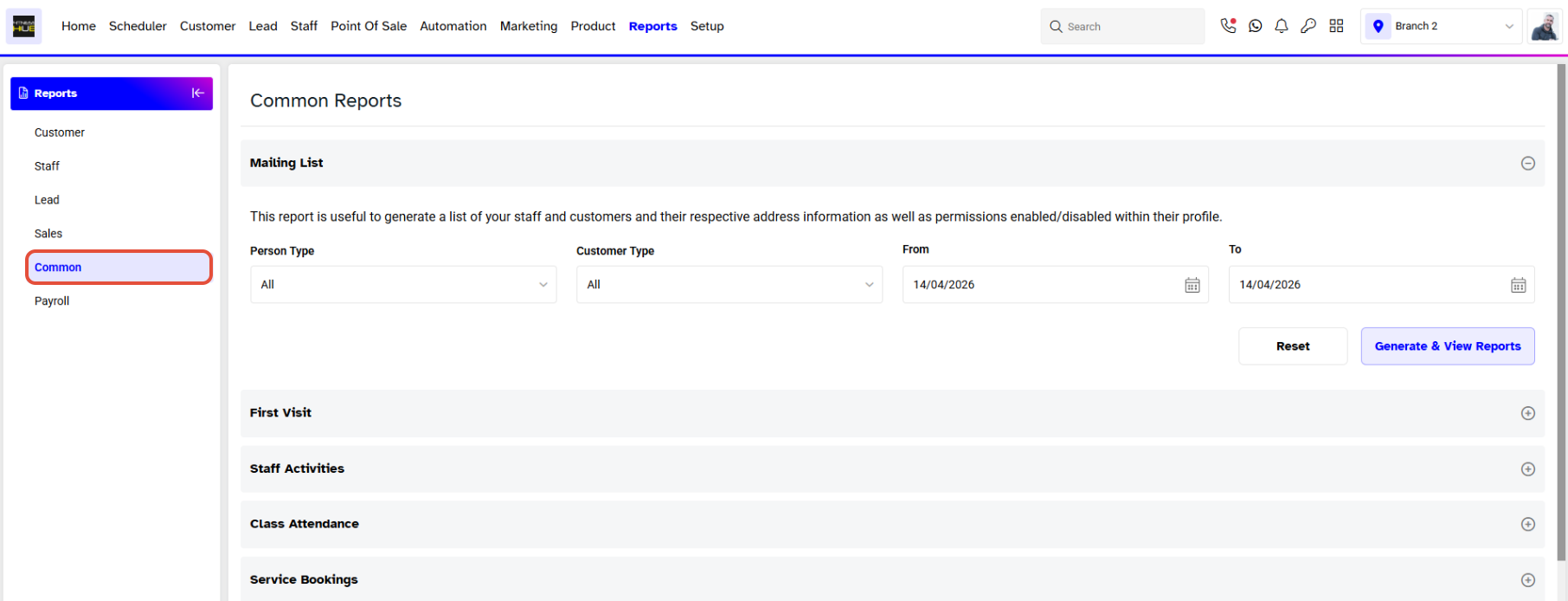
Scroll down and click on the Service & Class Cancellation Summary Report.
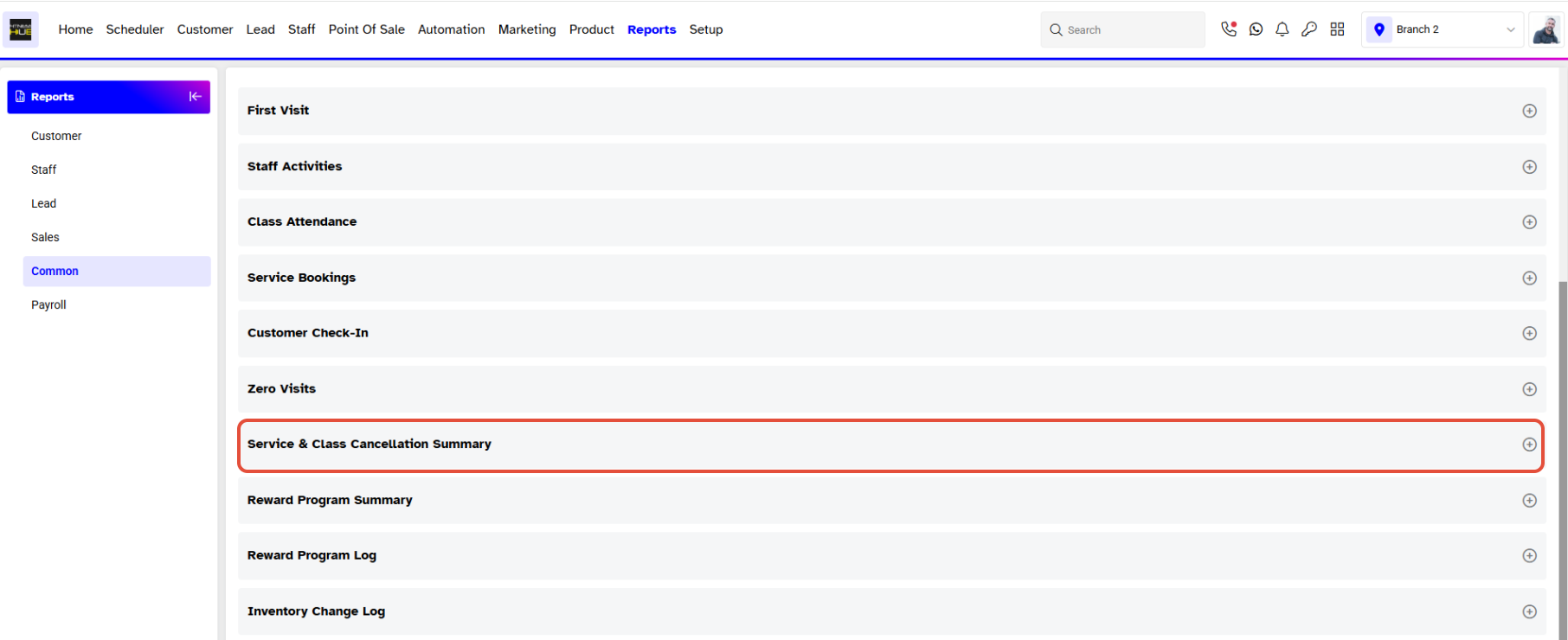
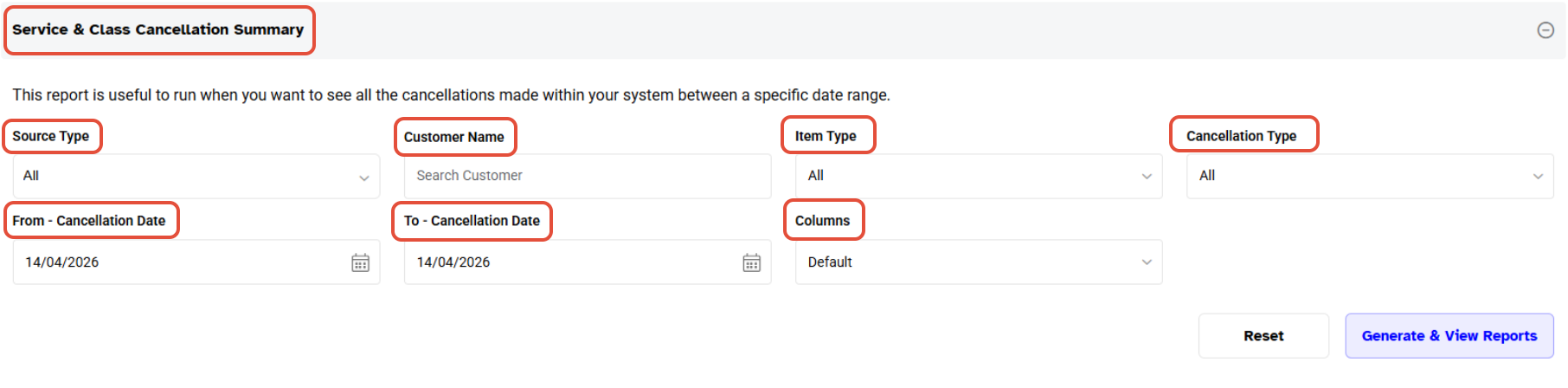
Enter your search criteria in the following fields to filter your search results:
- Source Type: Select the source of the booking cancellation.
- Customer Name: Type in the name of a specific customer to view their report.
- Item Type: Select whether the booking type is Service, Class, or Both from the dropdown.
- Cancellation Type: Choose either a Late or Early cancellation type.
- From Cancellation Date: Set the start date for the search.
- To Cancellation Date: Set the end date for the search.
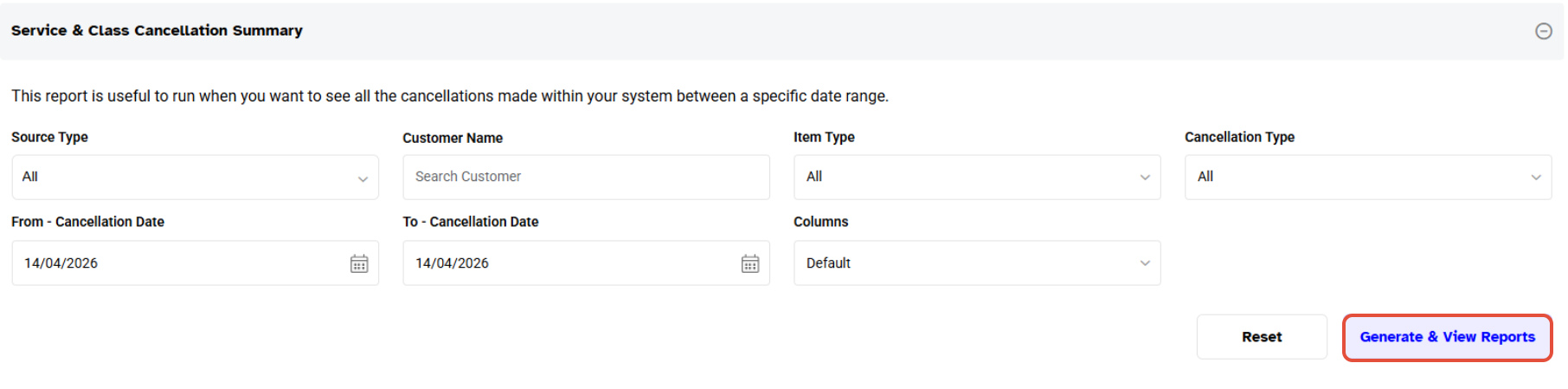
Once done, click on the Generate & View Reports Button.
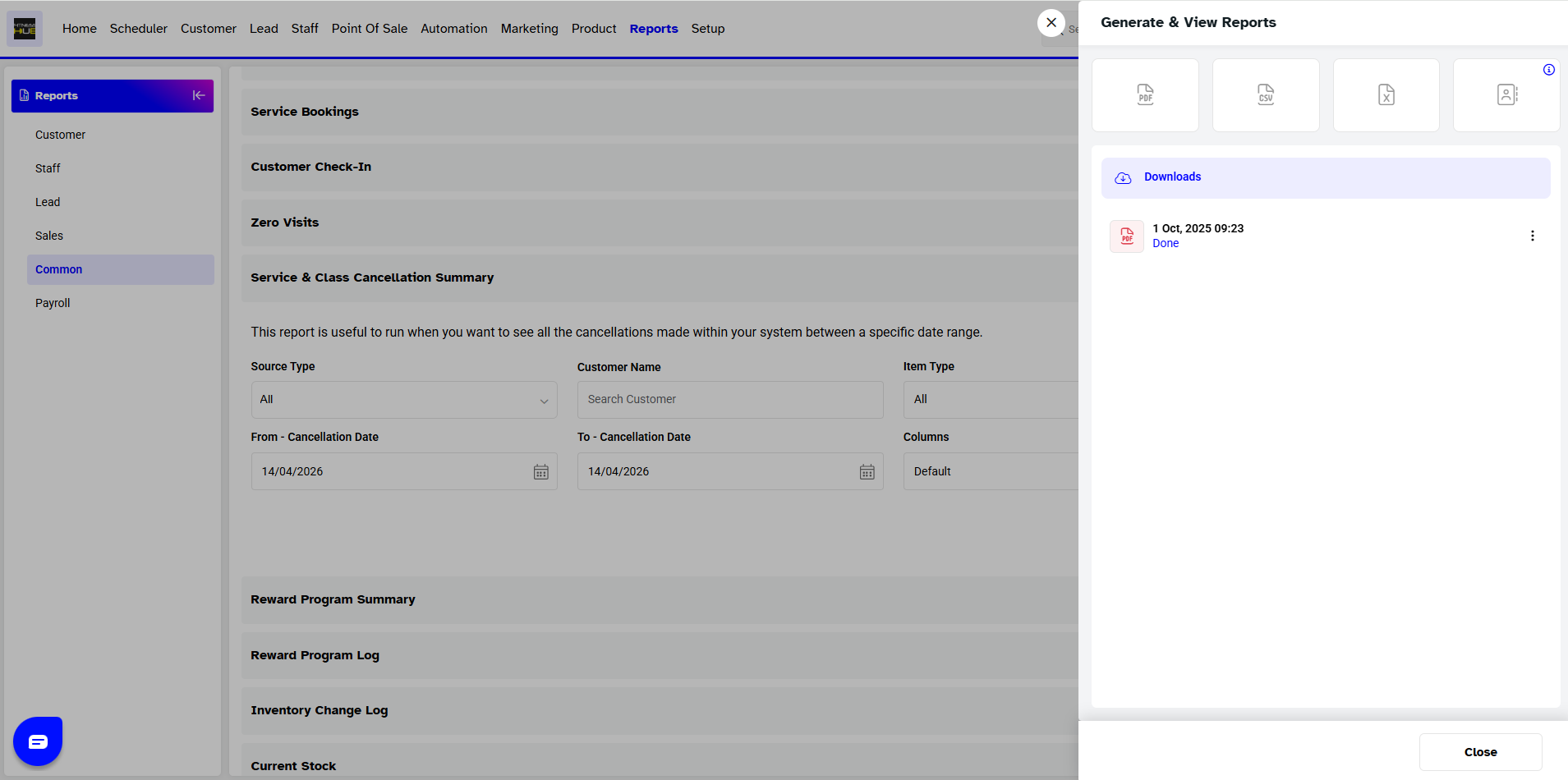
Now, choose the format from the Popup Box.
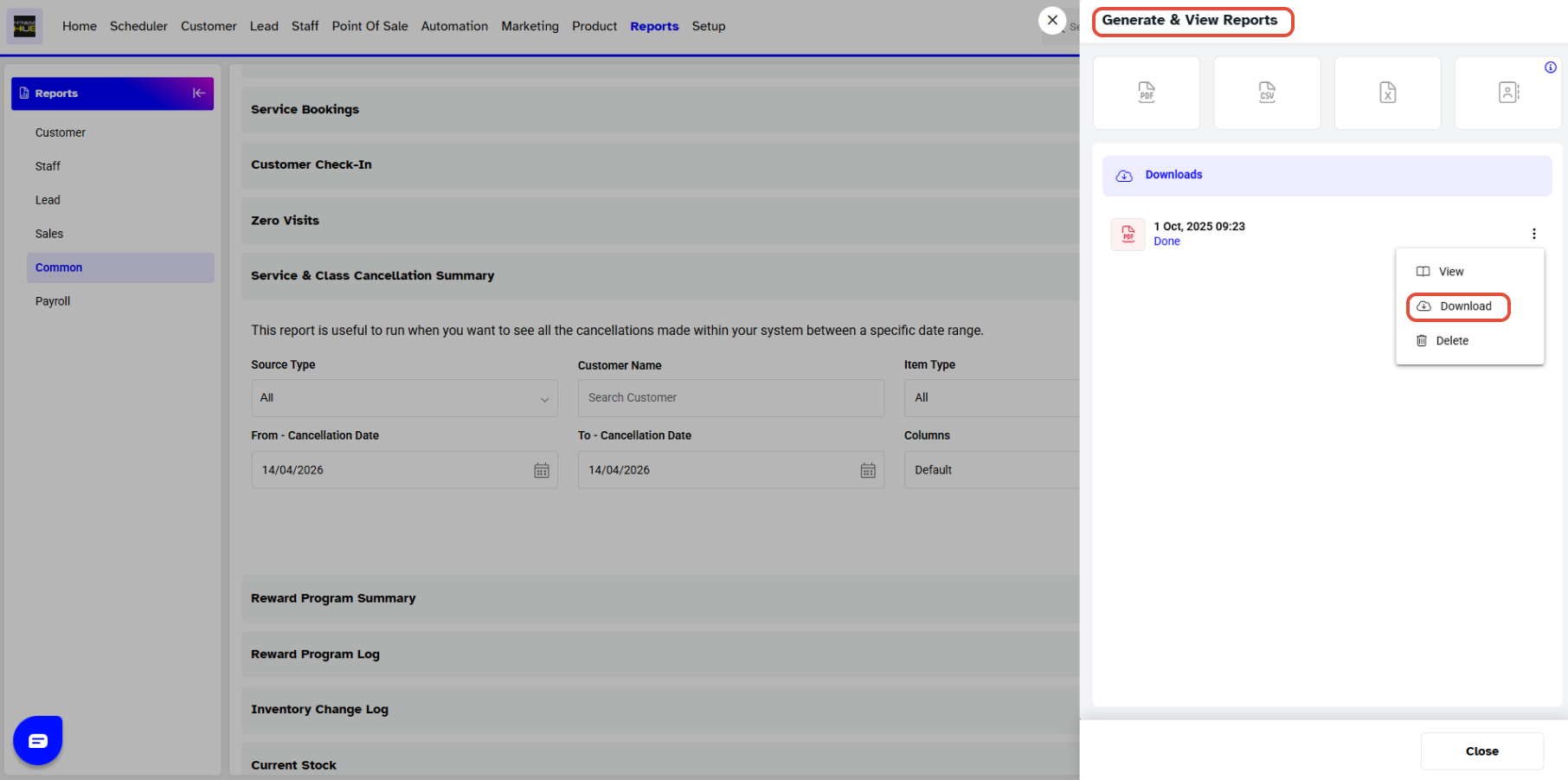
Once the Service & Class Cancellation Report has been generated, it will appear on the screen, and you can view and download it again using the action buttons
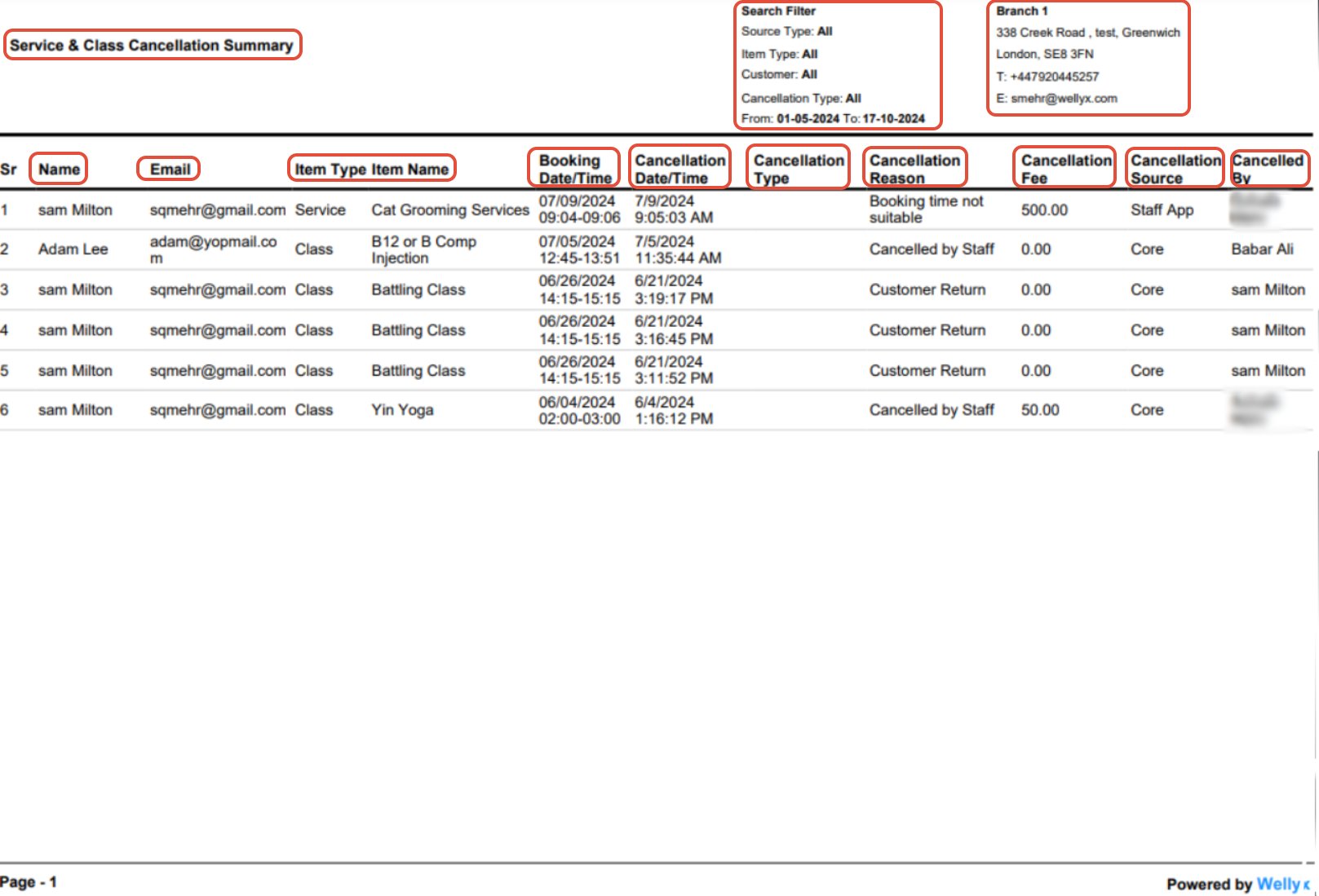
This Report will display list of all Cancelled Classes and Services with their Categories and Variant if any along with Booking Time, Source of Cancellation and Customer/Merchants who originates Cancelation.
The Service & Class Cancellation Summary Report will display the following fields.