TABLE OF CONTENTS
- Step 1: Navigate to Reports Module
- Step 2: Generate the Mailing List
- Step 3: Choose format and View the Report
This guide explains how to generate a Mailing List report in Core. It covers all essential steps from navigating to the Reports Module to filtering and viewing the mailing list details. By following this guide, users can effectively retrieve contact information for various person types.
Step 1: Navigate to Reports Module
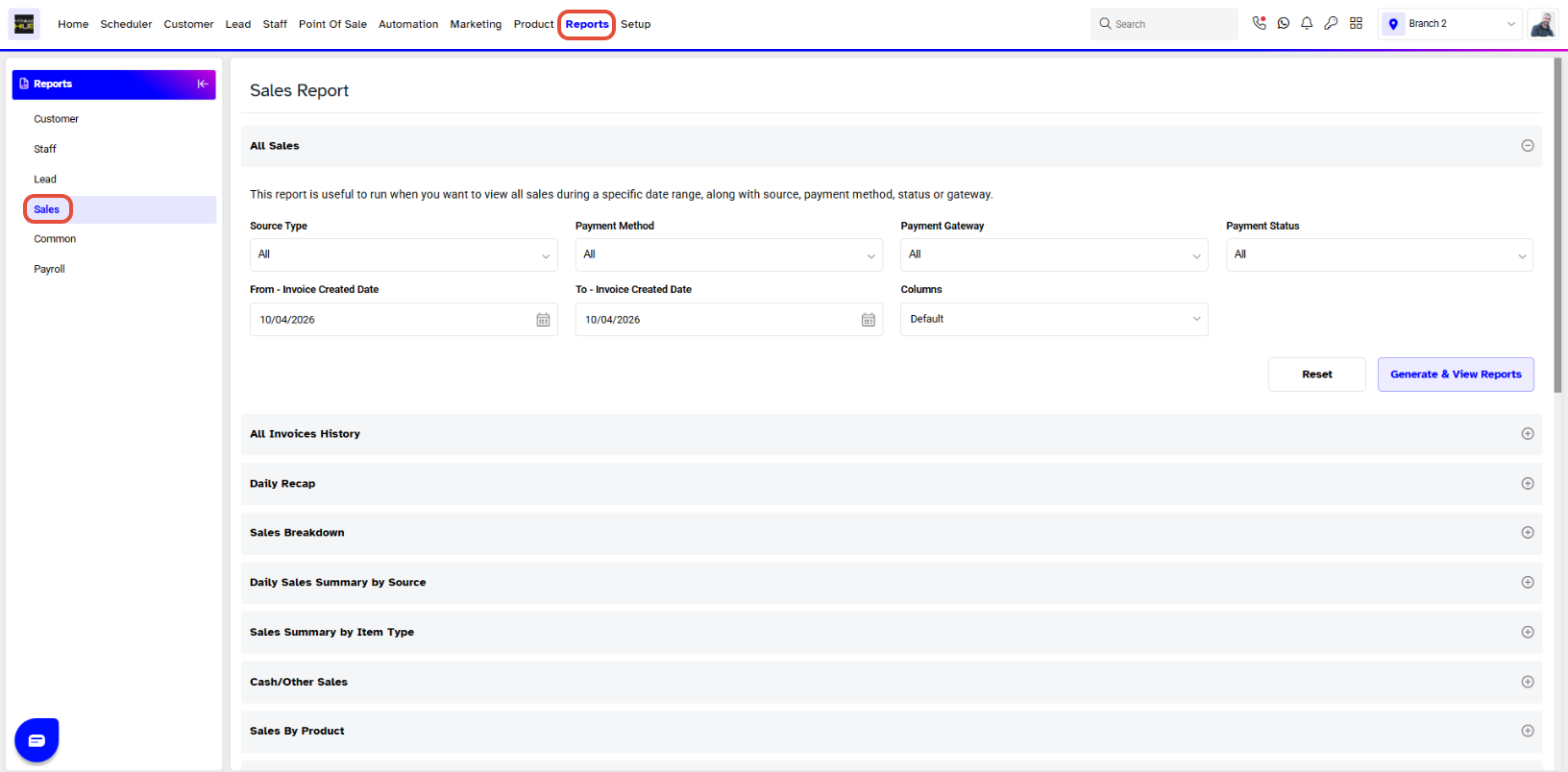
- From the Core Menu, go to the Reports Module.
- By default, you will be taken to the Sale Segment.
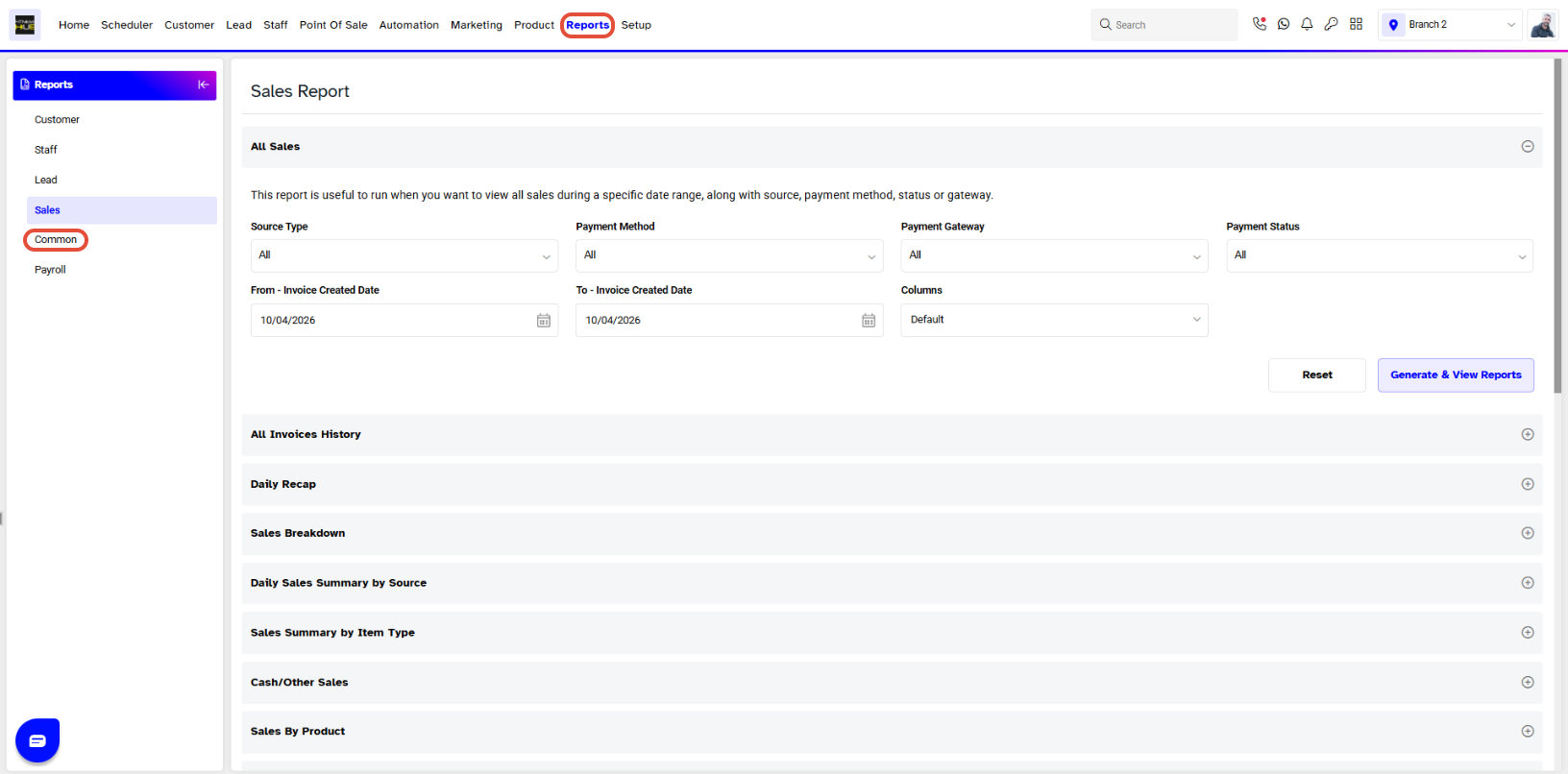
- Click on the Common Segment.
Step 2: Generate the Mailing List
- The Mailing List Section will be displayed by default
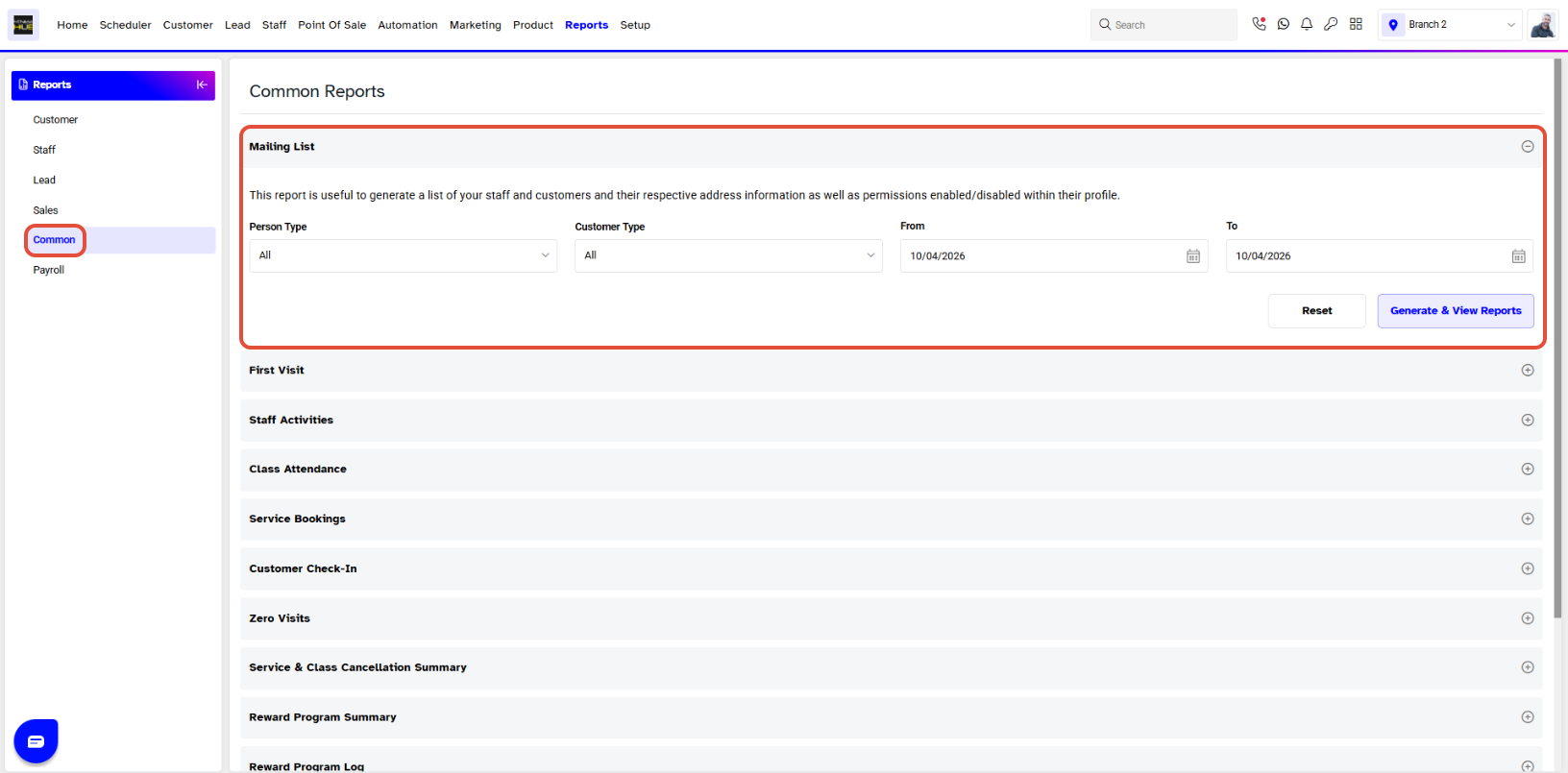
- Select a Person Type from the drop-down menu.
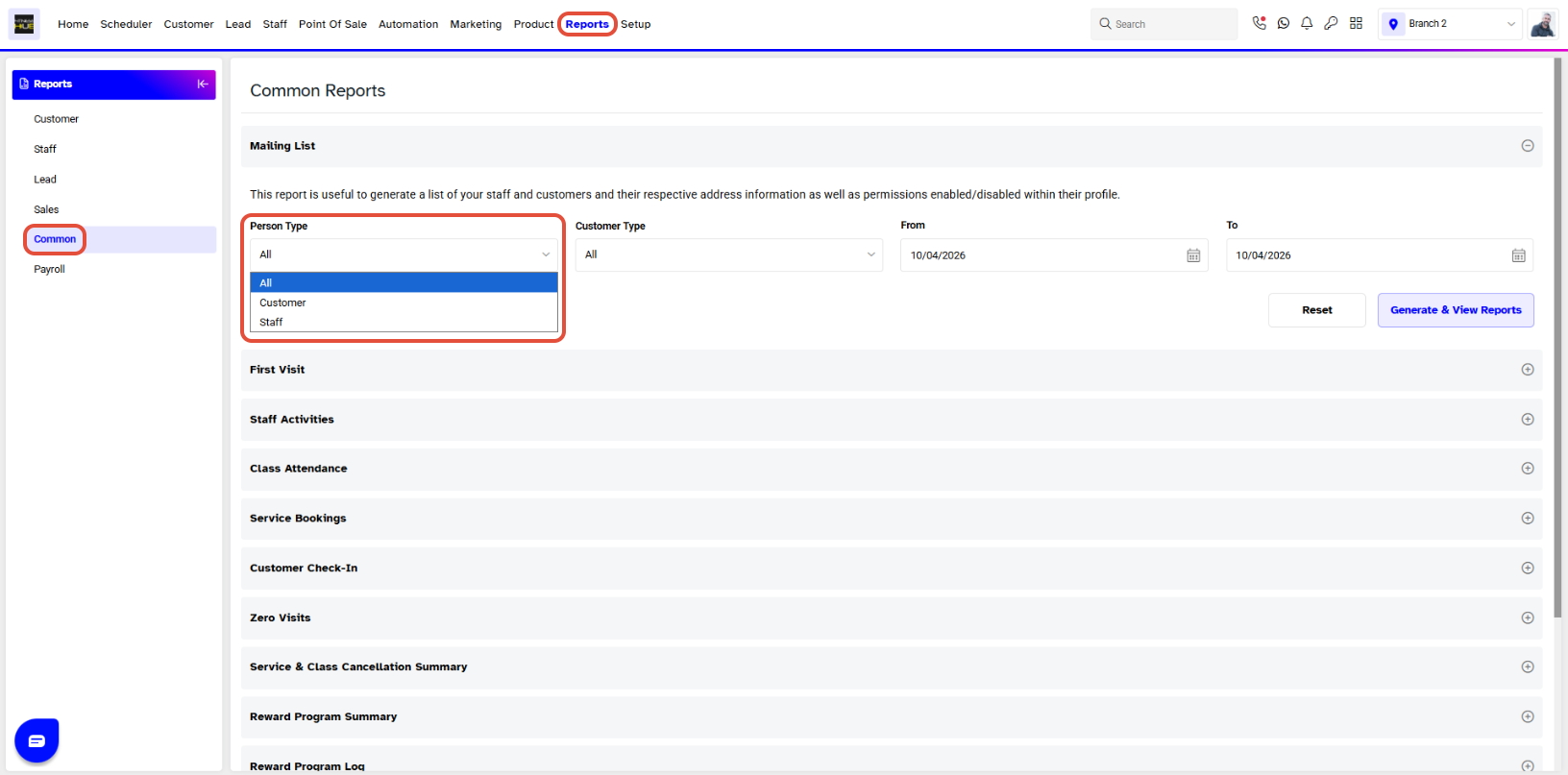
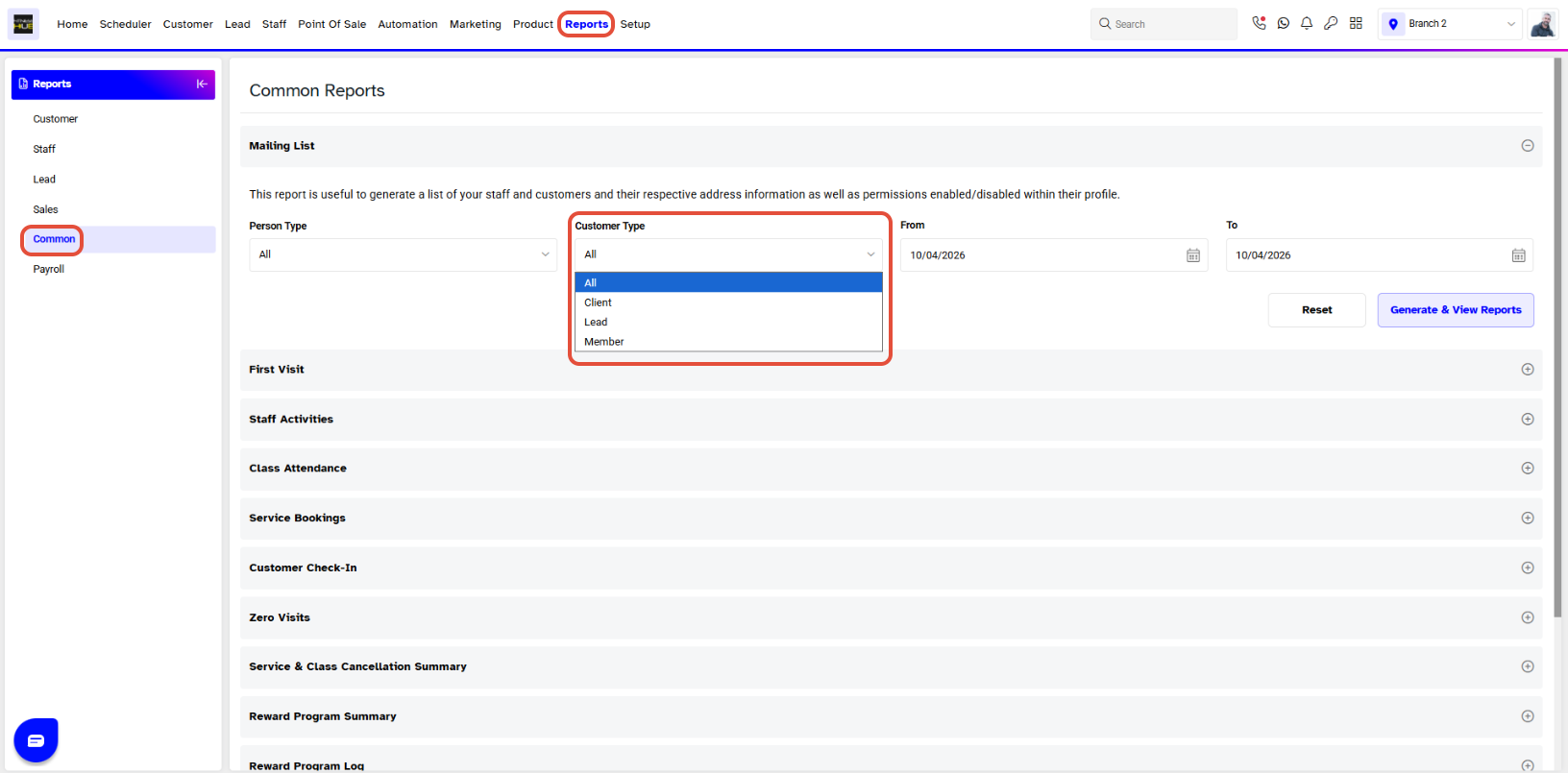
- Choose a Customer Type from the drop-down menu list.
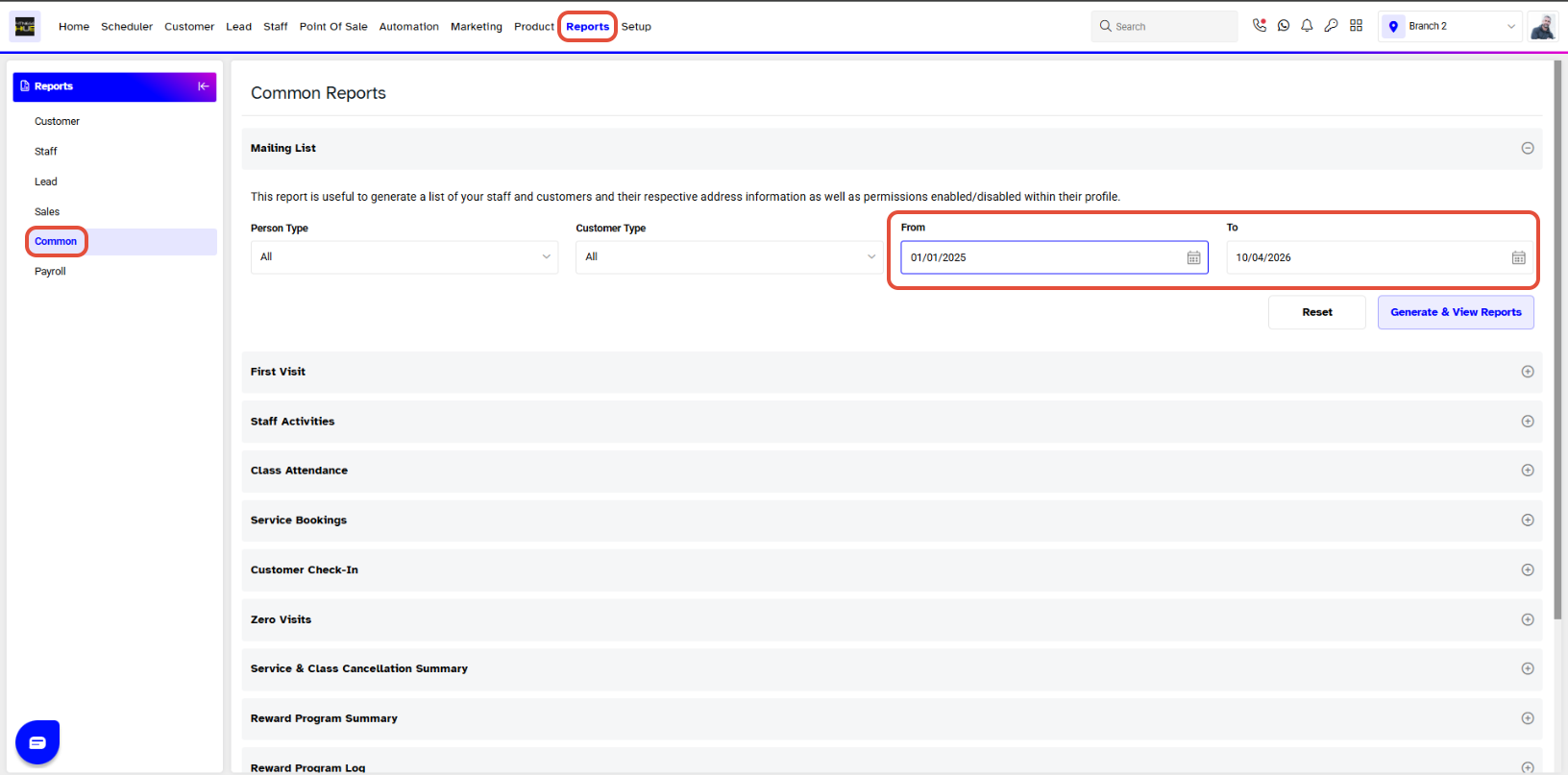
- Select a duration for which you want to view the Mailing List. (Choose a starting date under From and an ending date under To.)
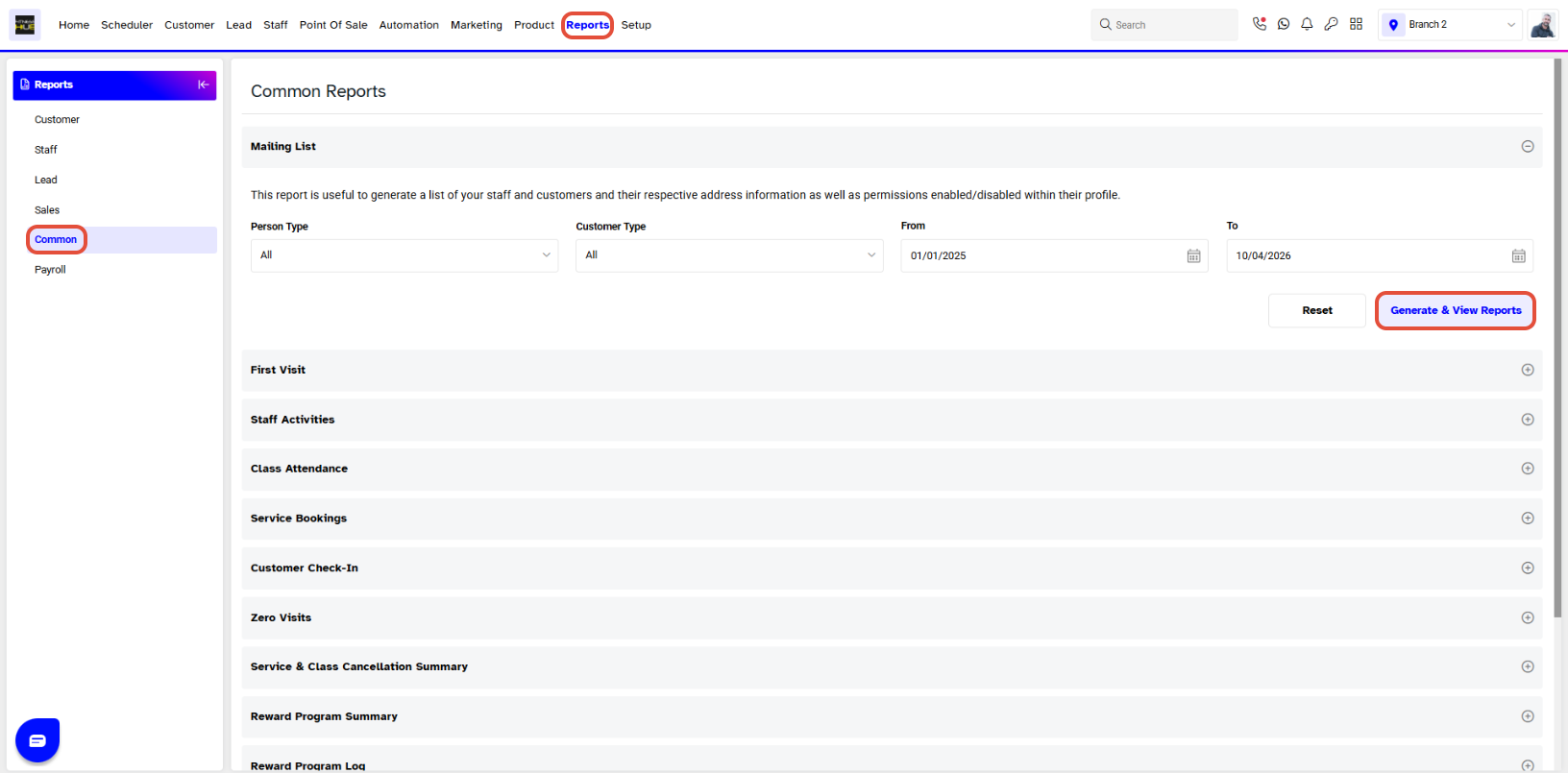
- Click on the Generate & View File icon.
Step 3: Choose format and View the Report
- Now select the format in which you want to view ther report/list
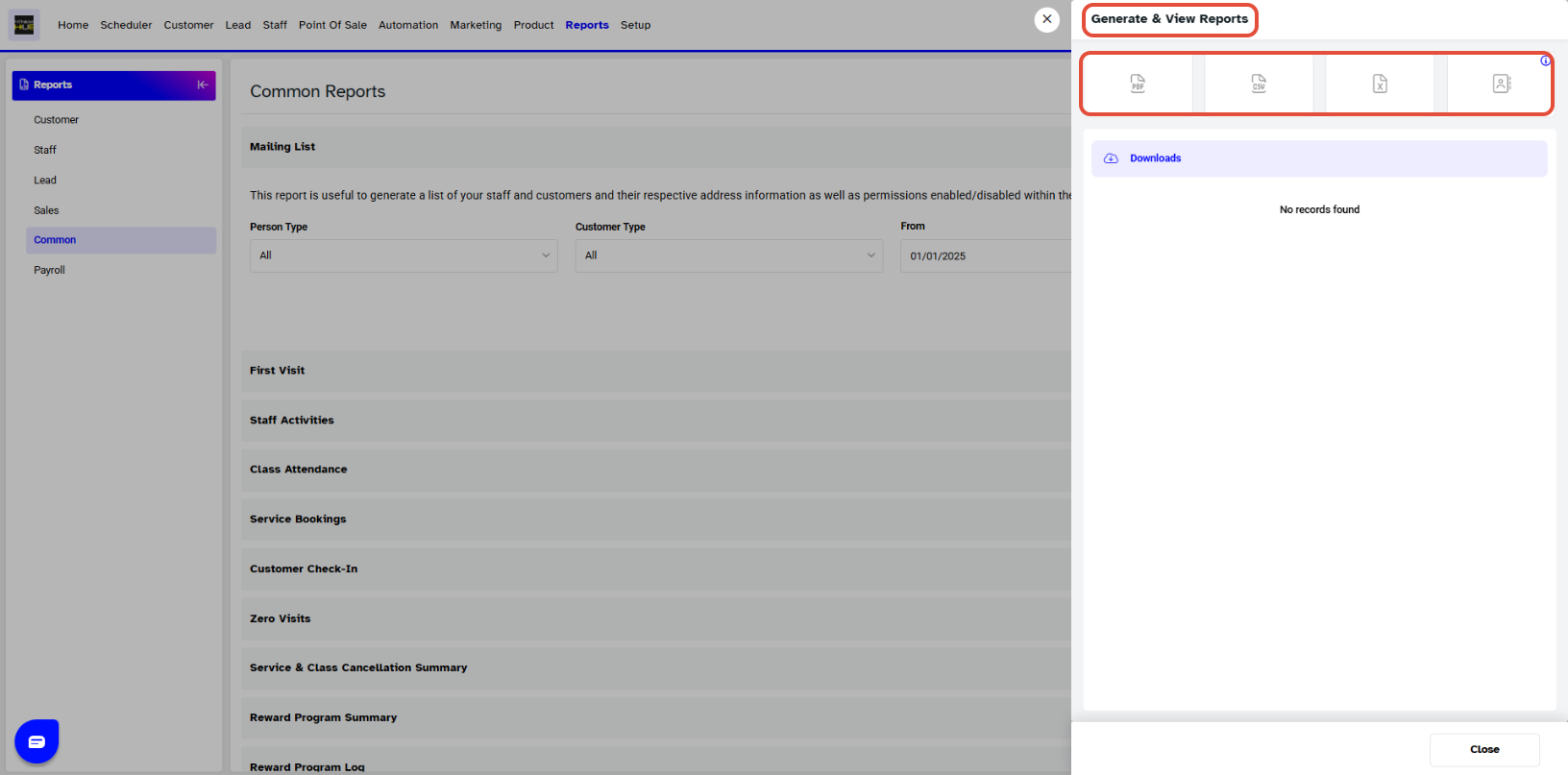
- Now Download or View the report online:
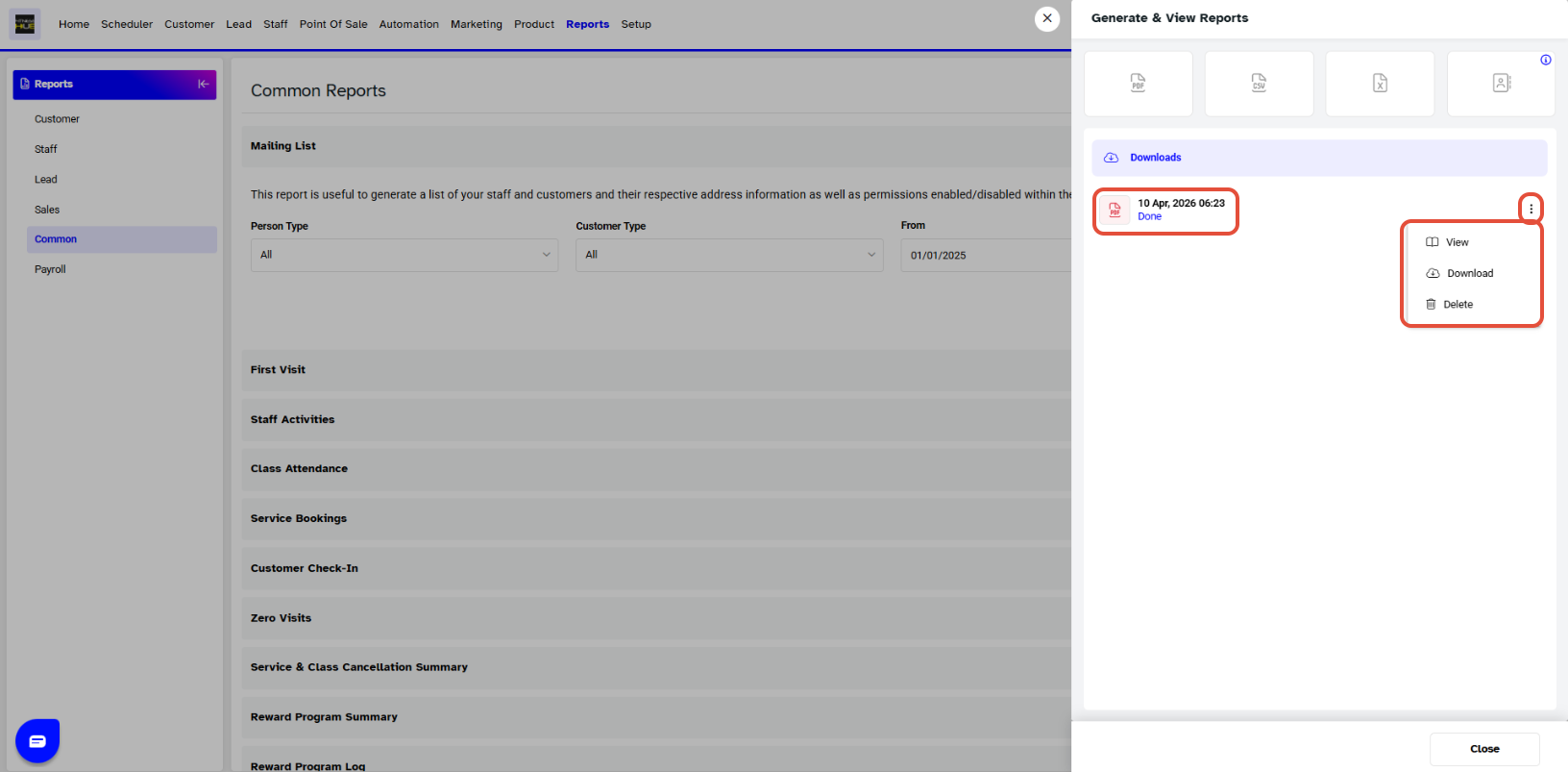
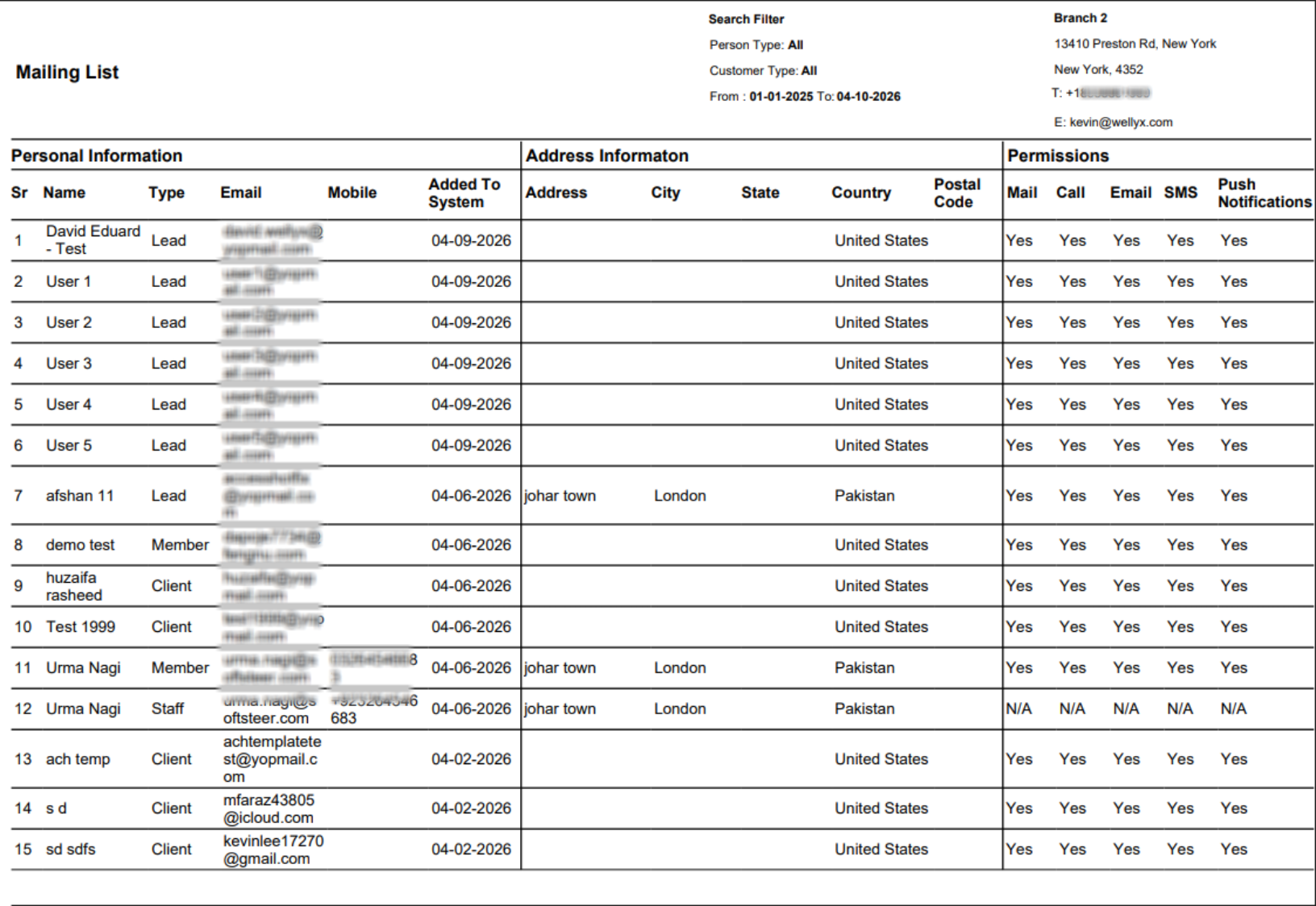
A Mailing List Detail page will open up in a separate tab. This page will display the following:
- Sr #
- First Name
- Last Name
- Type
- Mobile
- Address
- City
- State
- Country
- Postal Code
- Add to System