


Merchants can extend their software through the Widget Module, to provide their customers with functionalities such as; Online Bookings, Reviewing Membership Benefits, Promoting Specialized offers and more special features.
TABLE OF CONTENTS
- Step 1: Navigate to Widget Configuration
- Step 2: Manage Online Resources
- Step 3: Configure Widget URLs
- Step 4: Manage Banners
- Step 5: Embed Social Media Links
Step 1: Navigate to Widget Configuration
- Go to the Setup module in Core.
- Click on the Configuration tab.
- Select Widget from the Configuration tab.
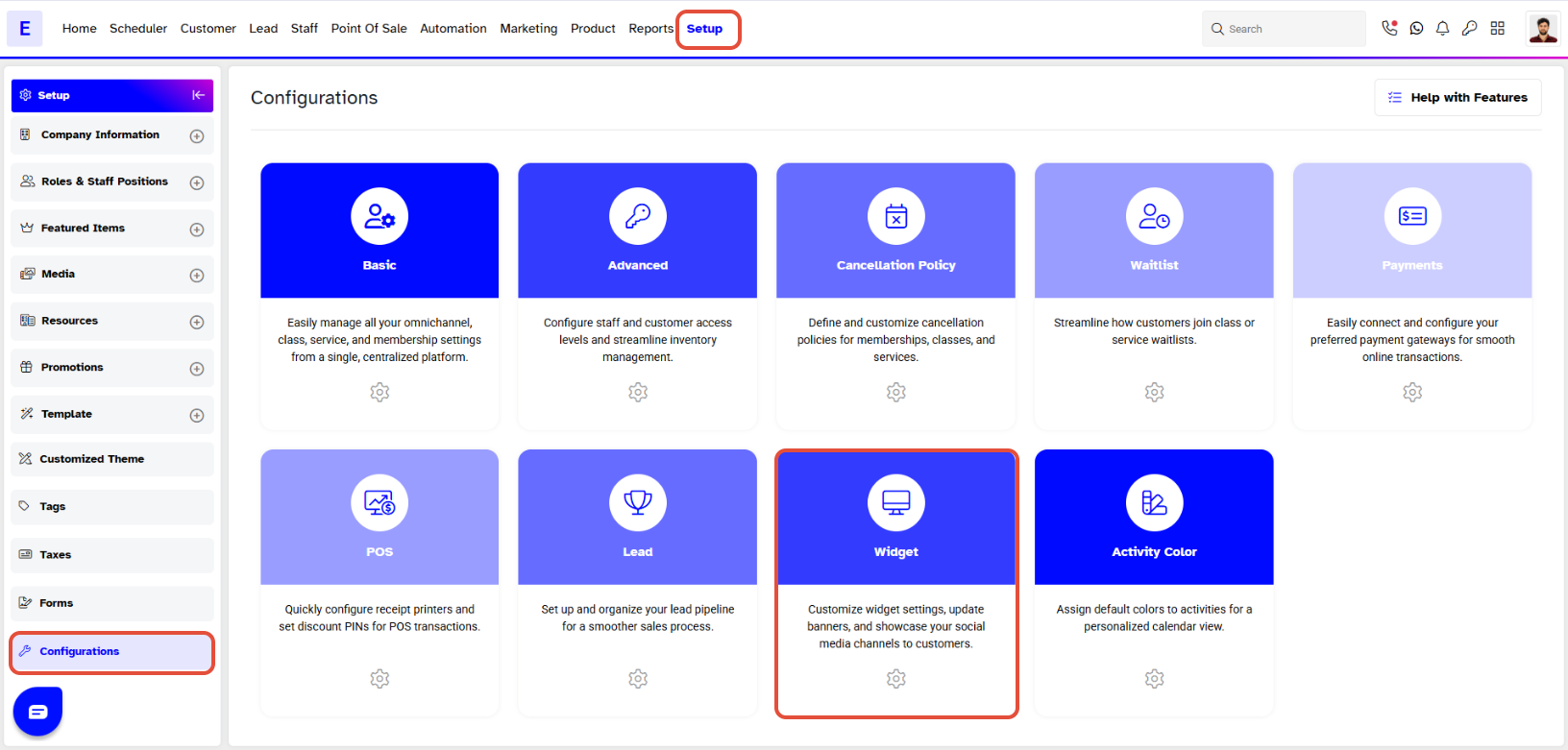
Marchant has the ability to set the Landing Page for Widget & Customer App.
Step 2: Manage Online Resources
- In the Online Resources section, control the resources available through the Widget Module:
- Resource Toggles (Optional): Toggle ON/OFF to activate or deactivate specific resources like Classes or Events, Membership or Packages, Membership For Members,Products,Gift Cards, and Services.
- Toggling these options ON/OFF publishes or unpublishes the resources on the Merchant's site (Widget & Customer App).
- Landing Page (Optional): Set the Landing Page for the Widget & Customer App.
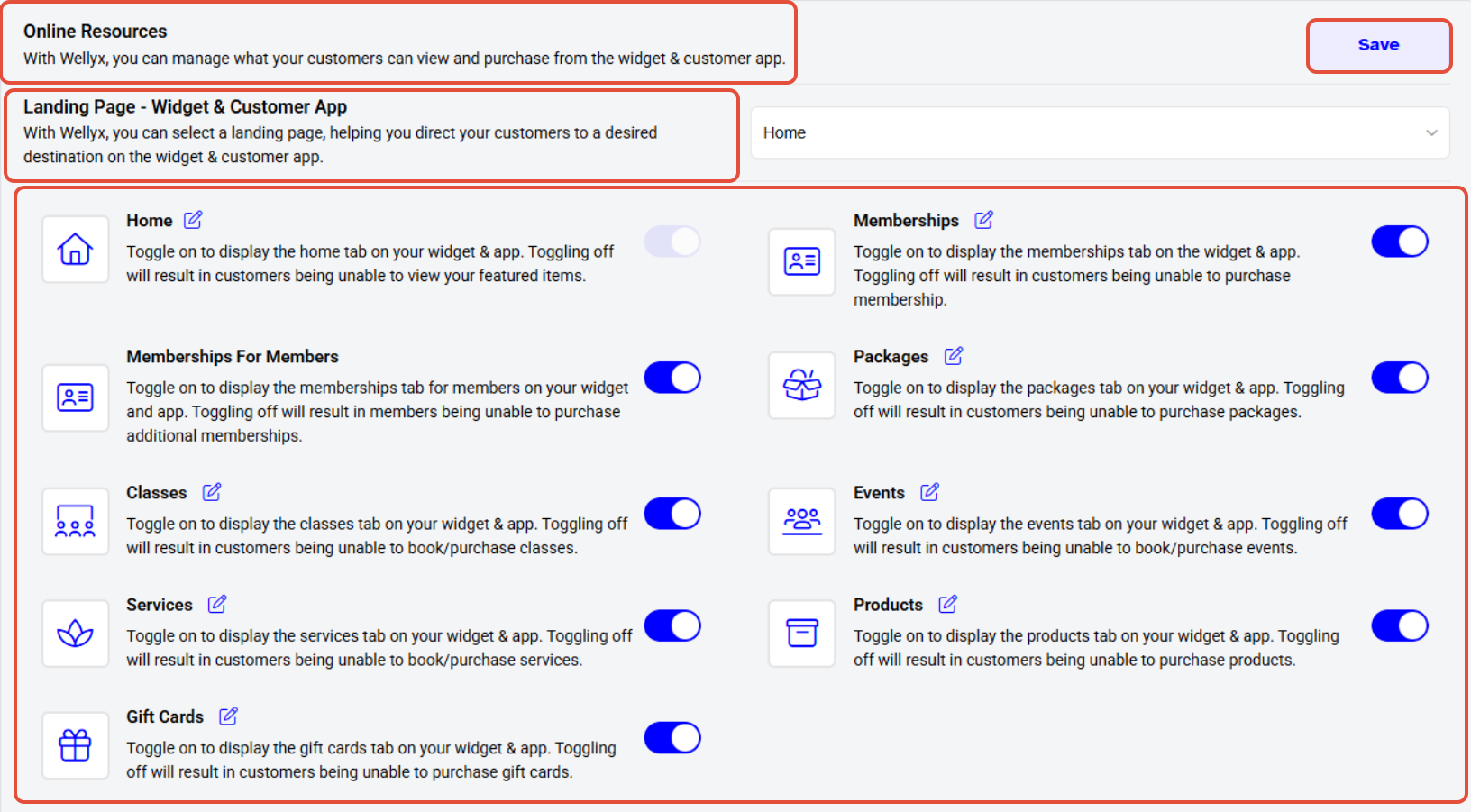
By Toggle on/off the Classes, Membership, Products, Gift Cards and Services you can publish and unpublish the resources on the Merchant's site (Widget & Customer App).
Step 3: Configure Widget URLs
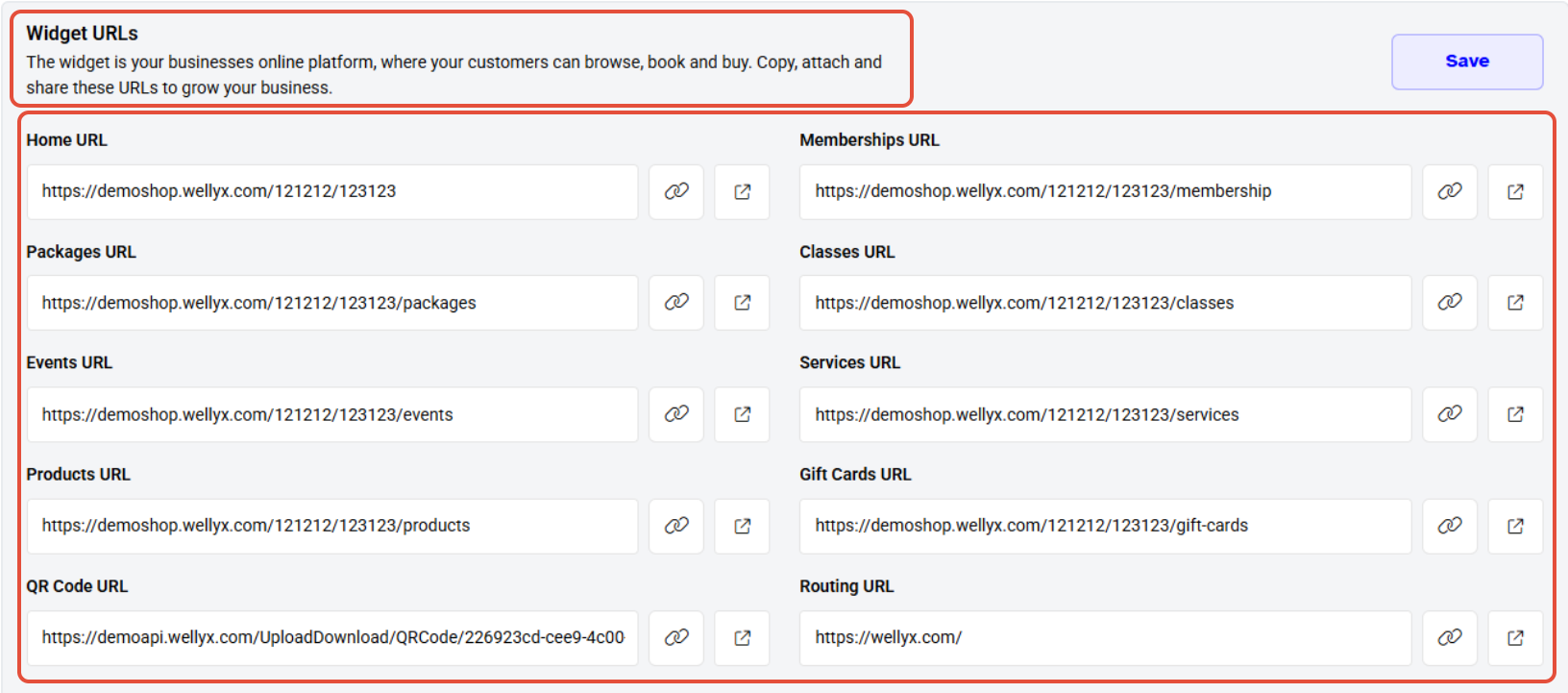
- In the Widget URL section, provide quick links to your sites
- Click on the Open URL tab to set quick links for Home, Classes, Events, Memberships, Packages, Product, Services, Gift Cards, QR Code, and Routing URL.
Step 4: Manage Banners
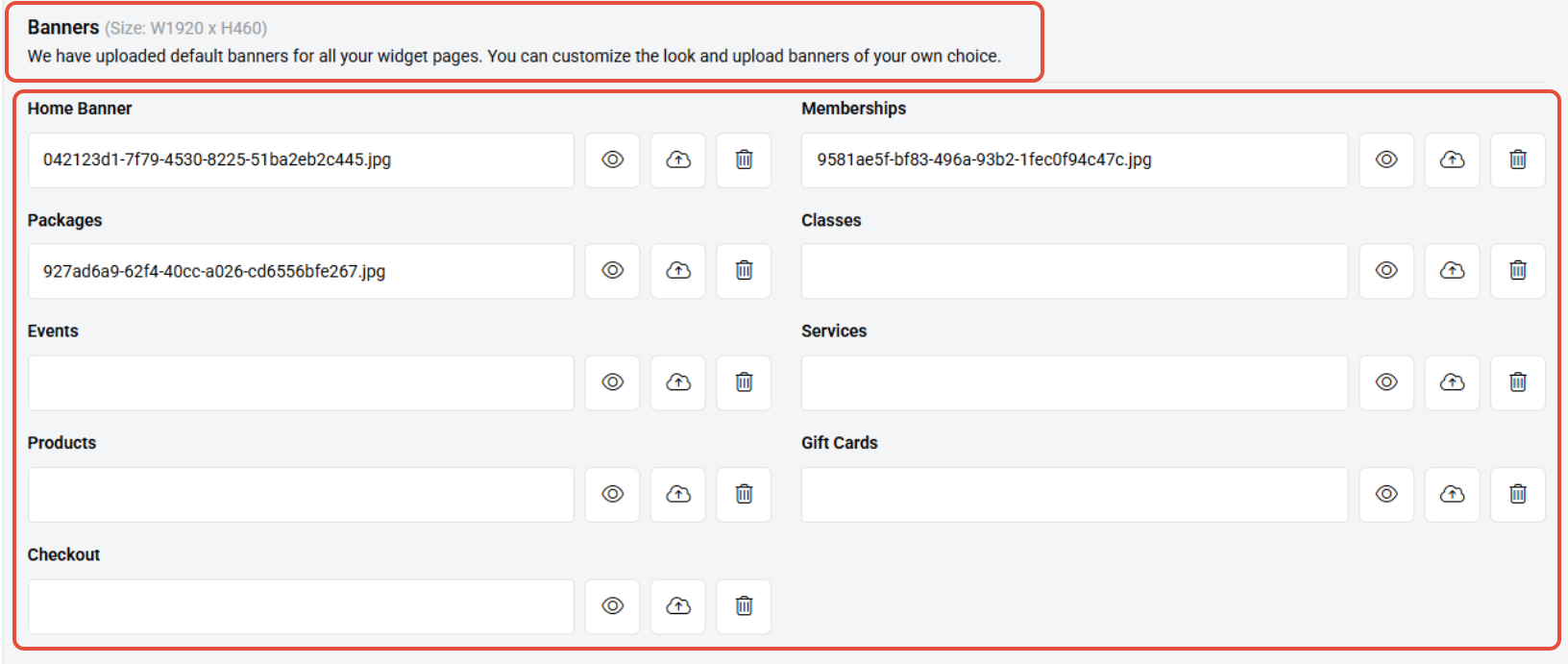
- In the Banner section, manage your widget banners
- Default banners are applied to all pages.
- Customized Banners (Optional): Add customized banners with supported dimensions: W1920 x H460.
- View, Upload, and Delete these banners as needed.
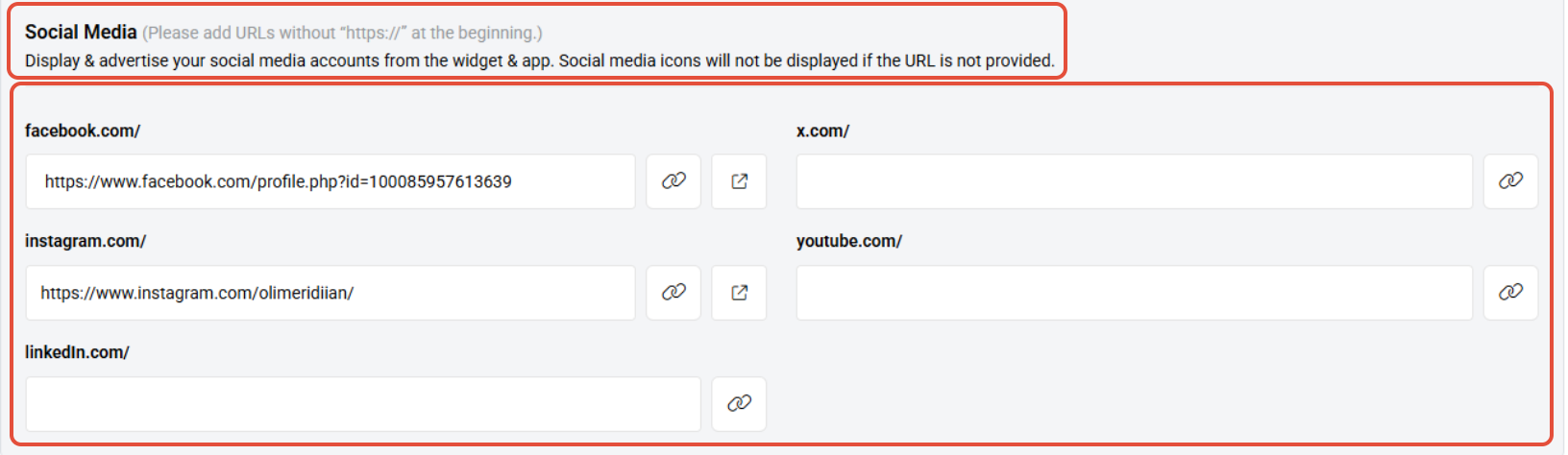
Step 5: Embed Social Media Links
- In the Social Media section, embed your social media links through the Widget Module.
For a list of terms used in the Wellyx application & across the support website, please consult our Glossary.




