


TABLE OF CONTENTS
- Overview
- Step 1: Navigate to the Reports Module
- Step 2: Select a Customer
- Step 3: Generate and View the Report
- Step 4: Select Download Format
- Step 5: Locate the Downloaded Report
Overview
This guide explains how to download a report in Core, including navigating to the module, selecting a report, applying filters, and choosing a download format.
Step 1: Navigate to the Reports Module
- Go to the Reports Module in Core.

Step 2: Select a Customer
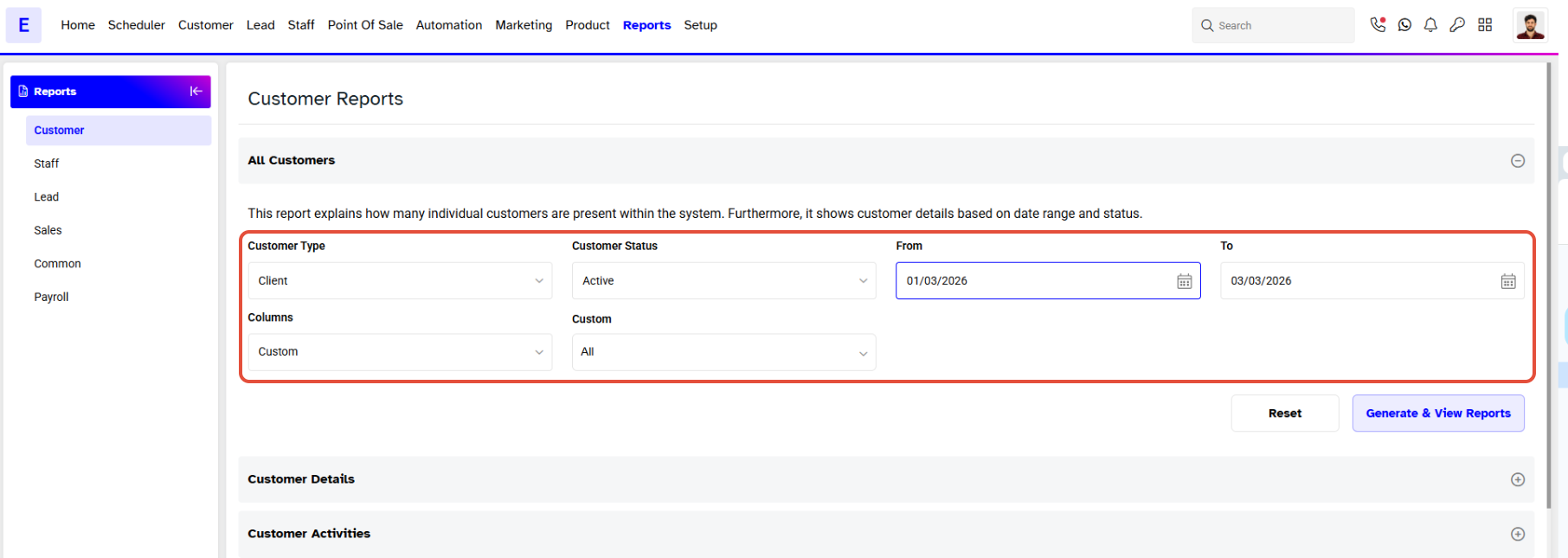
- Select a Customer.
- Apply the appropriate Report Filters.
Step 3: Generate and View the Report
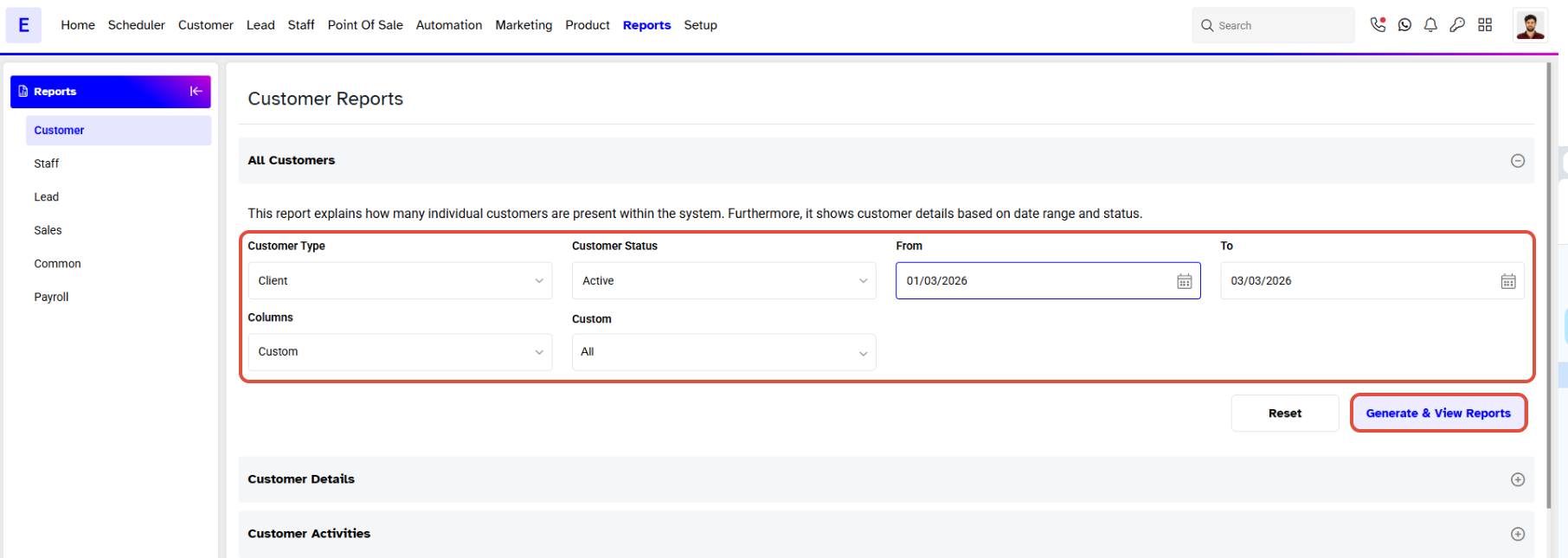
- Once done, click on the Generate & View Reports Button.
Step 4: Select Download Format
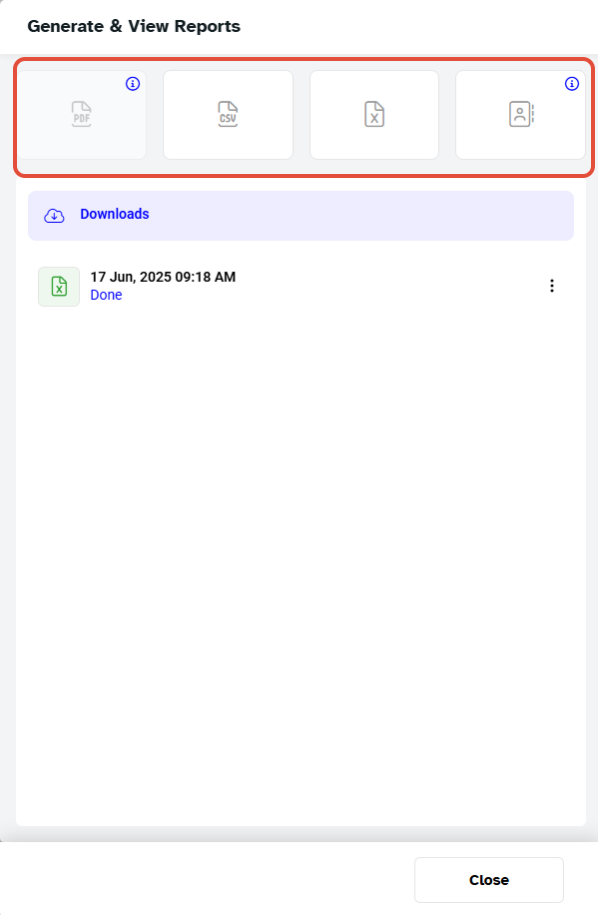
- To generate the Report, select PDF, CSV, Excel, or Contact List for download.
Step 5: Locate the Downloaded Report
- After downloading a report, it will appear in the Downloads Box.
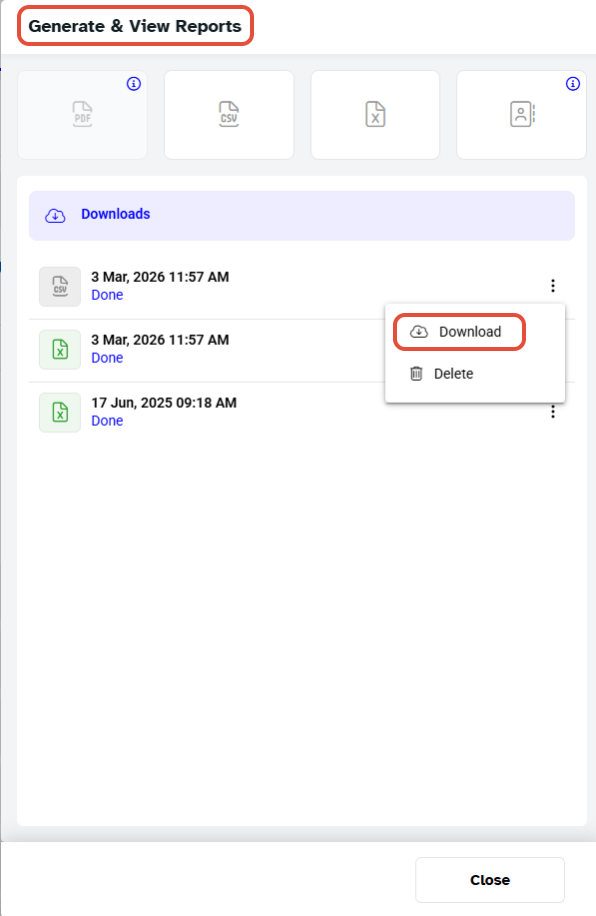
The generated Report is available for redownload within 30 Days of its initial generation.




