


TABLE OF CONTENTS
- Overview
- Step 1: Navigate to the Reports Module
- Step 2: Select a Customer
- Step 3: Access the Columns Filter
- Step 4: Choose Customized Column Names
- Step 5: Generate and View Reports
Overview
This guide explains how to make customized columns for a report in Core step by step, including selecting custom columns and generating the report.
Step 1: Navigate to the Reports Module
- Go to the Reports module in Core.

Step 2: Select a Customer
- Click on a Customer.
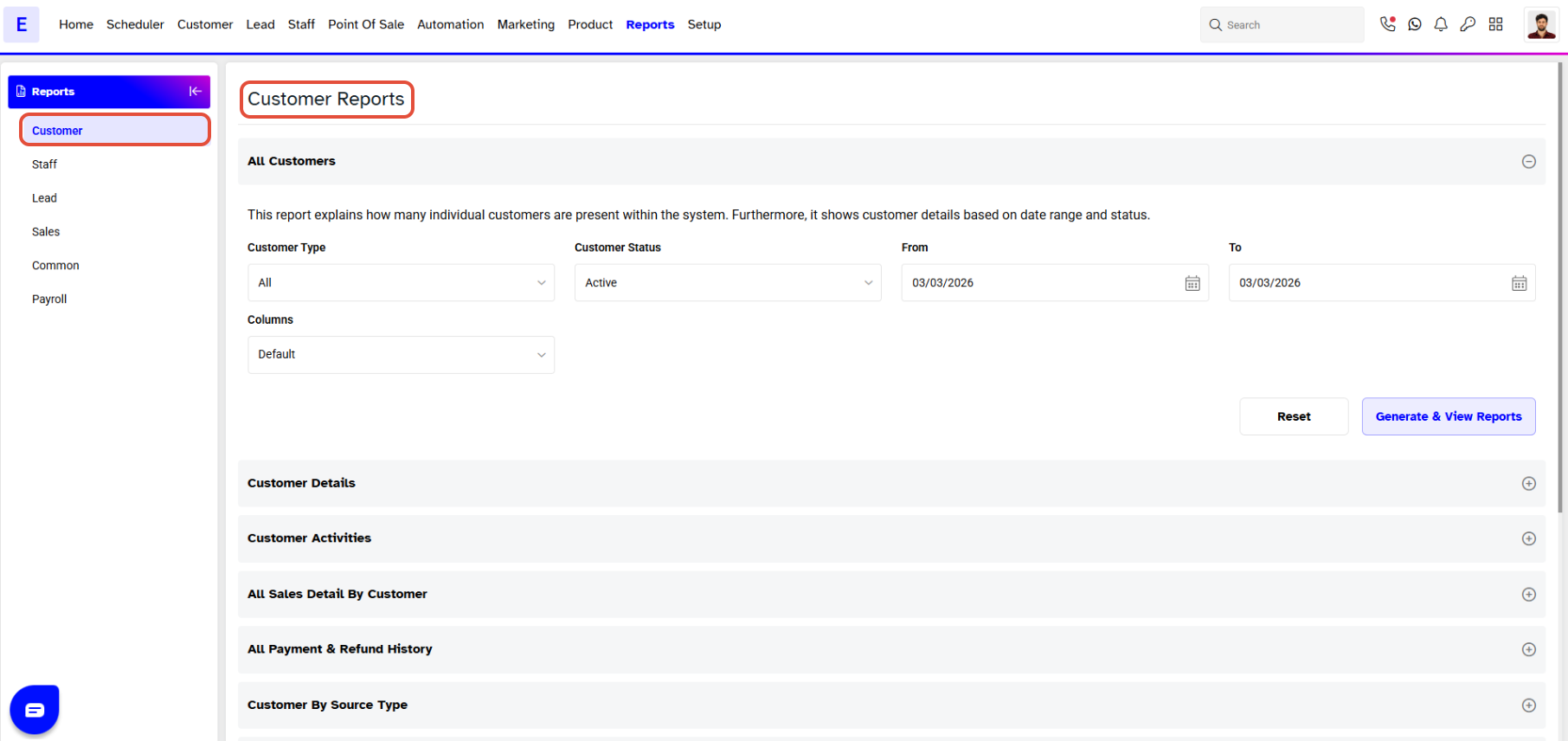
Custom Columns will not impact the following Reports:
 • Sales Breakdown
 • Daily Sales Summary by Sources
 • Sales By Staff
 • Payment Summary
 • Payment Breakdown
 • Mailing List
 • Reward Program Summary
Step 3: Access the Columns Filter
- Navigate to the Columns Filter.
- Select the Custom option from the Drop-down menu under the Columns label.
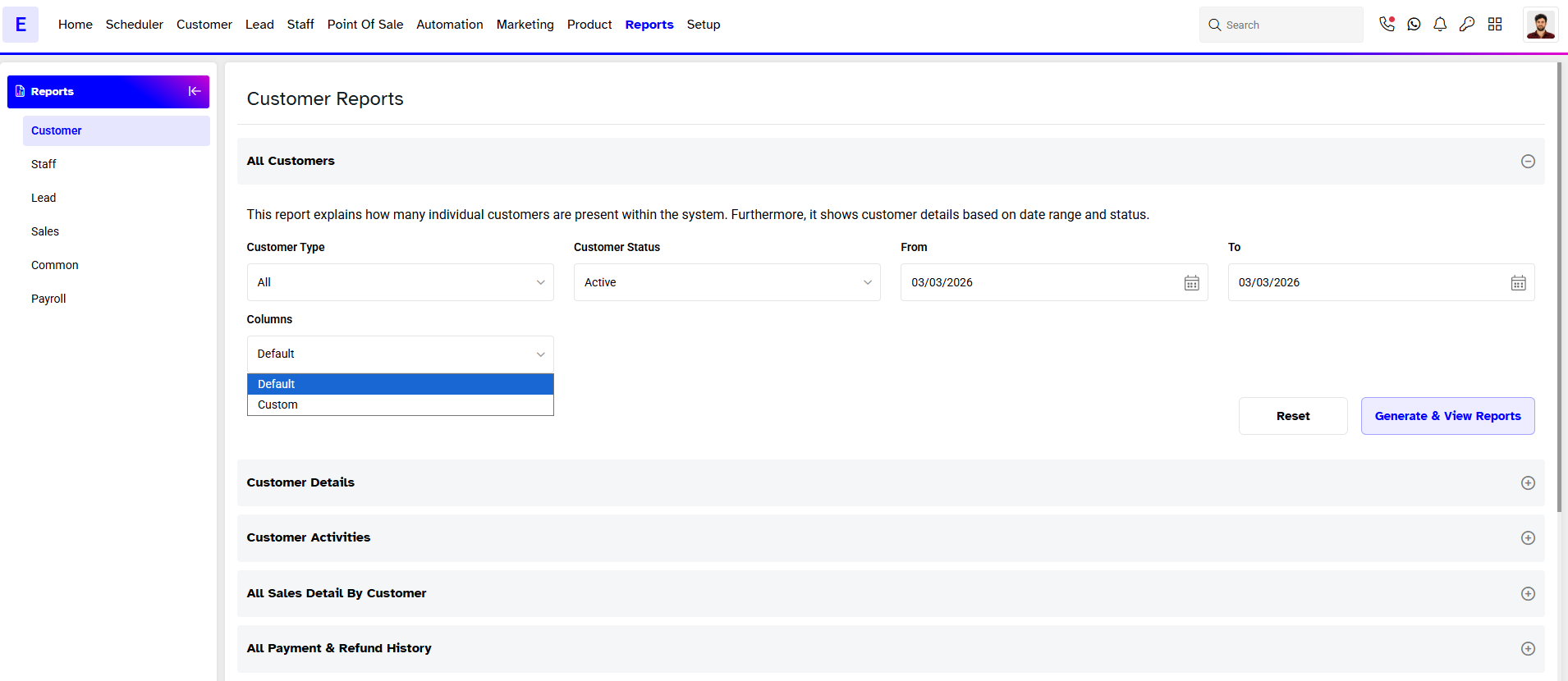
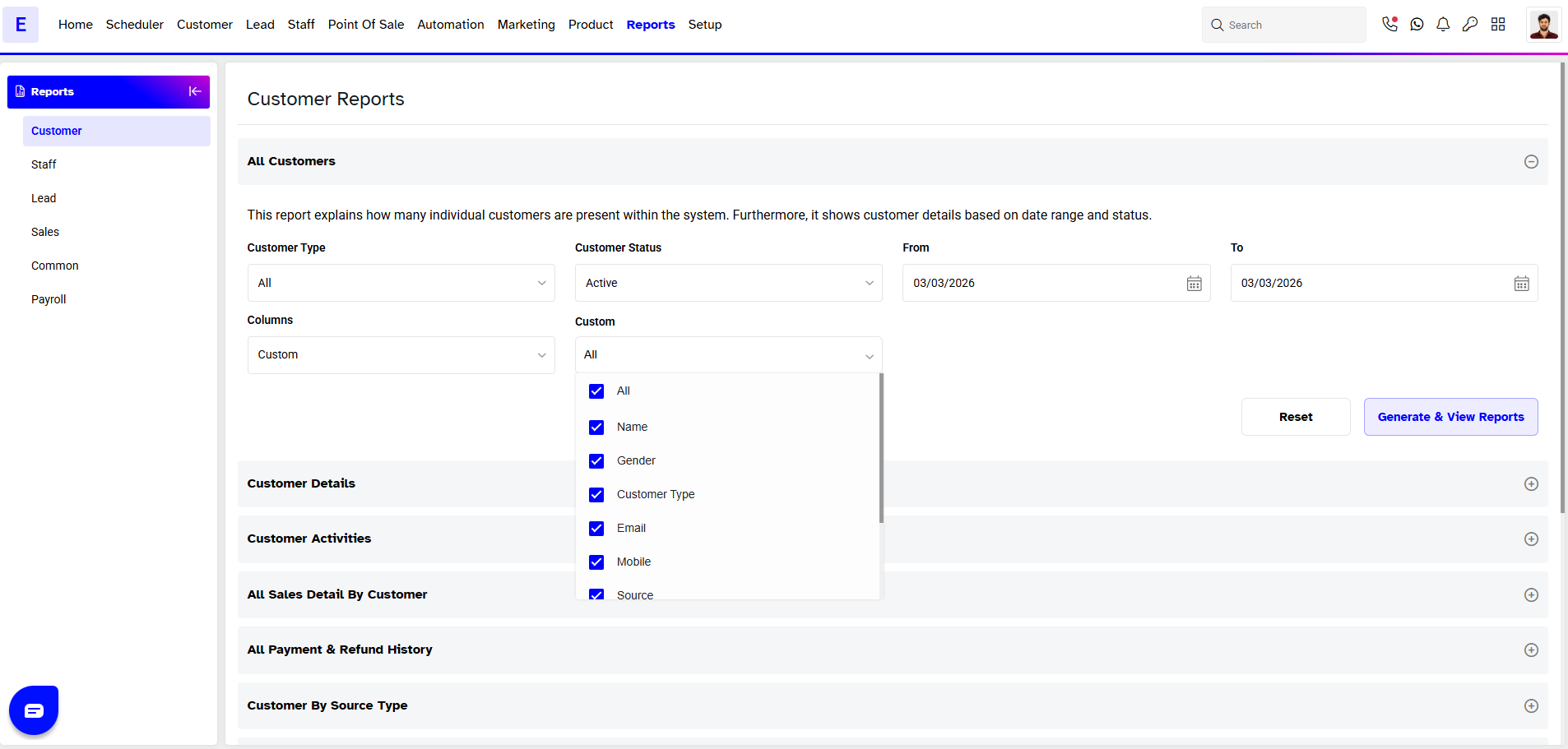
Step 4: Choose Customized Column Names
- Choose the desired Customized Column Names from the drop-down menu next to the Columns field to be included in the Report.
Step 5: Generate and View Reports
- Click on Generate & View Reports
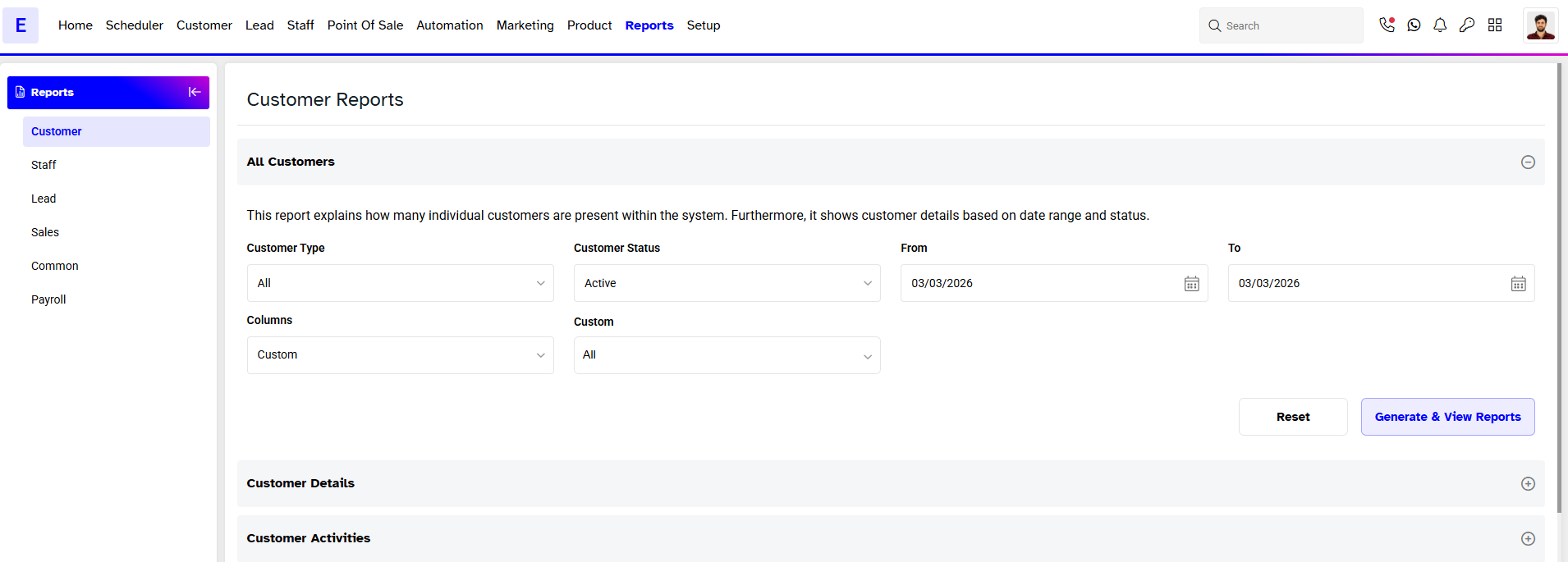
Reports being generated using Customized Columns cannot be downloaded in PDF format.




