TABLE OF CONTENTS
- Step 1: Navigate to the Lead Profile
- Step 2: Edit the Lead Profile
- Step 3: Add Tags
- Step 4: Save the Lead Profile
Overview
This guide explains how to associate tags with a Lead Profile in Core. It covers all essential steps — from navigating to the lead profile and editing it to adding predefined or new tags. By following this guide, users can effectively categorize and manage their lead profiles.Step 1: Navigate to the Lead Profile
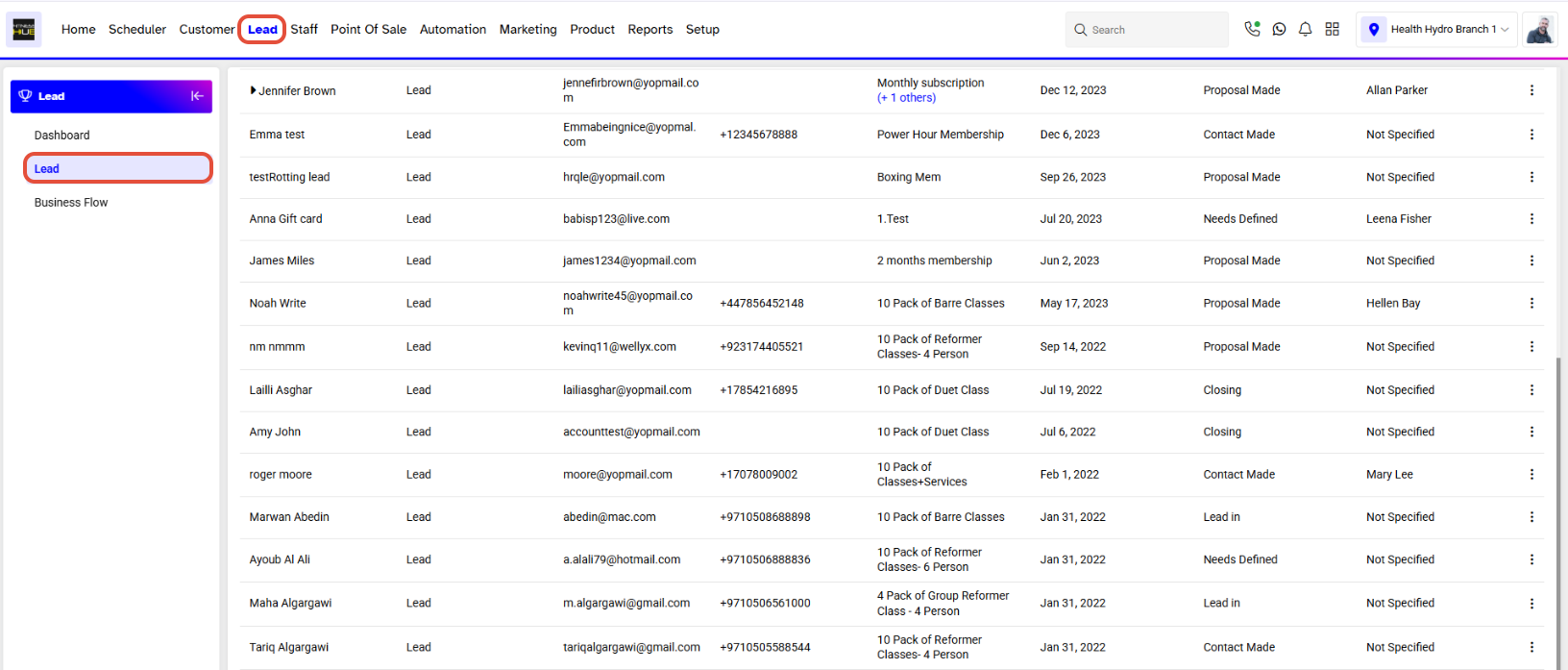
- Go to the Lead Module in Core.
- The Lead Tab will open by default.
Step 2: Edit the Lead Profile
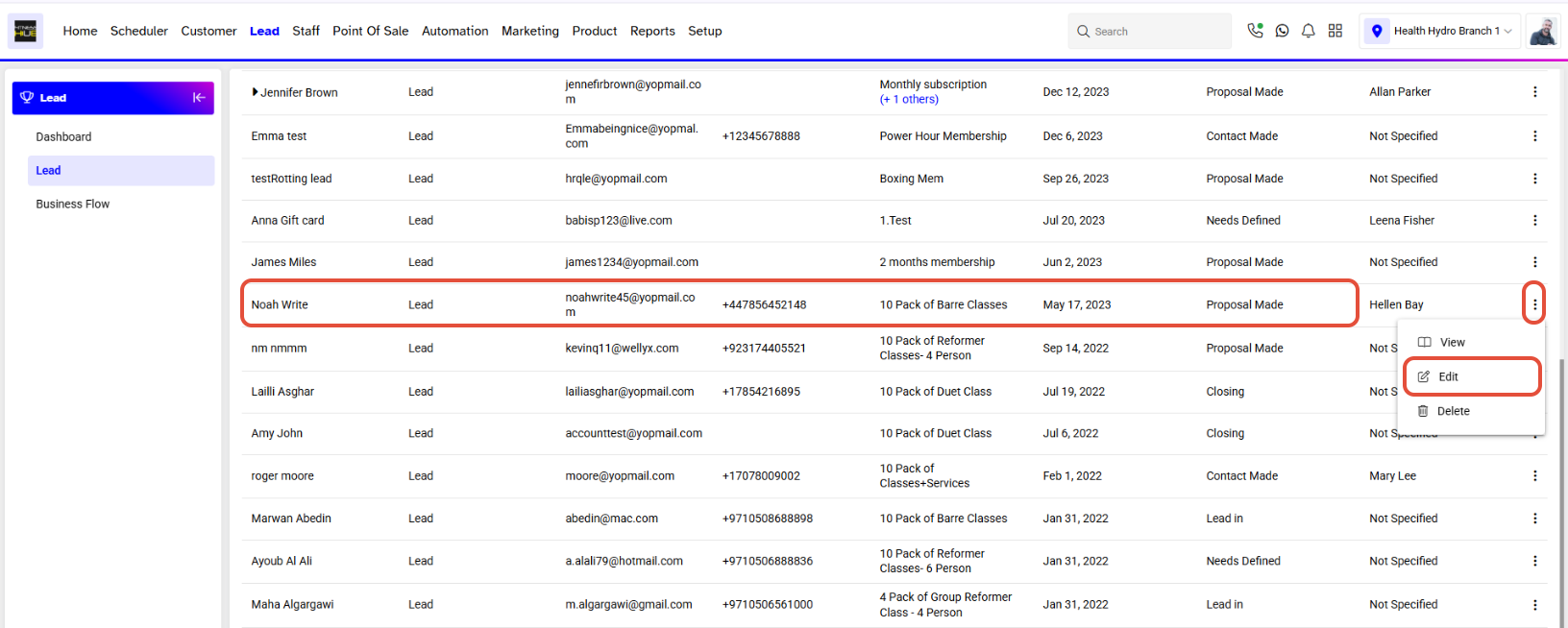
- Click on the Edit Button against the Lead.
Step 3: Add Tags
- Click on the Tag field in the Lead Profile.
- Add a Predefined Tag by searching for its name, or create a New Tag by typing its name in that field.
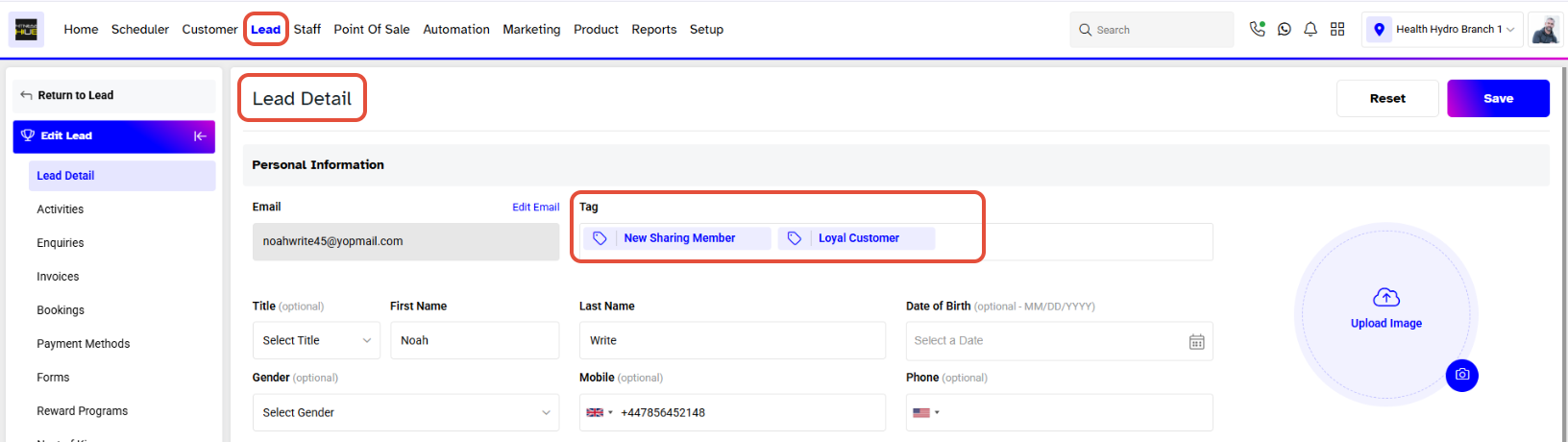
Multiple Tags can be associated with the same profile, and the same Tag can be associated with multiple customers/leads.Step 4: Save the Lead Profile
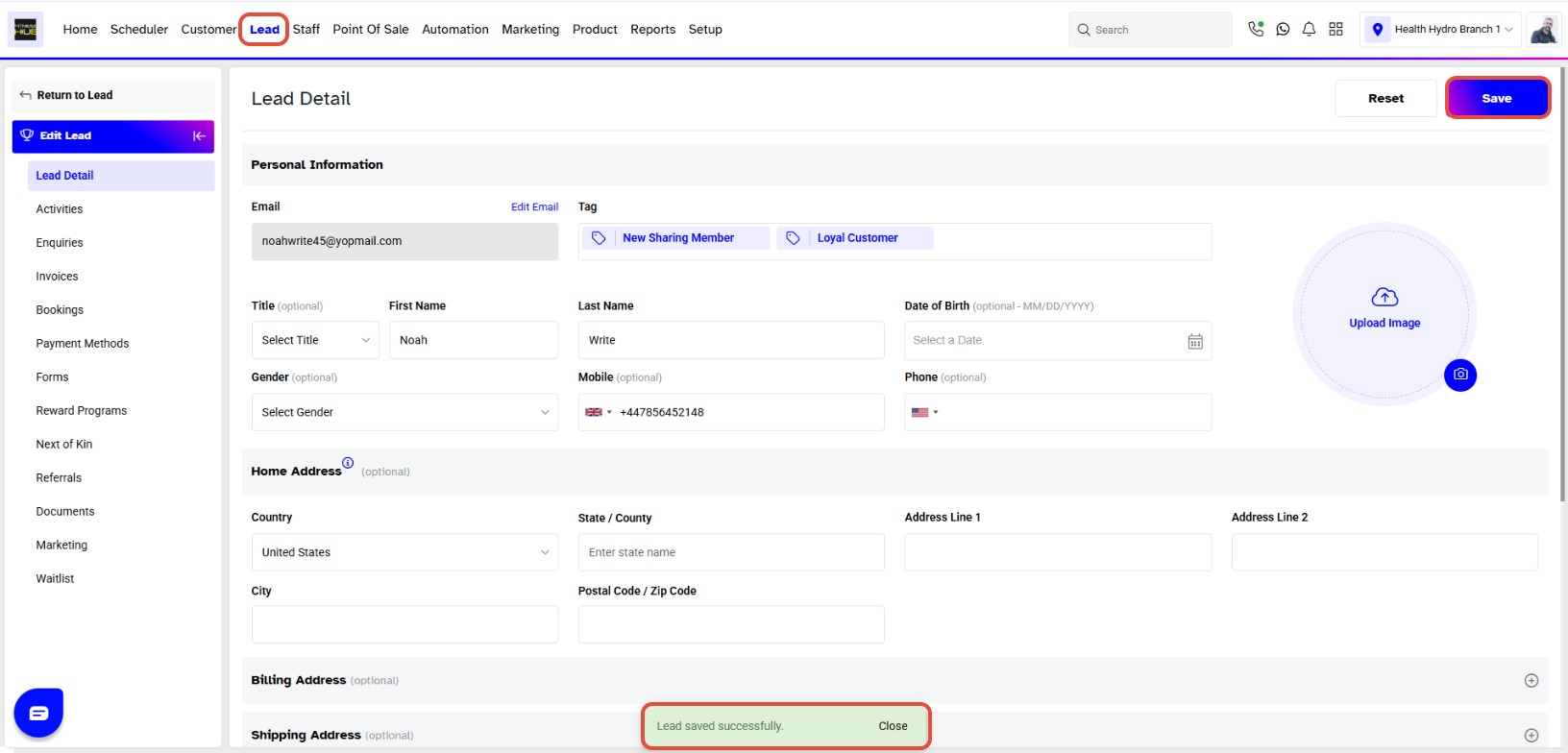
- Once done, click on the Save Button.
- The Lead Profile has been Saved successfully.