TABLE OF CONTENTS
- Step 1: Navigate to Customer Profile
- Step 2: Expand Communication & Marketing Section
- Step 3: Configure Communication Preferences
- Step 4: Save Preferences
Overview
This guide explains how to manage marketing communication preferences for a customer in Core. It covers all essential steps — from navigating to the customer profile and expanding the communication section to setting various preference toggles. By following this guide, users can accurately record and update customer consent for different communication channels.Step 1: Navigate to Customer Profile
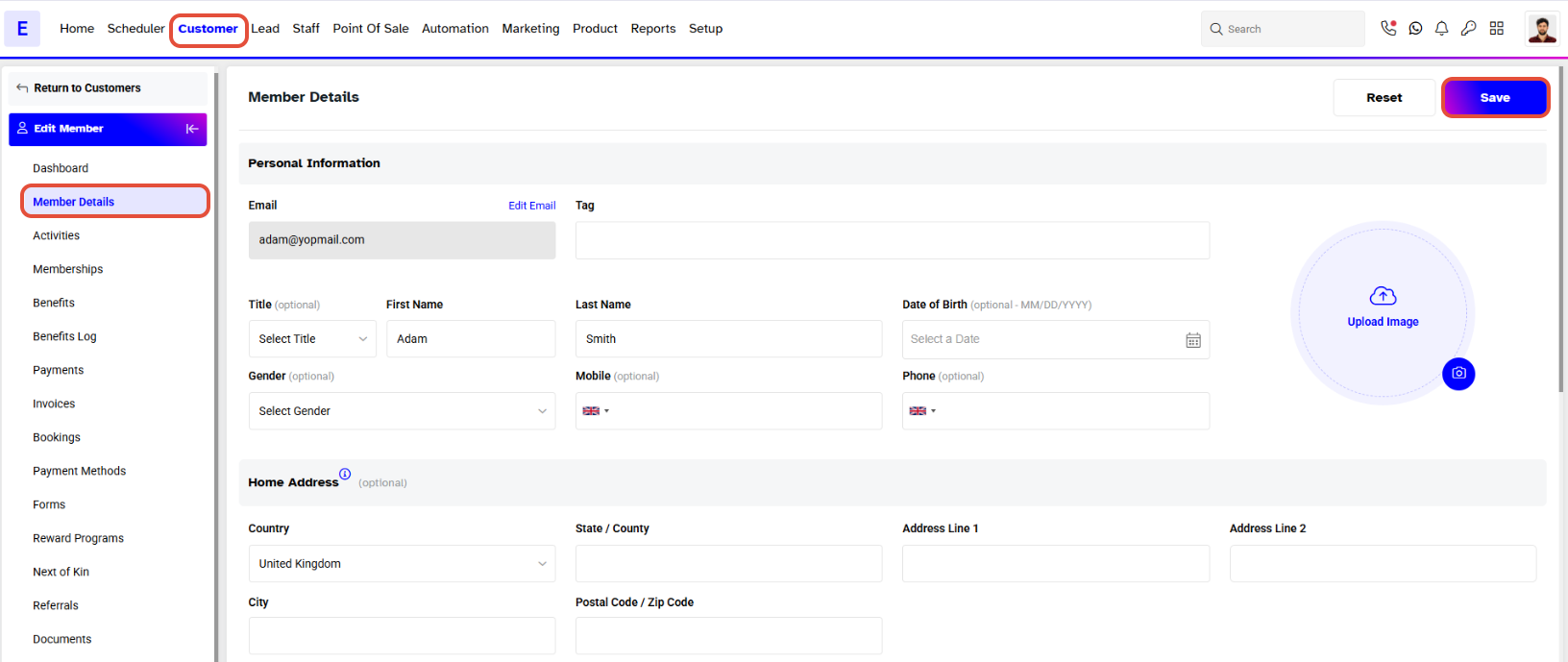
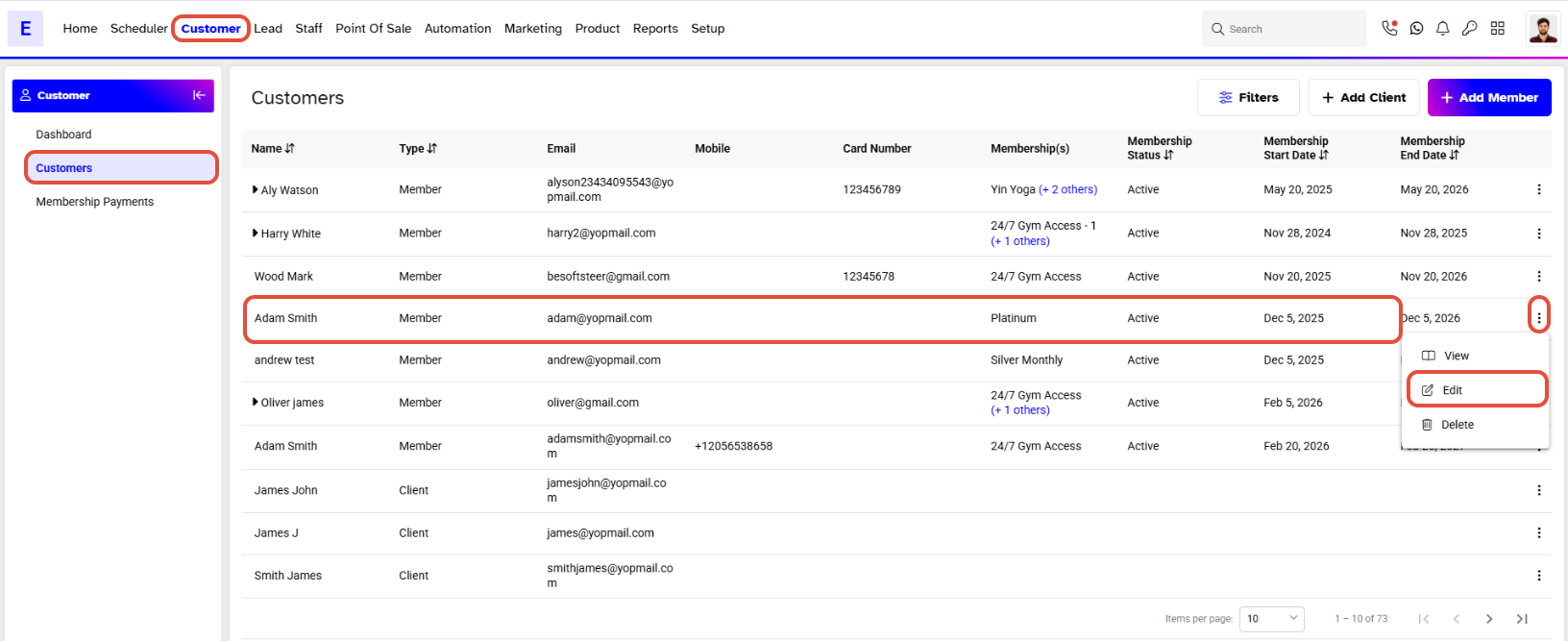
- Go to the Customer Module in Core.
- Click on the Edit Button against the Customer Name.
- The Customer Profile page will open.
Step 2: Expand Communication & Marketing Section
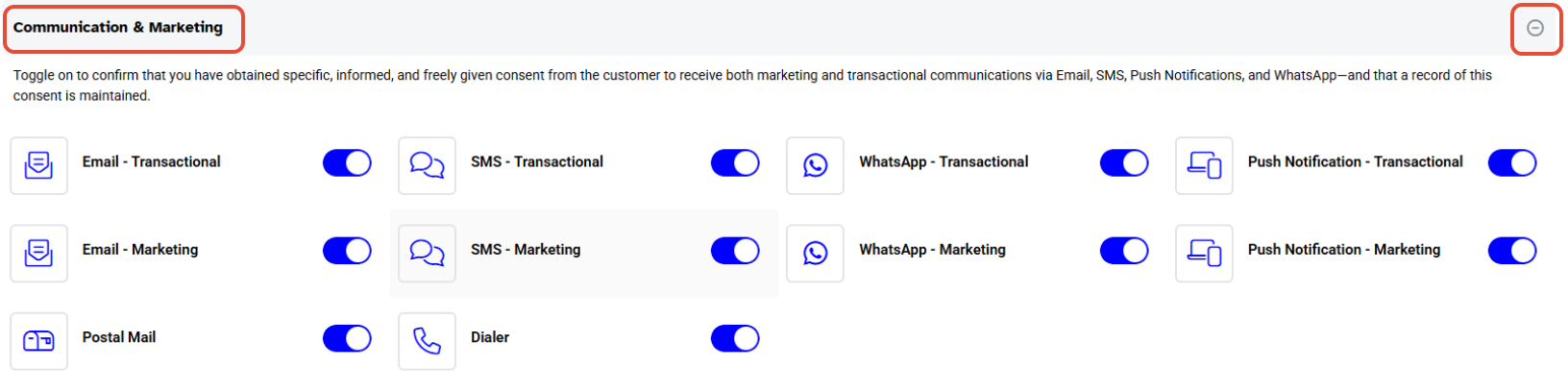
- Scroll down to the Communication & Marketing Section.
- Click on the + Icon to expand the Communication & Marketing Section.
Step 3: Configure Communication Preferences
- Email Transactional: Toggle on if the Customer agrees to receive system-generated and manual emails.
- Email Marketing: Toggle on if the Customer agrees to receive Marketing Emails.
- Postal Mail: Toggle on if the Customer allows to send postal mail.
- SMS Transactional: Toggle on if the Customer agrees to receive system-generated and manual SMS.
- SMS Marketing: Toggle on if the Customer agrees to receive Marketing SMS.
- Dialer: Allows the Customer to receive calls from the Wellyx Dialer.
- Push Notification Transactional: Toggle on if the Customer permits Push Notifications (both system-generated and manual).
- Push Notification Marketing: Toggle on if the Customer agrees to receive Marketing Push Notifications.
When the toggle button is Blue, it indicates an Active Status, while Grey shows permission is not granted.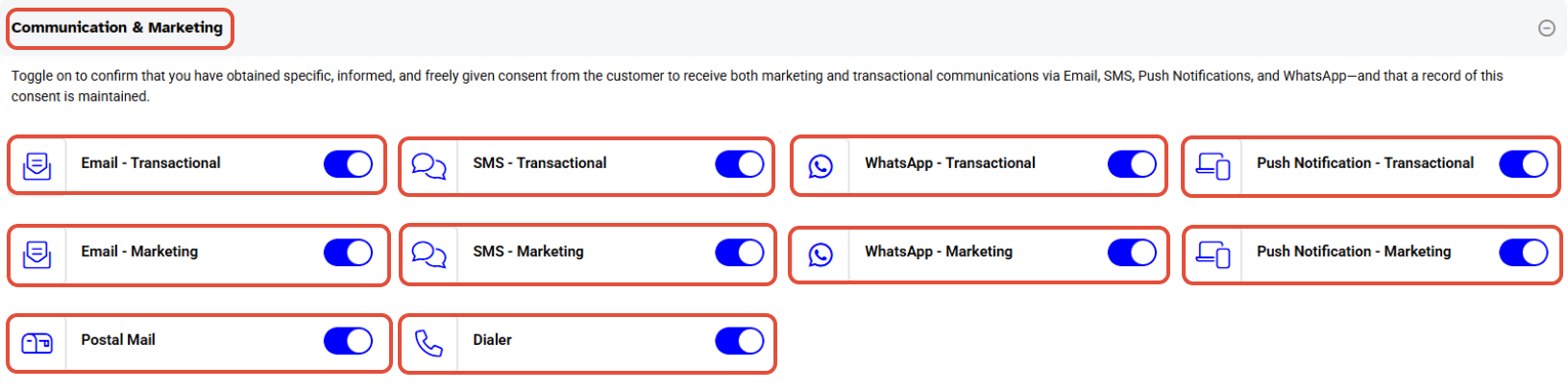
Step 4: Save Preferences
- Once the desired Customer Communication & Marketing Sections Preferences are set, scroll back to the top.
- Click on the Save Button.