TABLE OF CONTENTS
- Overview
- Step 1: Navigate to the Scheduler
- Step 2: Select a Scheduled Task
- Step 3: Click the Delete Icon
- Step 4: Confirm Deletion
- Step 5: Verify Deletion
Overview
This guide explains how to delete a task from the Scheduler step by step.
Step 1: Navigate to the Scheduler
- Go to Scheduler.

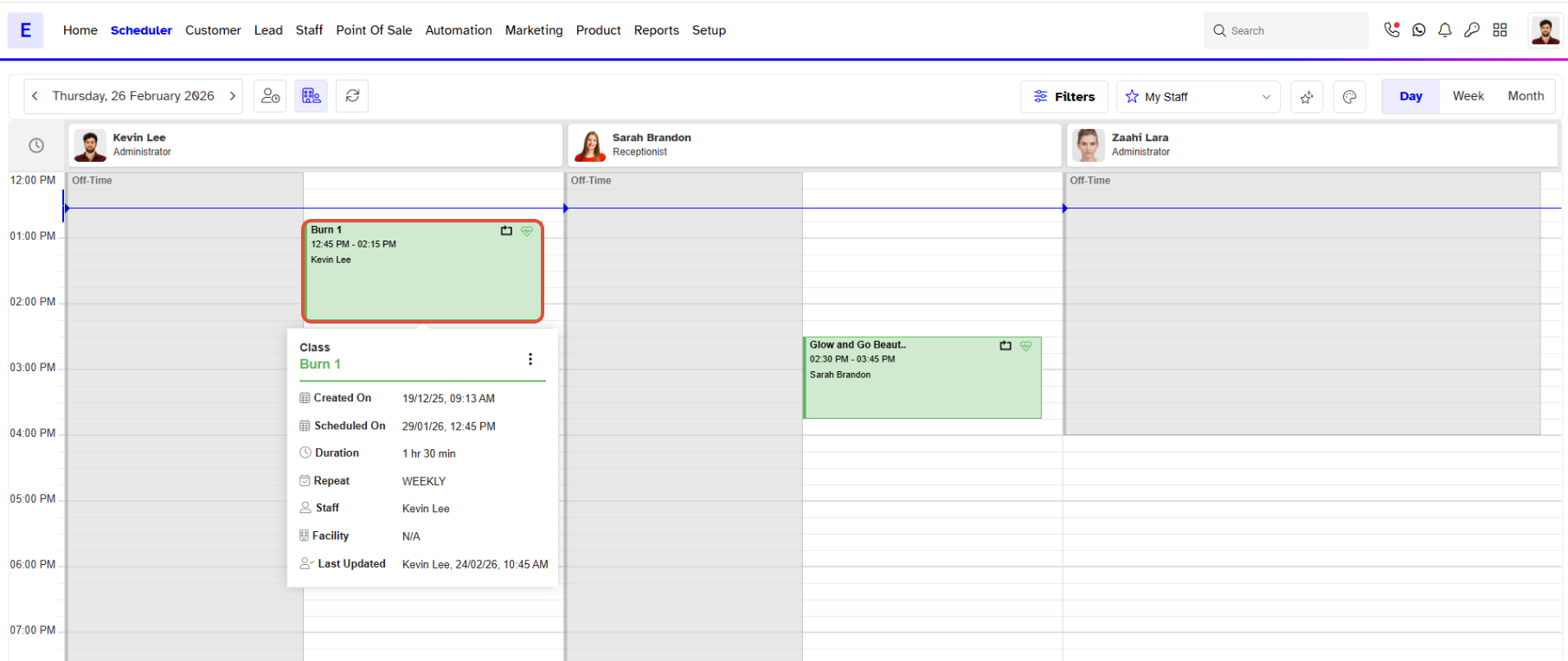
Step 2: Select a Scheduled Task
- In Scheduler, click on a Scheduled Task.
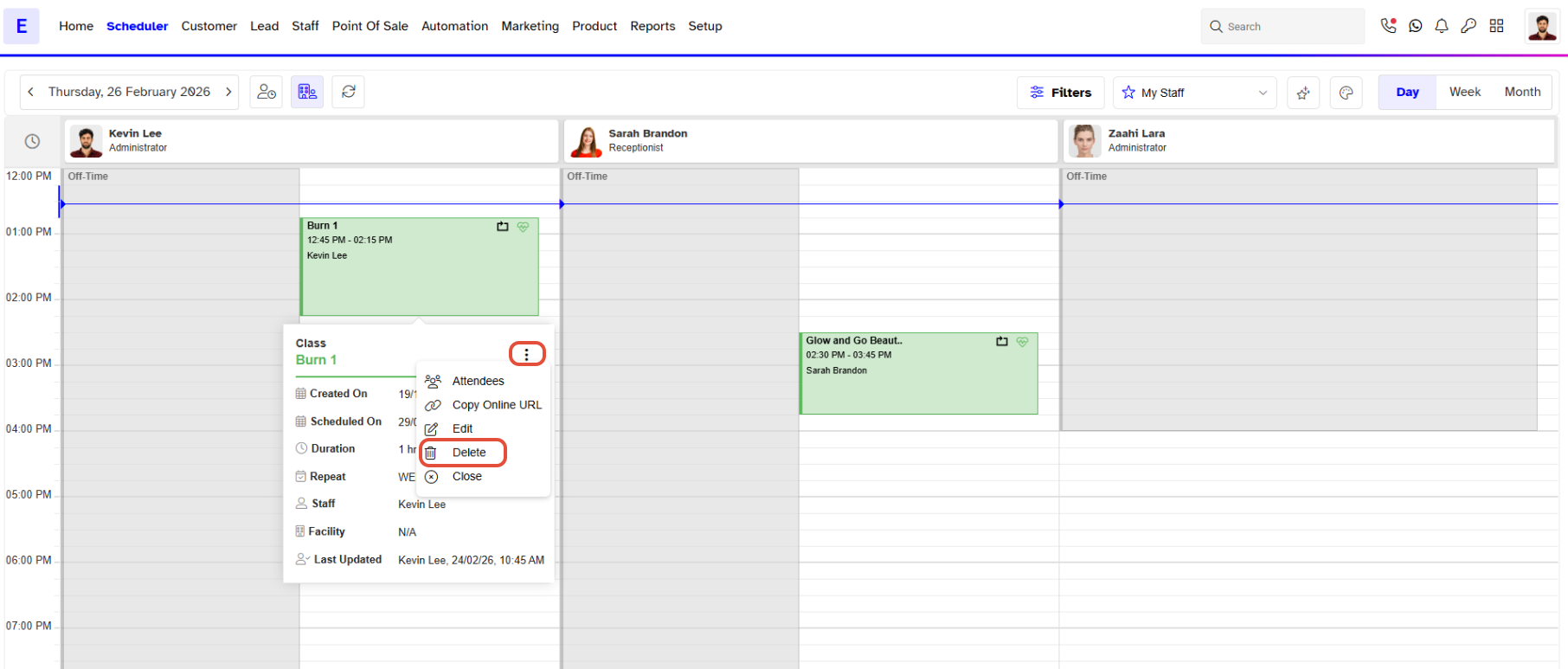
Step 3: Click the Delete Icon
- Click Dots Button.
- Now click on the Delete Icon.
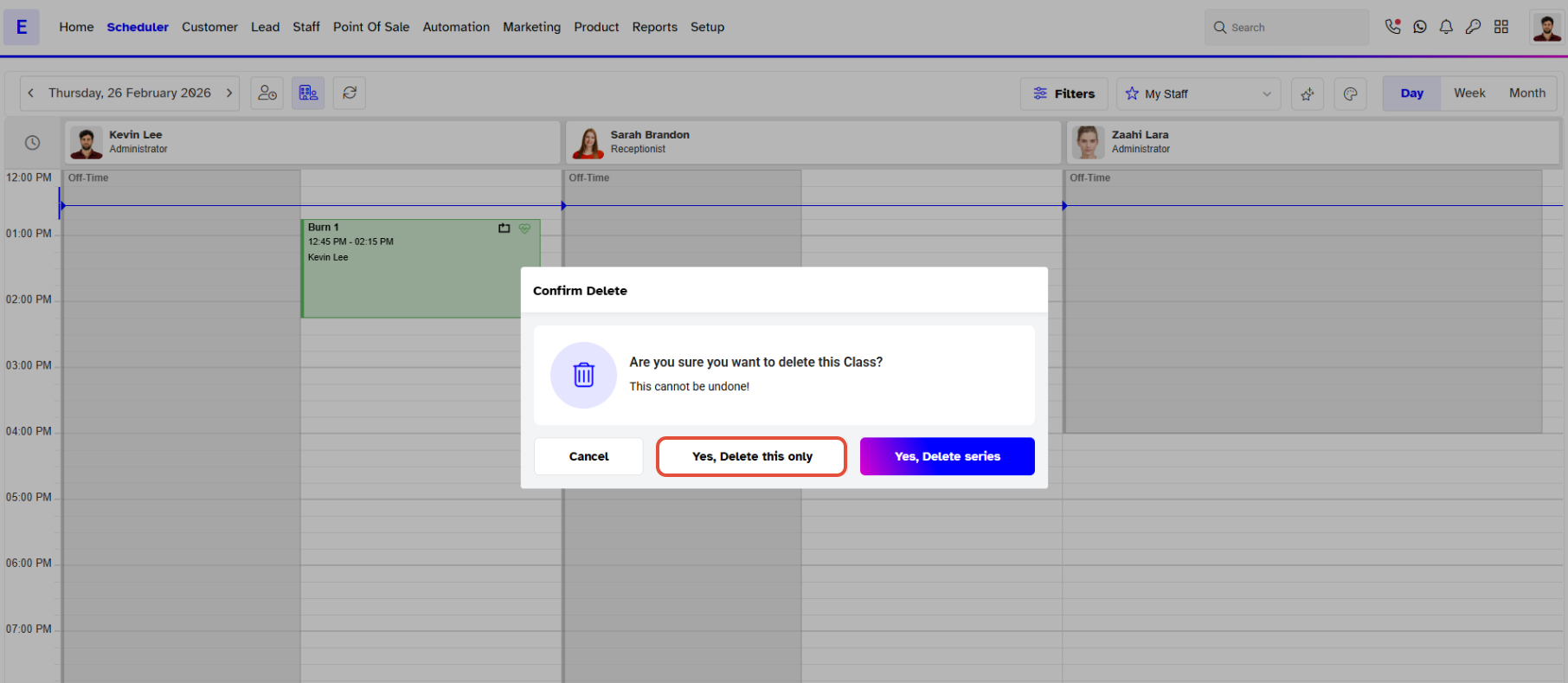
Step 4: Confirm Deletion
- Once in Confirm Delete Box, click on the Yes, Deletes this Only Button.
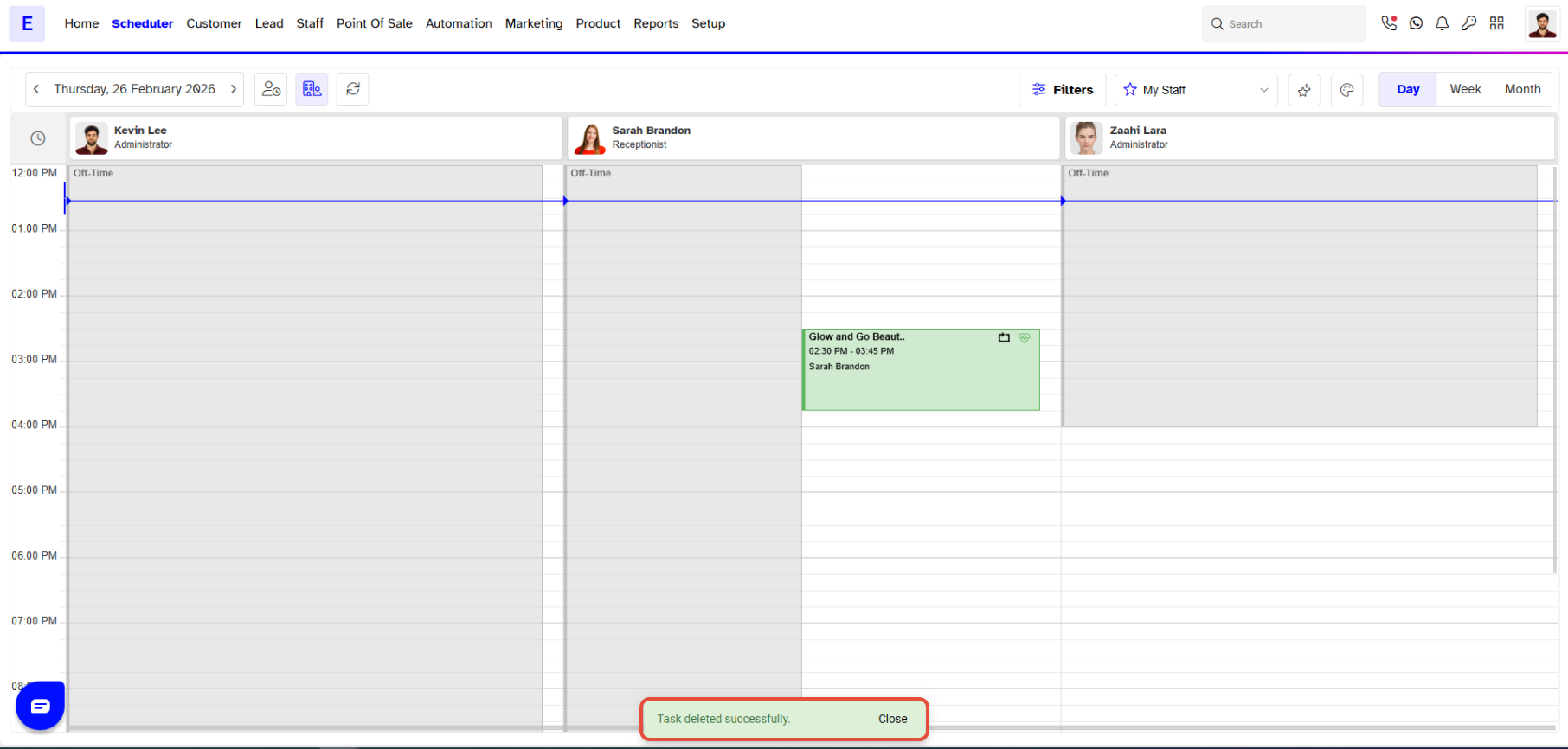
Step 5: Verify Deletion
- The Task will be deleted successfully.