


This article covers the following topics:
Merchants have to ensure that they have their Enable Waitlist Online toggled ON under their Configuratioins setting in Core, this allows for Customers to add themselves to Class Waitlist via Widget & App.
Widget
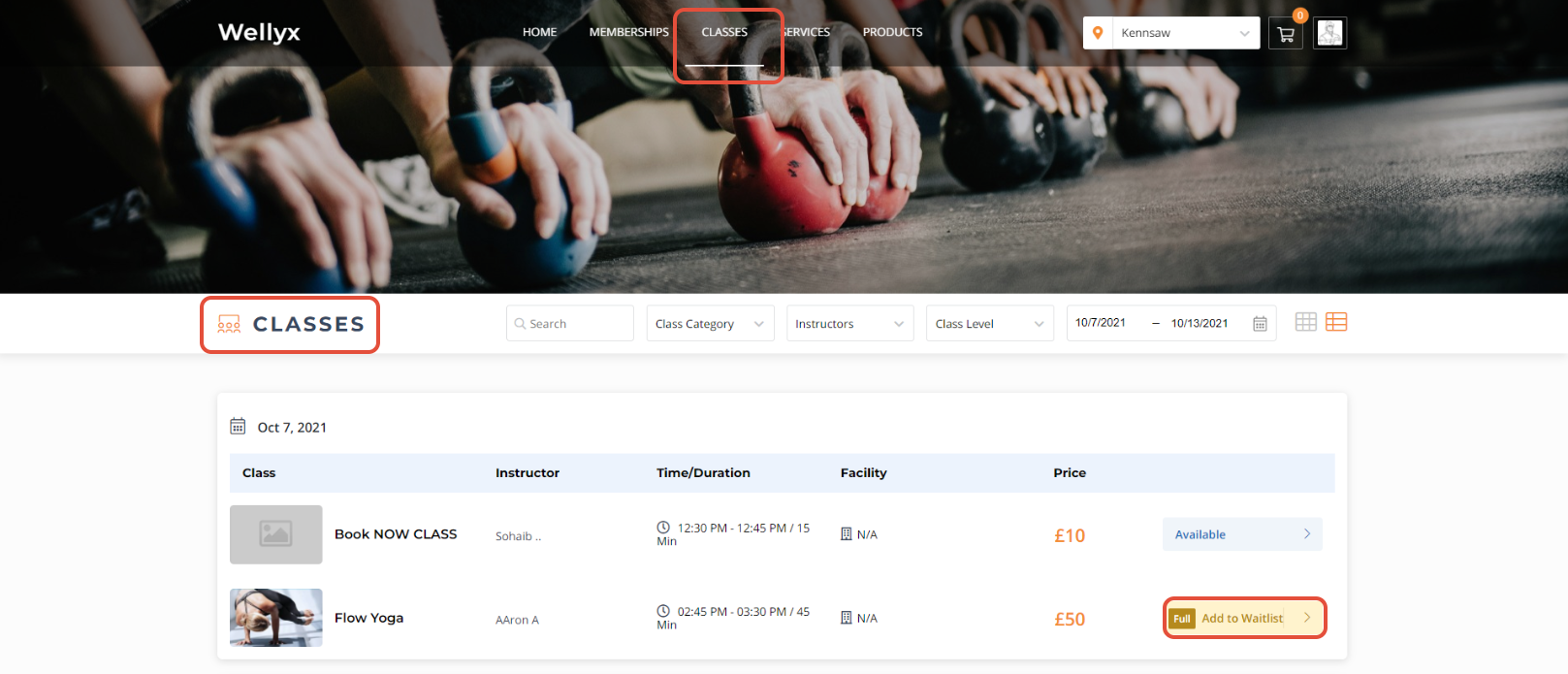
From the landing page, Customers will click on the Classes tab to access the Class roaster. If a class is full Customers will be given a 'Full Add To Waitlist' option.
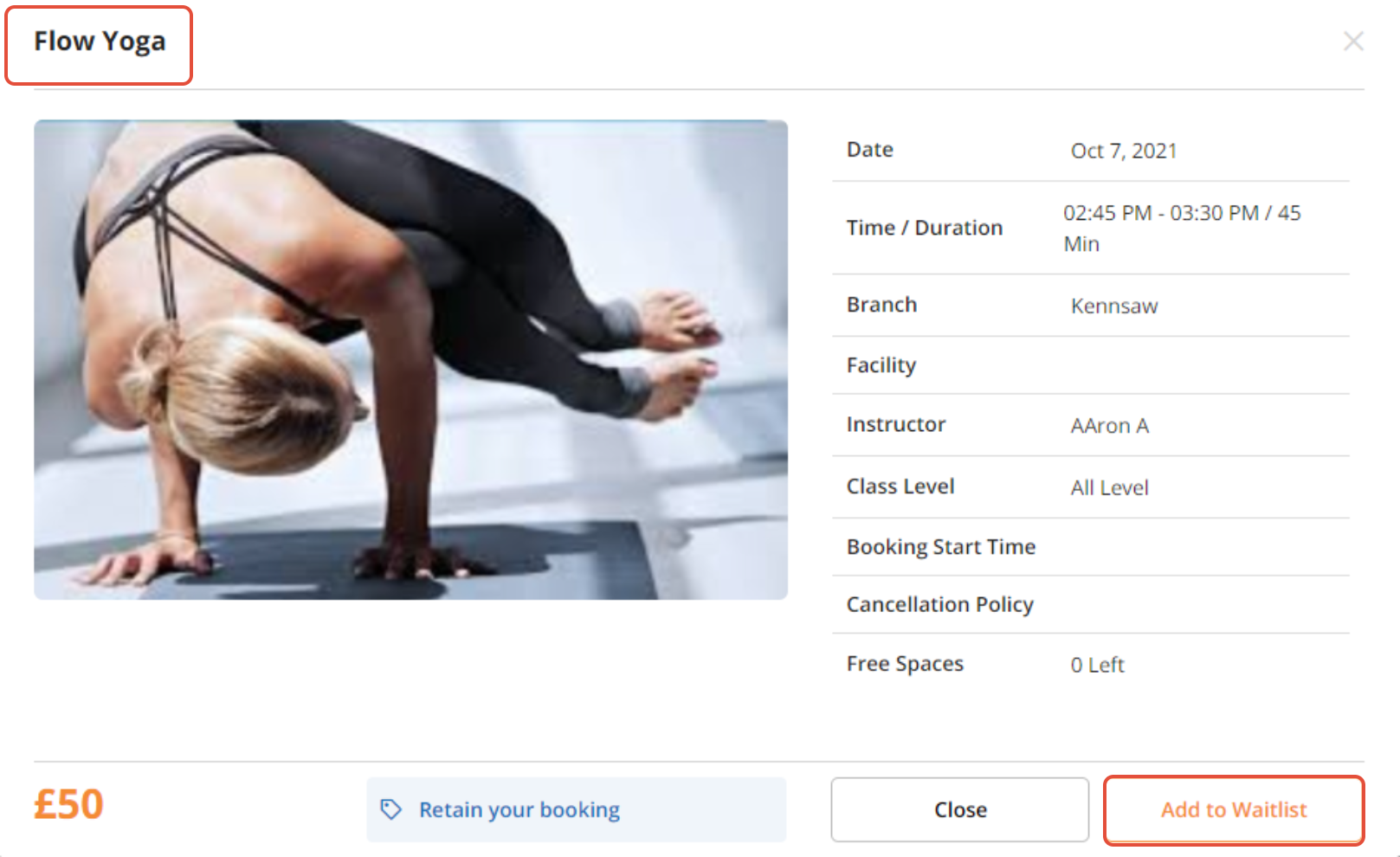
Upon clicking the Add To Waitlist button a screen with the Class details will pop up. Customers will need to click on the Add To Waitlist button on the bottom to be added to the waitlist.
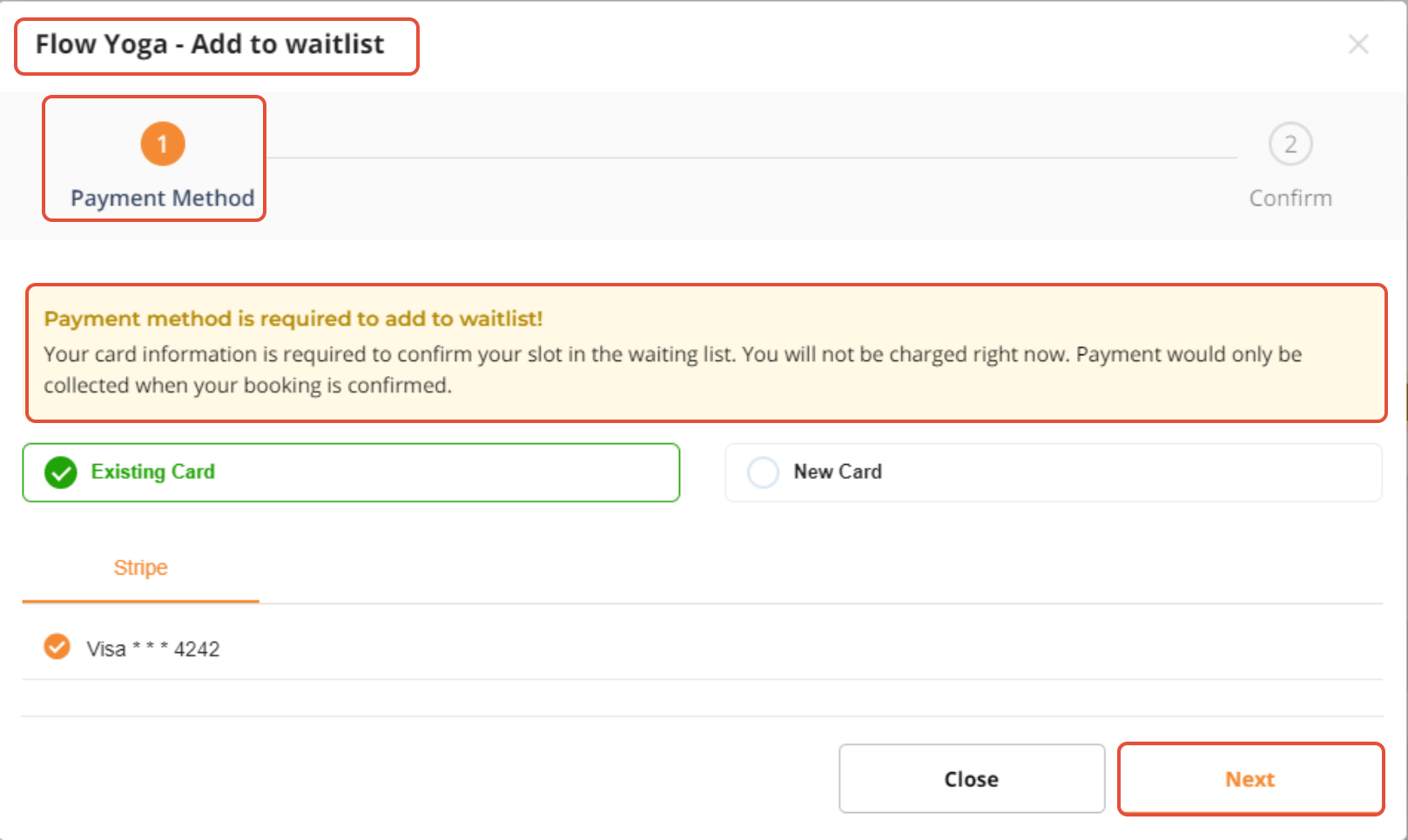
If Require Payment Method Online is toggled ON Customers will then be directed to a Payment Method screen. If Customers are logged into their profile their payment method may autofill for them. They will click Next to continue.
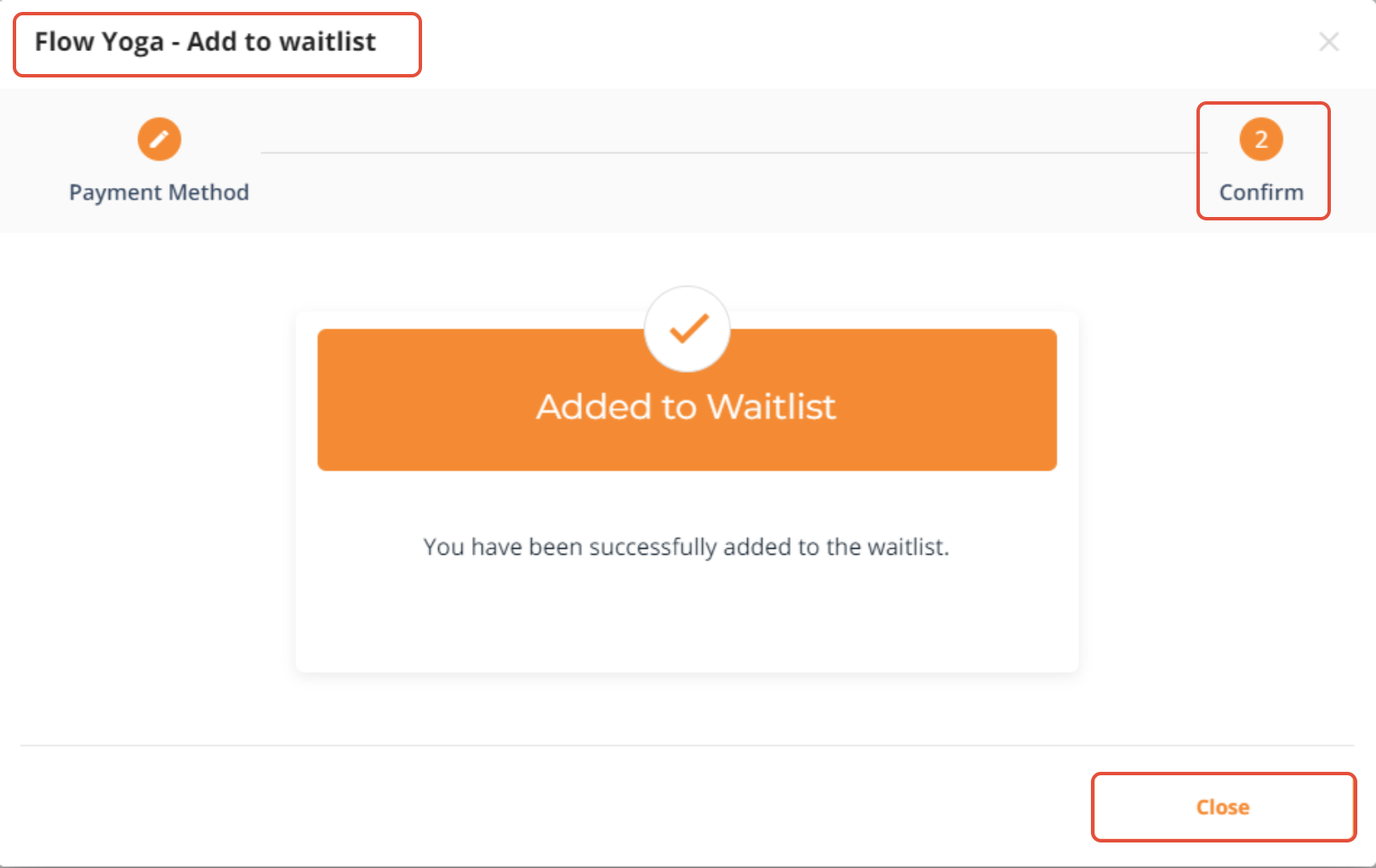
The second screen will confirm to them that they have been added to the waitlist successfully.
If Customers are logged in to their account they may view their Waitlist by using the dropdown profile menu and click on the Waitlist option.
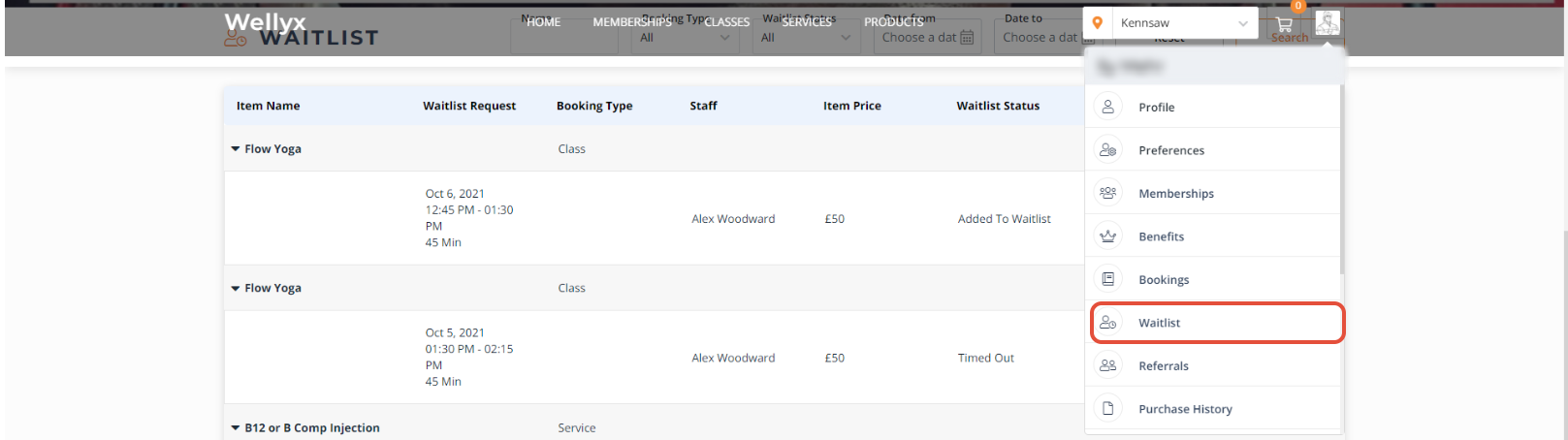

A Customer will receive an Alert based on Configuration settings once there is an opening in the class. Otherwise, a Customer may remove themselves from the Waitlist by clicking on the Bin button under the Action column.
App
Customers can add themselves to a Class Waitlist from the Wellyx App. They will have to tap on the Classes tab to view the Class roaster. If the class is full a Waitlist status will appear.
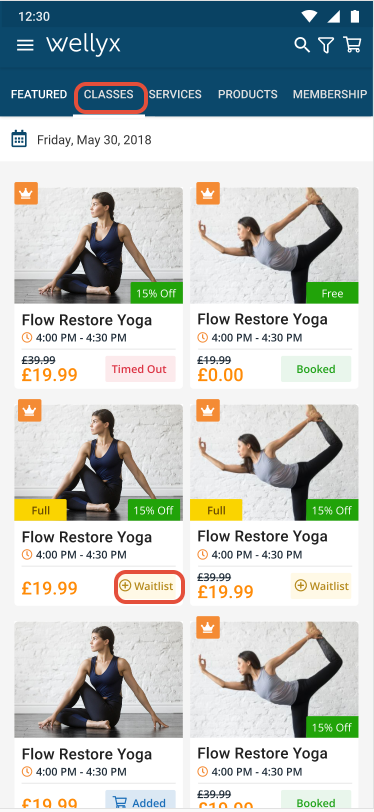
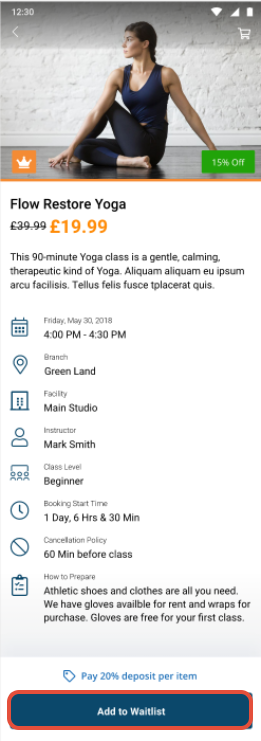
Once Customers tap on the Waitlist button they will be taken to a Class detail screen. At the bottom of the screen, there will be an Add To Waitlist button.
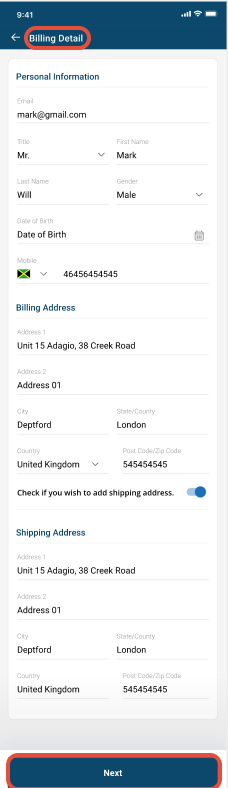
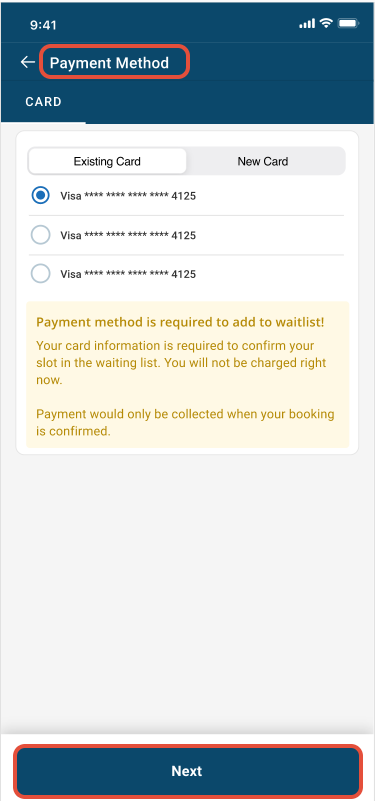
If Require Payment Method Online is toggled ON Customers will then be directed to a Billing Detail screen. They will then tap Next to continue.
Customers will then choose a Payment Method and click Next to continue.
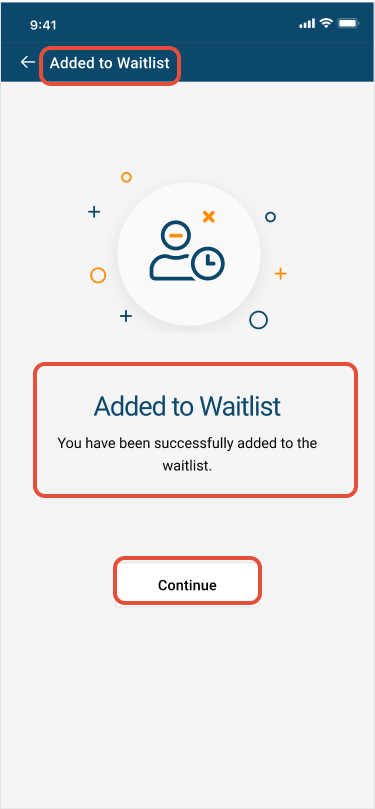
Customers will then receive a 'You have been successfully added to the waitlist' and will click Continue to exit.
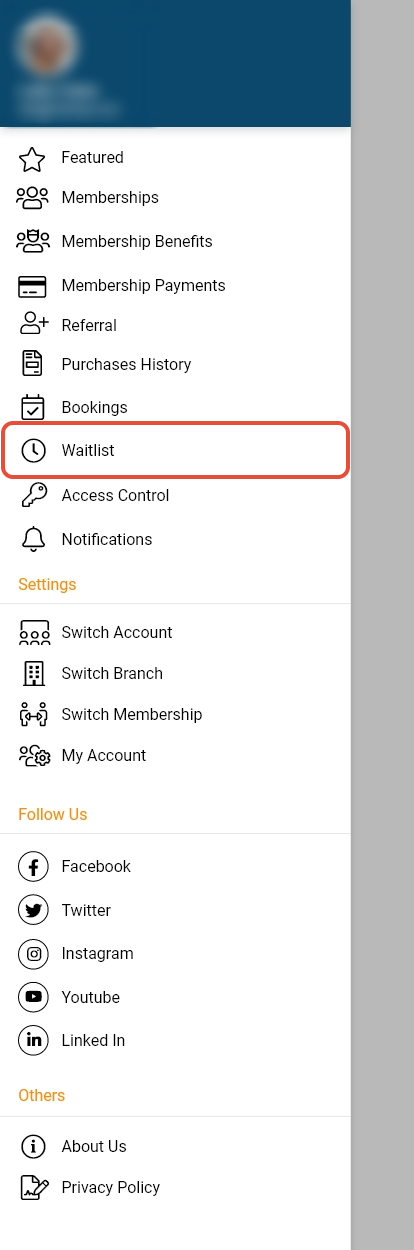
To remove themselves from a Waitlist, Customers will tap on the Waitlist option from their Profile Menu.
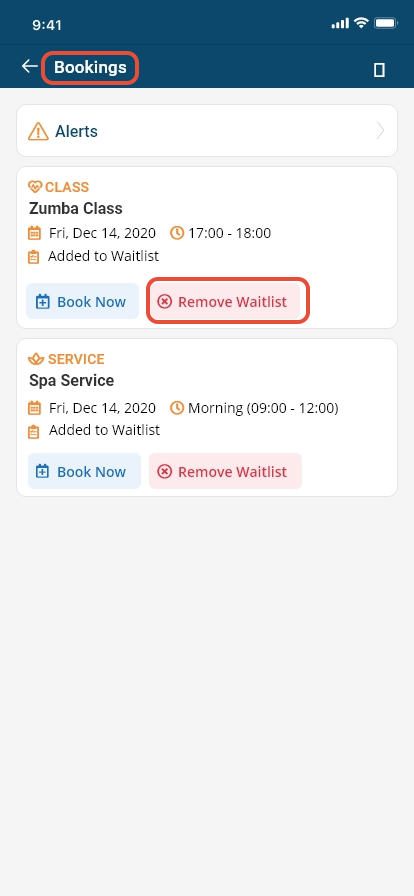
Customers will tap on Remove Waitlist.
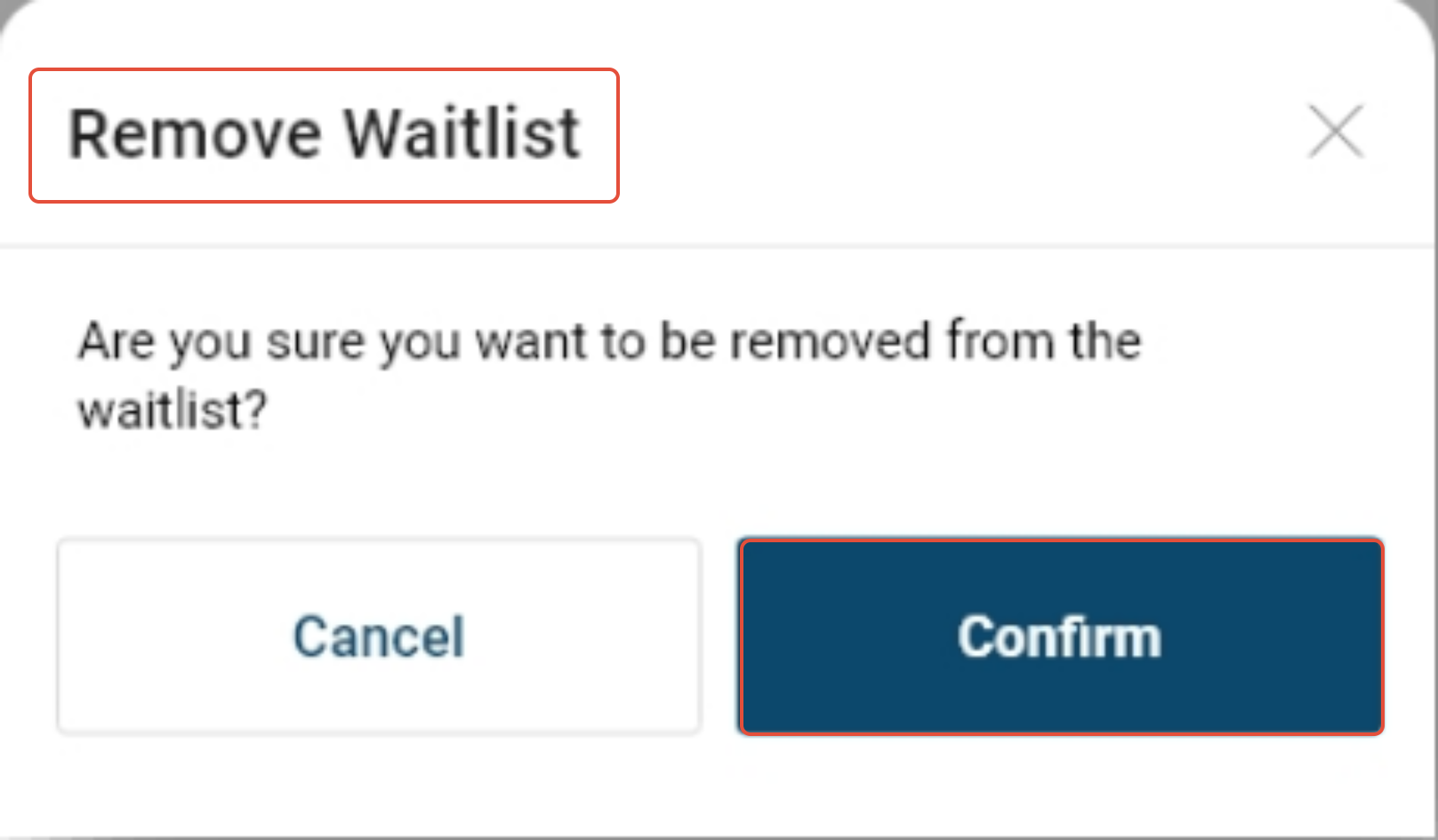
There will be a Remove Waitlist confirmation message. Customers will be tap Confirm to remove themselves from the Waitlist.
For a list of terms used in the Wellyx application & across the support website, please consult our Glossary.