TABLE OF CONTENTS
- Overview
- Step 1: Navigate to the Lead Module
- Step 2: Fill in Personal Information
- Step 3: Enter Home Address
- Step 4: Add Billing and Shipping Address
- Step 5: Fill in General Information
Overview
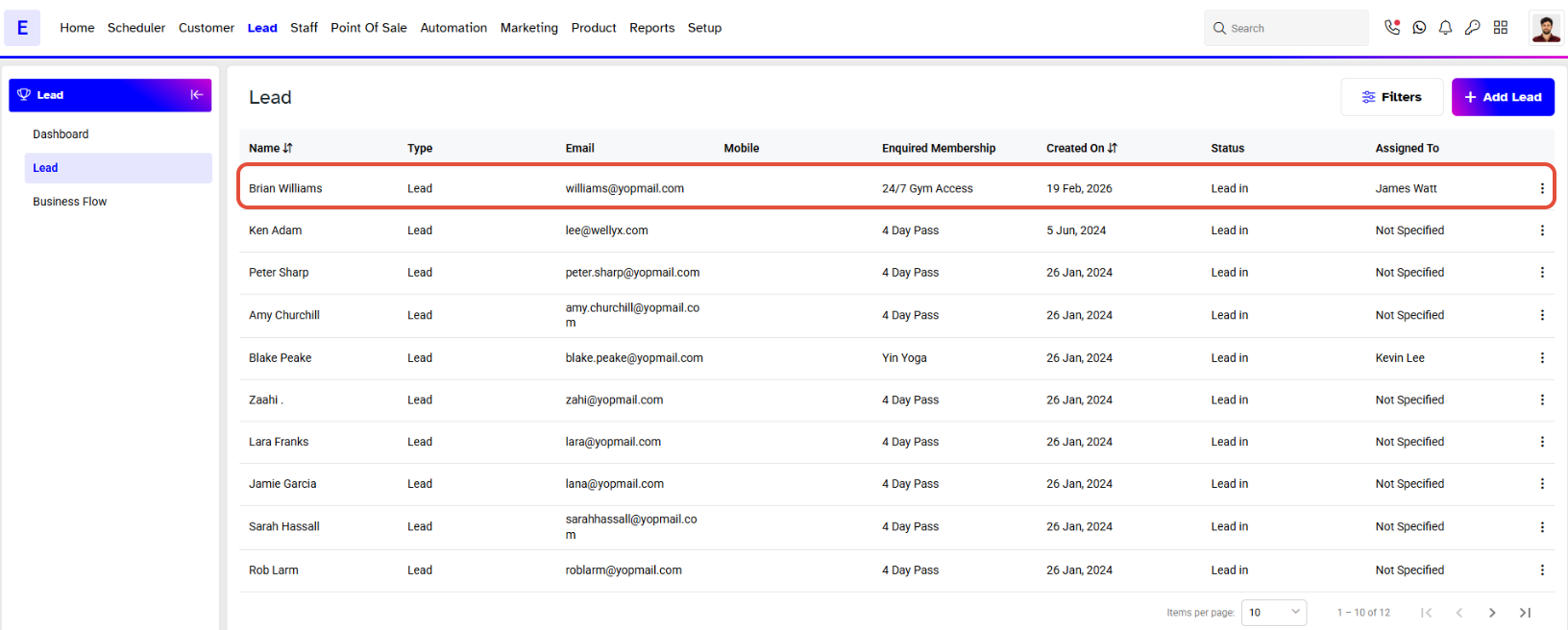
For an -in-depth understanding, please refer to the example below.
Step 1: Navigate to the Lead Module
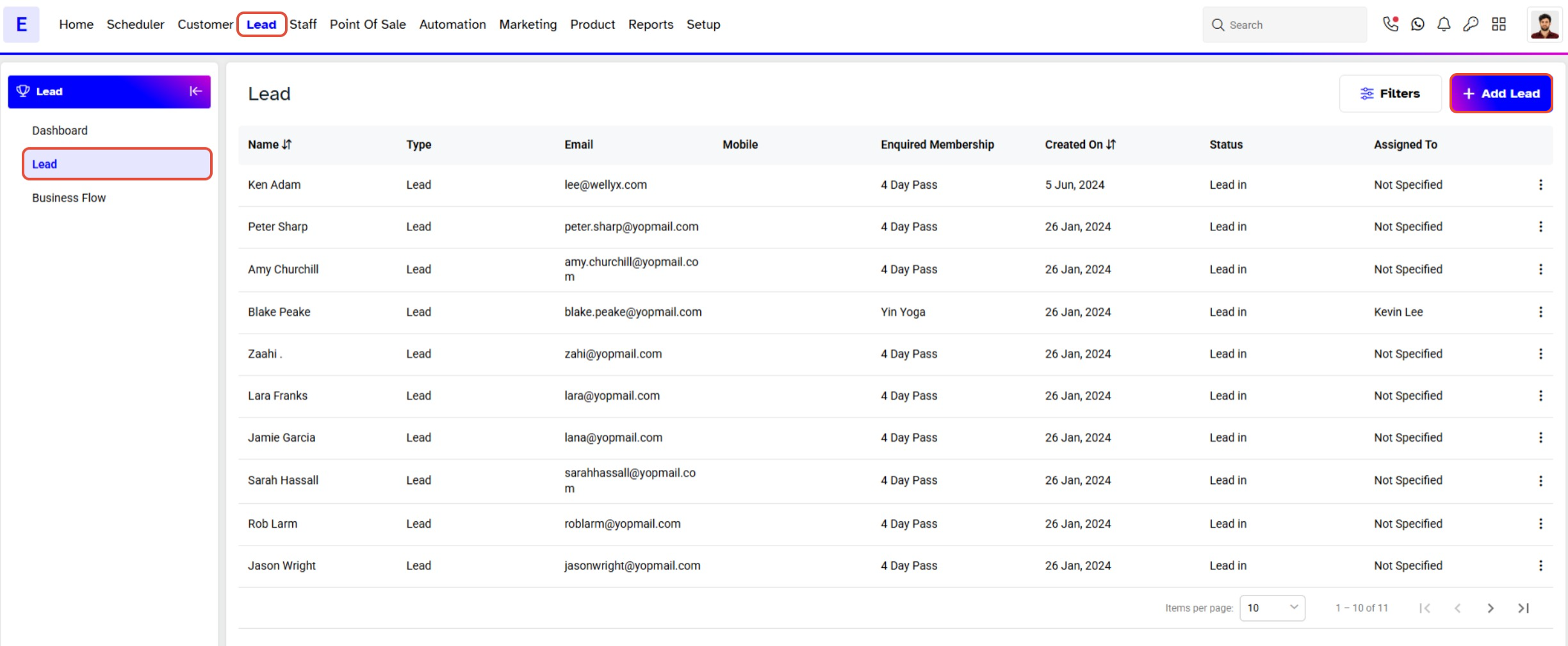
1. Go to the Lead module.
2. Click on the Add Lead button.
Step 2: Fill in Personal Information
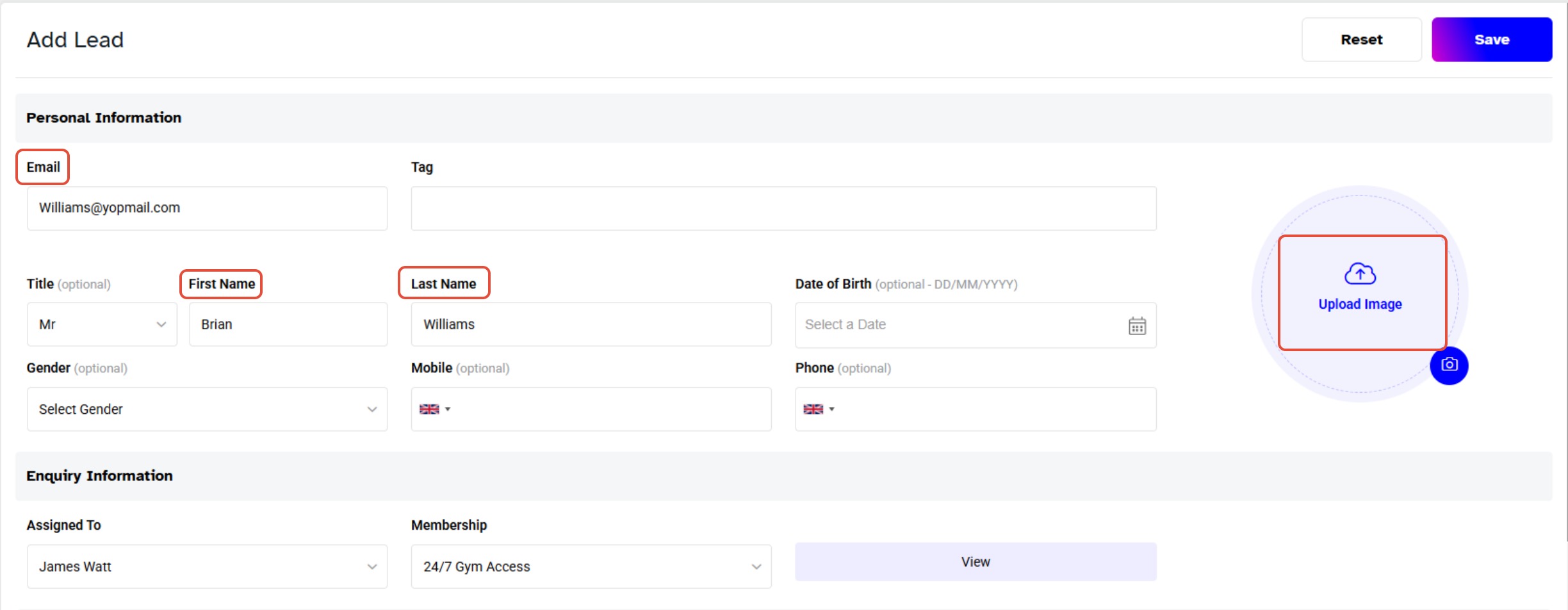
The Personal Information segment includes the following fields:
- Email: Enter the lead’s email address (unique for every lead).
- Title: Select the lead’s title.
- First Name: Enter the first name.
- Last Name: Enter the last name.
- Gender: Select gender.
- Date of Birth: Choose the date of birth.
- Mobile: Enter the lead’s mobile number.
- Phone: Enter the lead’s phone number.
- Upload Image: Add the lead’s profile image (this feature is optional).
Email, First Name, and Last Name are mandatory fields.
Step 3: Enter Home Address
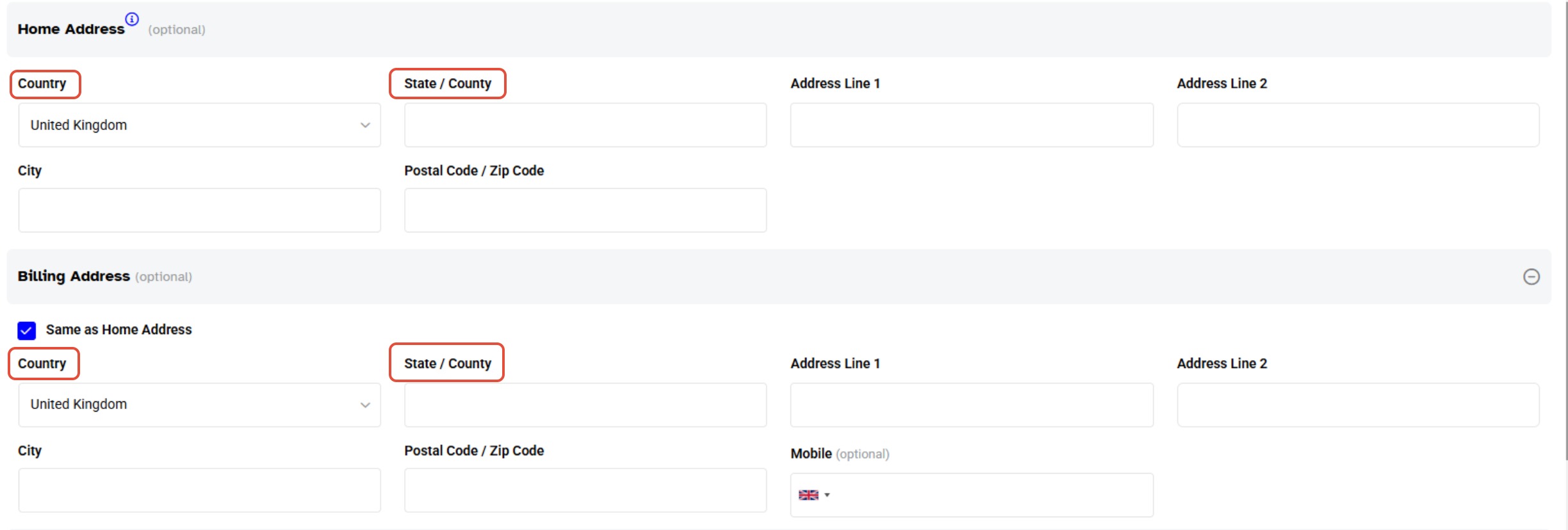
Fill in the details under the Home Address segment:
Country
State/County
Address Line 1
Address Line 2
City
Postal Code/Zip Code
Step 4: Add Billing and Shipping Address
The Billing Address and Shipping Address sections contain the same fields as the Home Address.
To copy the Home Address details automatically, check the box “Save as Home Address.
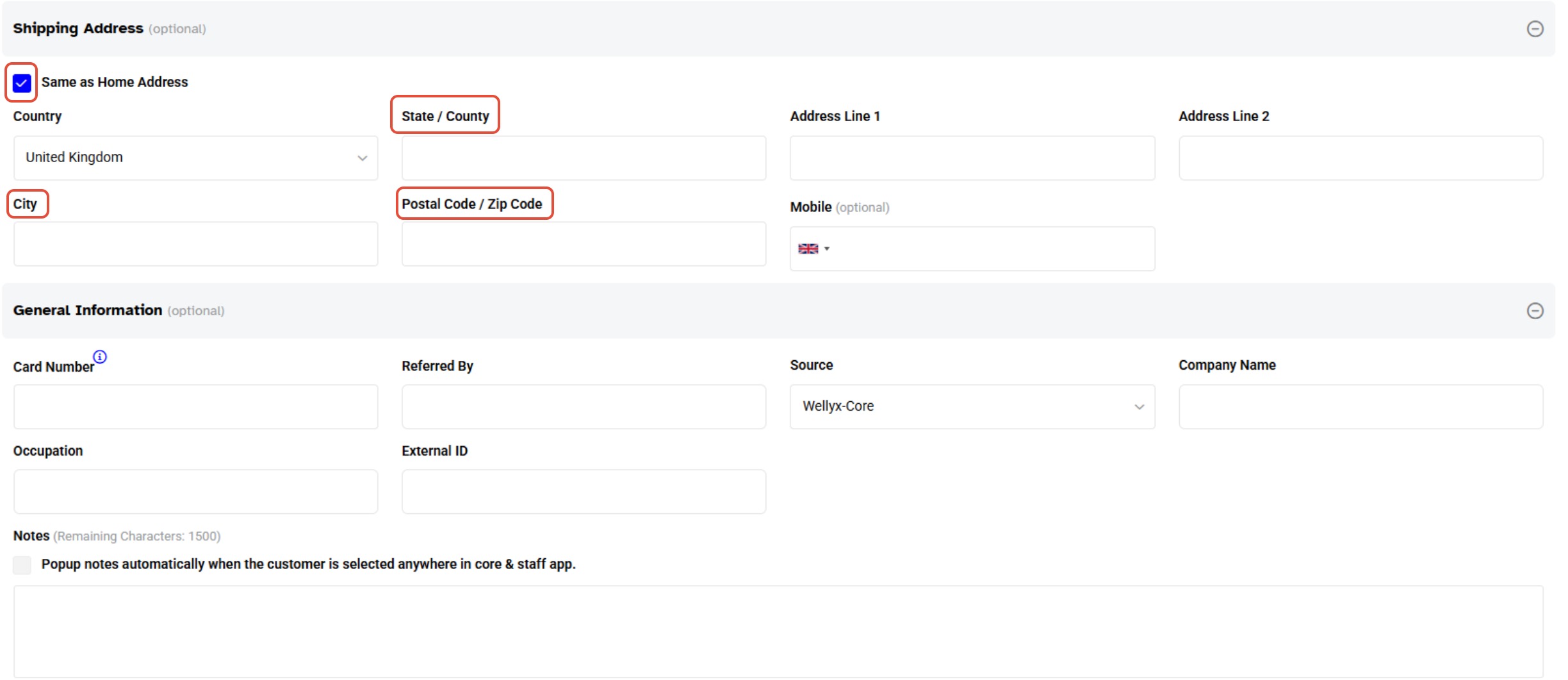
(Need to add a text)
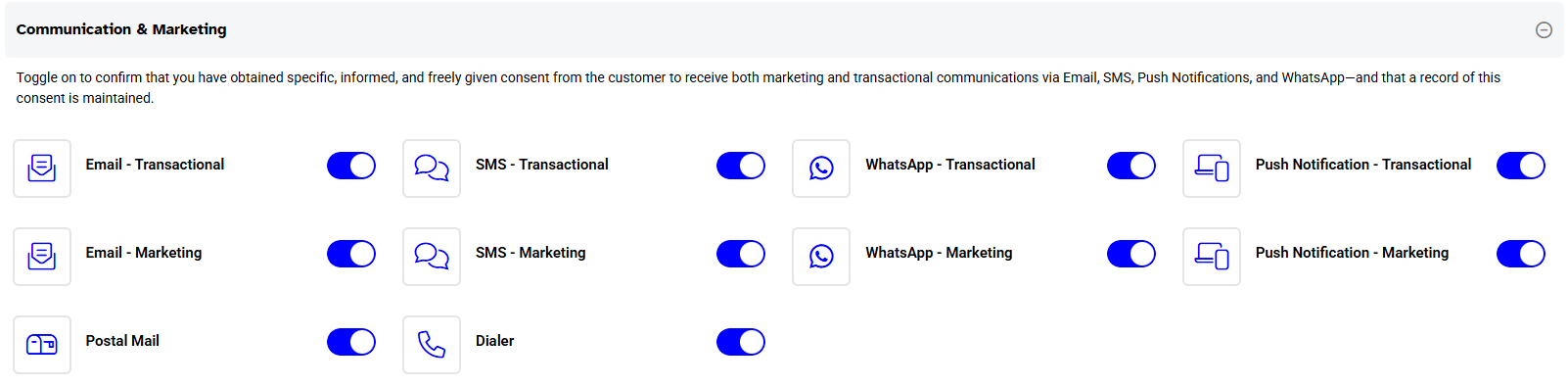
Step 5: Set Permissions
Configure the permissions as follows:
Select communication methods for the member.
Decide whether the member is allowed to make partial payments.
Note that the “First Aid” button is toggled OFF by default.
Toggle ON all communication buttons as required.
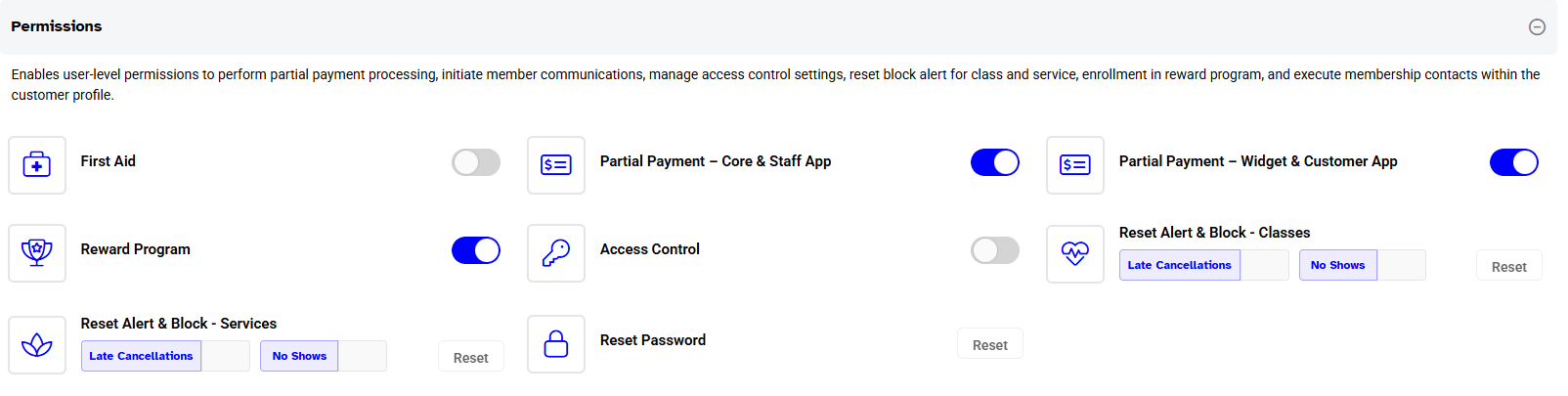
Brian Williams can now be seen on the Lead segment page.