TABLE OF CONTENTS
Step 1: Navigate to the Scheduler
- Go to the Scheduler Module in Core.
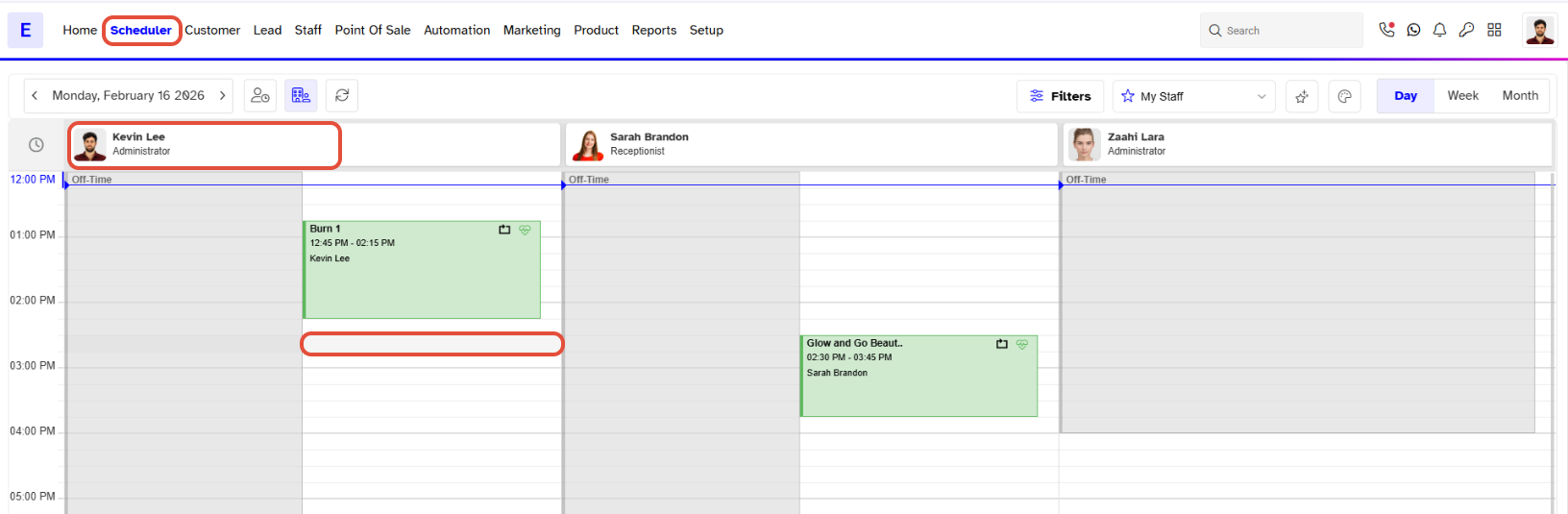
Step 2: Select a Time Slot
- Click on the Time Slot under a Staff.
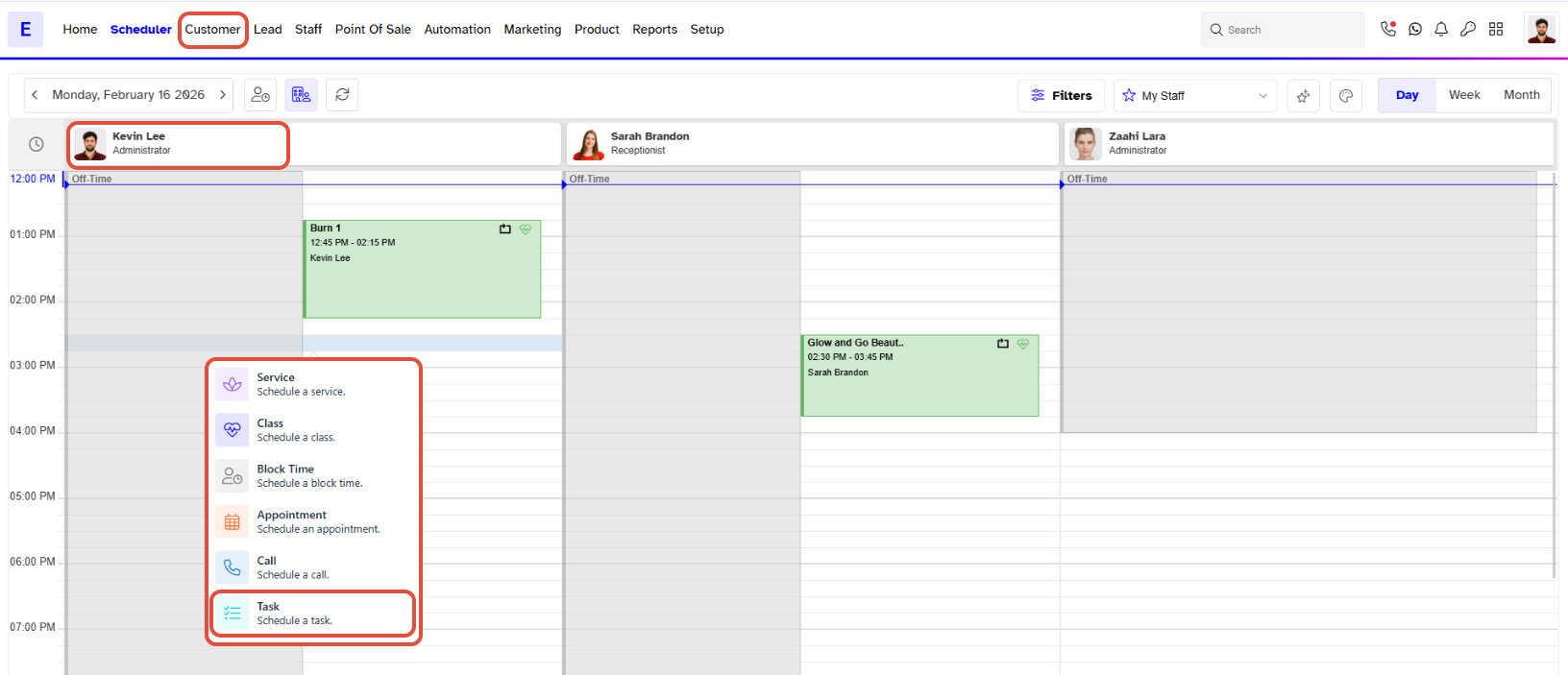
Step 3: Choose Task Activity
- Select Task from the Add Activities Popup.
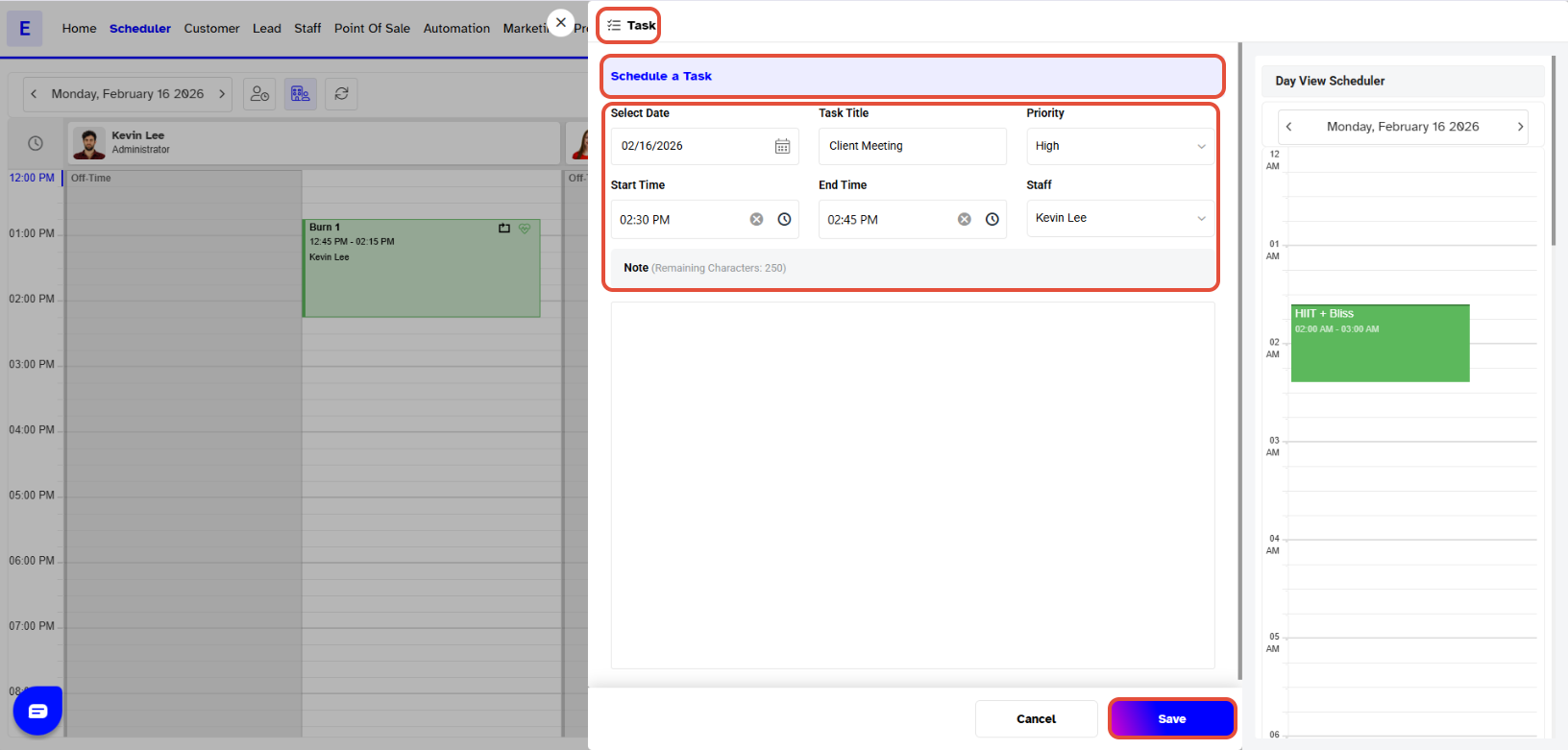
- The Task Popup will now appear on the screen.
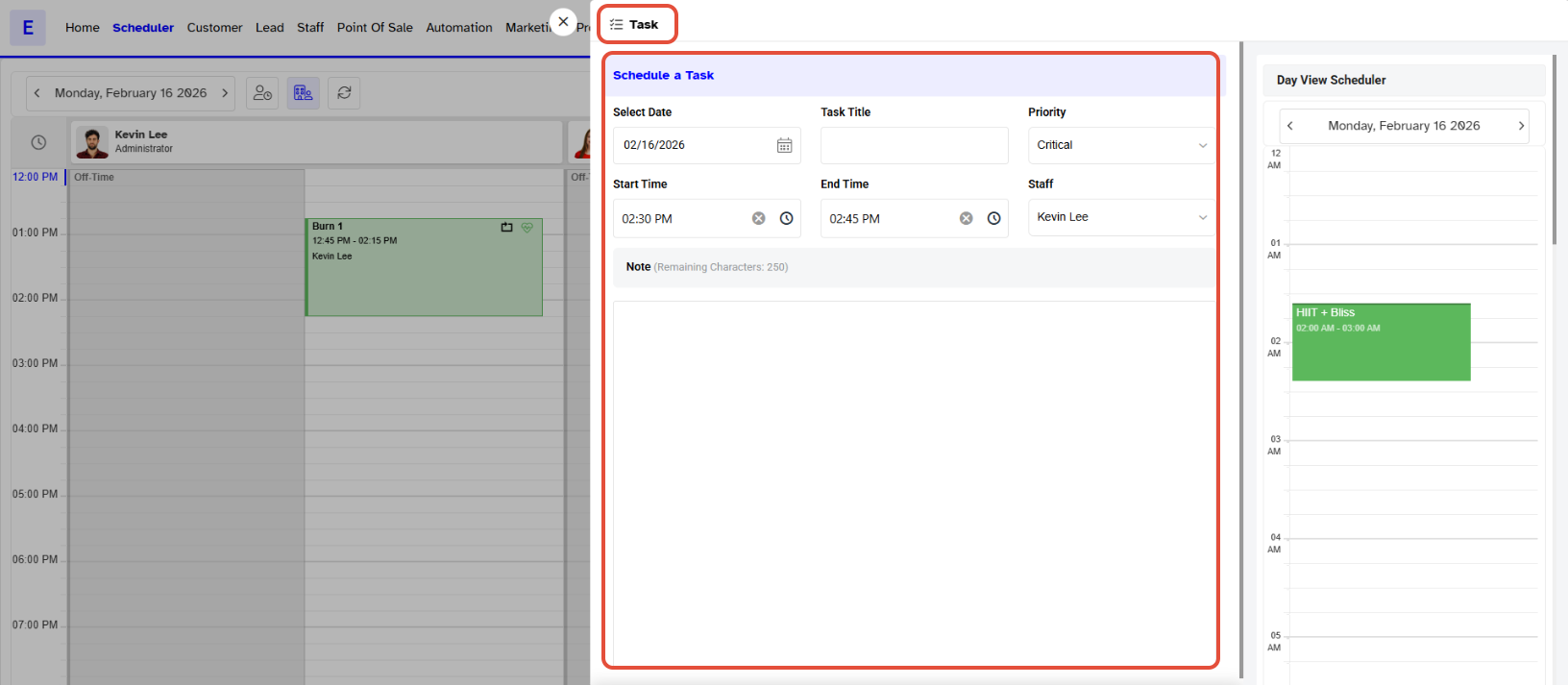
Step 4: Enter Task Details
- Fill out the required information
- Select Date: Set a date for the Task from the calendar.
- Task Title: Give a title to the Task. This is a mandatory field.
- Priority: Select Critical, High, Medium, or Low following the urgency of the Task.
- Start Time: Set the time when the Task needs to begin.
- End Time: Set the Task completion time.
- Staff: Select the Staff from the dropdown menu.
- Notes: Write notes related to the Task.
Step 5: Save the Task
- Once done, click on the Save Button.
- The scheduled Task will now be visible on the Scheduler.
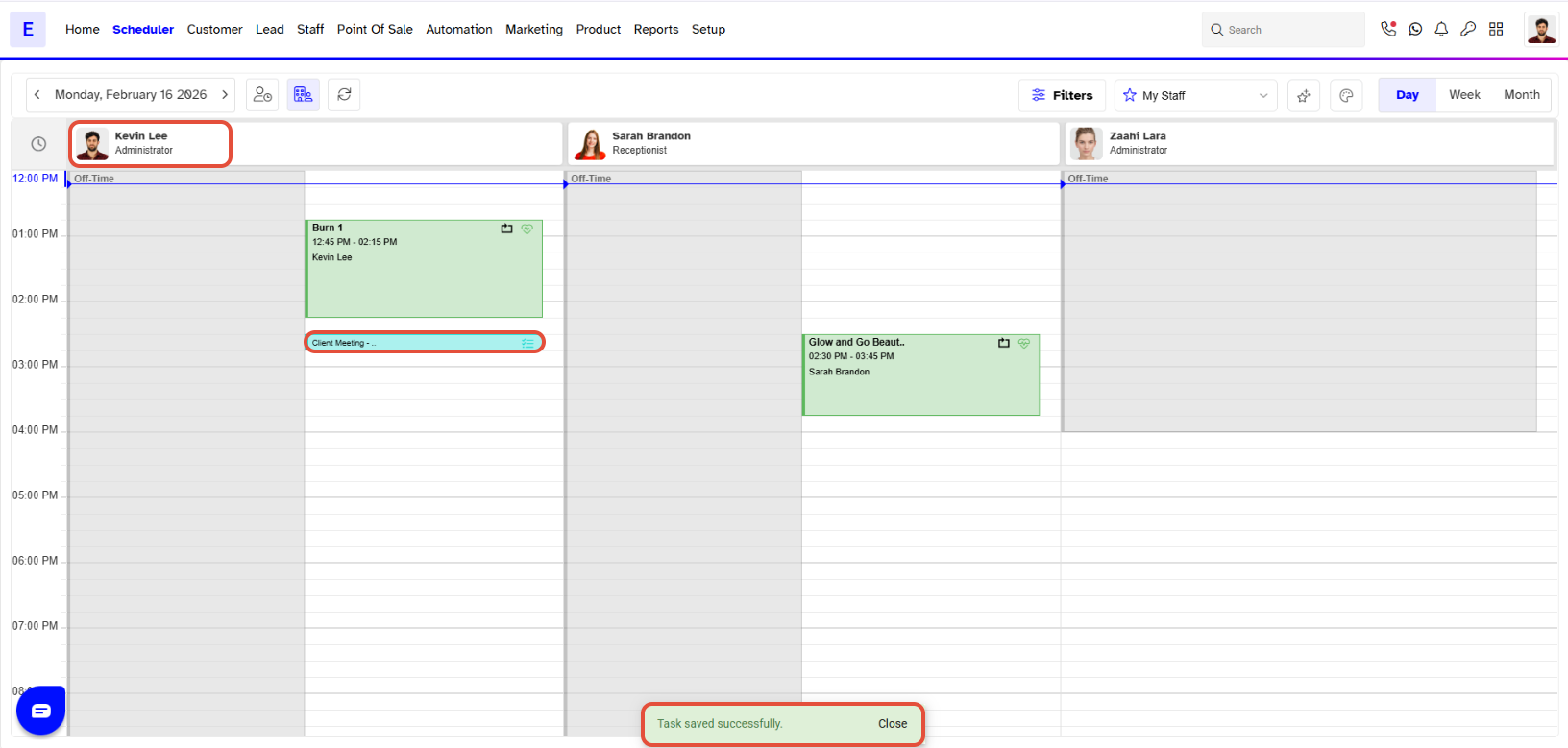
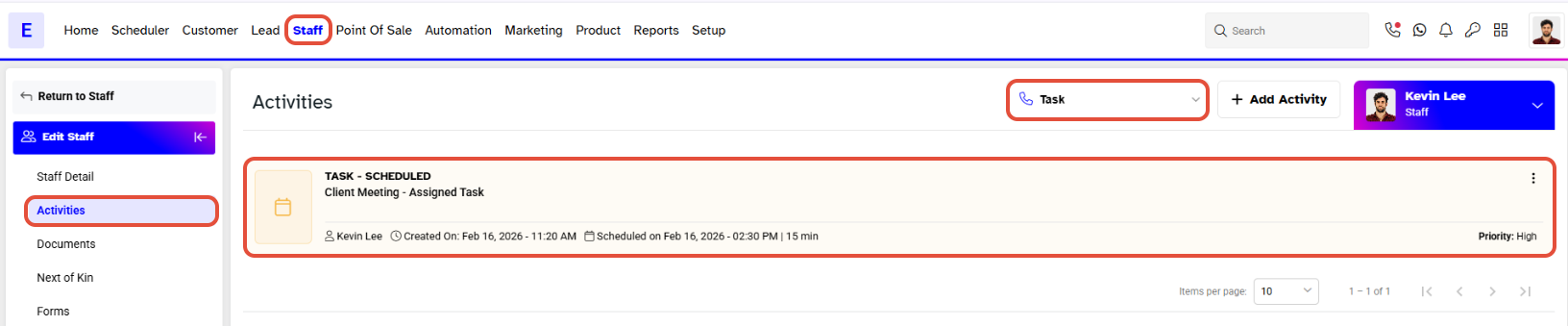
- The Task will also be displayed under the Task Tab.