


For a list of terms used in the Wellyx application & across the support website, please consult our Glossary.
Steps To View Staff Emails Sent and Received
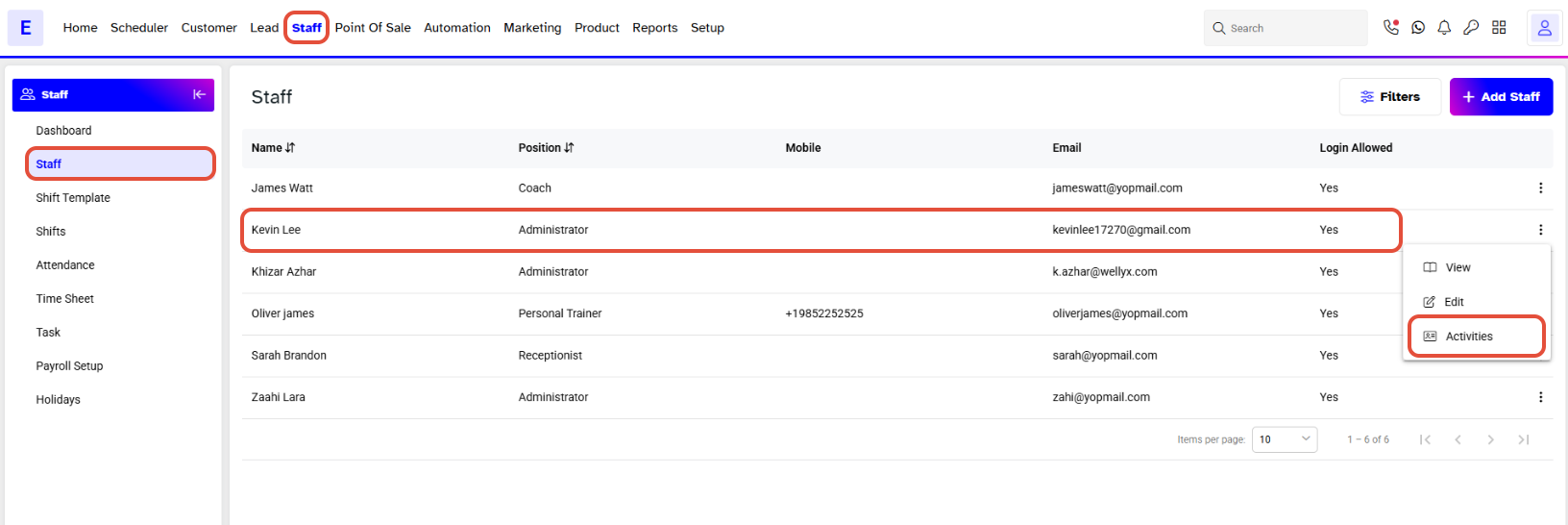
From the Core menu click on the Staff module, by default, you will land on the Staff segment. Click on the Activities icon under the Action column next to the Staff Member's name of whom you wish to check Emails for.
This will land you on the Activities segment page. On the Activity Log, you can check all activities, including Emails. At this page you will view two sections. The first section will have Staff information (Name, Email Address, and Mobile Number).
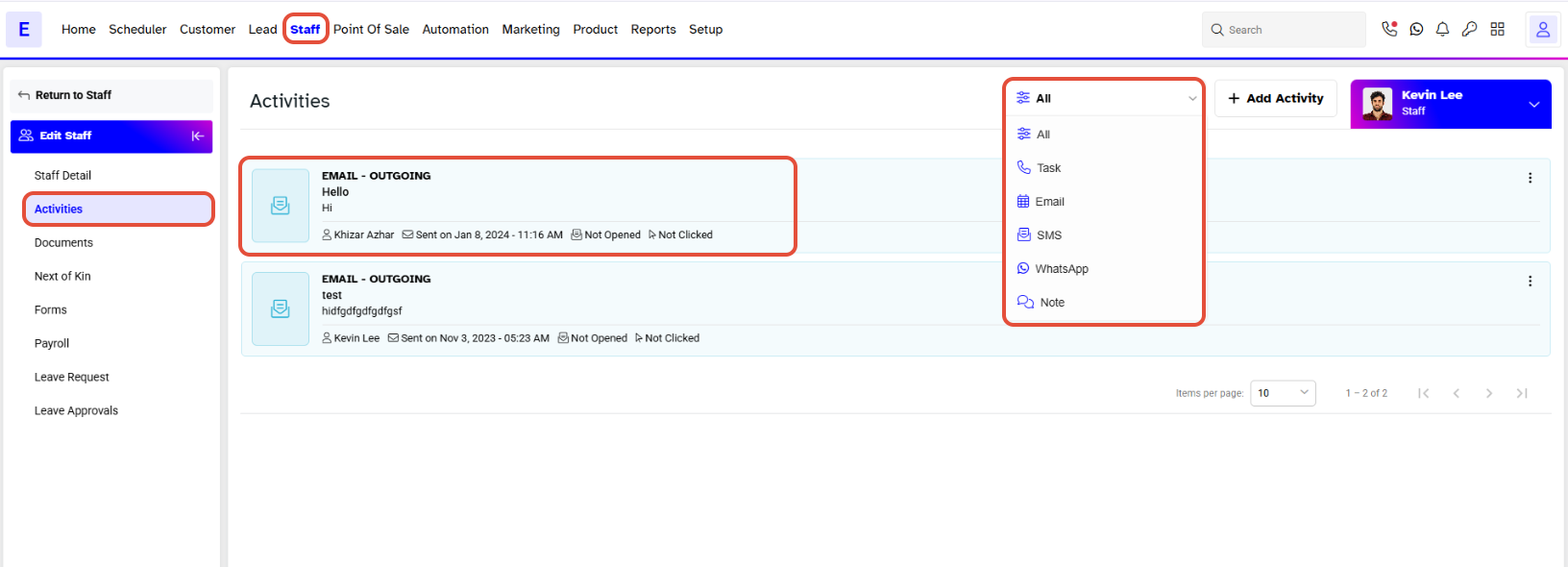
The second section (Activity Log) will have eight activity tabs on the top
- All: allows you to view all staff activities
- Tasks: you may view all the tasks assigned to the staff
- Emails: this activity tab allows you to view any incoming to outgoing emails
- SMS: view any incoming or outgoing SMS text messages
- Notes: if there are any entries made to or for the staff they can be viewed here
Click on the Email tab to view a complete email history. To define an email status there will be an Outgoing text visible next to the Sent Email. However, next to a Received Email, an Incoming text will be displayed.
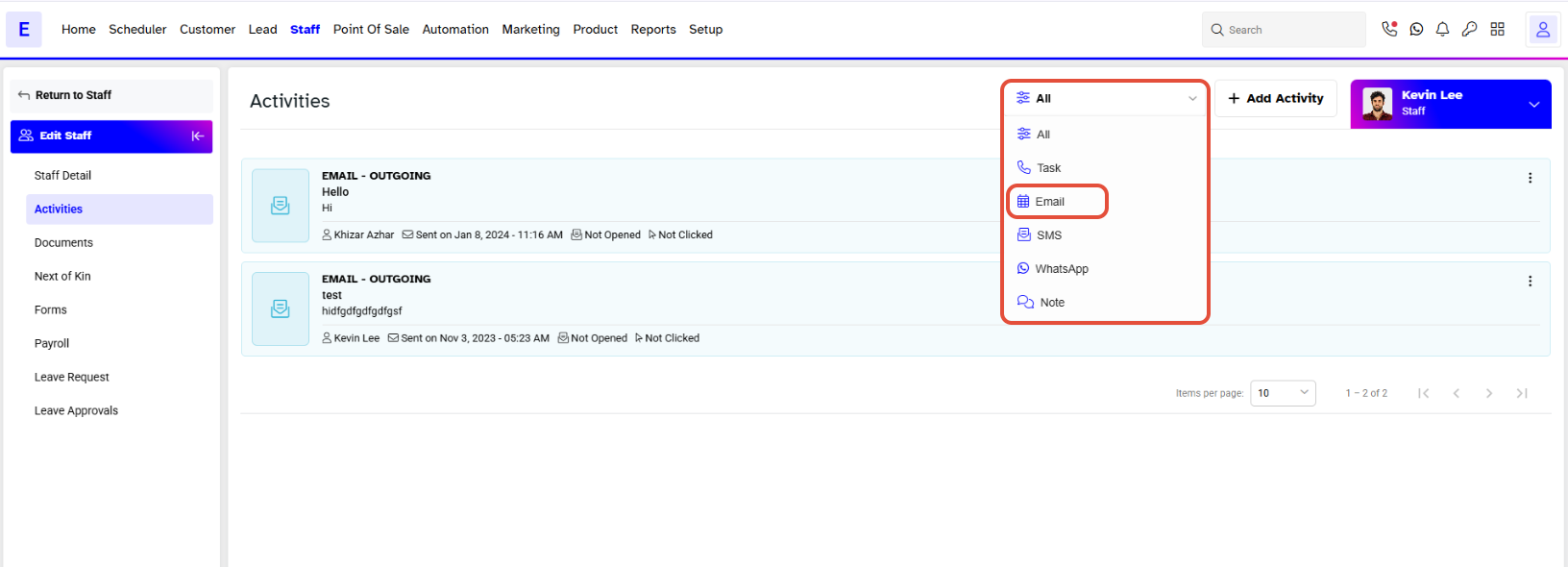
You cannot change the status of the Email.




