


TABLE OF CONTENTS
To send an Email to a Staff Member, follow the steps below:
How To Send An Email To A Staff Member
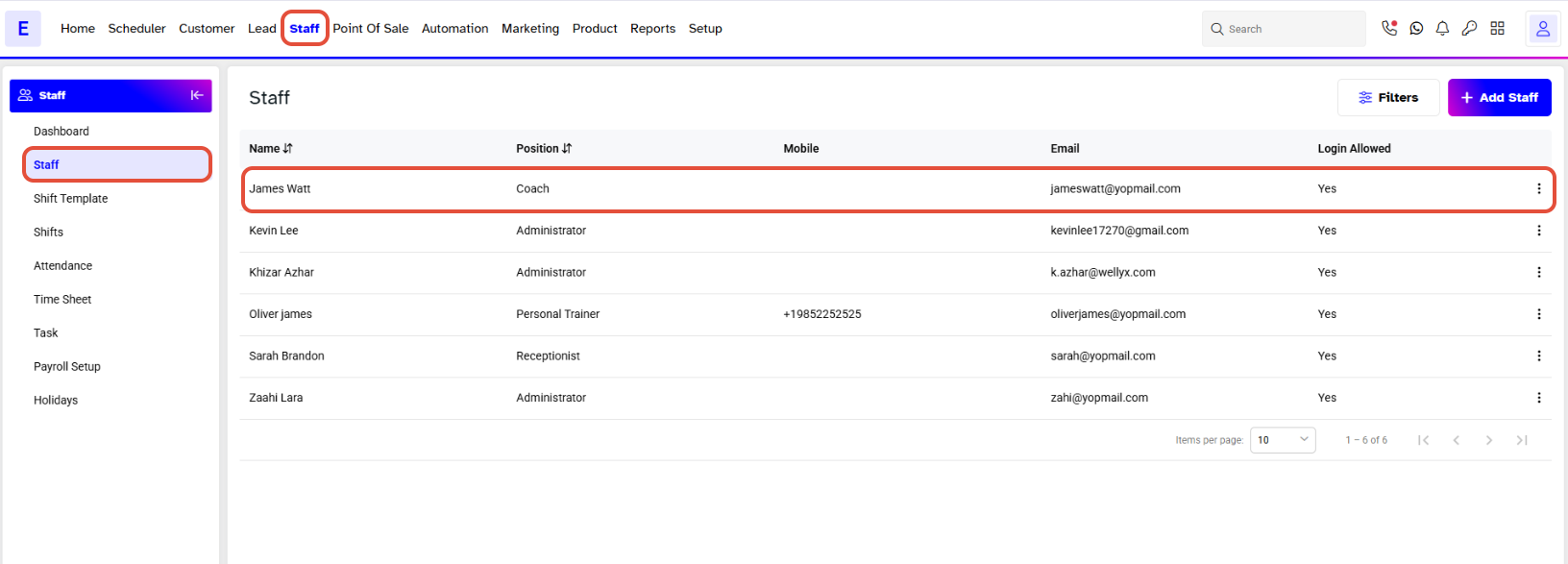
Go to the Staff Module.
Click on the Activities Icon under the Action for the Staff Member who wishes to send an Email.
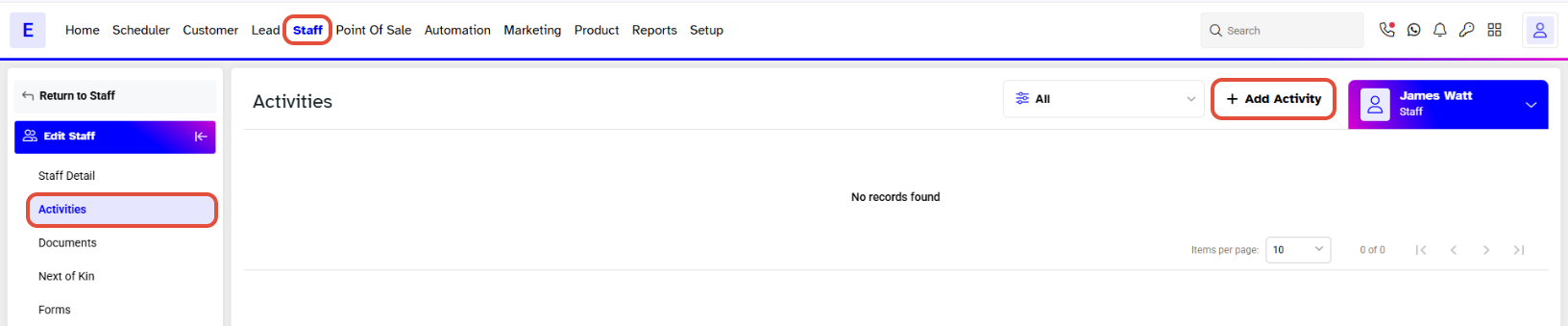
Now, click on the Add Activity Button.
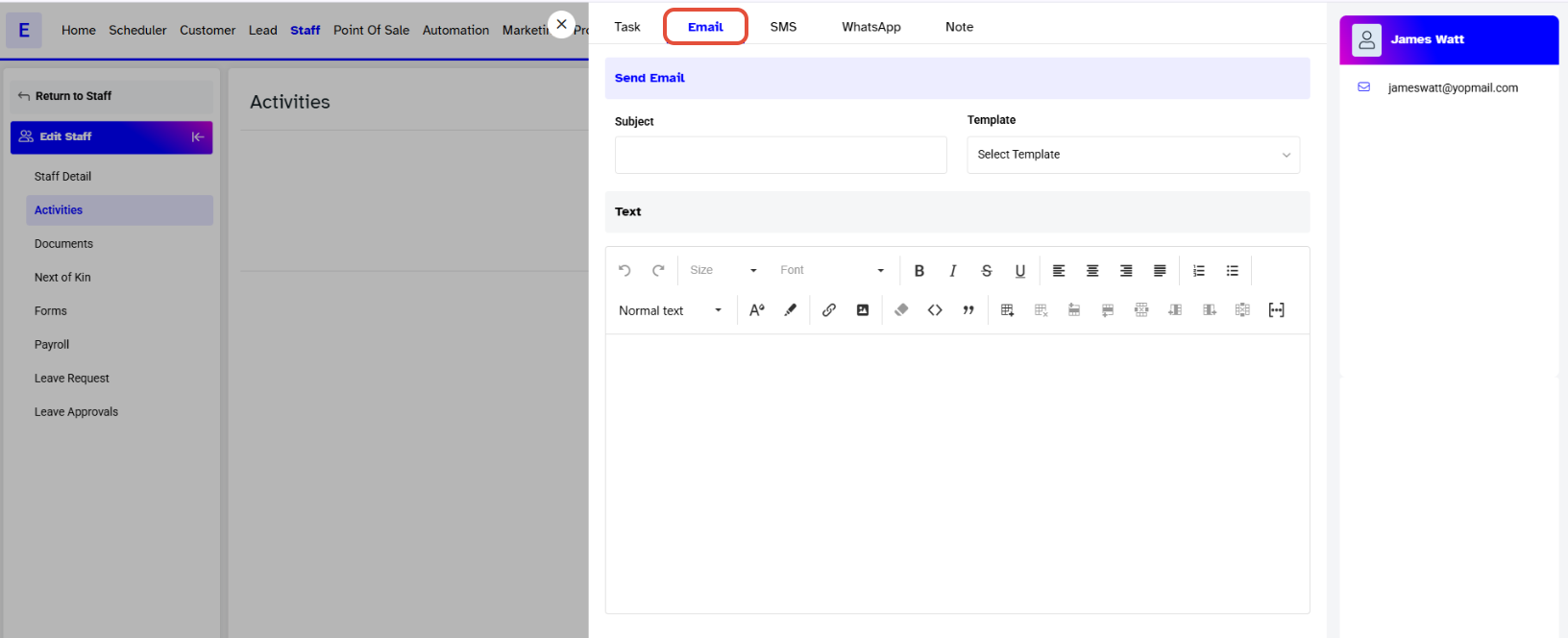
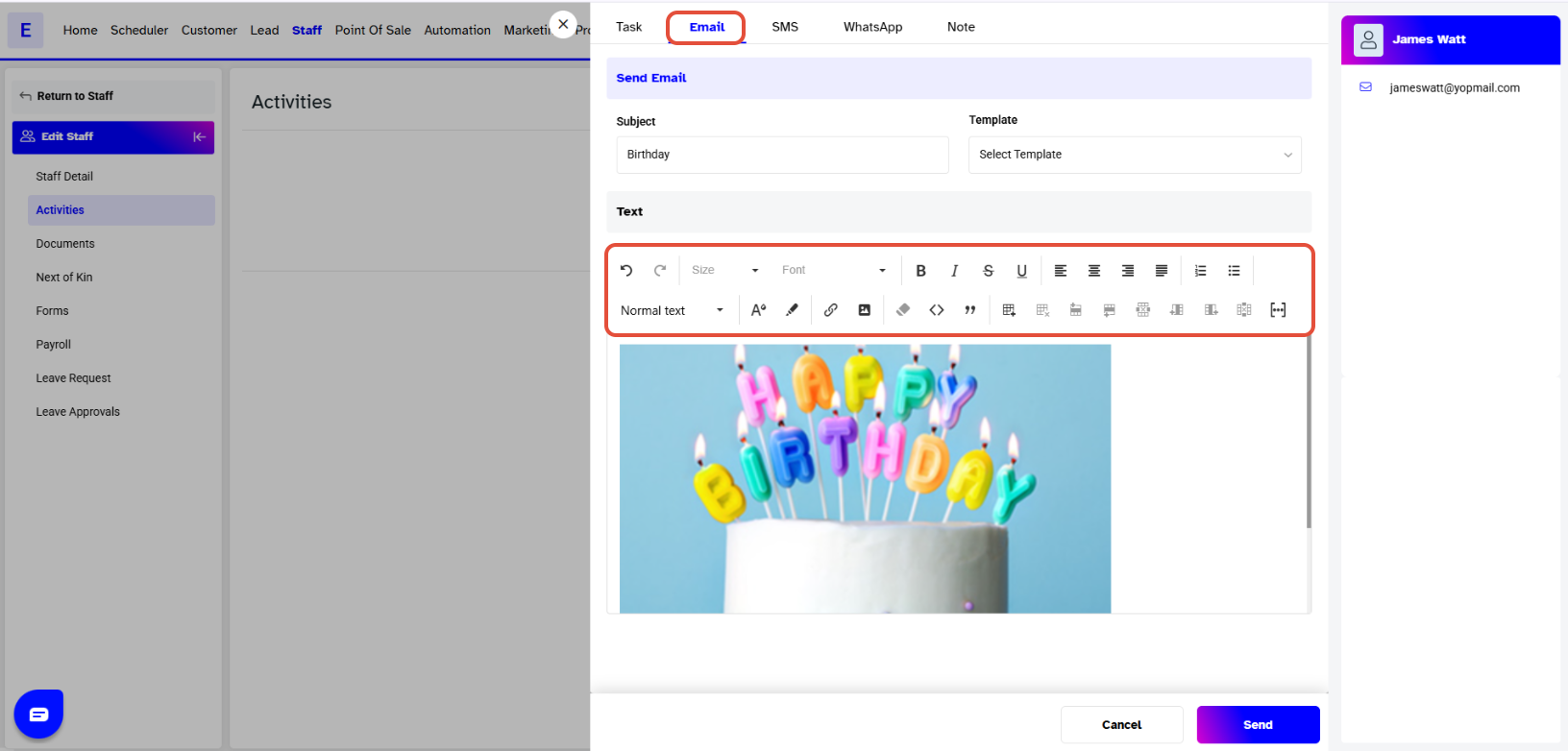
Once the Activities window pops up. click on the Email Tab.
Fill out the required information, regarding sending an Email to a Staff.
- The Subject is essential and will help define the meaning behind the email
- Choose a Template option from the dropdown menu if already created.
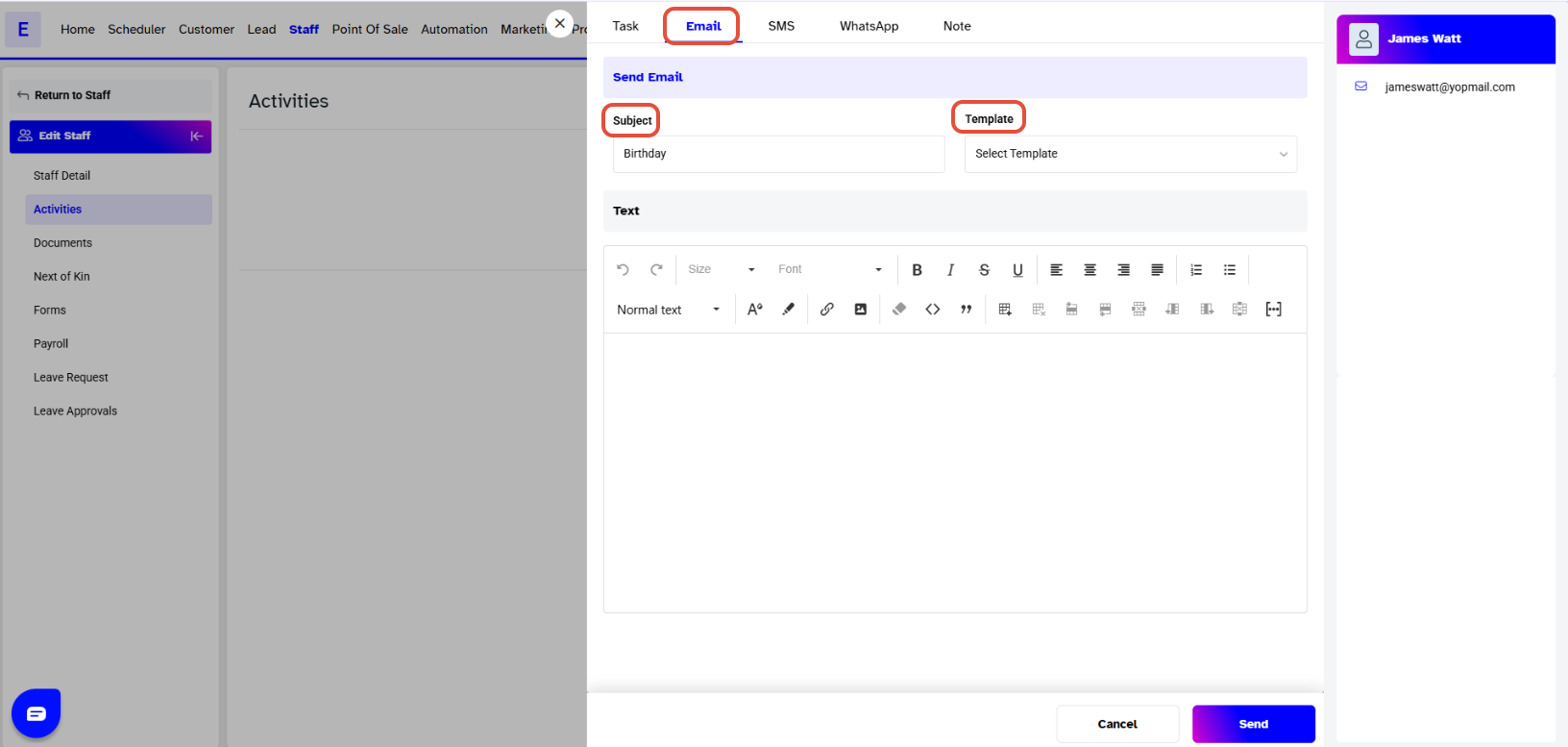
If a pre-saved Email Template is selected, the Email Body Text will be filled out automatically according to the Template.
- Add Text in the body of the email.
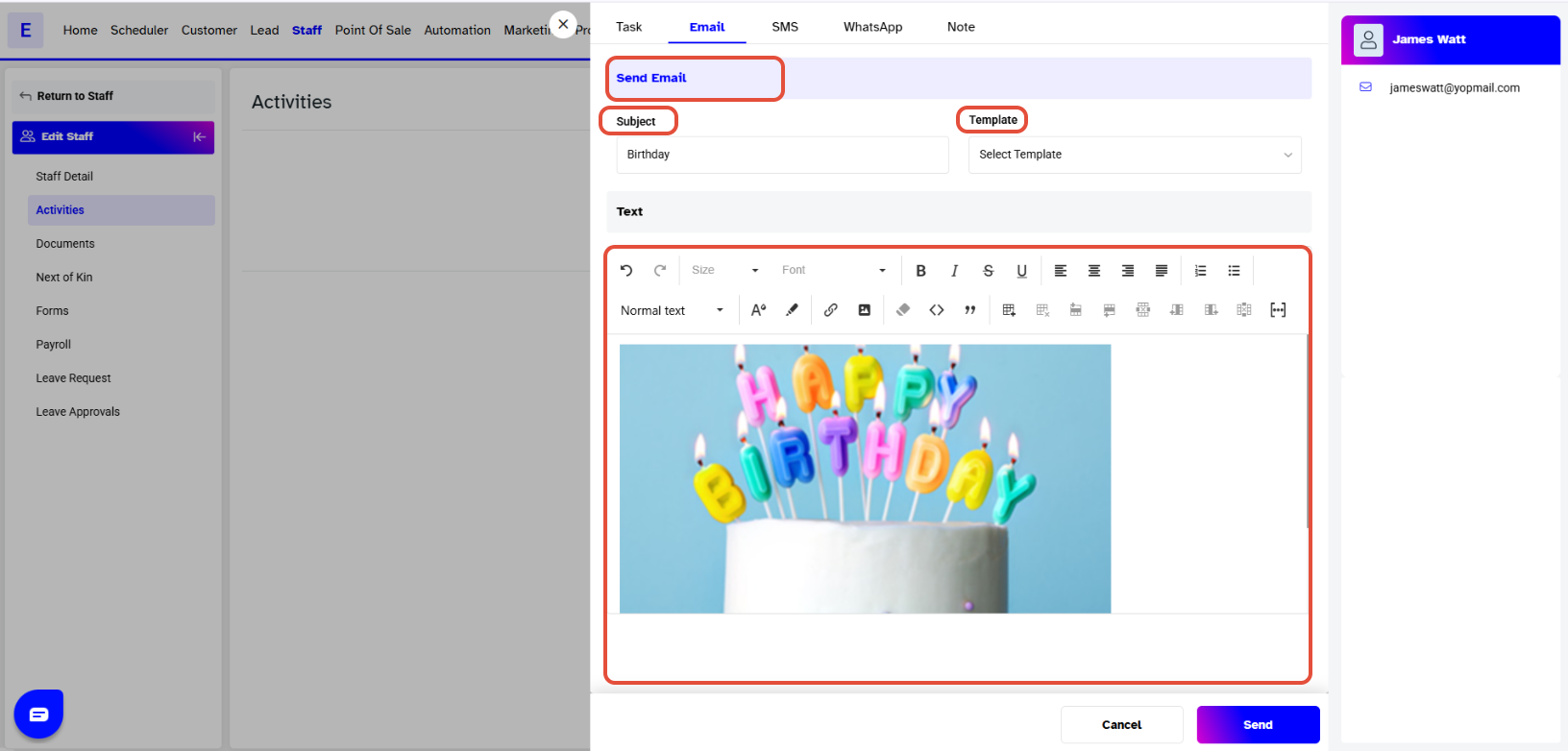
An Email Template provides the Formatting Tool Box and adds the Place Holder in the Email Text Box.
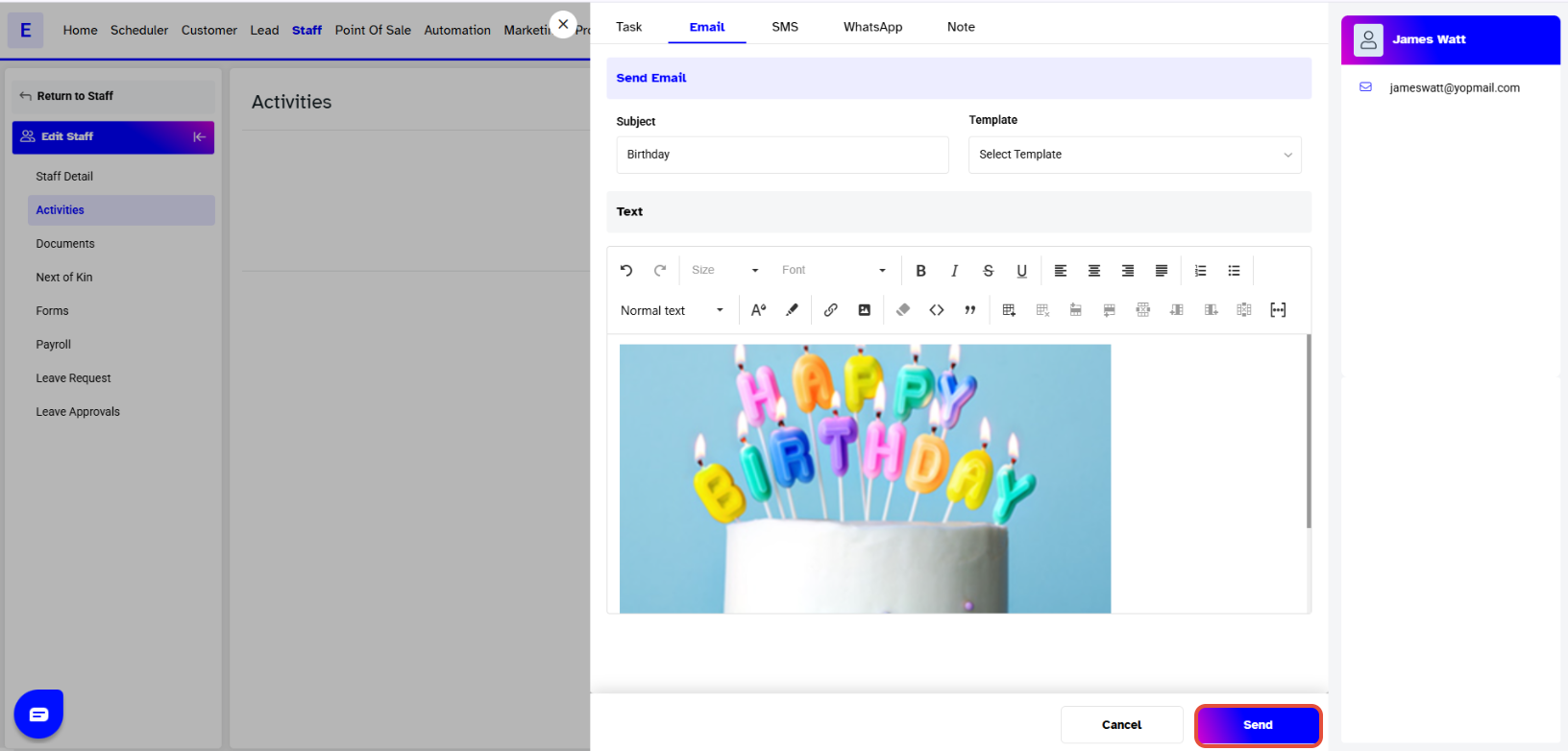
Once done, click on the Send Button.
An Email Sent Successfully Message will appear at the bottom right of the screen.
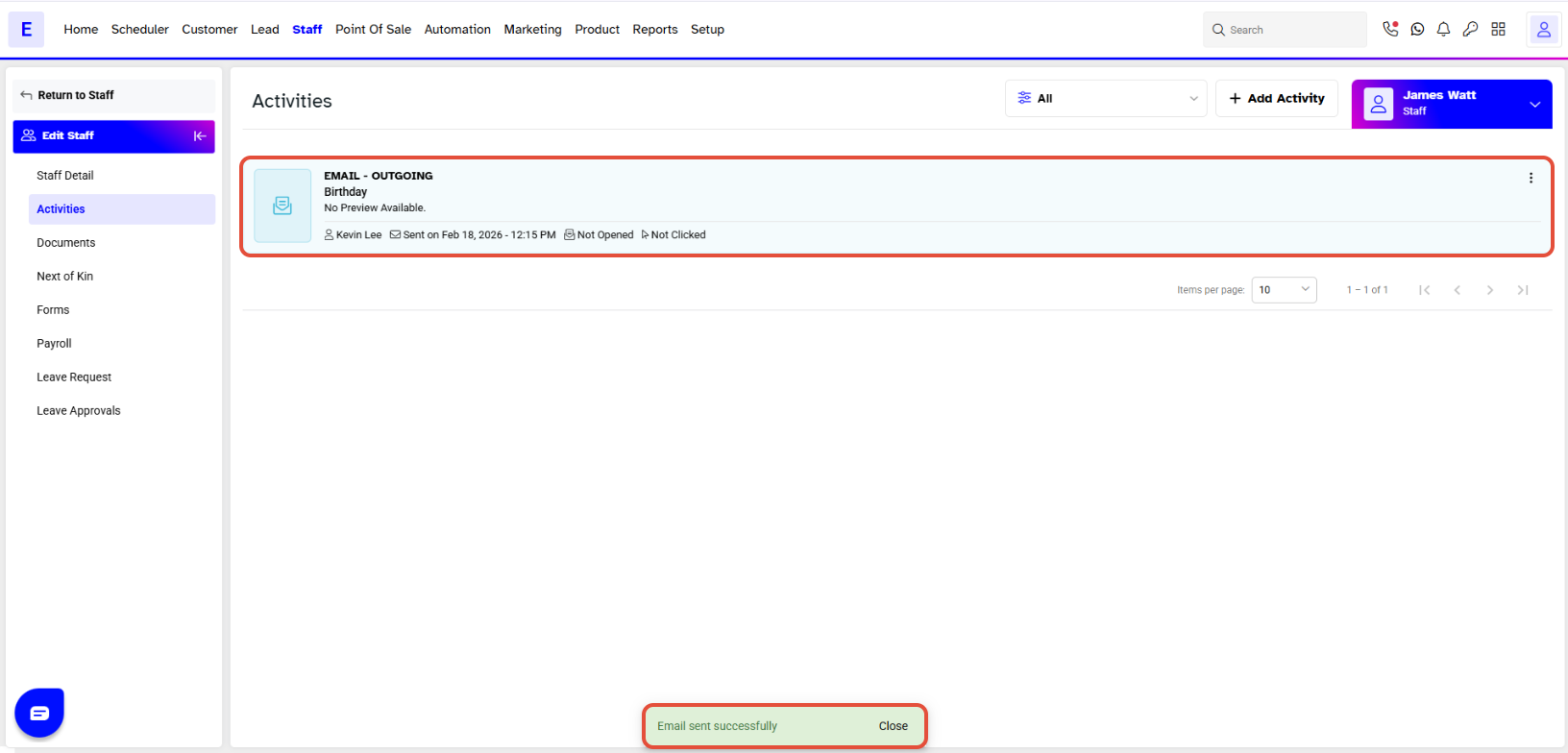
Once an Email has been sent, it will show in the Staff Activity Log.
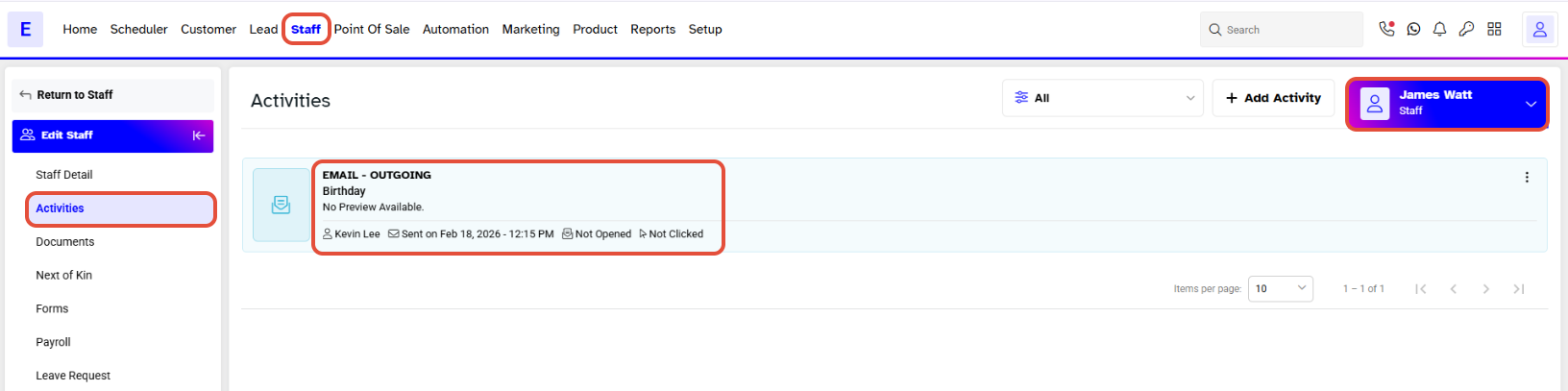
The status of an Email (Incoming, Outgoing) will be shown in brackets.You cannot edit or delete an Email once it has been sent.




