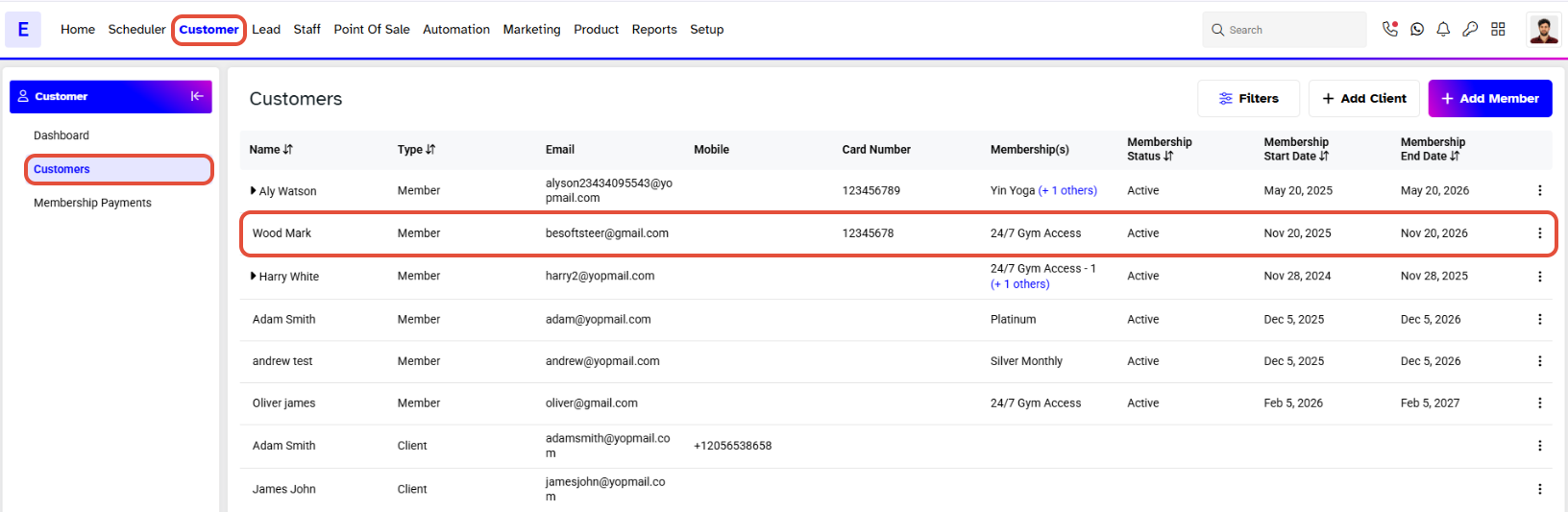
To schedule an Appointment, merchants have to go to the Customer Module. By default, you will be taken to the Customers Segment. Click on the name of the Customer for whom you wish to schedule an Appointment.
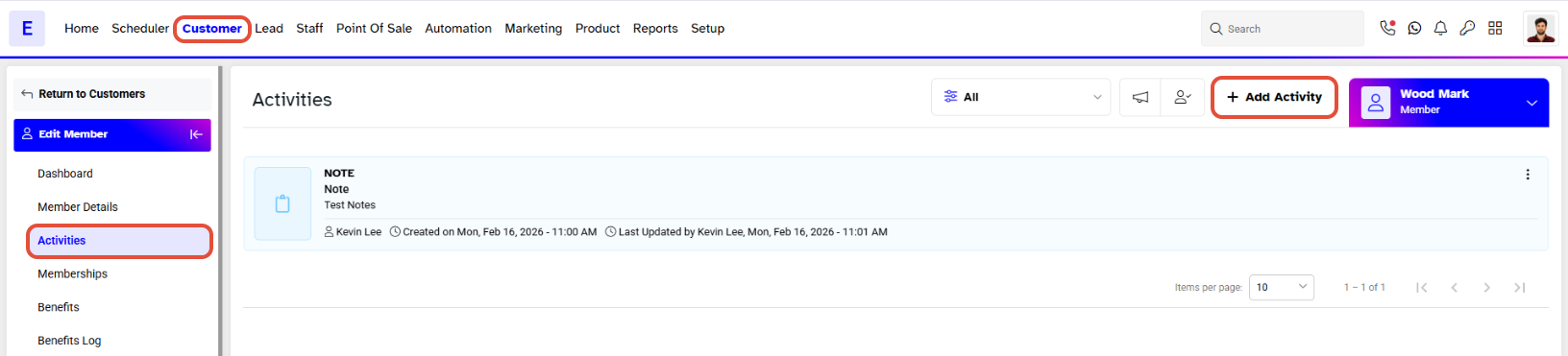
Click on the Activities tab and click Add Activity.
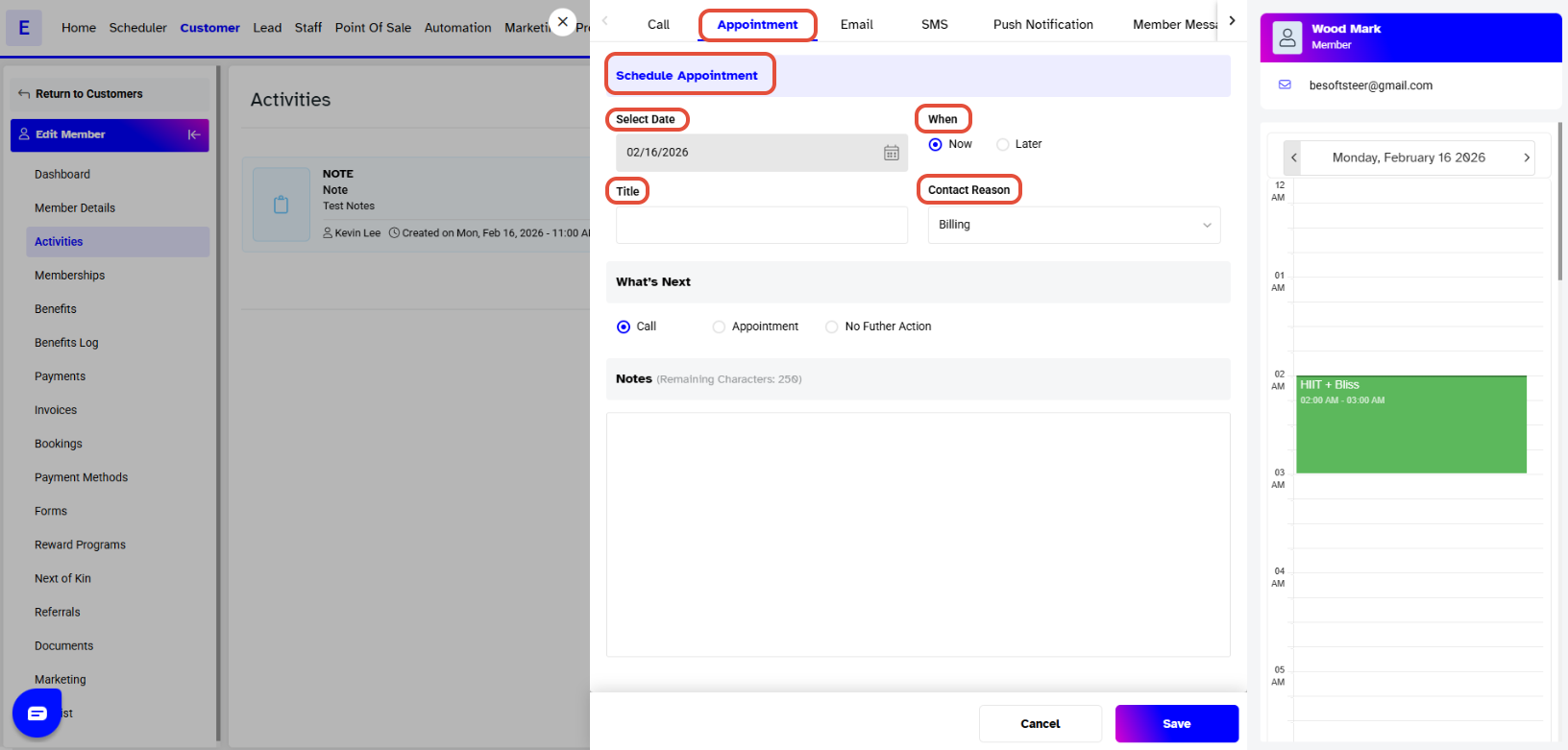
An Activities Window will pop up and by default, you will land on the Call screen.
Click on Appointments and Fill out the following information:
- The Date will be chosen for Today, if your appointment is for Now.
- Choose Now.
- Add a Title for the reason of the appointment.
- Choose a Contact Reason from the dropdown menu.
- Choose What's Next to proceed further: Call, Appointment, and No Further Action.
- Notes can be added up to 250 characters for extra information
A Follow-Up Appointment window will pop up if your What's Next option was Appointment, where merchants can fill out the necessary and click Save once again. A Follow Up Appointment Saved Successfully message will pop up, confirming your changes.
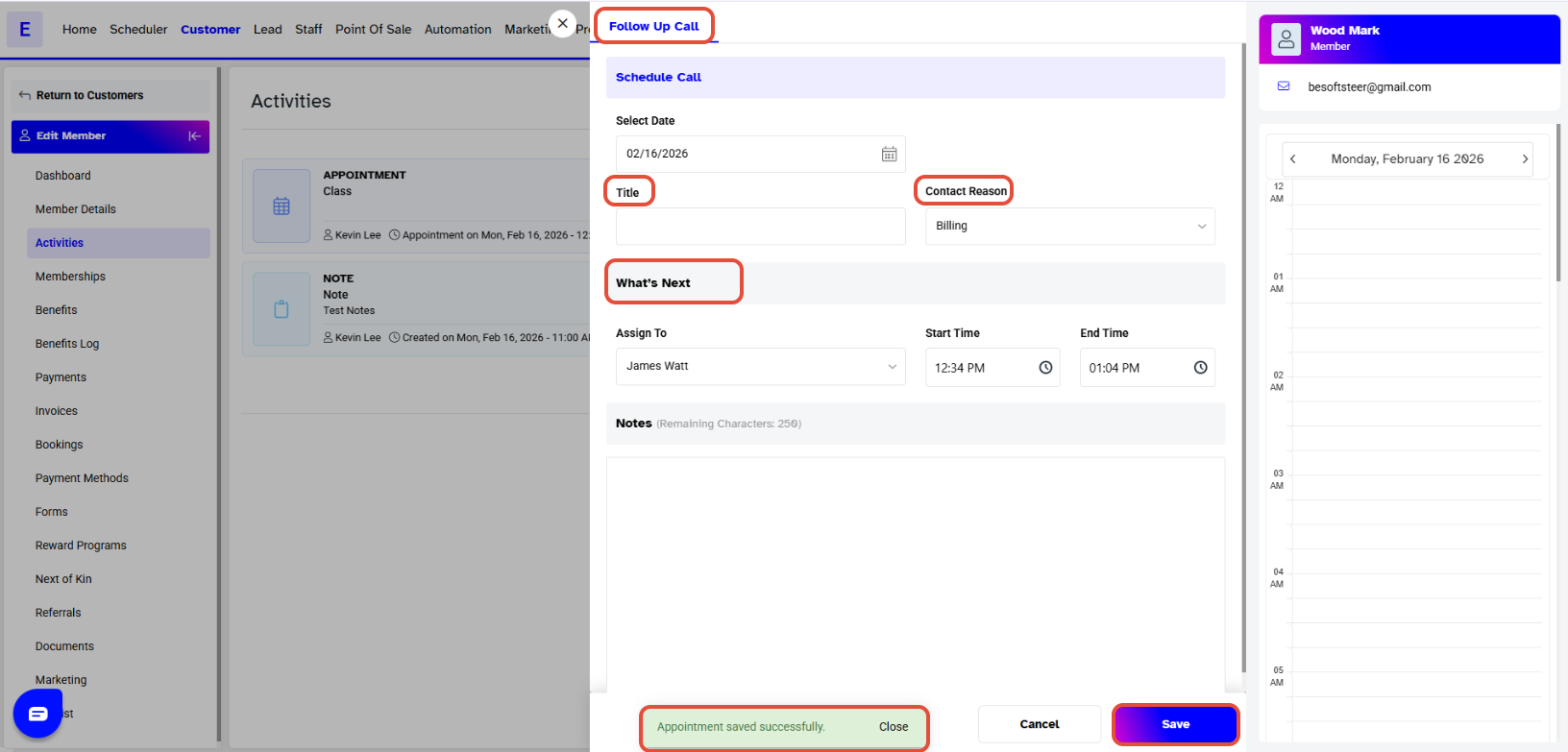
If your What’s Next option was No Further Action , the pop window will close and an Appointment Saved Successfully message will appear at the bottom right of the screen, confirming changes.
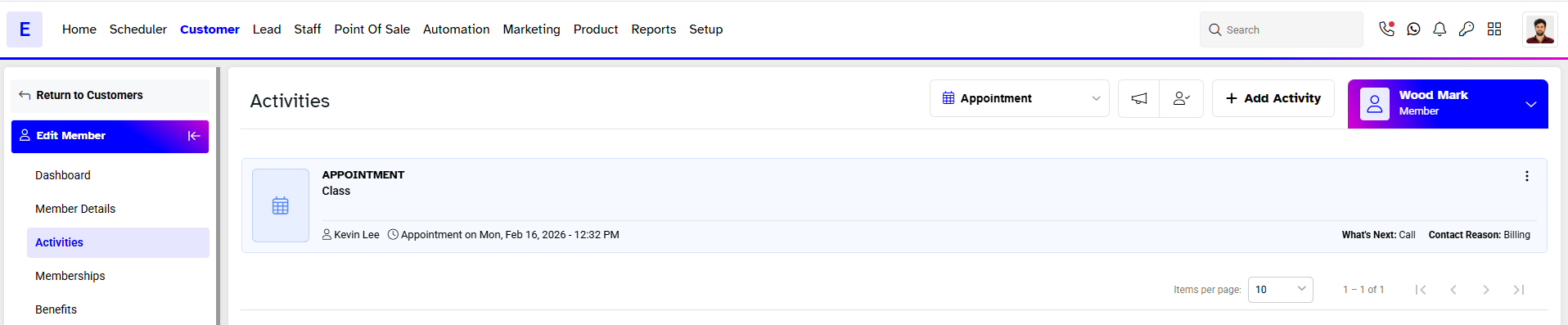
You will now be able to see your Customer Appointment under the Appointment Activity Log.