TABLE OF CONTENTS
- Overview
- Step 1: Navigate to the Lead Module
- Step 2: Edit the Lead
- Step 3: Access Activities
- Step 4: Add Activity
- Step 5: Select Notes and Fill Details
- Step 6: Save the Note
Overview
This guide explains how to create a Lead Note in Core step by step, including accessing the lead details and entering the note information.
Step 1: Navigate to the Lead Module
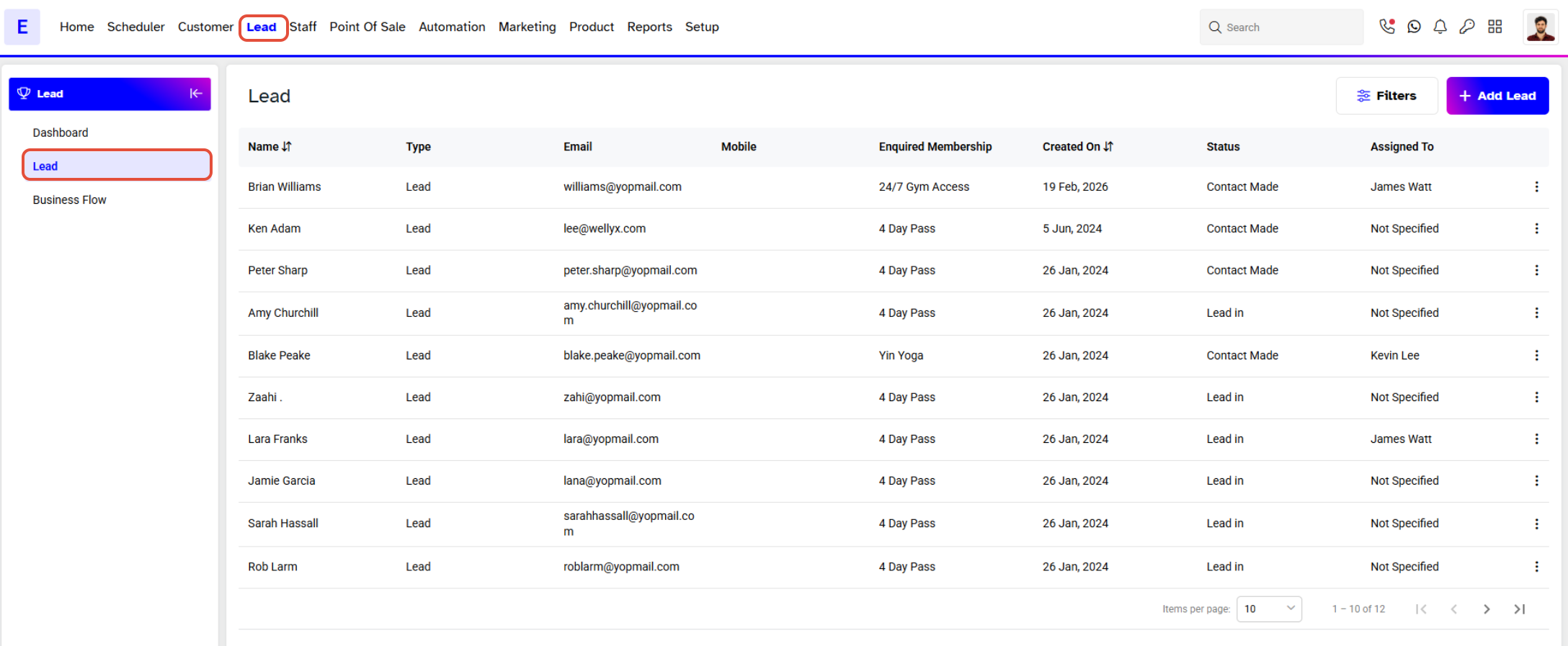
Go to the Lead Module.
- The Lead Segment will appear by default
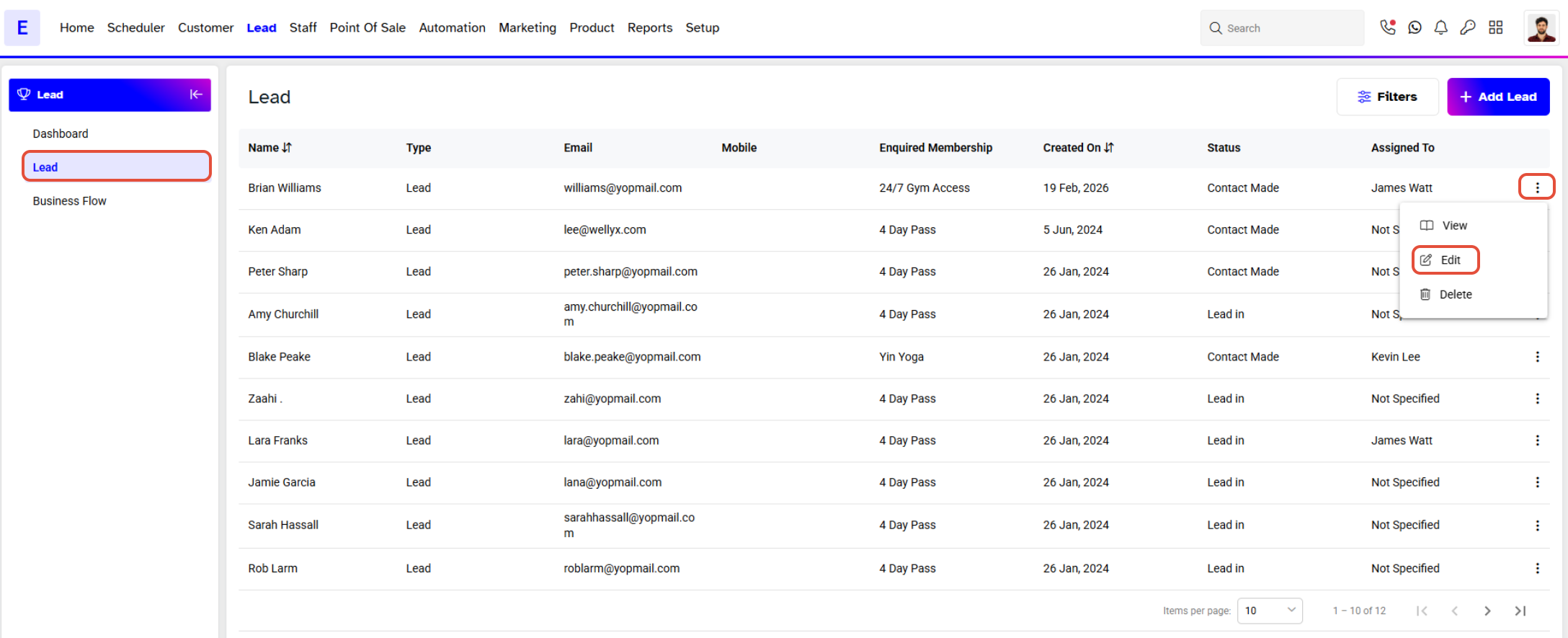
Step 2: Edit the Lead
Click on Edit under the Action column for the desired Lead's Name.
Step 3: Access Activities
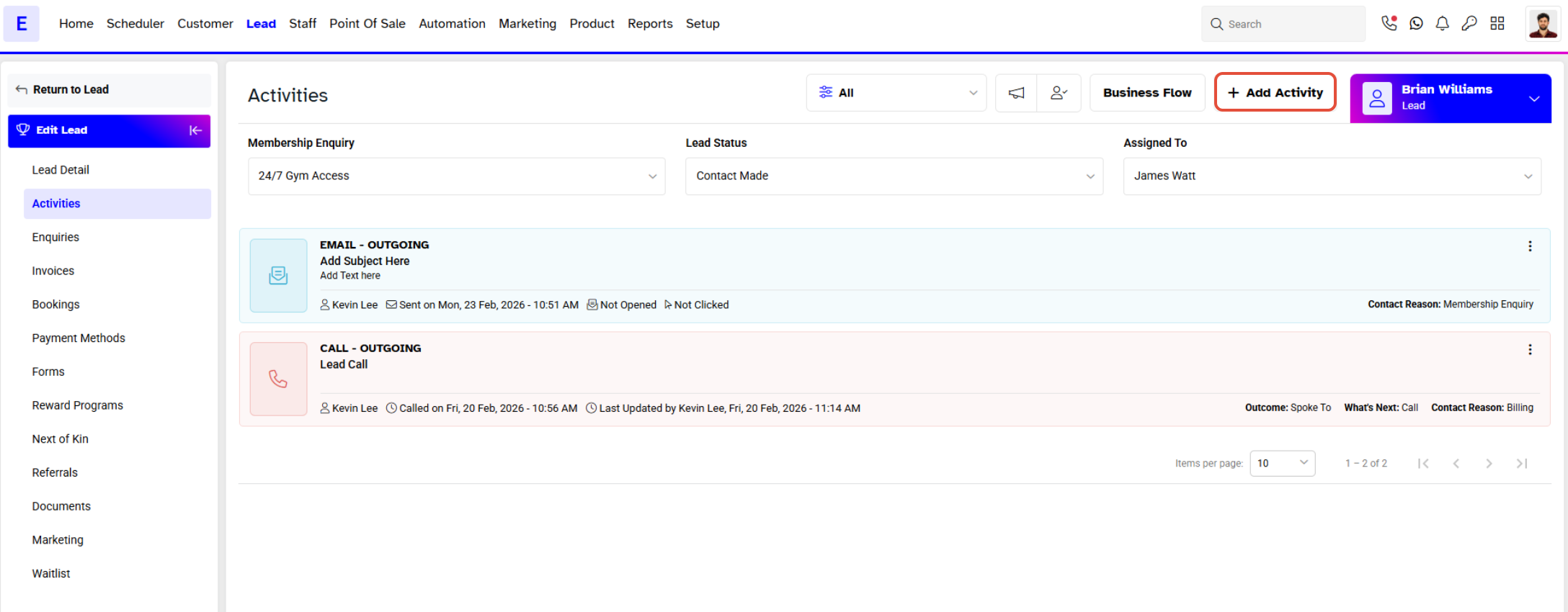
Click on the Activities Tab.
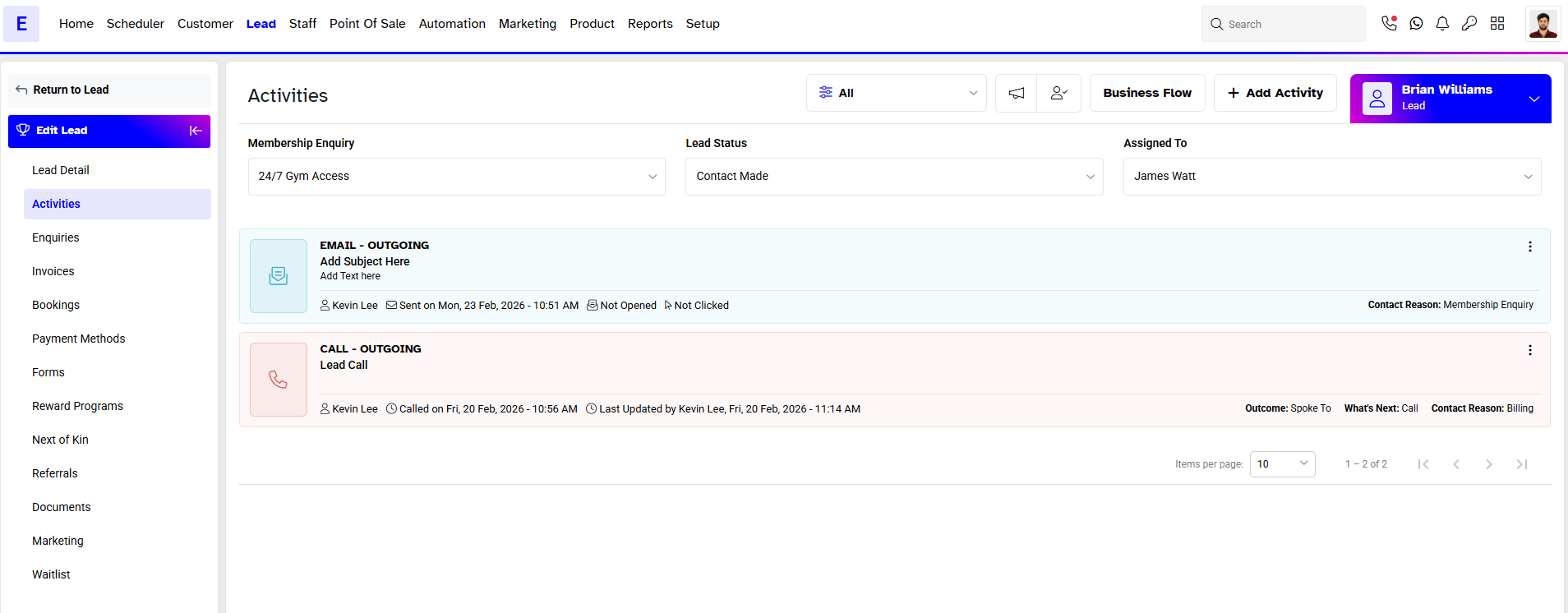
Step 4: Add Activity
Click on the Add Activity Button.
Step 5: Select Notes and Fill Details
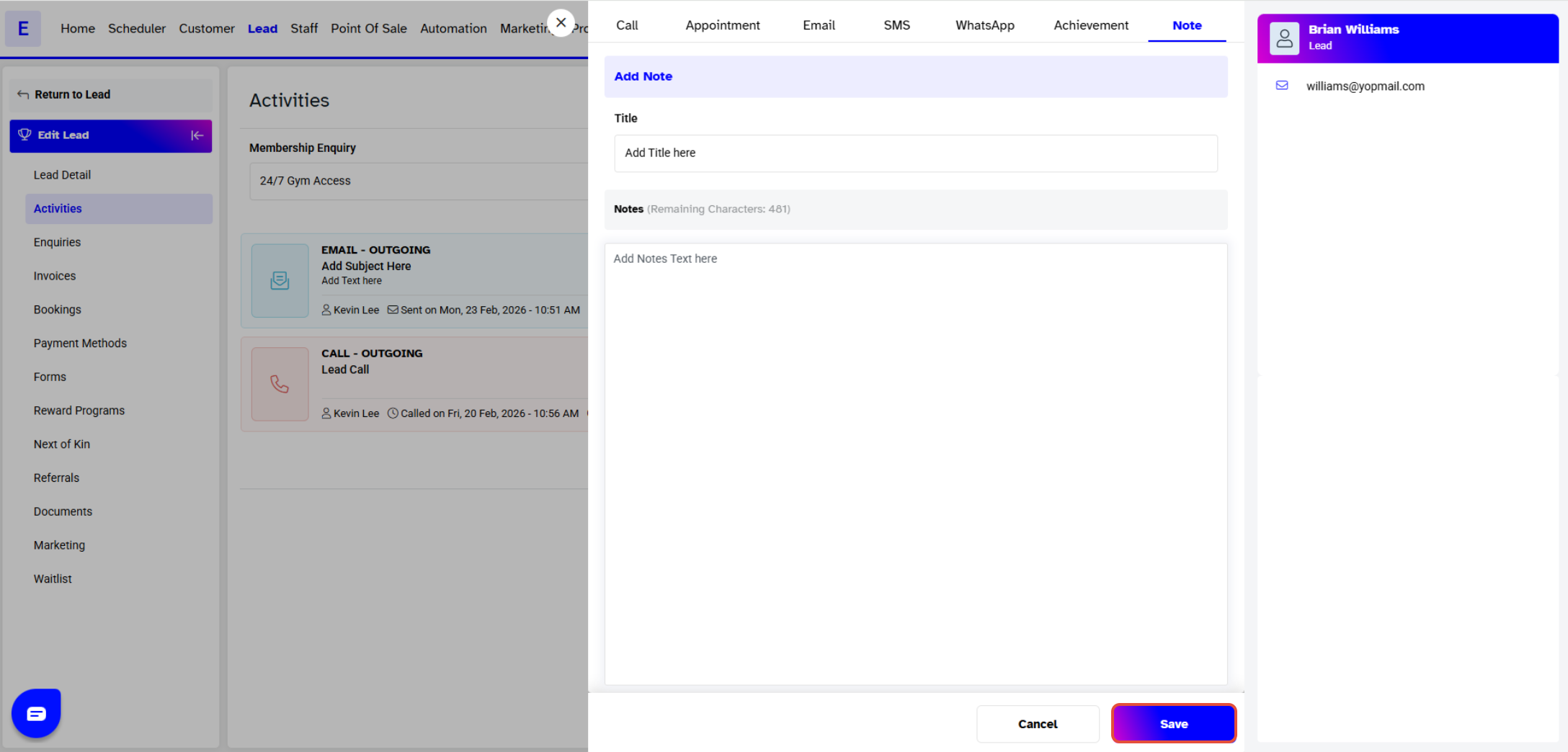
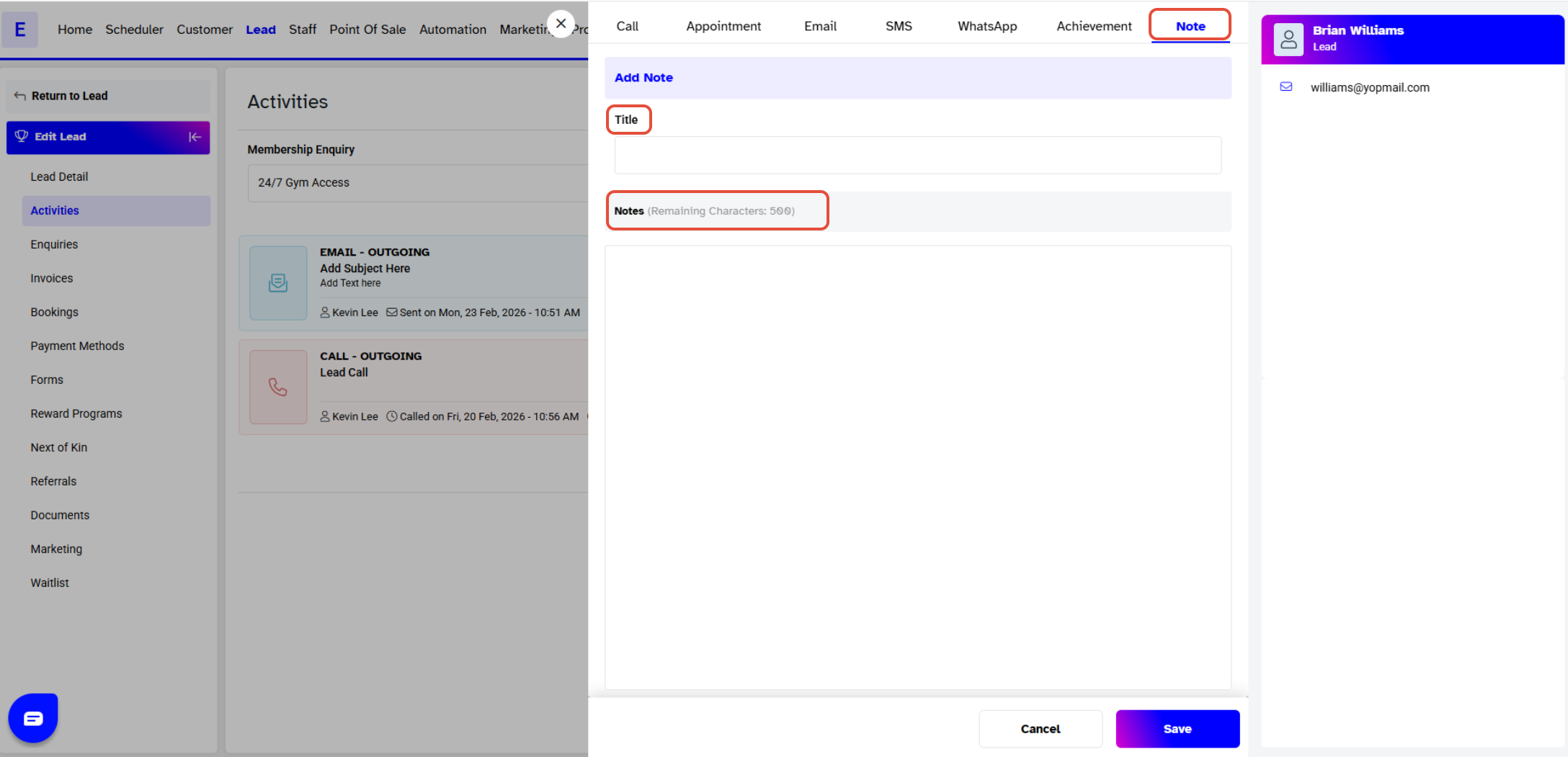
Select Notes.
- Enter the following details:
- Title: Enter a title for the note.
- Description: Enter a description up to 500 characters.
Step 6: Save the Note
Click Save.
- The note will appear in the Activities of the Lead with the assigned staff name.
- How to View Sent and Received Emails for a Lead.