TABLE OF CONTENTS
- Overview
- Step 1: Navigate to the Scheduler Module
- Step 2: Open the Add Activities Popup
- Step 3: Select Service from the Popup
- Step 4: Add Customer Information
- Step 5: Configure Service Details
- Step 6: Assign Staff, Facility, and Assets
- Step 7: Configure Padding Time (Optional)
- Step 8: Save the Service
Overview
This guide explains how to schedule a service in the Scheduler.It walks you through each step — from selecting a time slot and adding a customer to configuring service details and saving the booking.By following this guide, you can efficiently manage service appointments directly from your Scheduler.
Step 1: Navigate to the Scheduler Module
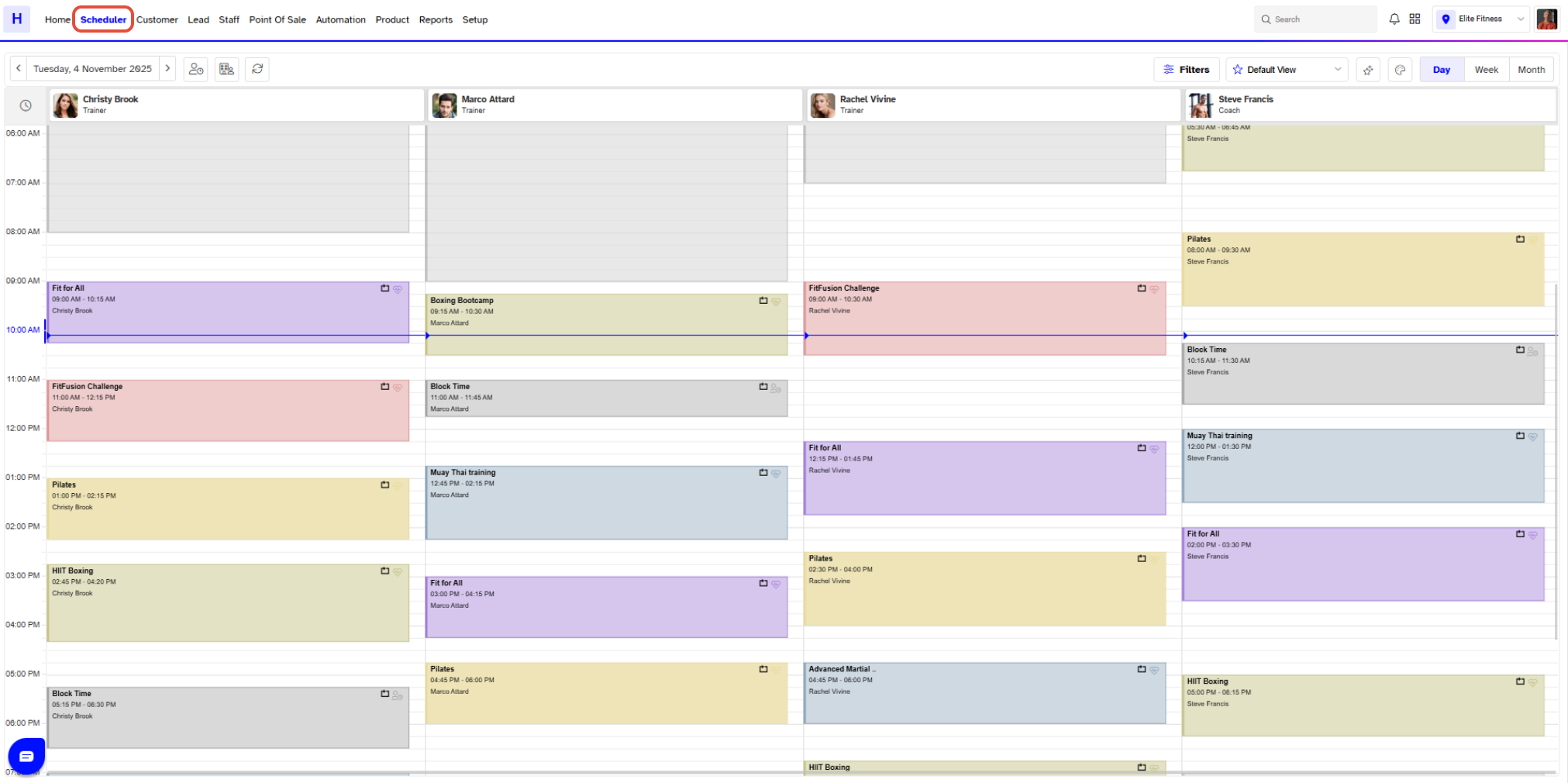
Go to the Scheduler in Core.
Step 2: Open the Add Activities Popup
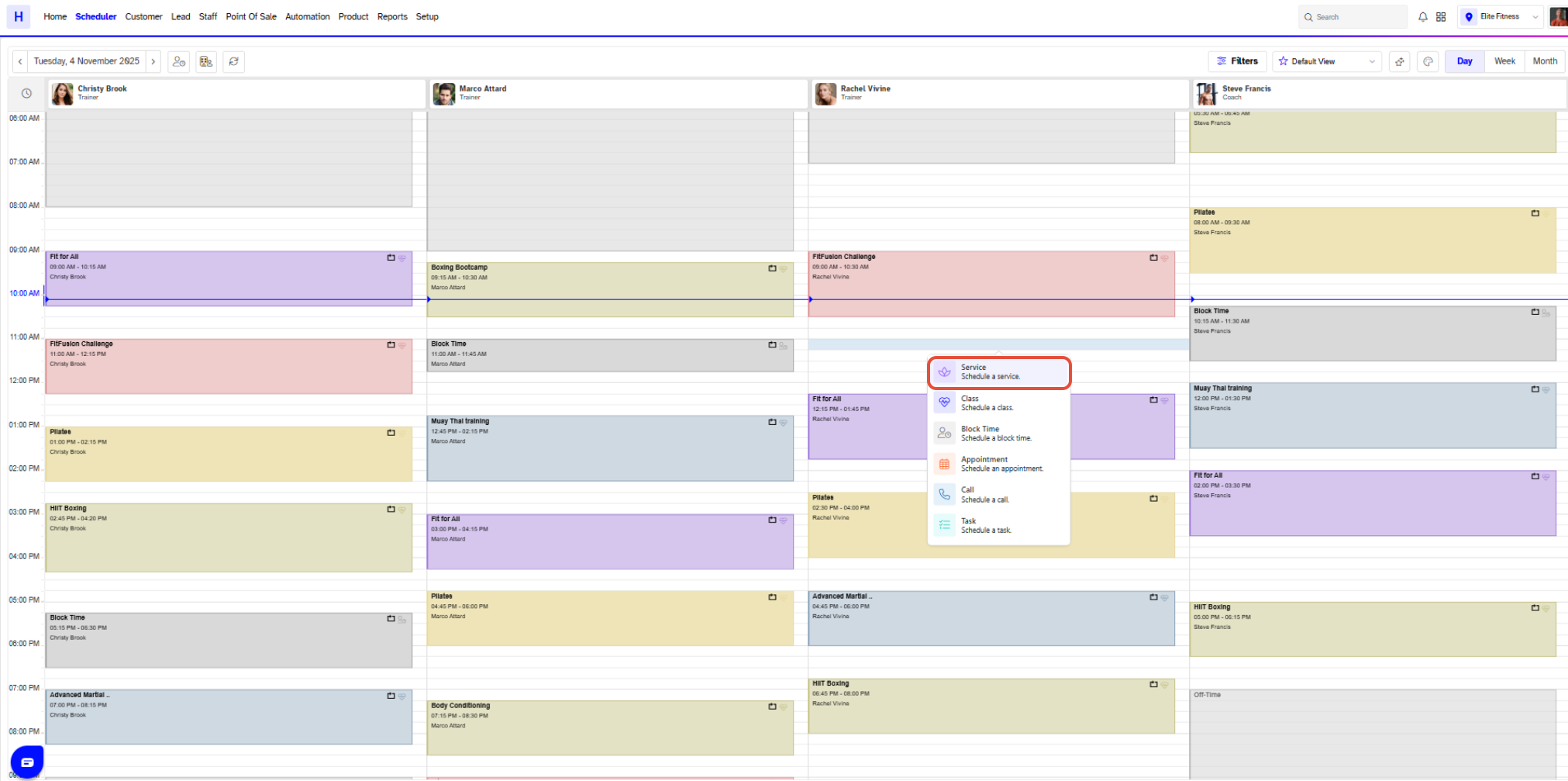
Click on the time slot under a Staff Member, Facilty or Assets.
The Add Activities Popup will appear on the screen.
Select Service from the Add Activities Popup.
Step 3: Select Service from the Popup
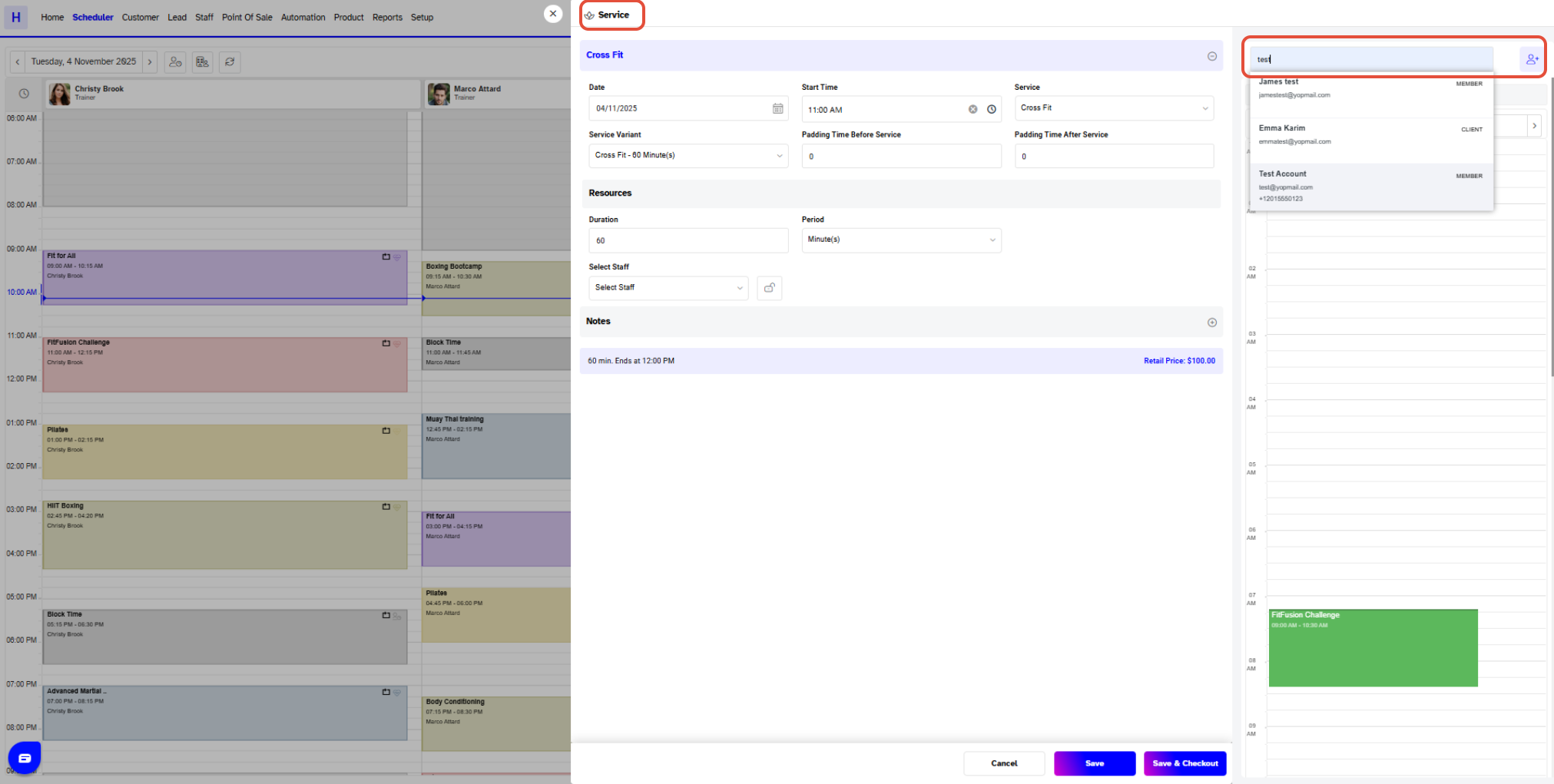
The Service Box will now open.
Use the Search Customer Bar to add the Customer to the service or add a new one by clicking on the Add Client Button.
Step 4: Configure Service Details
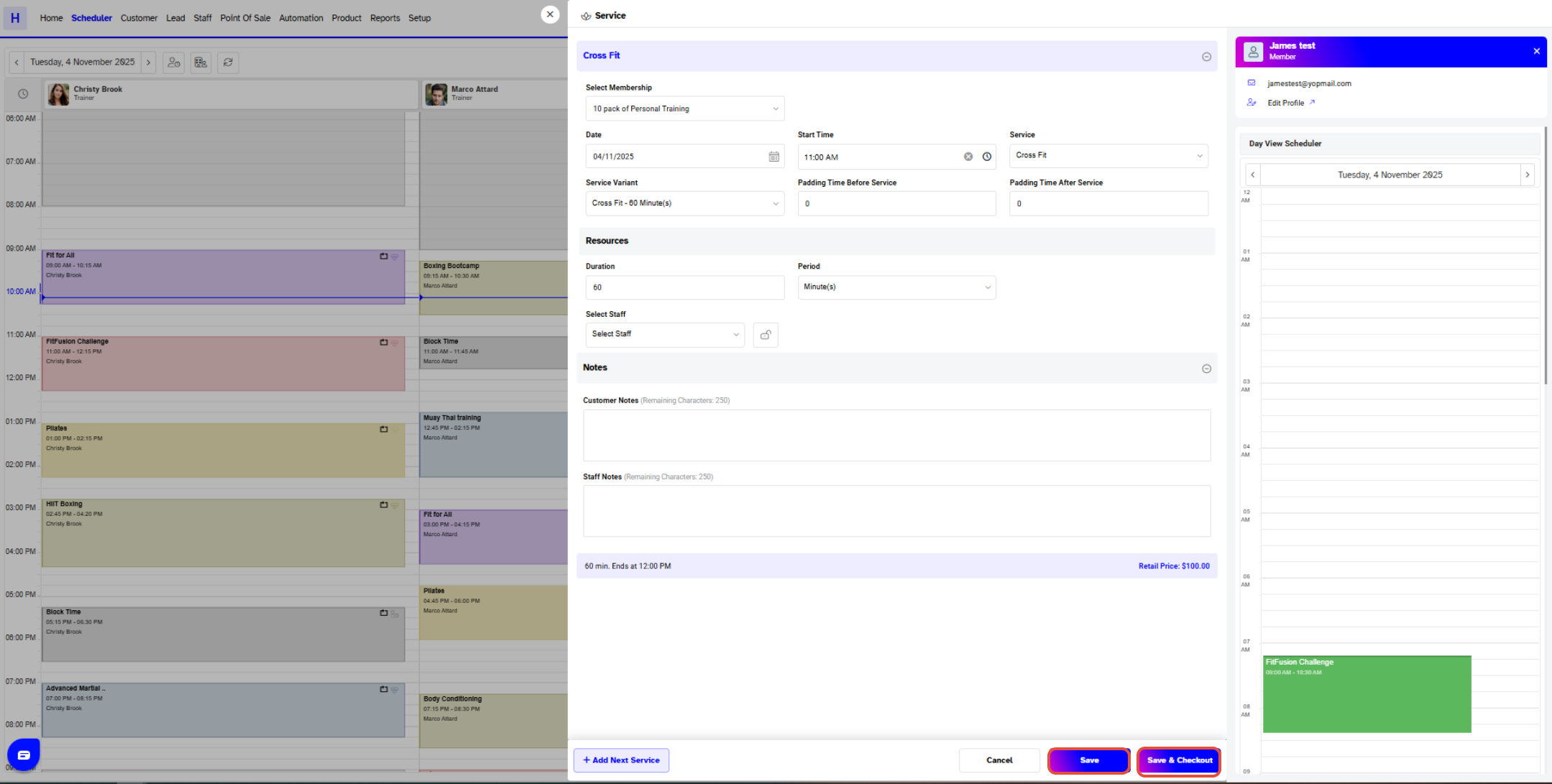
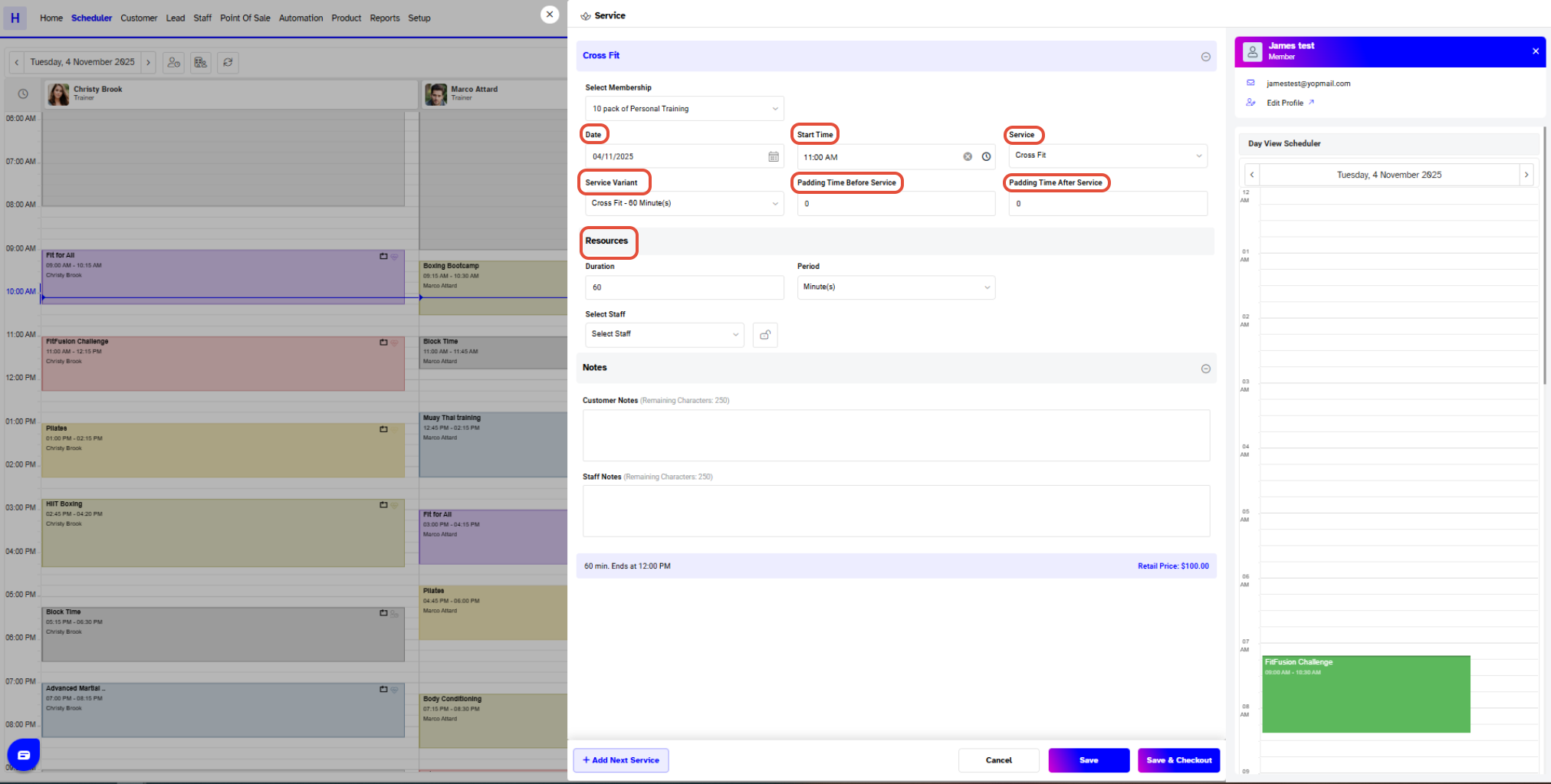
Choose the Date and set the Start Time for the service.
Select the Service from the Service Dropdown Menu.
For a Member, membership-benefit services will appear at the top of the dropdown.
For a Client or Lead, all active services will appear.
Choose the Service Variant Duration from the Variant Dropdown Menu.
The Duration and Period fields will be automatically filled based on the selected variant settings.
Select the Staff, Facility, or Assets from the resources section.
Add the Before and After Padding Time for the service as required.
Step 5: Save the Service
Once all details are entered, click on the Save or Save & Checkout Button to schedule the service.
A “Service Saved Successfully” message will appear at the bottom of the screen.
The scheduled service will now be visible on the Scheduler.