TABLE OF CONTENTS
- Overview
- Step 1: Navigate to the Marketing Module
- Step 2: Create a New Email Campaign
- Step 3: Design the Email Template
- Step 4: Toolbox Screen will be Open
- Step 5: Customised Email Campaign
- Step 6: Send Section Setting
- Step 7: Campaign Send Section
- Step 8: Save the Campaign
Overview
This guide explains how to create an email campaign in Core, covering the steps from module navigation to template design, campaign setup, and scheduling.
Step 1: Navigate to the Marketing Module
- Go to the Marketing Module in Core.

Step 2: Create a New Email Campaign
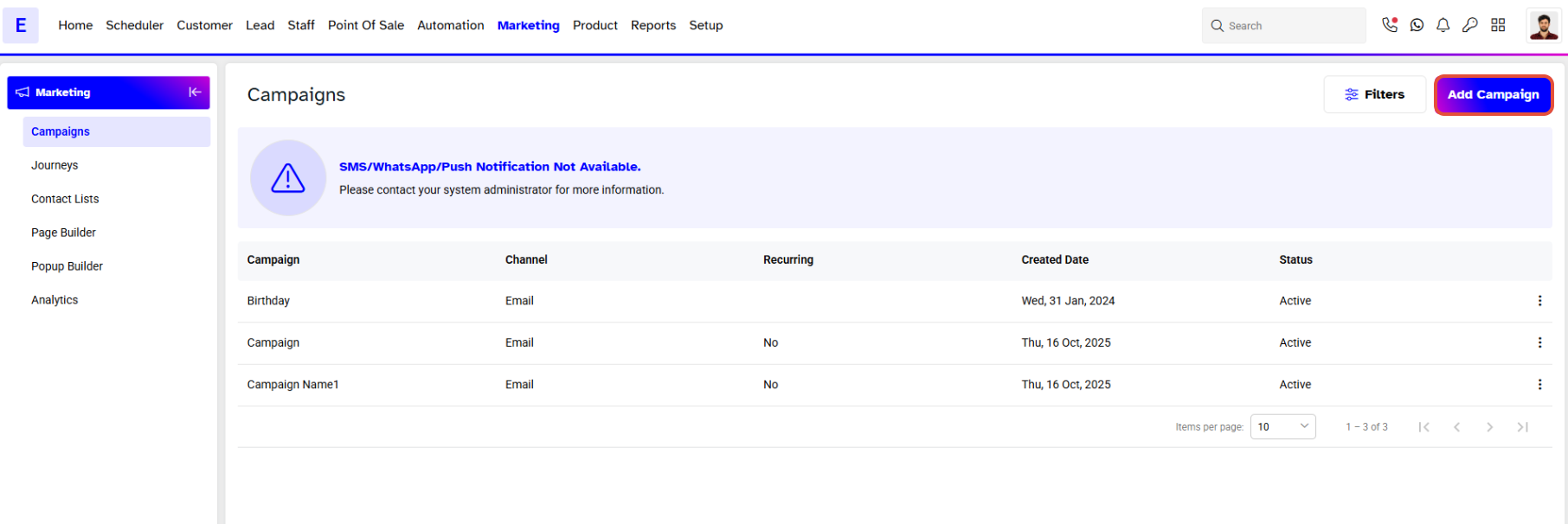
- Click on the Add Campaign Button.
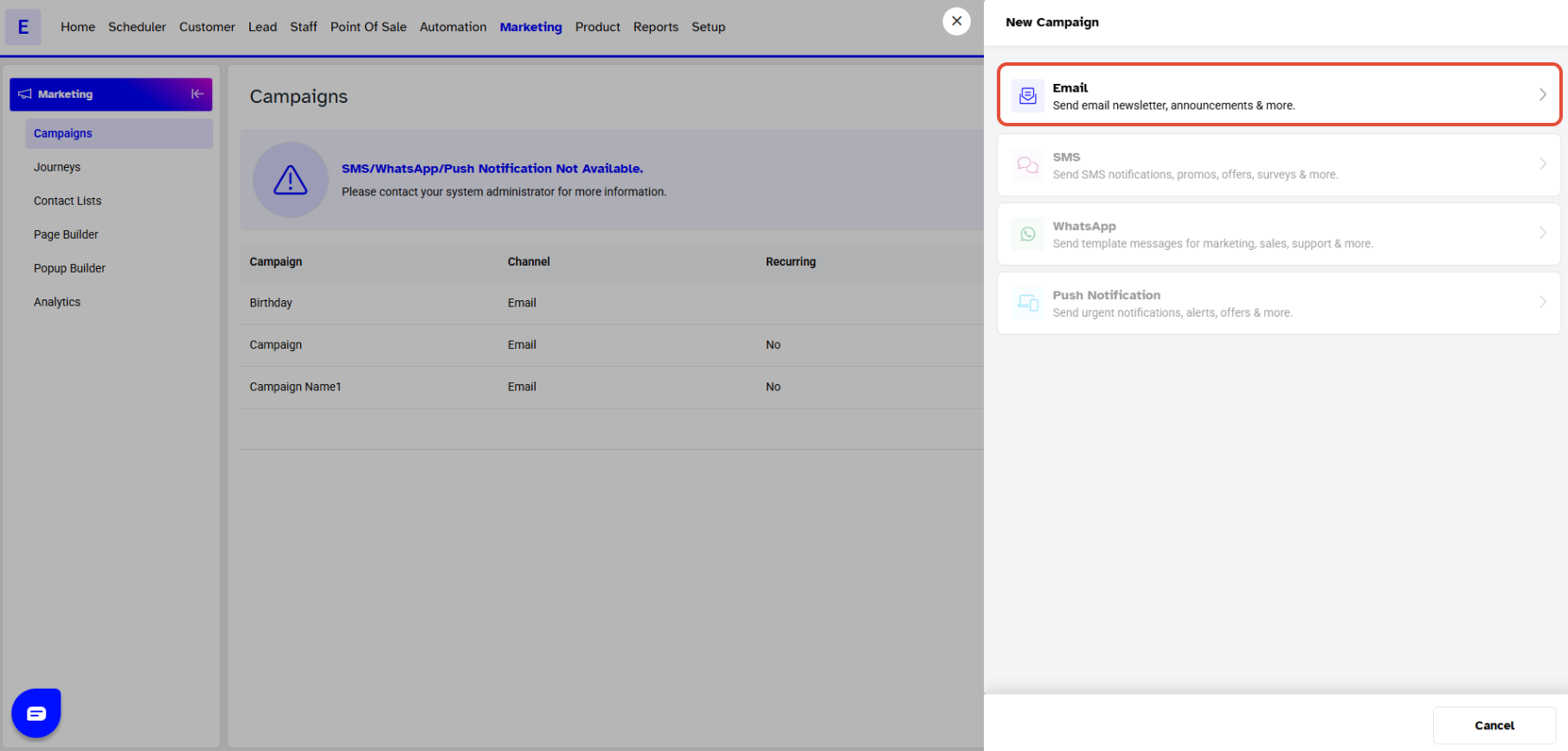
- Now, a New Campaign Popup will appear on the Screen. Click on the Email Button.
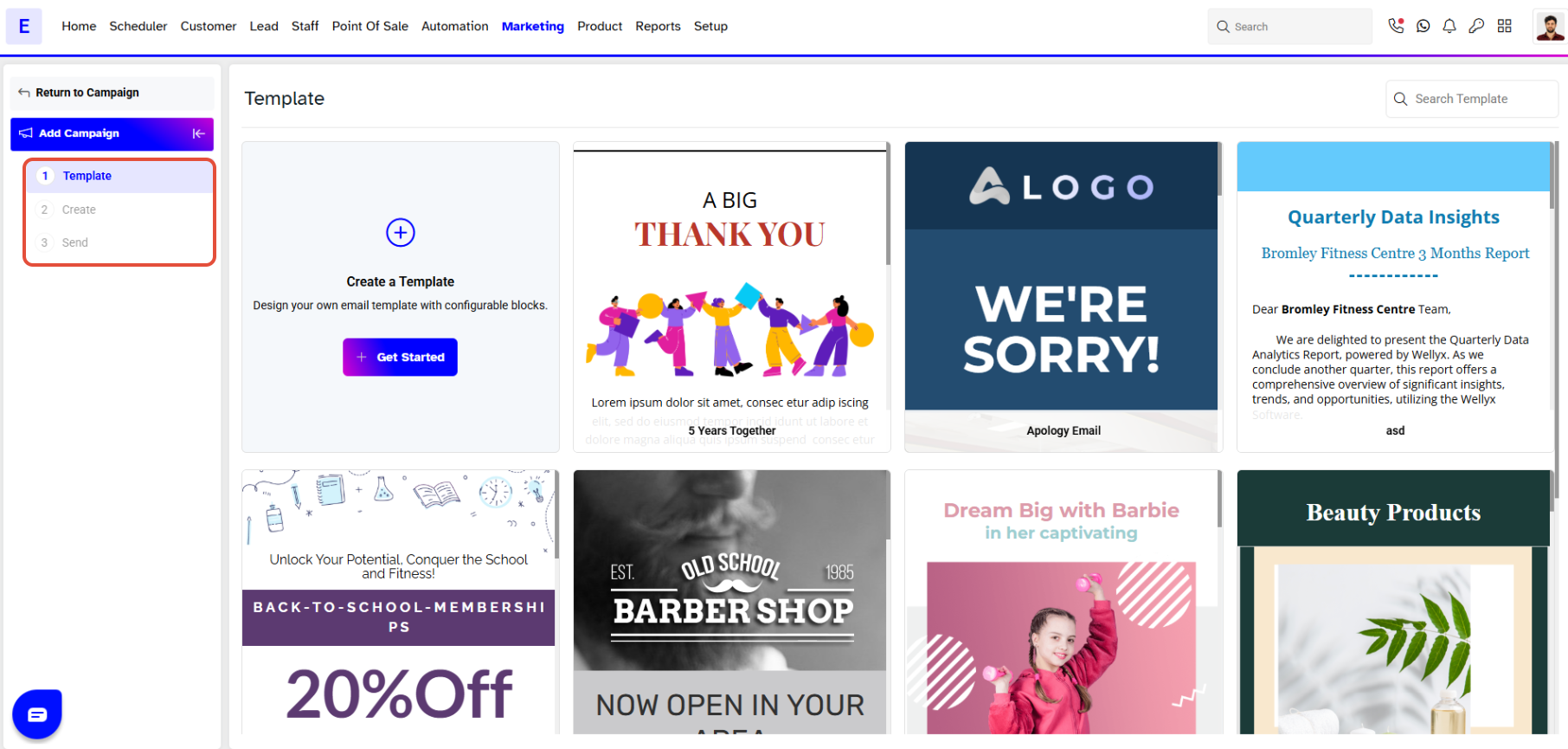
There are three sections to add an Email Campaign:
- Template
- Create
- Send
Step 3: Design the Email Template
- The Template section will open by default.
- You can either use a Pre-made Email Template or create a New Email Template.
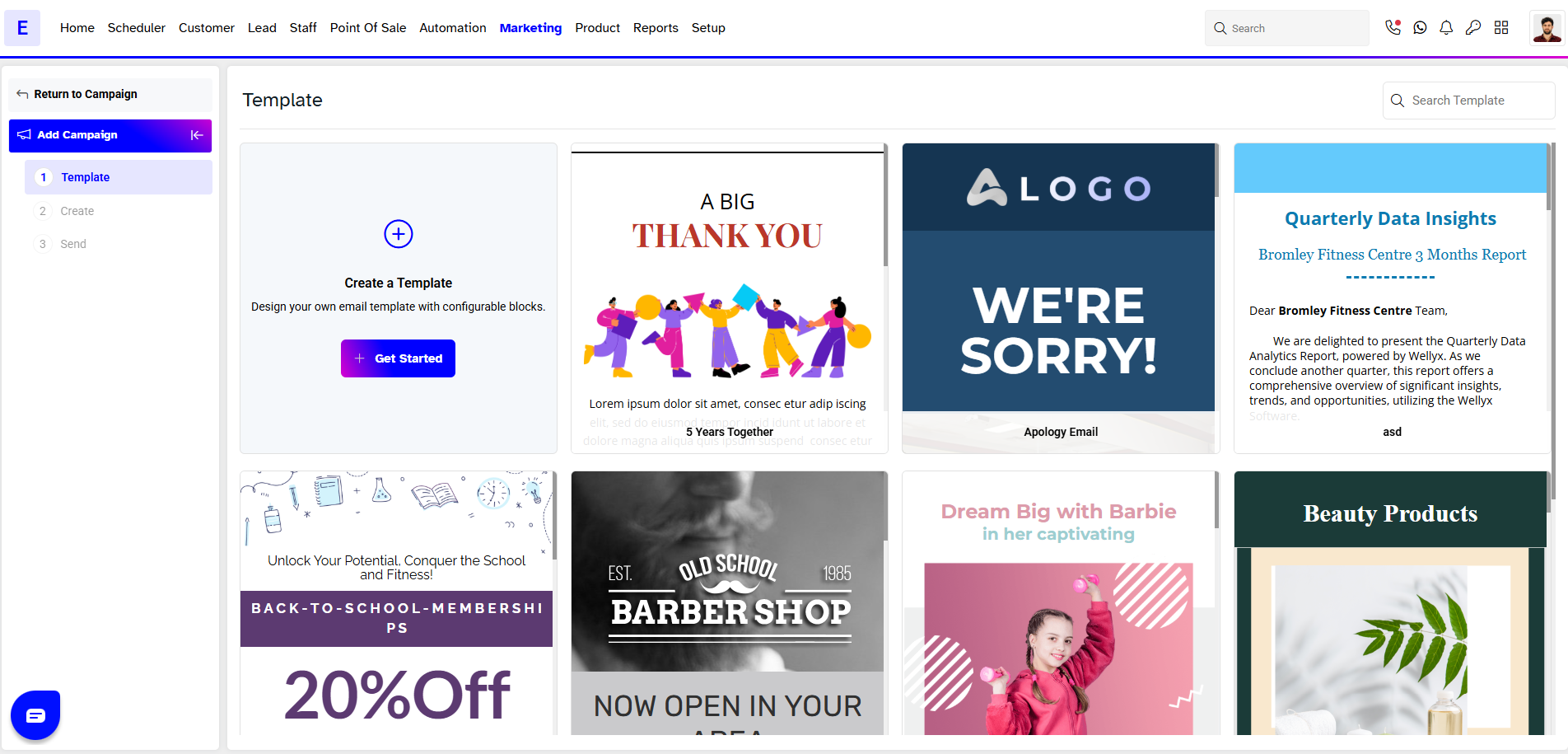
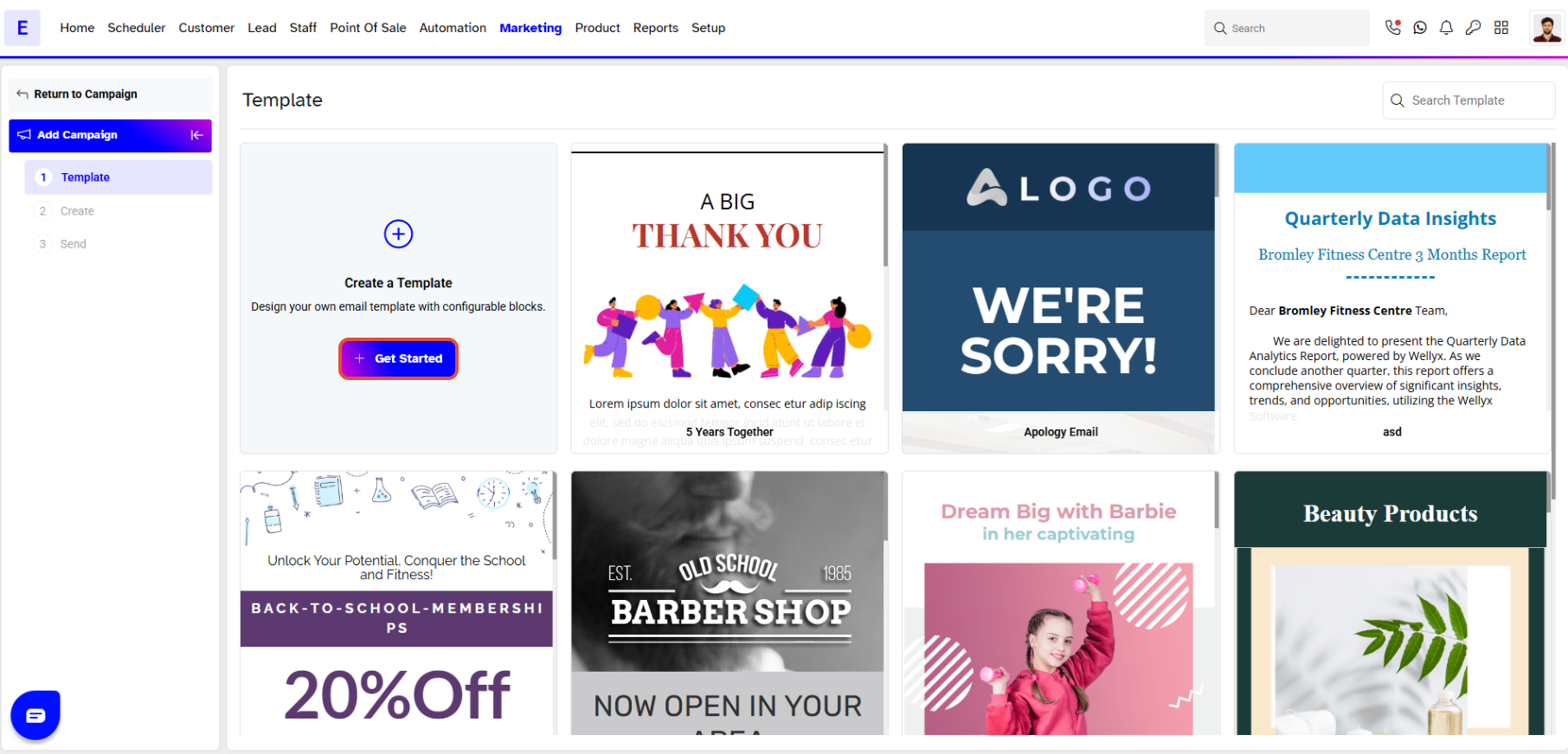
- Click on the Get Started Button.
Step 4: Toolbox Screen will be Open
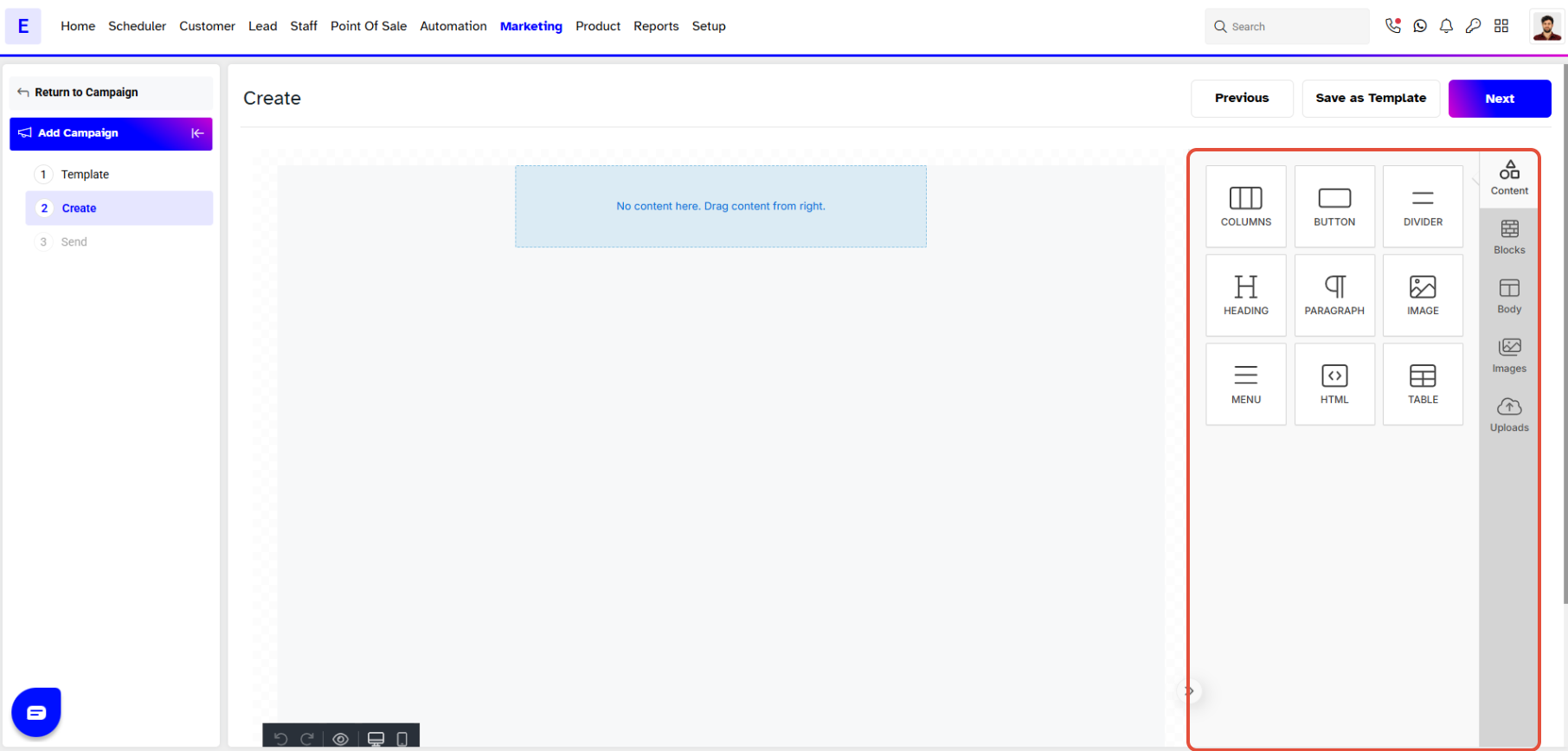
A Toolbox will appear on the screen to create a Template.
There are four different Tabs in Toolbox.
- Contents: This tab consists of Heading, Columns, Text, Image, Button, Divider, HTML and Menu.
- Blocks: Blocks are used to divide content into different sections. The pre-made Block Templates are also available in this tab.
- Body: The body tab has different text settings like Text Color, Background Color, Content width, Content Alignment, Font Style, font weight of text, and also Link Color and underlining the Link.
- Images: Images section has Premade Images for a Campaign Template.
- Upload: from the upload tab upload an Image from the system for Campaign Template.
Step 5: Customised Email Campaign
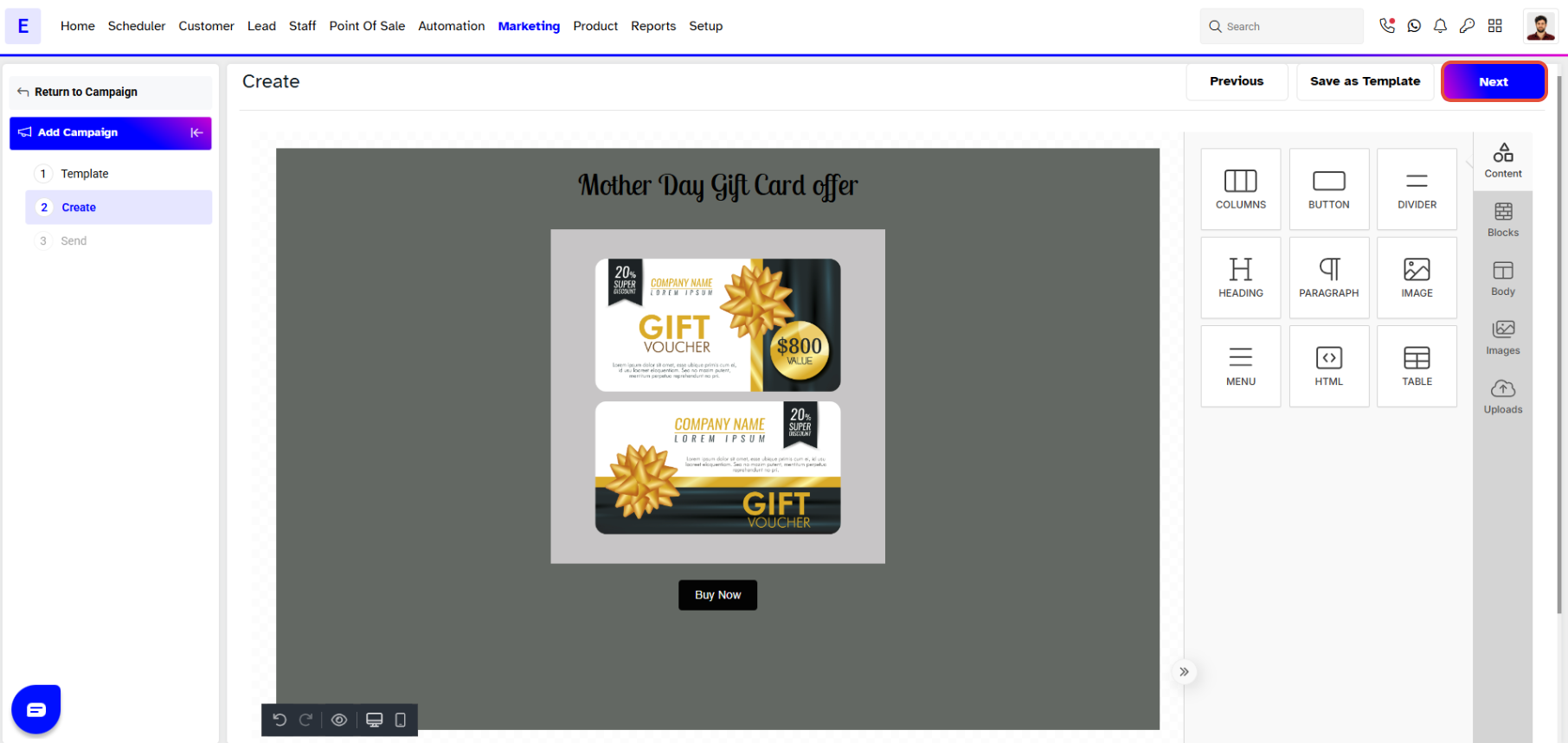
- Once create a customised Email Campaign Template using Toolbox. click on the Next Button.
Step 6: Send Section Setting
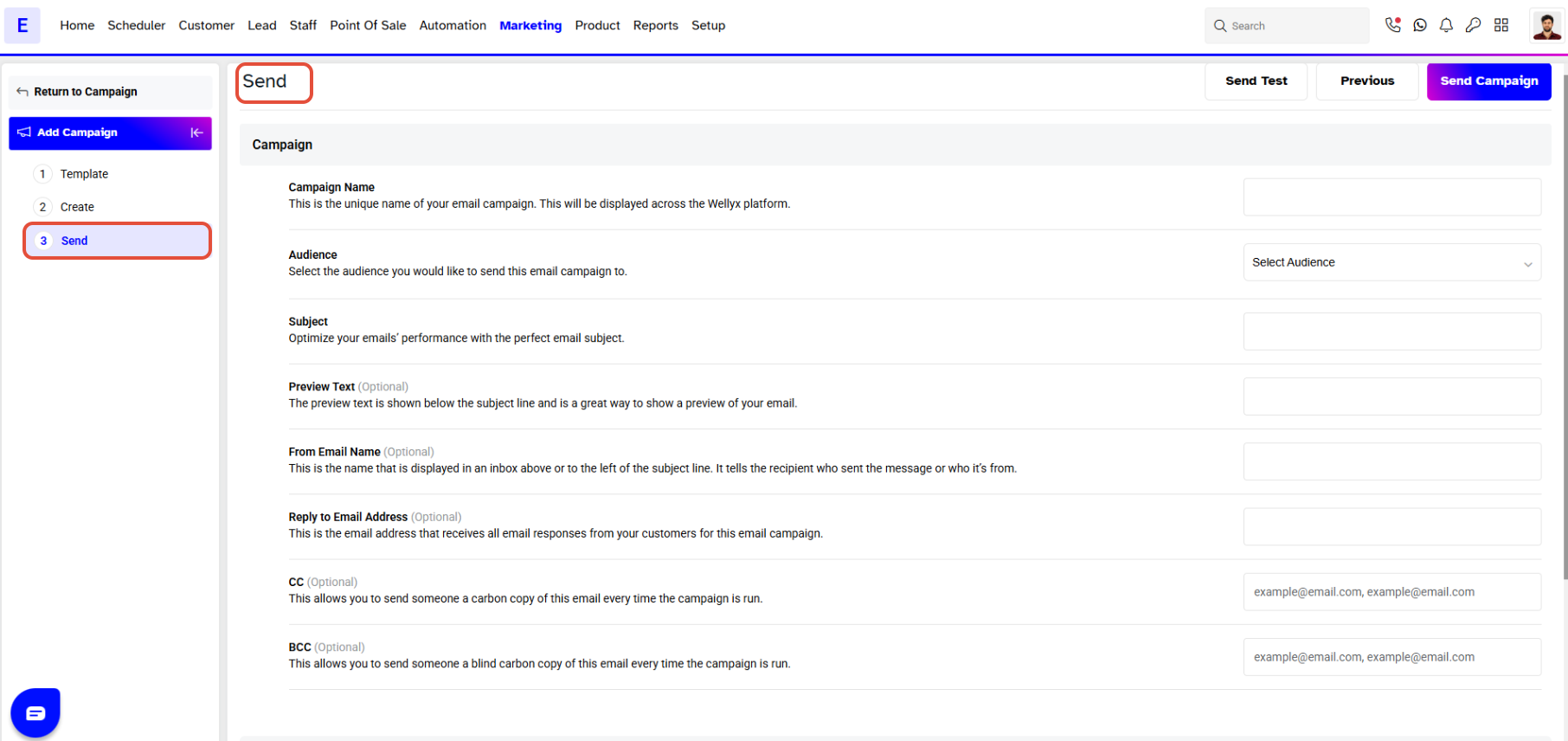
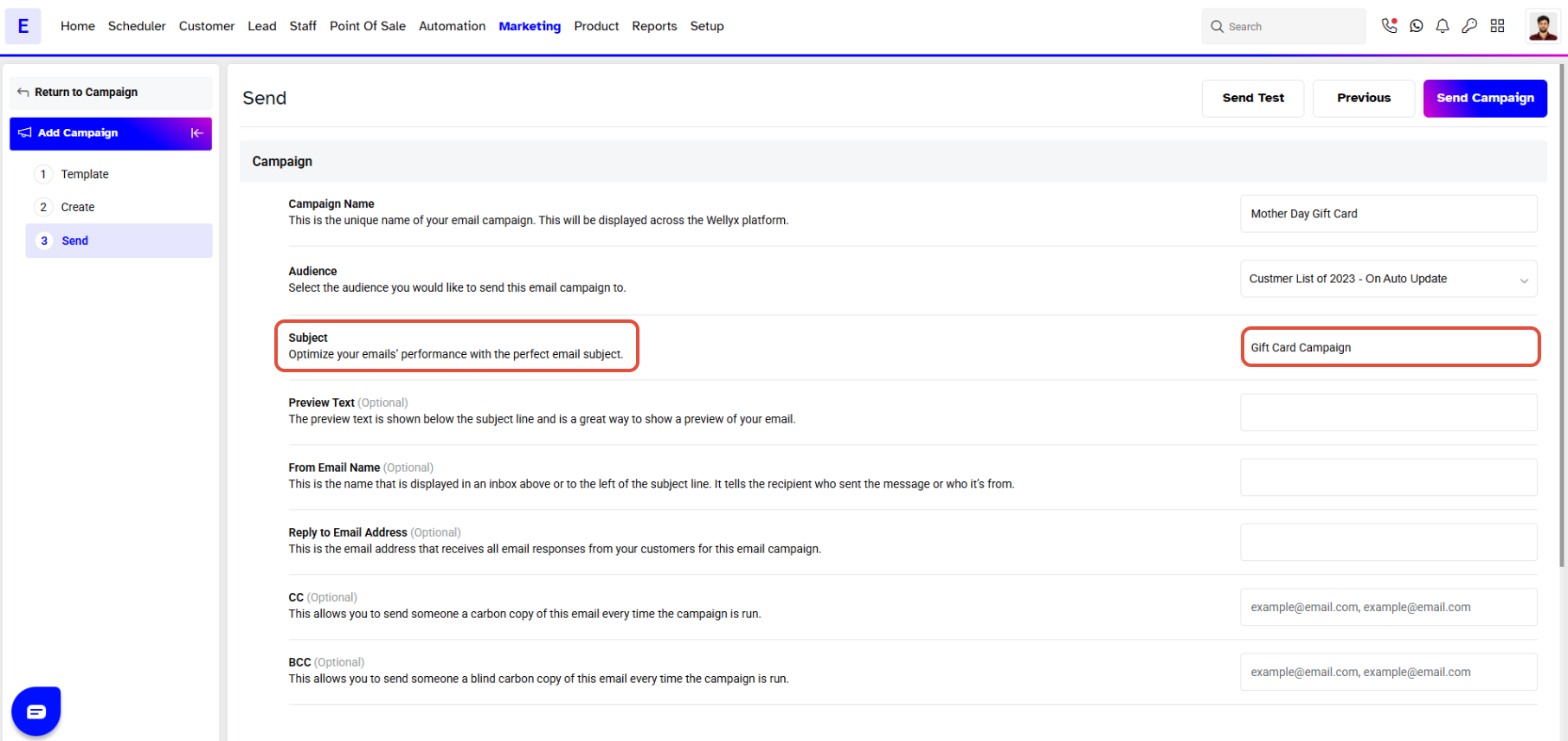
- The Send section will appear on the screen.
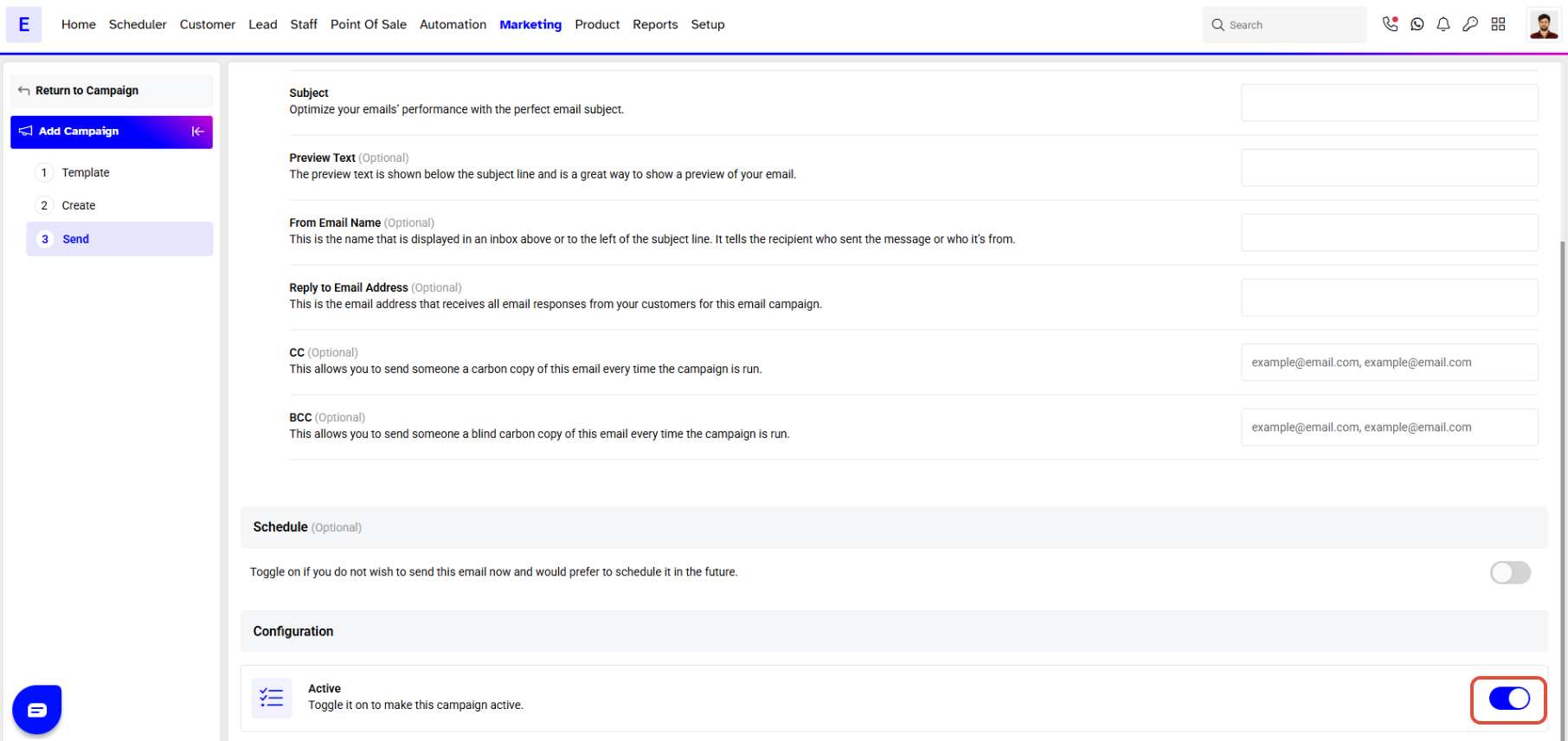
- The Active toggle on to activate the Campaign.
- Type the Name of the Campaign in the name box.
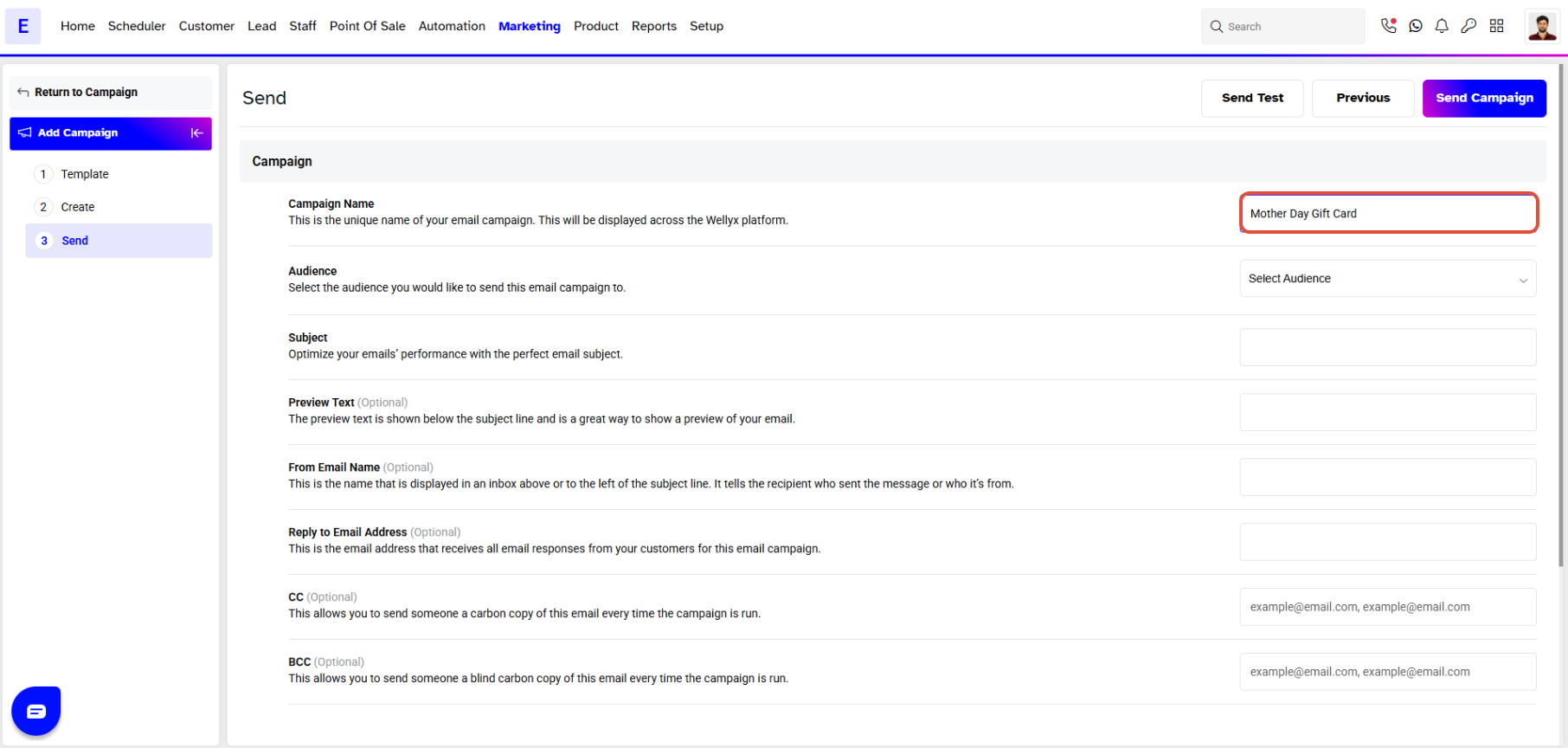
The Campaign Name must be Unique.
- Now, choose the Pre-made Contact Lists from the Audience Dropdown.
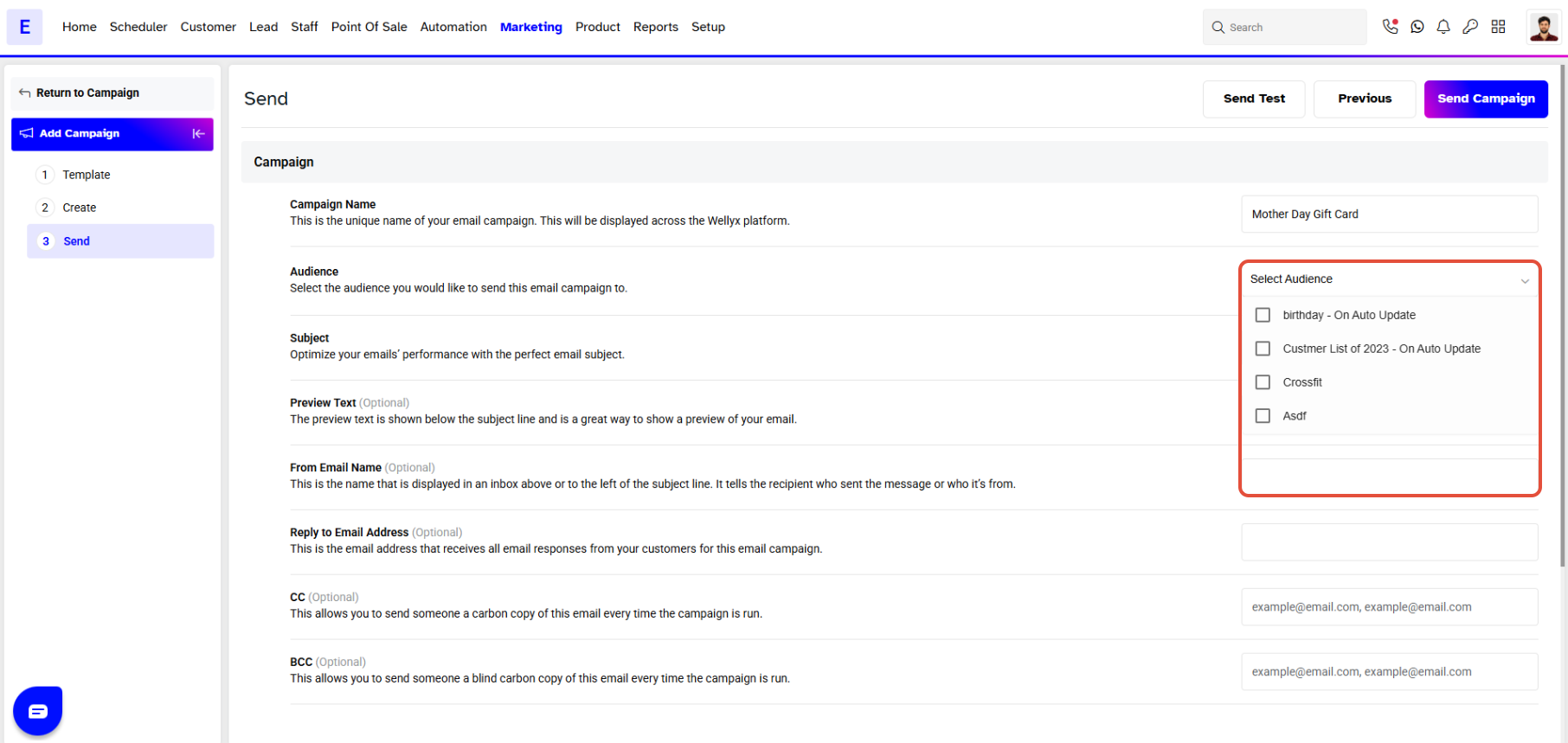
If there are duplicate Customers between Contact Lists attached to a Campaign, the
Campaign should be sent once only to these Customers.
- In Subject Box, give the Subject of the Email to Optimize Email Performance.
Step 7: Campaign Send Section
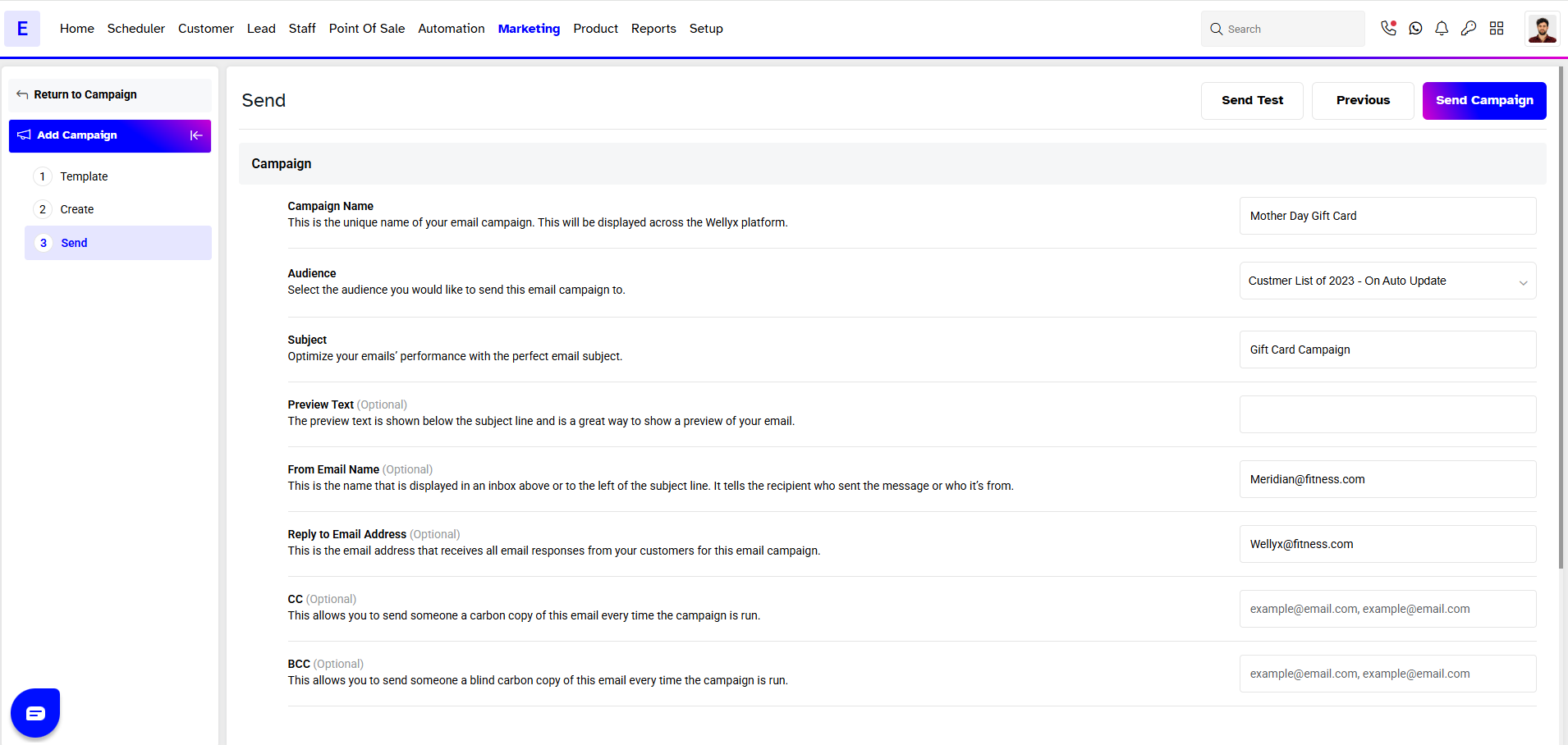
There are some optional fields in the Campaign Send section:
- Preview Text: This text is shown below the subject line and provides a preview of the Email.
- From Email Name: This is the name displayed in an inbox, indicating who sent the message.
- Reply to Email Address: This Email address receives all Email responses from the Customers for this Email Campaign.
- CC: Use CC to send a Carbon Copy of this Email every time the Campaign is run.
- BCC: Use BCC to send a Blind Carbon copy of this Email every time the Campaign is run.
- The Schedule toggle allows to Schedule Campaigns by Date or Time.

A Campaign can be run repeatedly at a Scheduled Interval by Toggling on the Recurring Campaign.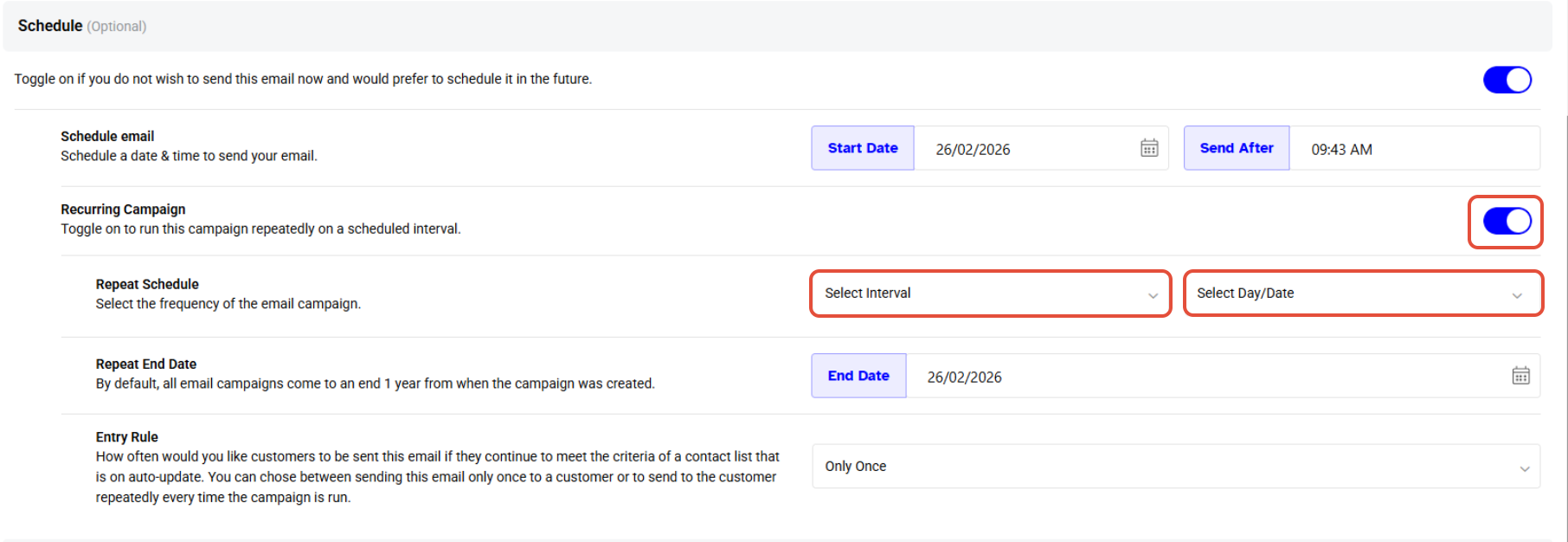
Step 8: Save the Campaign
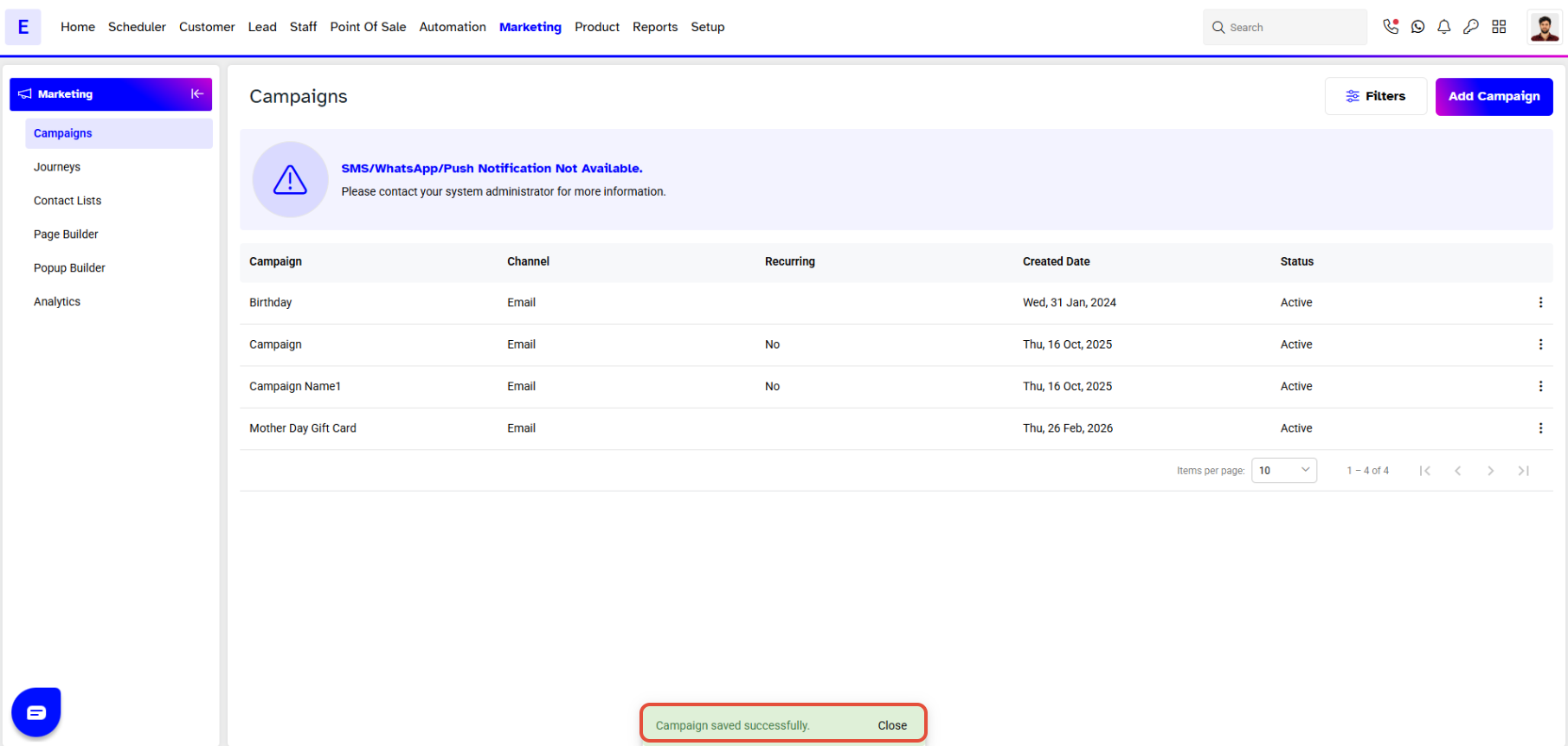
- Once done, click on the Save Button to save the Campaign.