TABLE OF CONTENTS
- Overview
- Step 1: Navigate to Staff Activities
- Step 2: Delete a Staff Note
- Step 3: Confirm Deletion
- Step 4: Confirm Deletion
Overview
This guide explains how to delete Staff Notes from the Staff Activities section. By following these steps, you can remove specific notes associated with a staff member.Step 1: Navigate to Staff Activities
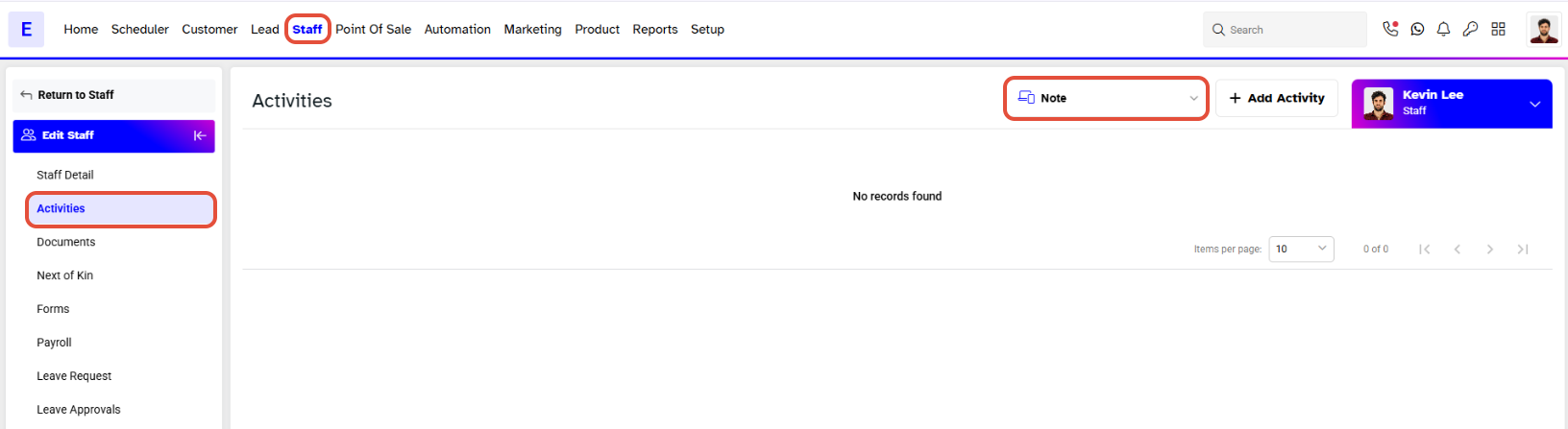
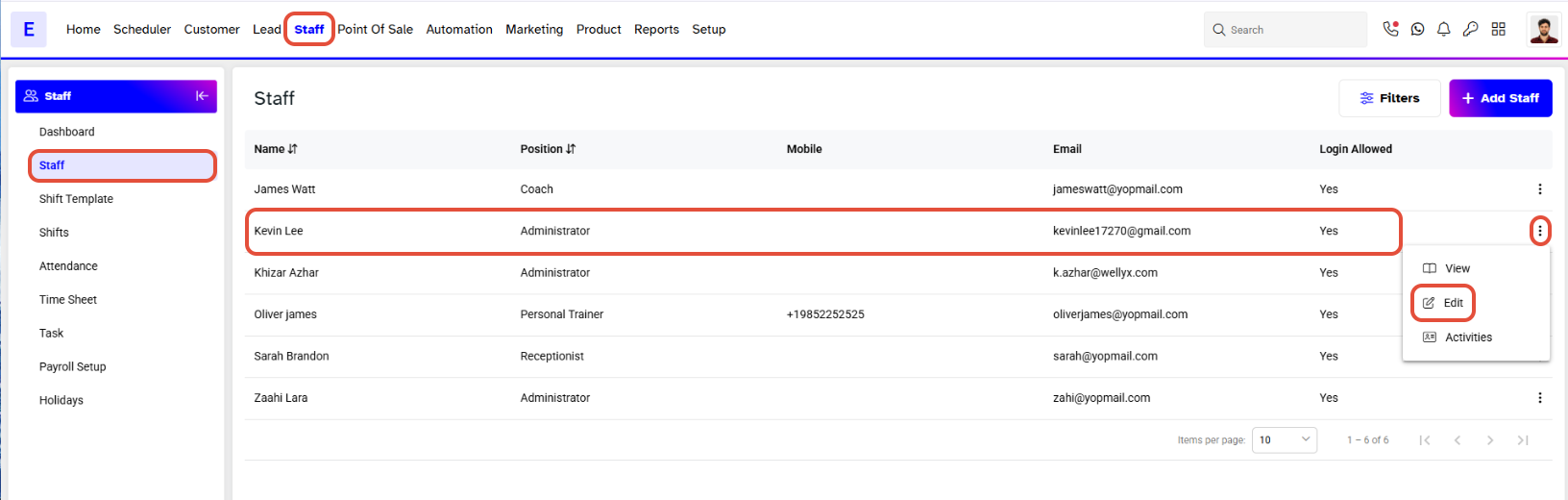
- Go to the Staff Module.
- Click on the Edit Icon against the Staff Member.
- Click on the Activities Section.
- Go to Notes.
Step 2: Delete a Staff Note
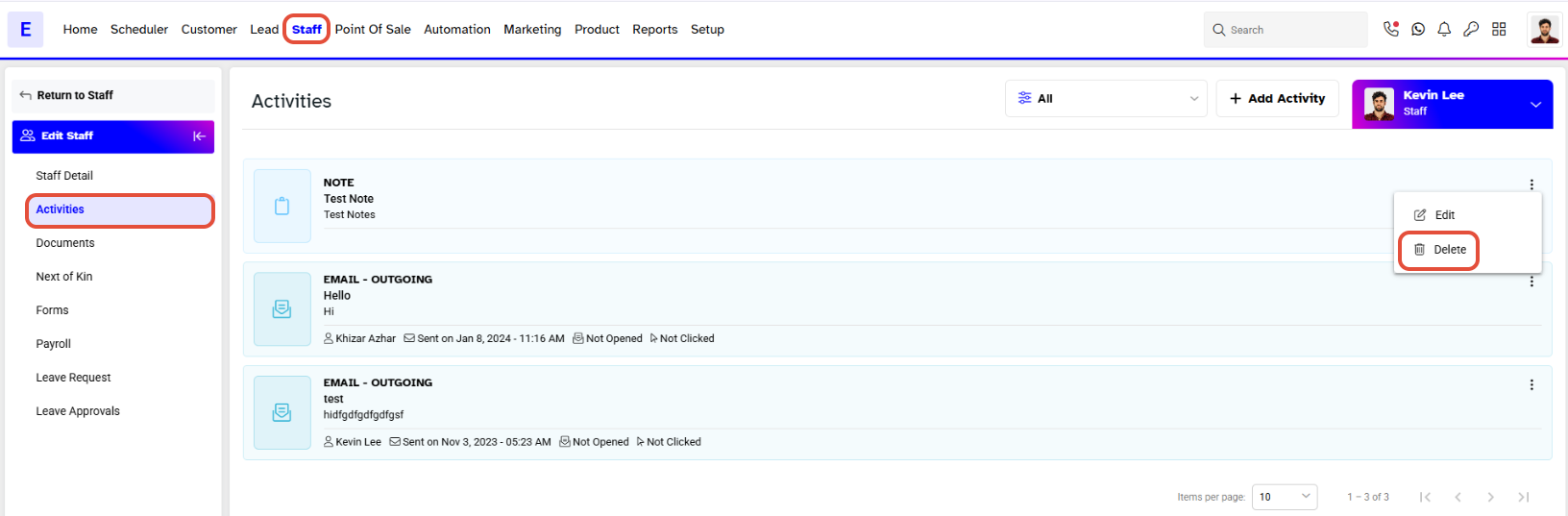
- Click on the Bin Icon against the relevant Note.
Step 3: Confirm Deletion
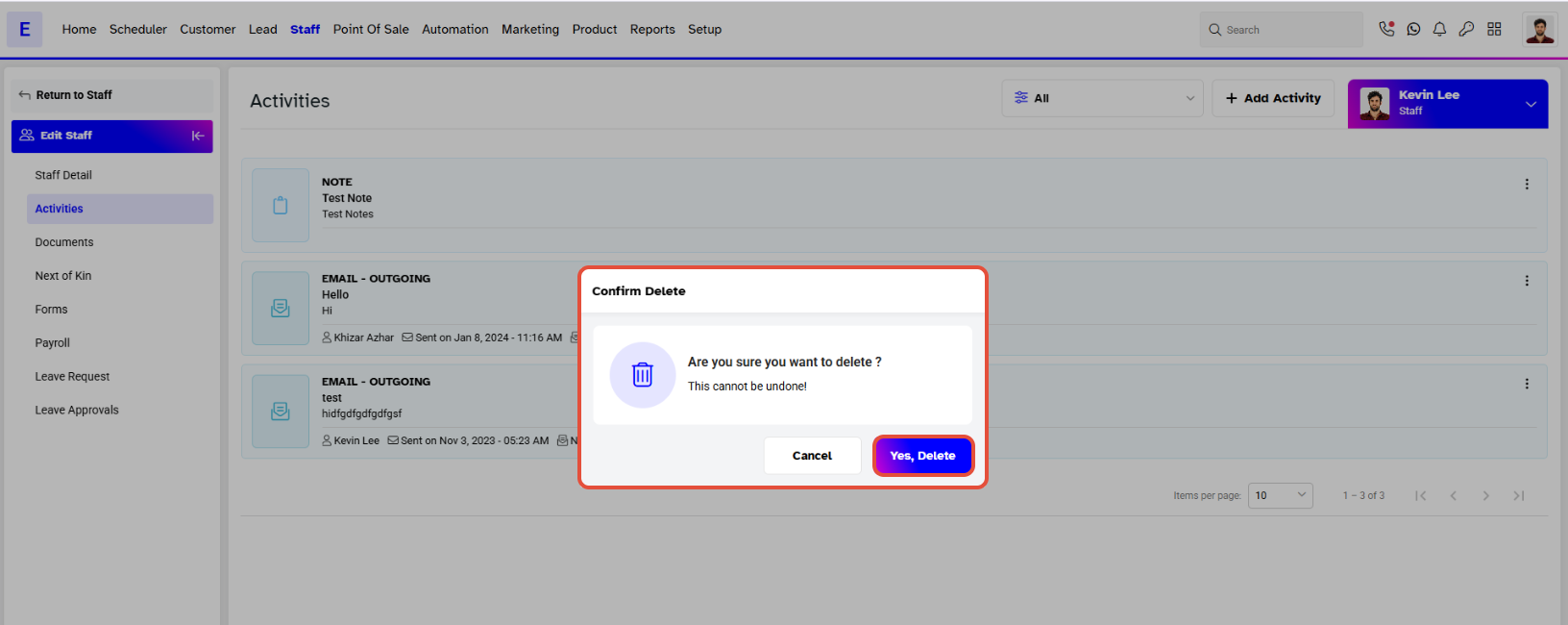
- Click on the Confirm Delete Button to delete the note.
Step 4: Confirm Deletion
- Once the note has been deleted, it will be removed from the Activities Section.