


TABLE OF CONTENTS
To connect the Stripe Terminal Card Reader, please follow the below steps:
Stripe Terminal is purchased from Wellyx.
Ensure that the Network ID is the Same for the Stripe Card Reader and for the System which Wellyx is Operated on.
Connecting Stripe Card Reader with Wellyx
Go to Setup Your Reader by clicking on https://stripe.com/docs/terminal/payments/setup-reader
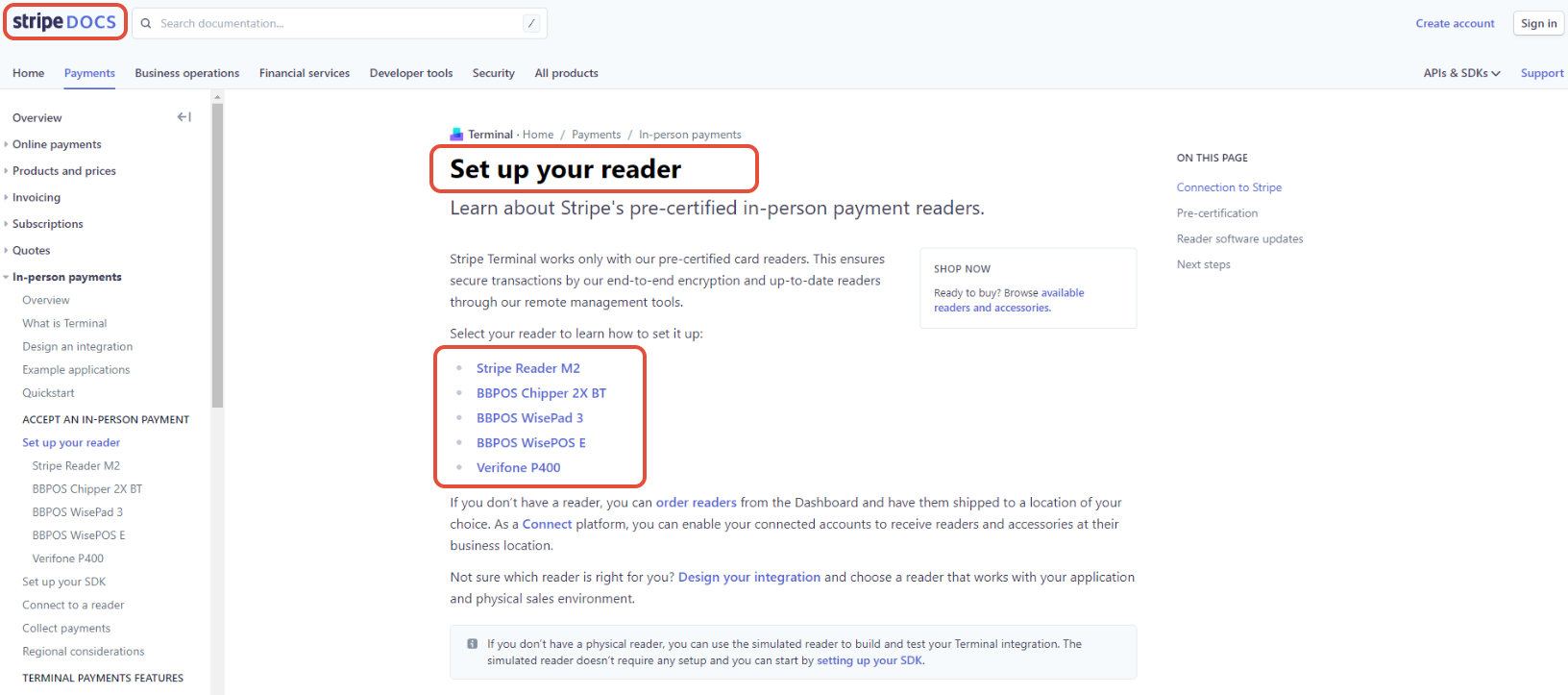
Once on the Setup Your Reader page, select Reader for Configuration.
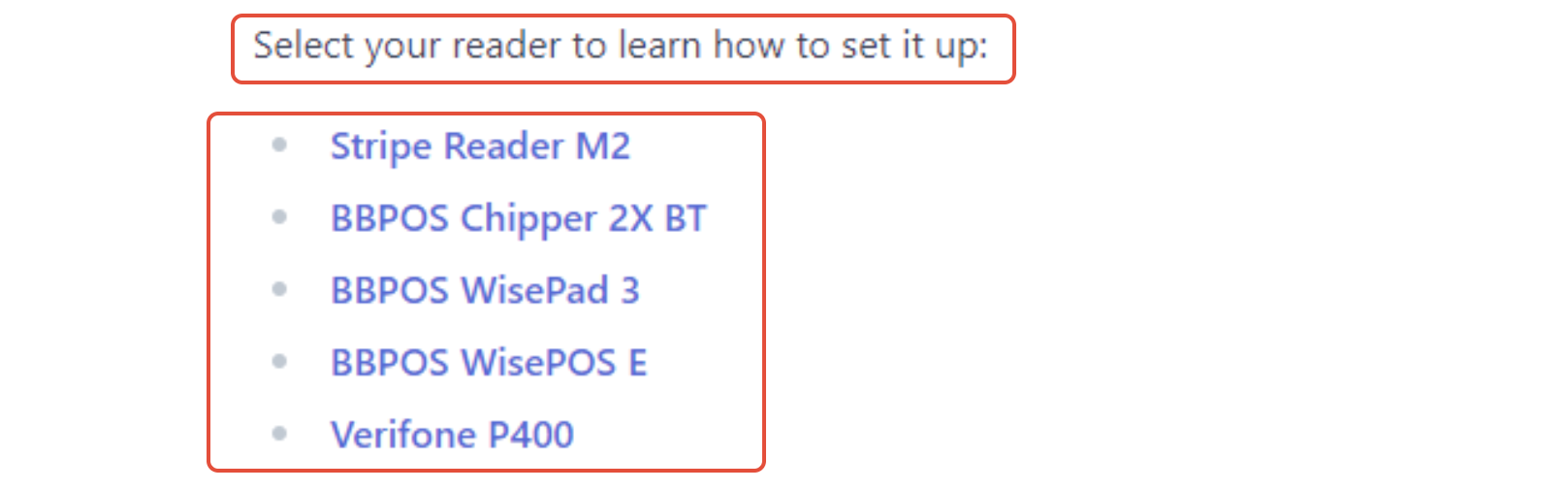
The Reader Serial Number will be Displayed on the Card Reader.
Wellyx only integrates with BBPOS WisePOS E and ships it to its customers.
Setting Up The BBPOS WisePOS E

Turn the Card Reader device On, by clicking on the Power Button.
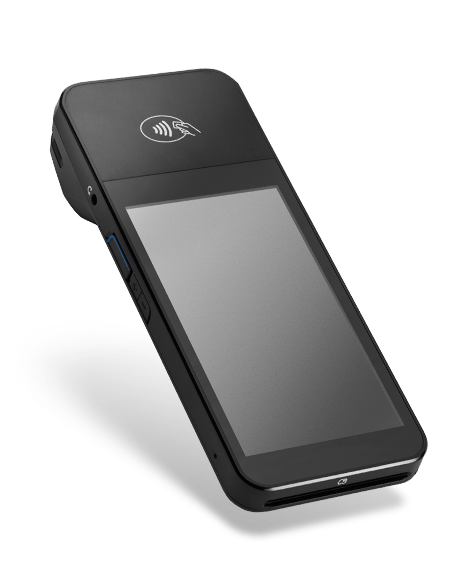
To Access the Card Reader Screen, either Swipe Left/Right.
Add the Admin Pin Code by following the instructions given for the specific device.
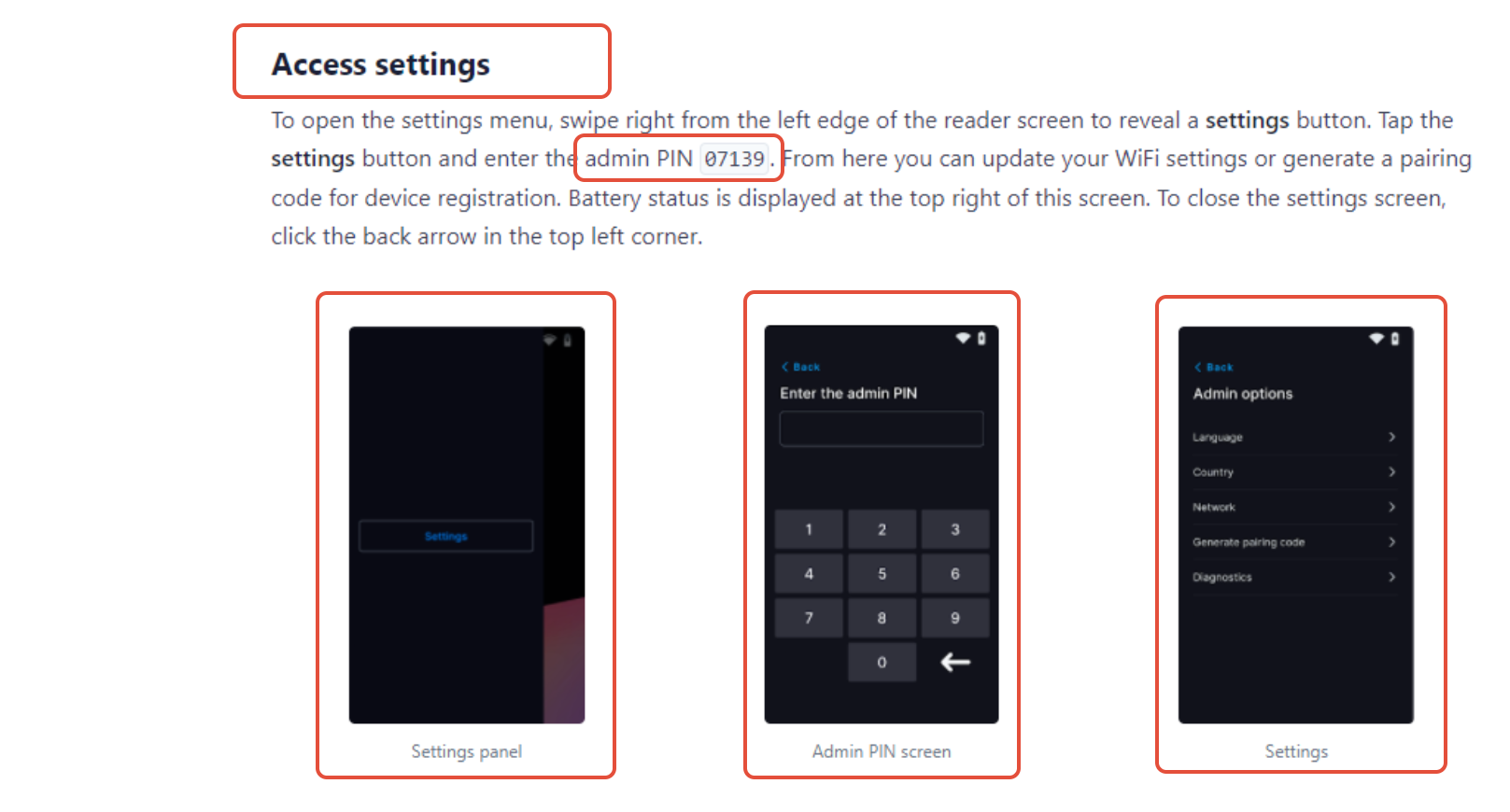
Every Device has their own Unique Admin Pin Code.
For this Card Reader, the Admin Pin Code is 07139.
Once the Admin Pin Code has been Successfully Added, Choose the Language and Country to Use the Card Reader with Wellyx.
Integrating Stripe Card Reader with Wellyx
Go to the Setup Module, click on the Configurations Tab and the Payments Section.
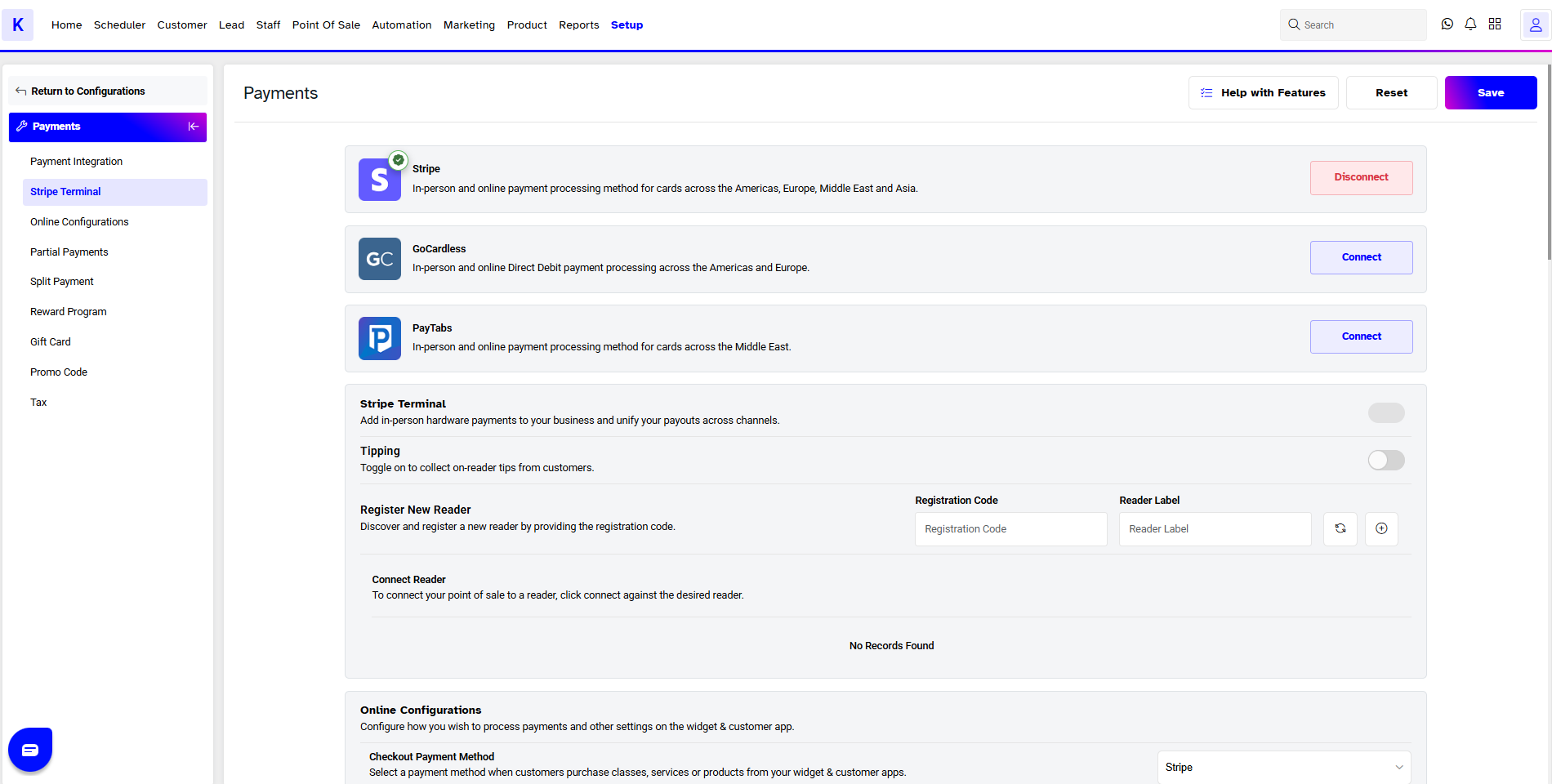
Now Select the Generate Pairing Code to Connect the Card Reader with Wellyx.
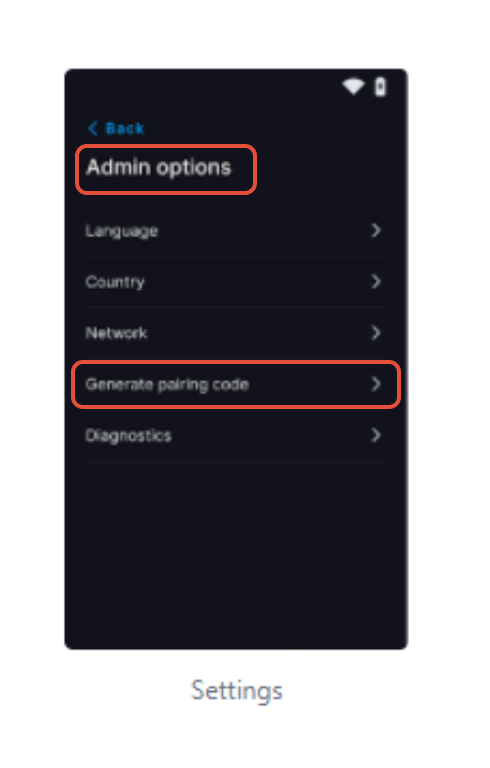
Once the Pairing Code has been Generated, enter it as the Registration Code and Label the Card Reader of choice. Click on the Register button to register the Reader in Wellyx.

Click on Connect to connect the Reader with the Point of Sale in Wellyx. A Stripe Reader saved successfully message will appear on the screen to Confirm the Connection.
If the Network between the Stripe Card Reader and the System is not Same, then an Error messsage will be Displayed on the screen.
To learn how to Configure Tips on the Stripe Terminal, click here
To learn how to provide a Tip on the Stripe Terminal, click here.