TABLE OF CONTENTS
- Overview
- Step 1: Navigate to the Customer Profile
- Step 2: Add a New Activity
- Step 3: Enter Note Details
- Step 4: Save the Note
Overview
This guide explains how to create a Note for a customer in Core. It covers all essential steps—from navigating to the customer's profile to adding details and saving the note. By following this guide, merchants can log important information for their clients or members.Step 1: Navigate to the Customer Profile
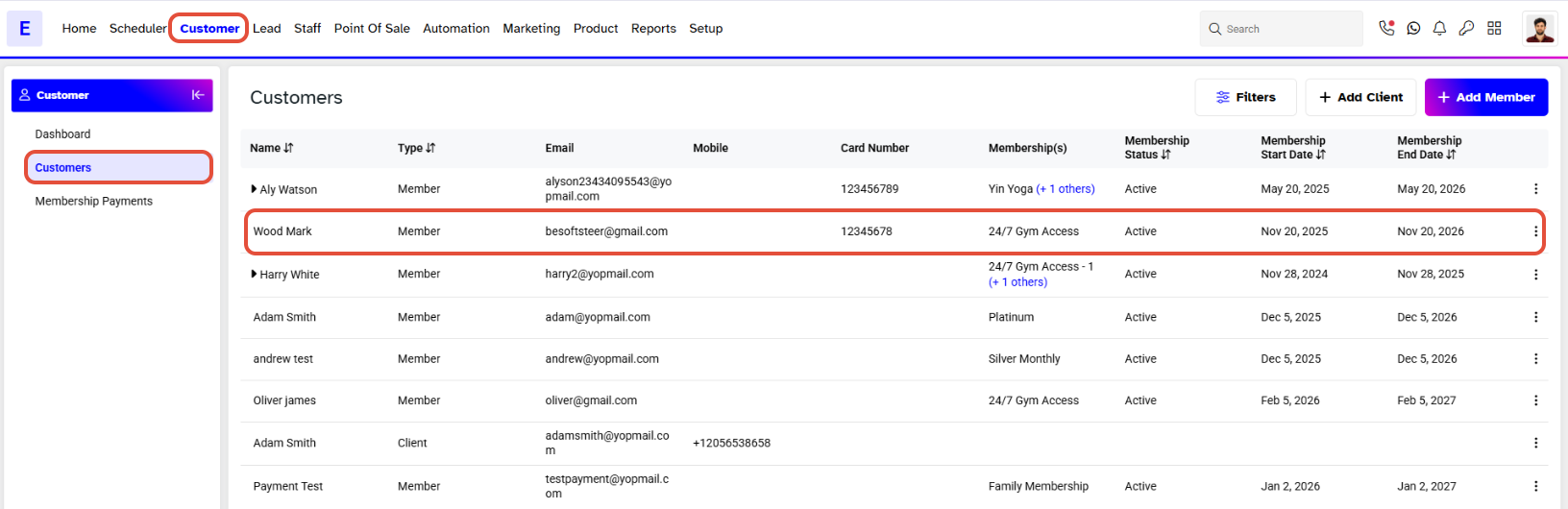
- Go to the Customer Module.
- By default, you will be taken to the Customers Segment.
- Click on the name of the Customer for whom you wish to create a Note.
- You will be taken to the Client/Member Detail Segment (the name depends upon the status of the Customer, i.e., Member or Client)
Step 2: Add a New Activity
- Click on the Activities Tab.
- Click on the Add Activity button.
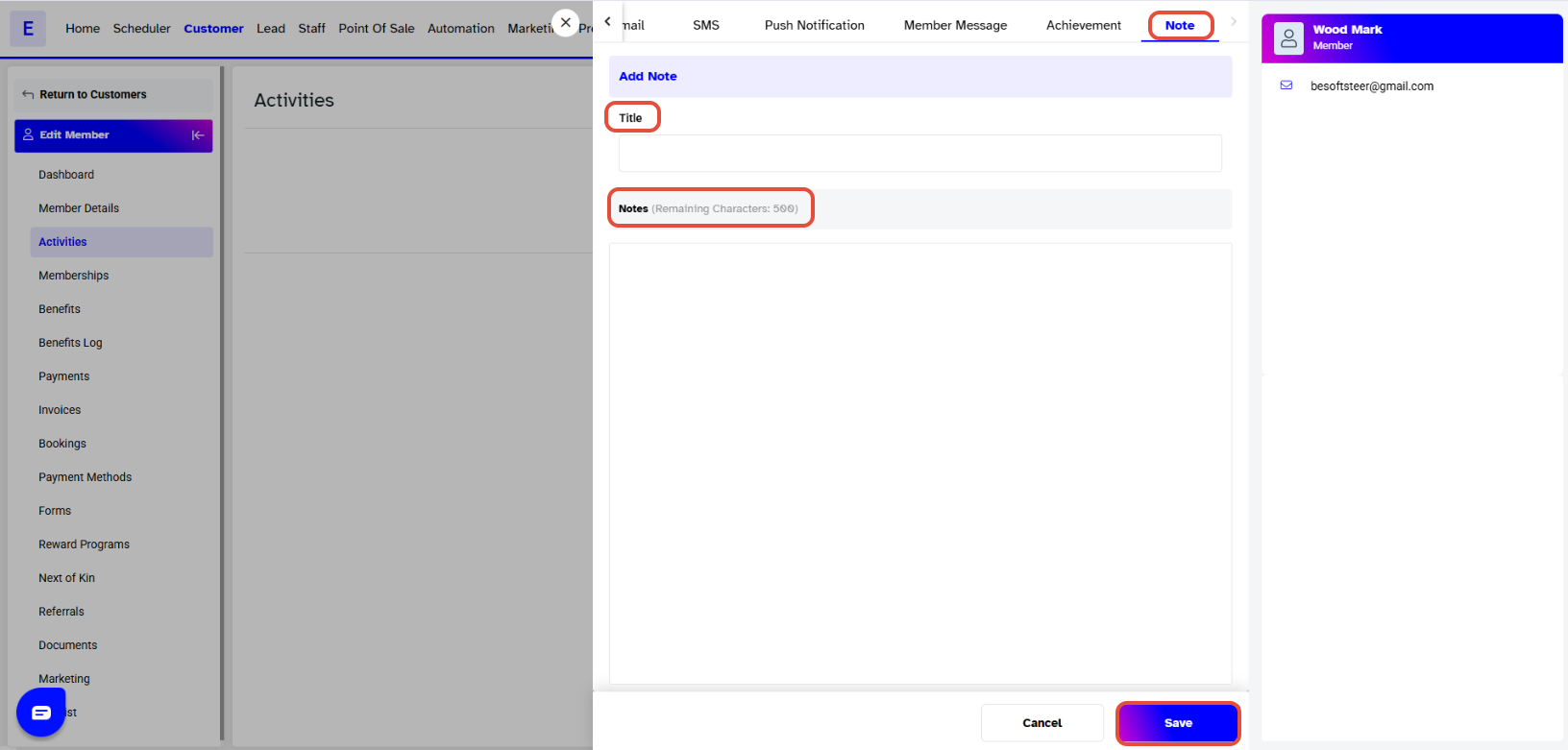
- An Activities window will pop up,and by default, you will land on the Call screen.

Step 3: Enter Note Details
- Click on the Note option.
- Add a Title for the note.
- Add a Description for the Note (up to 500 Characters)
Step 4: Save the Note
- Click on the Save button.
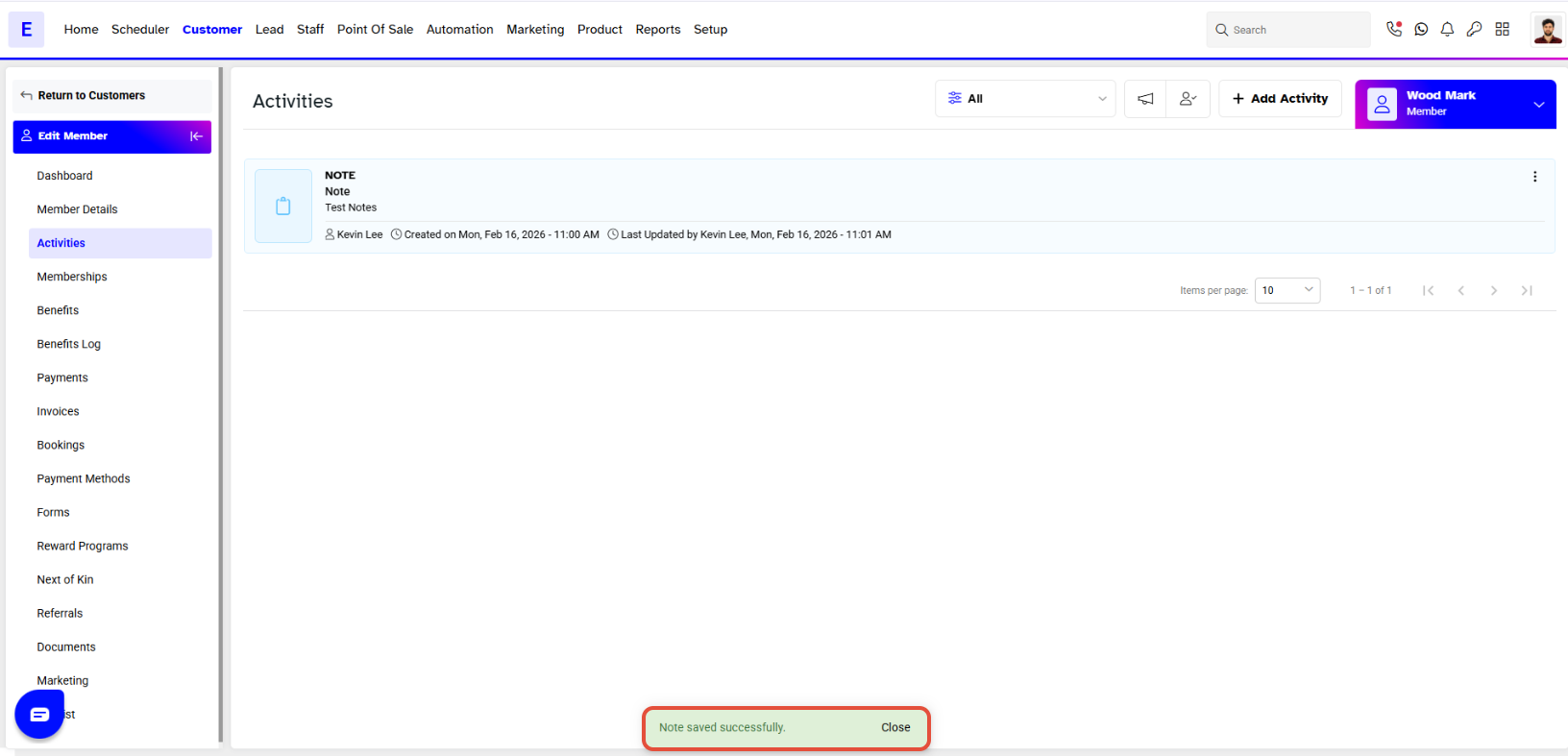
- A "Note Saved Successfully" message will appear at the bottom right of the screen.
- Merchants will be able to view the Note in the Customer Activities Log.